Feature
How credits work in Vidonto
Vidonto uses credits for paid steps. See how credits are held when a run starts, charged only for steps that succeed, and returned when they're not used.
Updated
Vidonto doesn’t have monthly plans or minute limits. Every paid step uses credits from your balance, and you only pay for steps that actually succeed. This page explains how credits are held, charged and returned, what’s free, and how to check where they went.
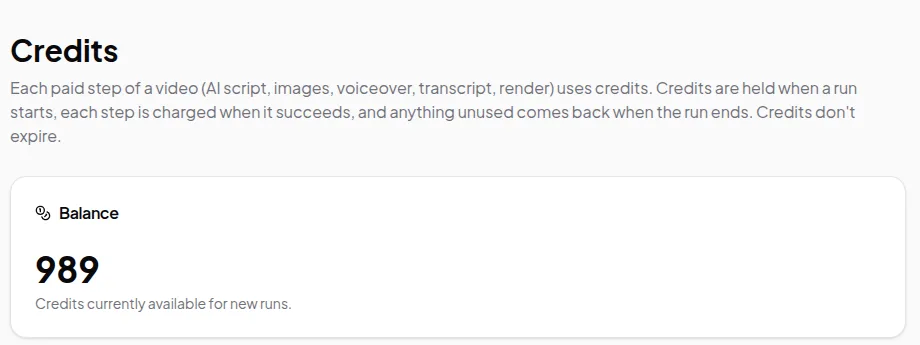
Starter credits
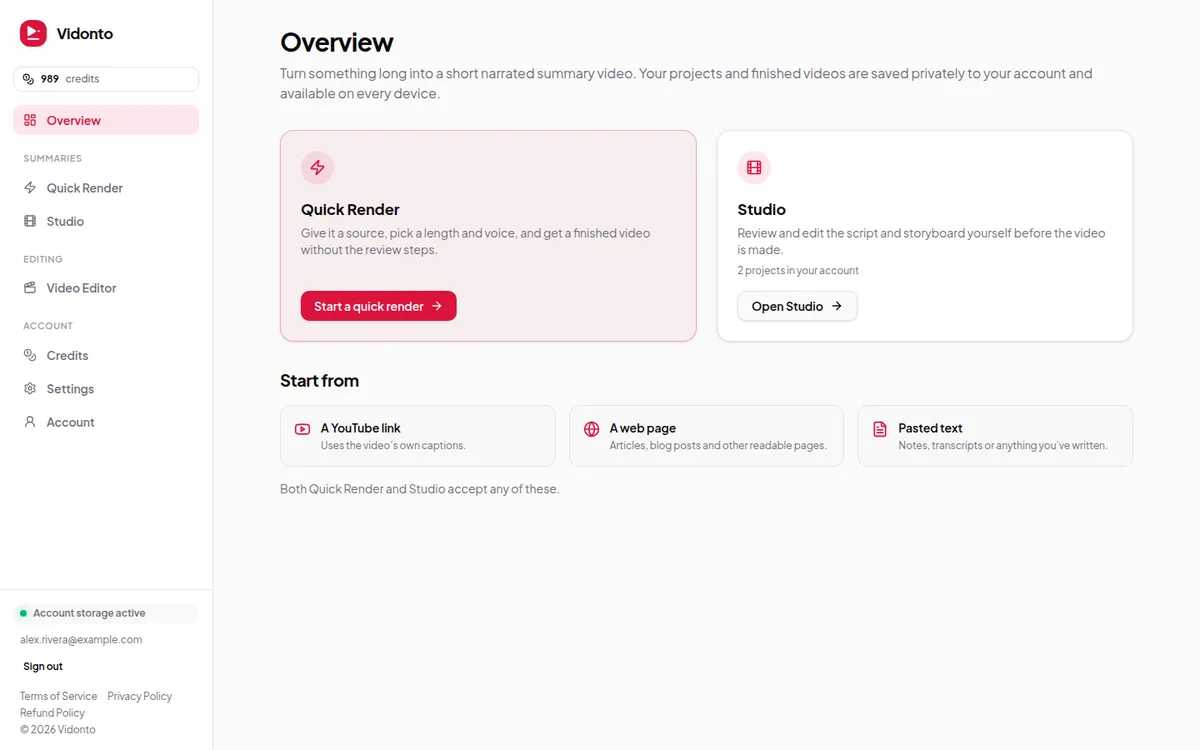
New accounts get starter credits once the email address is verified. That’s enough to try the whole flow — a short summary video or a transcript and a few edits in the Video Editor. Accounts that haven’t verified their email can’t start paid work yet.
Held, charged, returned
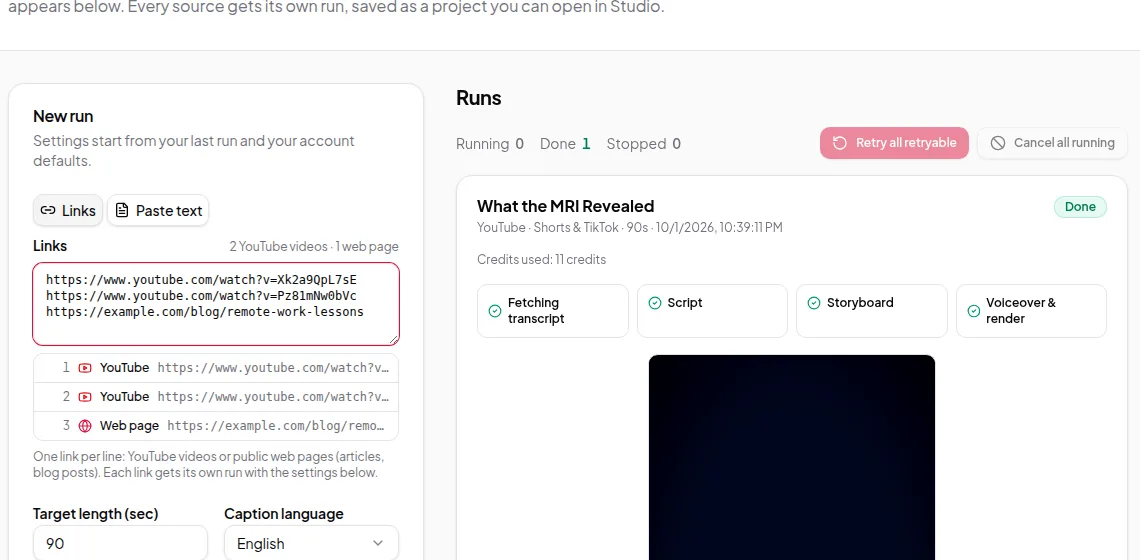
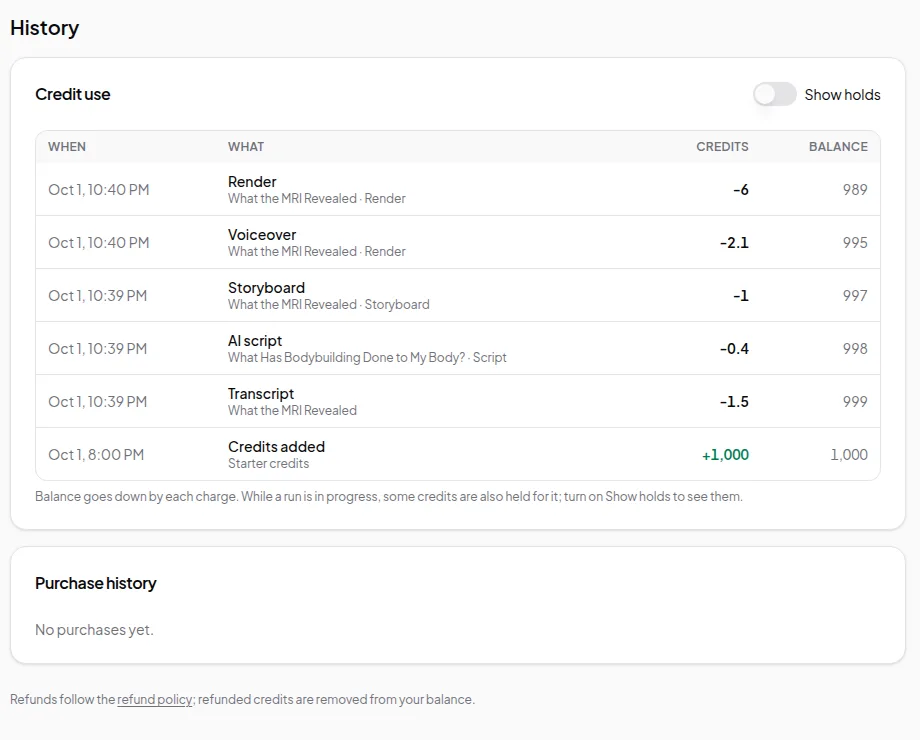
- Held when a run starts. When you start a step or a run, Vidonto holds the estimated credits from your balance. If you don’t have enough for the estimate, the run doesn’t start, so you never go below zero.
- Charged as each step succeeds. Each paid step — transcript, AI script, storyboard, voice-over, render, AI images — is charged when it finishes successfully, based on what it actually used.
- Returned when the run ends. Anything held but not used goes back to your balance. If a step fails, it isn’t charged.
You can turn on Show holds in your credit history to see credits that are held for runs still in progress.
What’s free
- Fetching a web page or pasting text
- Editing scripts and storyboards — words, frames, captions and layouts
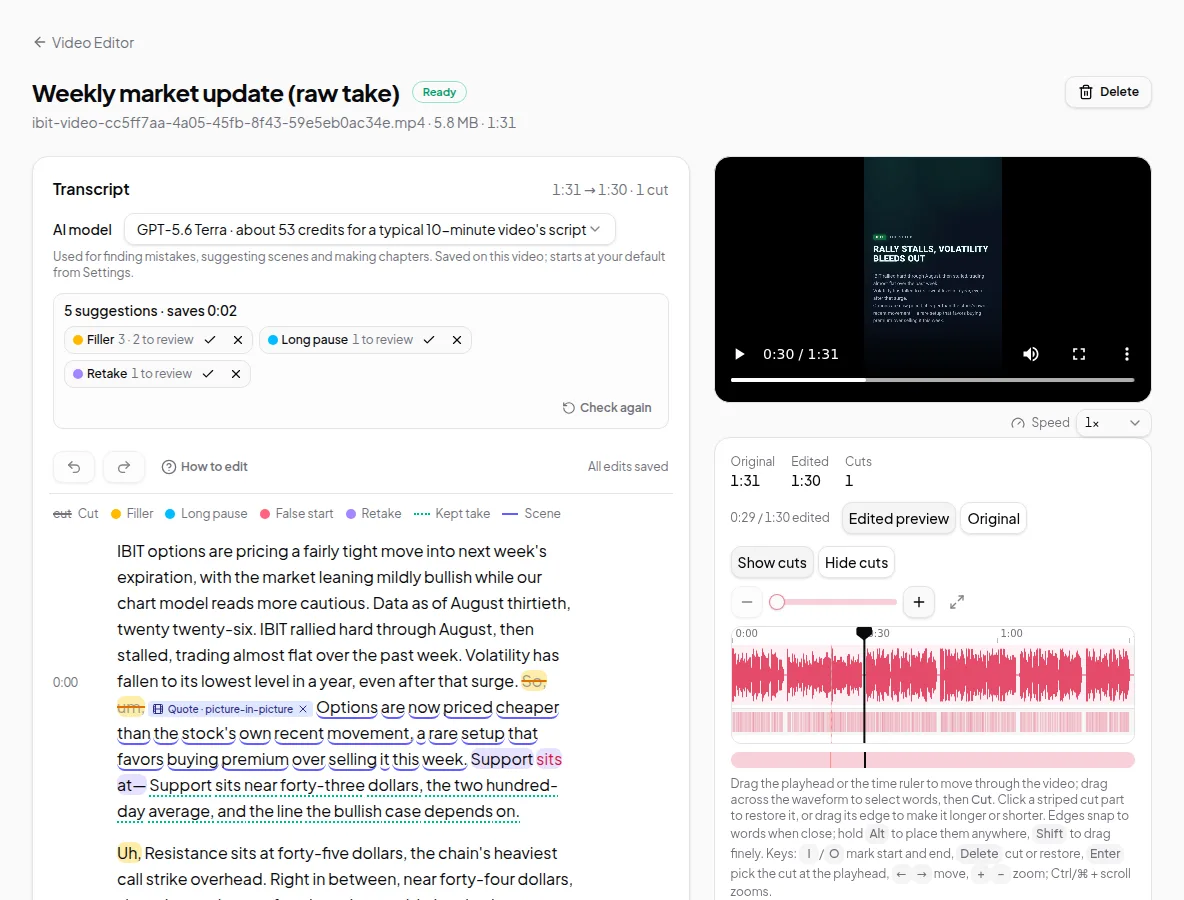
- Cutting and restoring words in the Video Editor, undo and redo
- Accepting or rejecting mistake suggestions
- Exporting your edited recording in the browser, and downloading SRT or VTT captions
- Downloading finished videos, audio and caption files
What uses credits
| Step | What the cost depends on |
|---|---|
| YouTube transcript | Fetching the captions |
| AI script, storyboard, chapters, mistake detection | The length of the text and the AI model you pick |
| Voice-over | How much narration is produced |
| Render | The length of the video |
| AI images | The number of images |
| Recording transcript | The length of the audio |
| Cloud export and polished videos | The length of the edited video, the quality and the number of shapes |
Before every paid step, the app shows an estimate in credits. For Quick Render, the estimate covers the whole batch.
Buying more credits
Open Credits in the app and choose a pack. Payment goes through a secure checkout, and the credits are added as soon as the payment is complete. Purchased credits don’t expire.
Limits worth knowing
- Estimates are a guide. The final charge is based on what each step really used.
- There’s a daily limit on paid work for new accounts that haven’t bought credits yet. It protects starter credits from misuse and lifts once you’ve made a purchase.
- Refunded purchases remove the matching credits from your balance.
Credits in the API
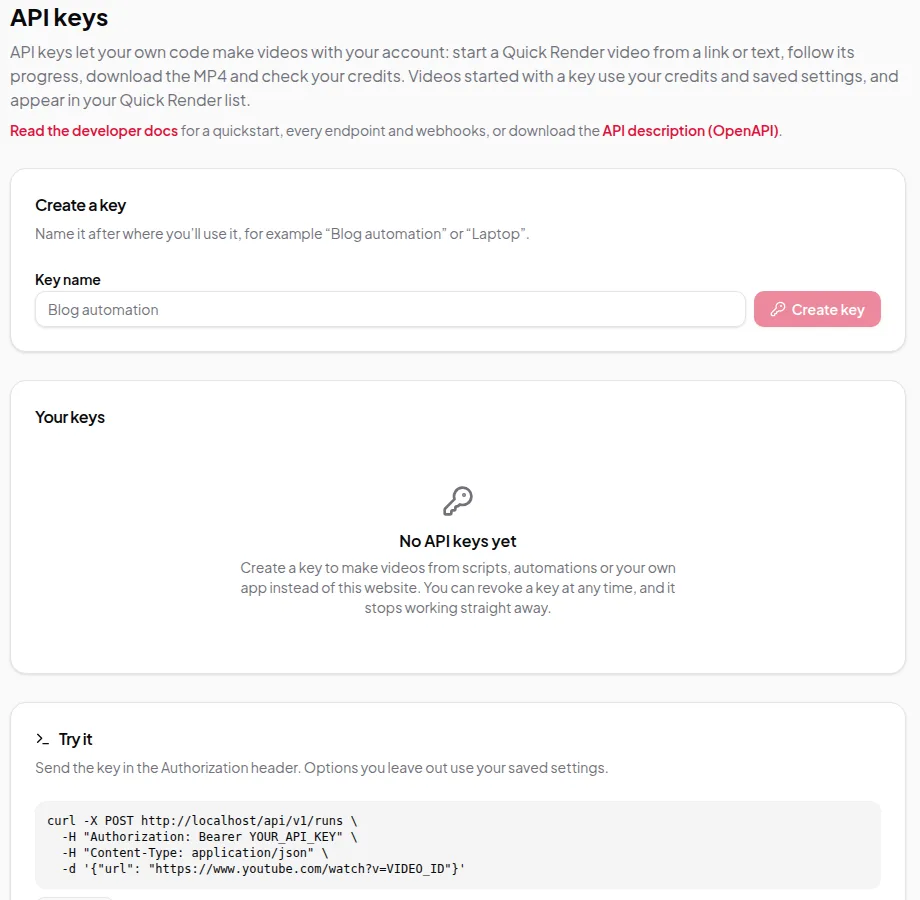
The developer API uses the same balance. You can request an estimate before starting a run, check your balance and read your credit history from code.
Want to see how far your starter credits go? Try the first video in five minutes.