Feature
Edit video by editing the transcript
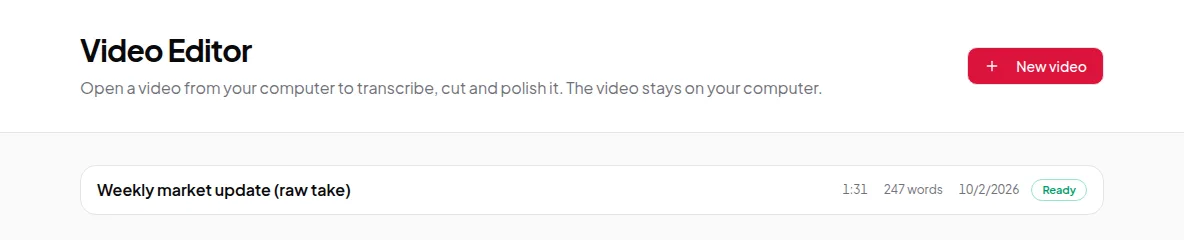
Vidonto's Video Editor turns your recording into a transcript. Delete words in the text and the video is cut to match — and the video never leaves your computer.
Updated
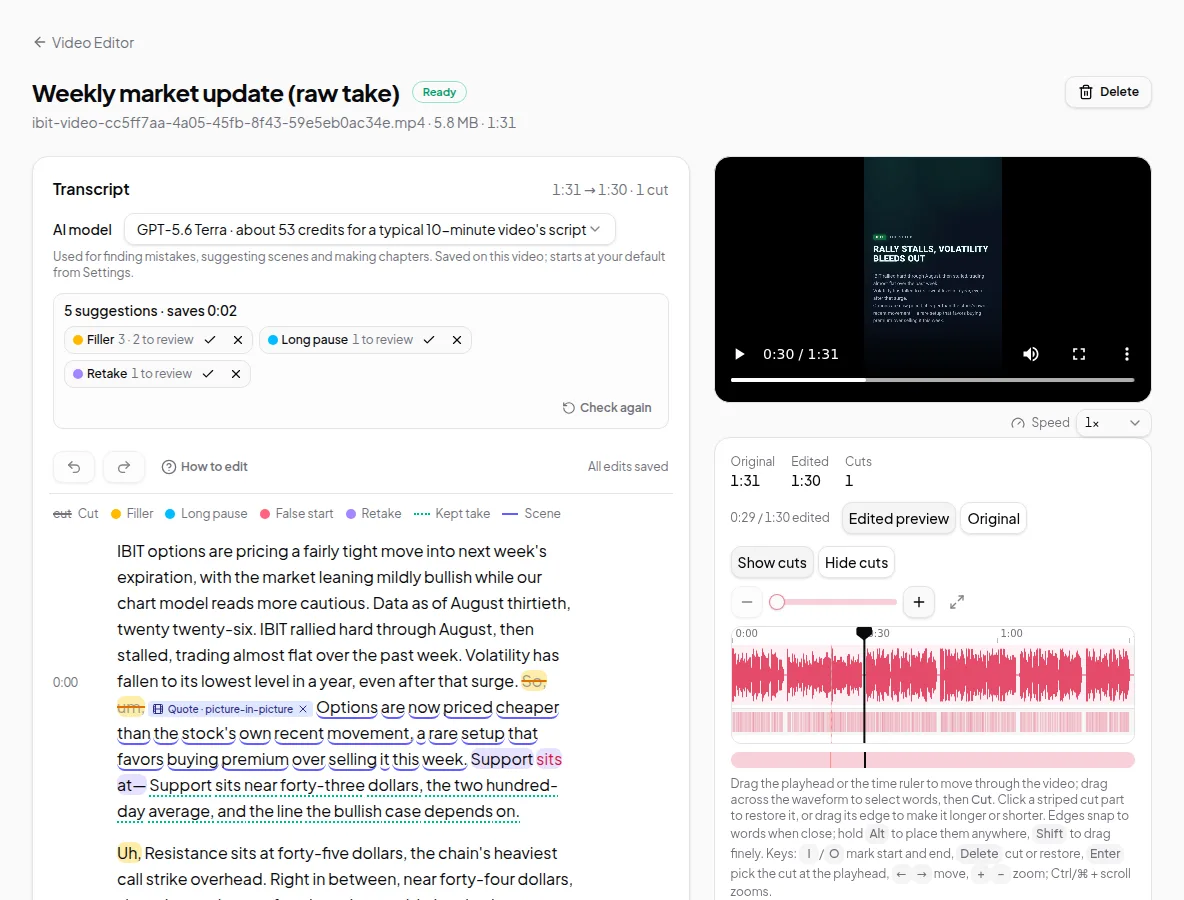
Cutting a talking-head video on a timeline means scrubbing back and forth to find each stumble. Vidonto’s Video Editor lets you edit the words instead. Your recording becomes a transcript. Select words and delete them, and the video is cut at exactly those points. Edit text, get a finished video.
Your video stays on your computer
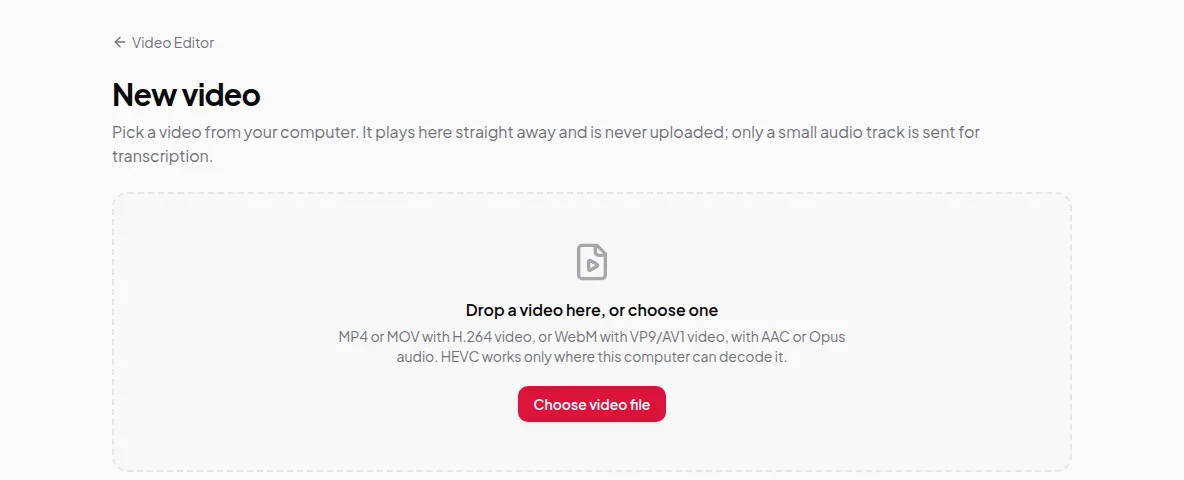
When you open a recording, it plays straight from your computer. Vidonto never uploads the video file to make the transcript. Only a small audio track is sent for transcription. That makes opening large files fast, and your footage stays private until you choose a cloud option.
What you can do
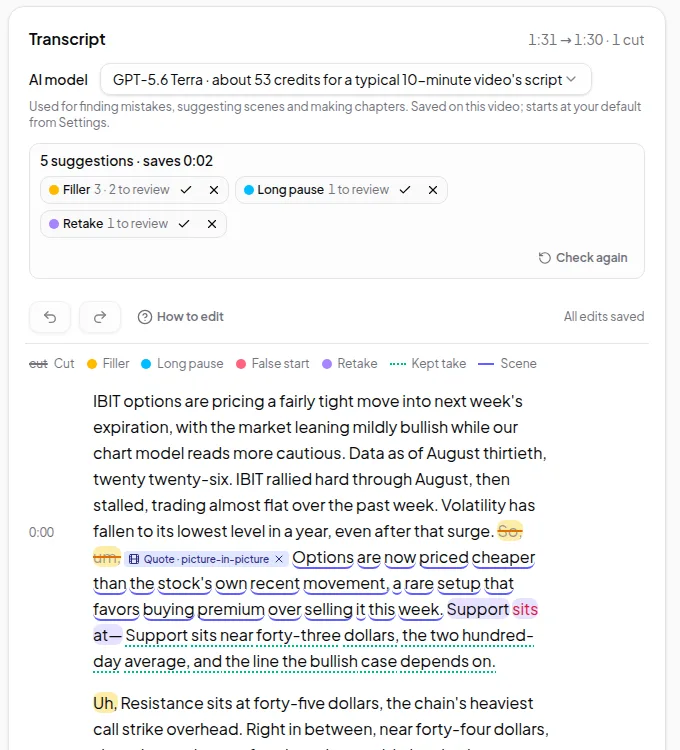
- Cut words. Select words in the transcript and choose Remove, or press Delete. Removed words stay struck through and are skipped in the preview and the export. Click one to bring it back. Each paragraph also has its own Remove / Restore.
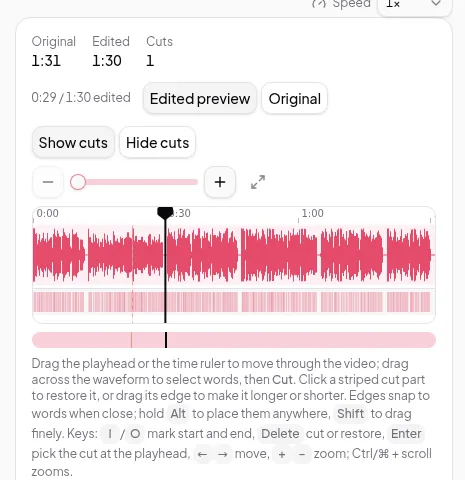
- Cut exact moments. On the waveform timeline, drag across a range to cut a moment that isn’t a word — a cough, a long breath or a click.
- Preview the edit. Switch between Edited preview and Original, and show or hide the cuts on the timeline.
- Undo and redo any change. Edits save automatically.
- Find mistakes automatically. Vidonto can suggest filler words, long pauses and retakes for you to accept or reject. See automatic mistake and filler-word detection.
- Use the keyboard. Delete removes or restores the selected words, Ctrl/⌘ + Z undoes, and N, P, A and R step through and accept or reject suggestions. On the timeline, I and O mark a range at the playhead and the arrow keys move the playhead.
Supported files
MP4 or MOV with H.264 video, or WebM with VP9 or AV1 video, with AAC or Opus audio. HEVC (often from iPhones) works only where your computer can decode it.
Getting the finished video out
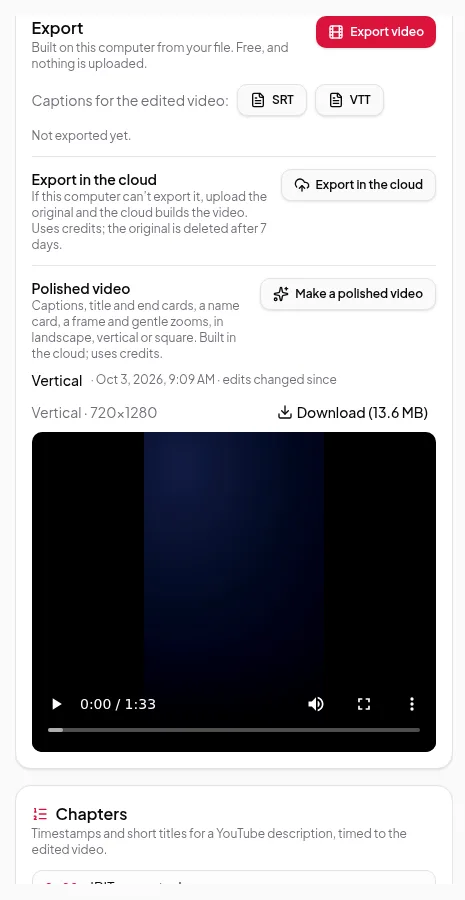
- Export in the browser. The edited video is built on your computer. It’s free and nothing is uploaded. You can also download captions as SRT or VTT.
- Export in the cloud. For when your computer can’t handle the file, the original is uploaded and the edited video is made in the cloud. It uses credits, and the uploaded original is deleted after 7 days.
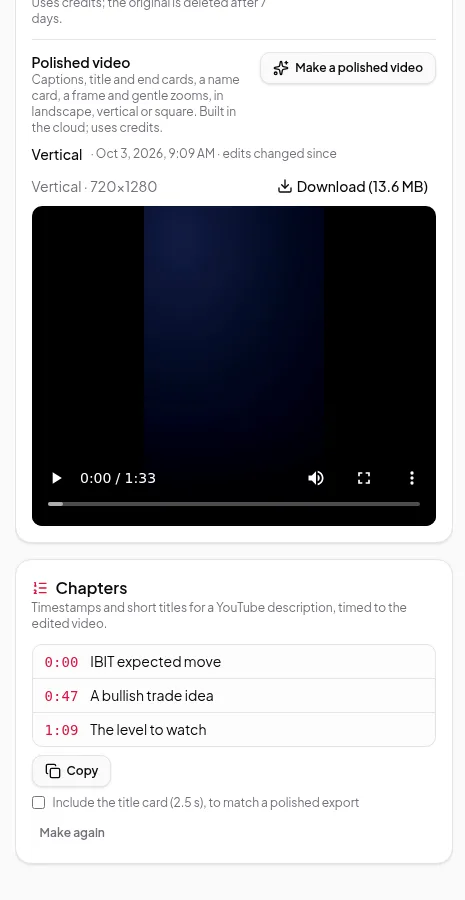
- Make a polished video. Add captions, title and end cards, a name card, a frame style and gentle zooms, in landscape, vertical or square. See polished videos.
The step-by-step guide is export your finished video.
Limits worth knowing
- The transcript is only as good as the audio. Heavy background noise or overlapping speakers lower accuracy.
- Cuts happen between words. To shorten a pause inside a sentence, cut the exact time range on the timeline.
- Because the video stays on your computer, keep the original file where it is. If you move or rename it, Vidonto asks you to open it again.
Credits
Making the transcript uses credits, based on the length of the audio. Editing — cutting words, undoing, previewing — is free, and so is the browser export. The automatic mistake check is included in the transcript estimate. Chapters, cloud export and polished videos use credits, and each shows an estimate first. See credits explained.
Ready to try it? Follow edit a talking-head recording by deleting words.