Help
Frequently asked questions
Answers to common questions about Vidonto — what it makes, which sources and files it accepts, how credits work, privacy of your recordings and the developer API.
Updated
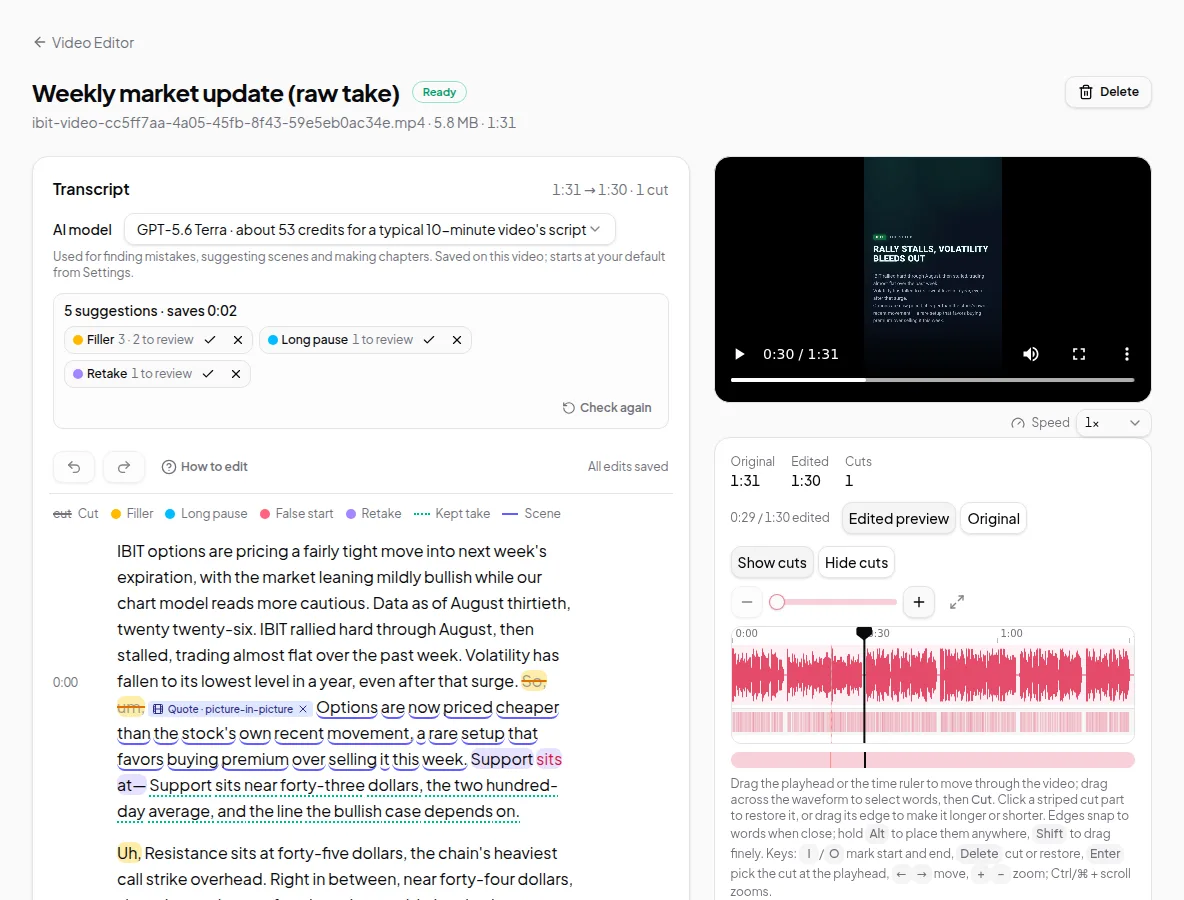
Vidonto does two things: it turns a YouTube video, a web page or your own text into a short narrated summary video, and it lets you edit your own recordings by deleting words from the transcript. Here are the questions people ask most.
What is Vidonto?
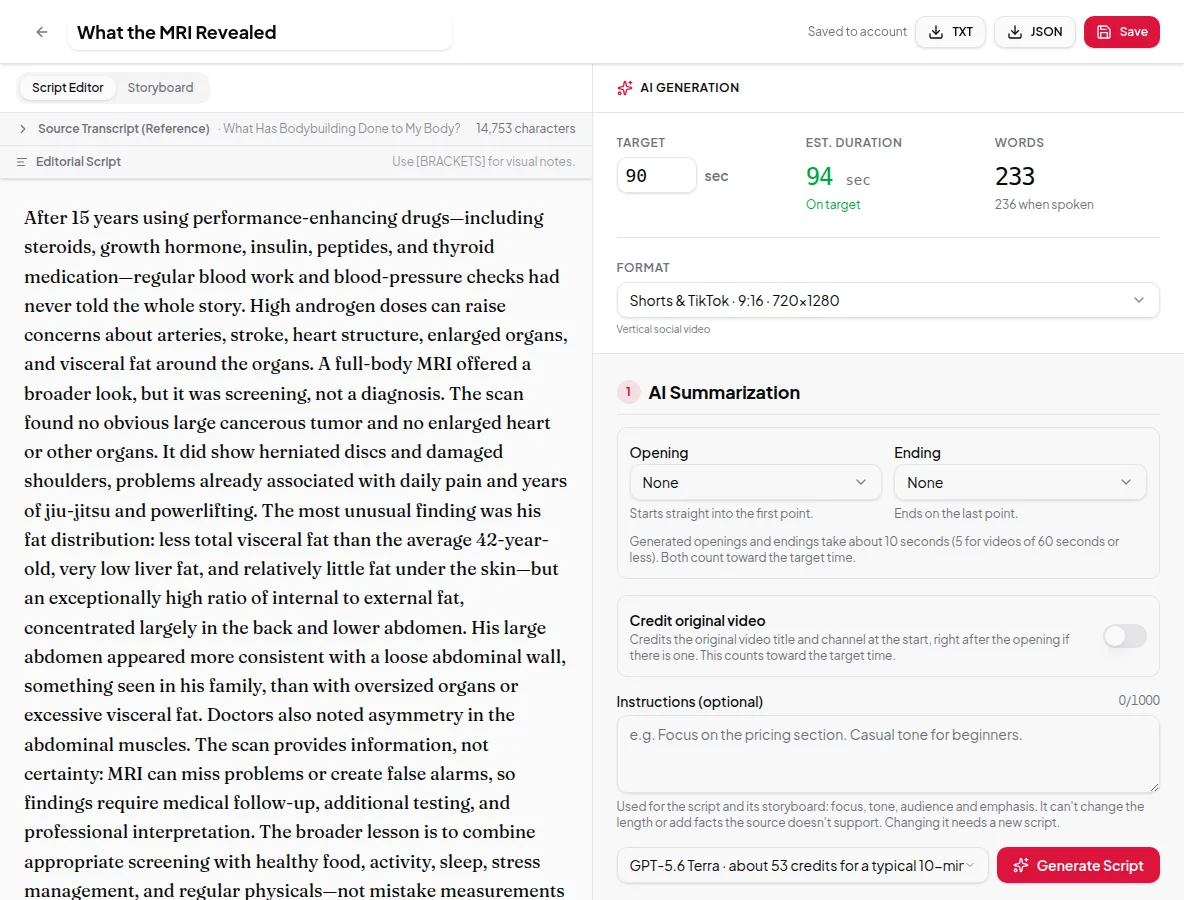
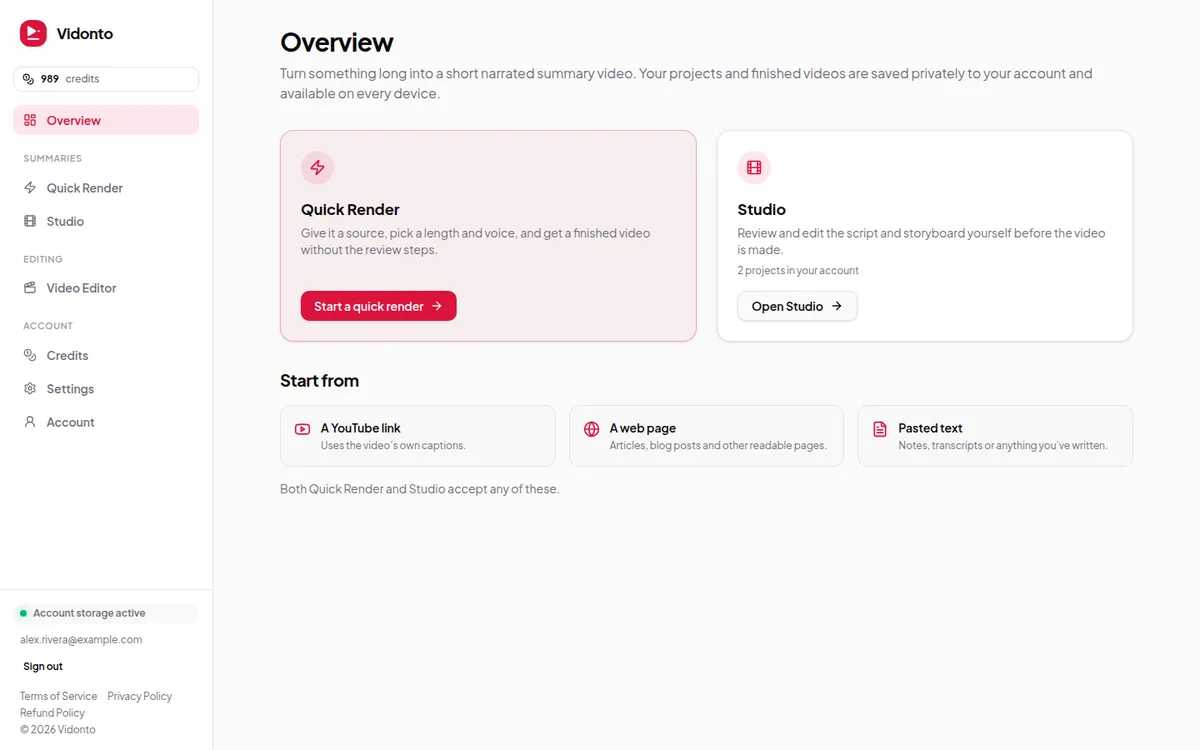
Vidonto is a web app for making short videos without filming or timeline editing. Paste a YouTube link, a blog post address or your own text and it writes a script, builds a storyboard, adds an AI voice-over and captions, and renders an MP4. For your own footage, the Video Editor turns the recording into a transcript, so you can cut the video by deleting words. See all features.
Is Vidonto free to try?
Yes. New accounts get starter credits once their email address is verified — enough to make a first video. After that you buy credits as you need them. There’s no subscription. Sign up free.
How do credits work?
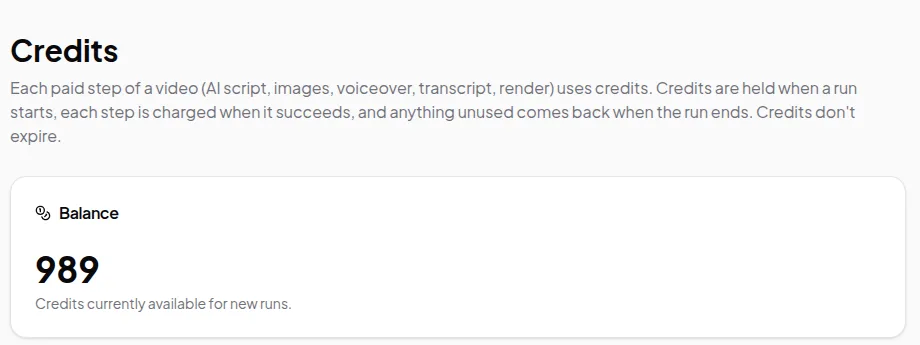
Every paid step — writing the script, making the storyboard, AI images, voice-over, rendering, transcribing a recording — uses credits. You see an estimate before anything starts, credits are held while the work runs, and you’re charged for the steps that succeed. Anything unused comes back. Fetching web pages, pasting text, editing scripts and storyboards and exporting an edited recording in your browser are free. Credits don’t expire. More in credits explained.
What happens if a video fails?
You aren’t charged for a step that fails. Credits held for steps that didn’t run are returned. In the Studio and Quick Render you can retry a failed step, and steps that already succeeded aren’t charged again.
What can I make a video from?
Three kinds of source: a YouTube video with captions, a public web page such as a blog post or article, and text you paste in yourself. Web pages need at least 60 words of readable article text. Pages behind a login or paywall can’t be fetched; paste the text instead. See YouTube to video, article to video and text to video.
How long can my videos be?
You choose a target length and the script is written to fit it. The target is a maximum: Vidonto doesn’t pad a script to reach it, and the narration is never cut off mid-sentence. Summary videos work best between 30 seconds and a few minutes.
Which formats and sizes can I make?
Landscape 16:9 for YouTube and websites, vertical 9:16 for YouTube Shorts, Instagram Reels and TikTok, square 1:1 and portrait 4:5 for social feeds. Each format gets its own layout and caption placement rather than a crop. See video formats.
Can I review the script before the video is made?
Yes, in the Studio. You read and edit the script, approve it, then edit the storyboard frame by frame before rendering. Quick Render skips the reviews and runs every step automatically. You can open any Quick Render video in the Studio later to change it. See the storyboard editor.
What languages does Vidonto support?
Summary videos are written and narrated in English. If a YouTube video’s captions are in another language, the Studio can translate them into English before the script is written. The Video Editor transcribes recordings in the language spoken.
Does Vidonto upload my recordings?
No — not to edit them. When you open a recording in the Video Editor, it plays from your computer and only a small audio track is sent to make the transcript. Exporting in the browser keeps everything on your computer. The original is uploaded only if you choose a cloud export or a polished video, and that upload is deleted 7 days later. See edit video by text.
Which video files can I edit?
MP4 or MOV with H.264 video, or WebM with VP9 or AV1 video, with AAC or Opus audio. HEVC files, common from iPhones, work when your computer can decode them.
Can Vidonto remove ums and pauses automatically?
Yes. Once the transcript is ready, the Video Editor suggests filler words, long pauses and retakes. You accept or reject each one, or all of one type at once. Your own cuts are never changed. See remove ums and retakes automatically.
Can I add captions?
Yes. Summary videos can show the narration as captions in three lengths, and finished videos come with an SRT caption file. Edited recordings can be downloaded with SRT or VTT captions, and polished videos burn captions into the picture with the spoken word highlighted. See captions.
Can I post straight to YouTube or TikTok?
Vidonto doesn’t post on your behalf. From a finished Studio video, Share & post gives you a description to copy, downloads the MP4 and opens the upload page for YouTube, TikTok, X, Instagram or LinkedIn.
Is there an API?
Yes. The Vidonto API starts summary video runs from your own code, including batches of up to 100 links, and sends signed webhooks when videos are ready. It uses the same credits as the app. See the developer API and the developer docs.
Can I make many videos at once?
Yes. Paste up to one link per line into Quick Render and each becomes its own video with the same settings. Credits for the whole batch are checked before anything starts. For larger or automatic batches, use the API.