Guides
Step-by-step guides
Short tutorials that walk through real tasks in the app, screen by screen. Start with your first video, then pick the guide that matches what you want to make.
Getting started
Summary videos
Guide
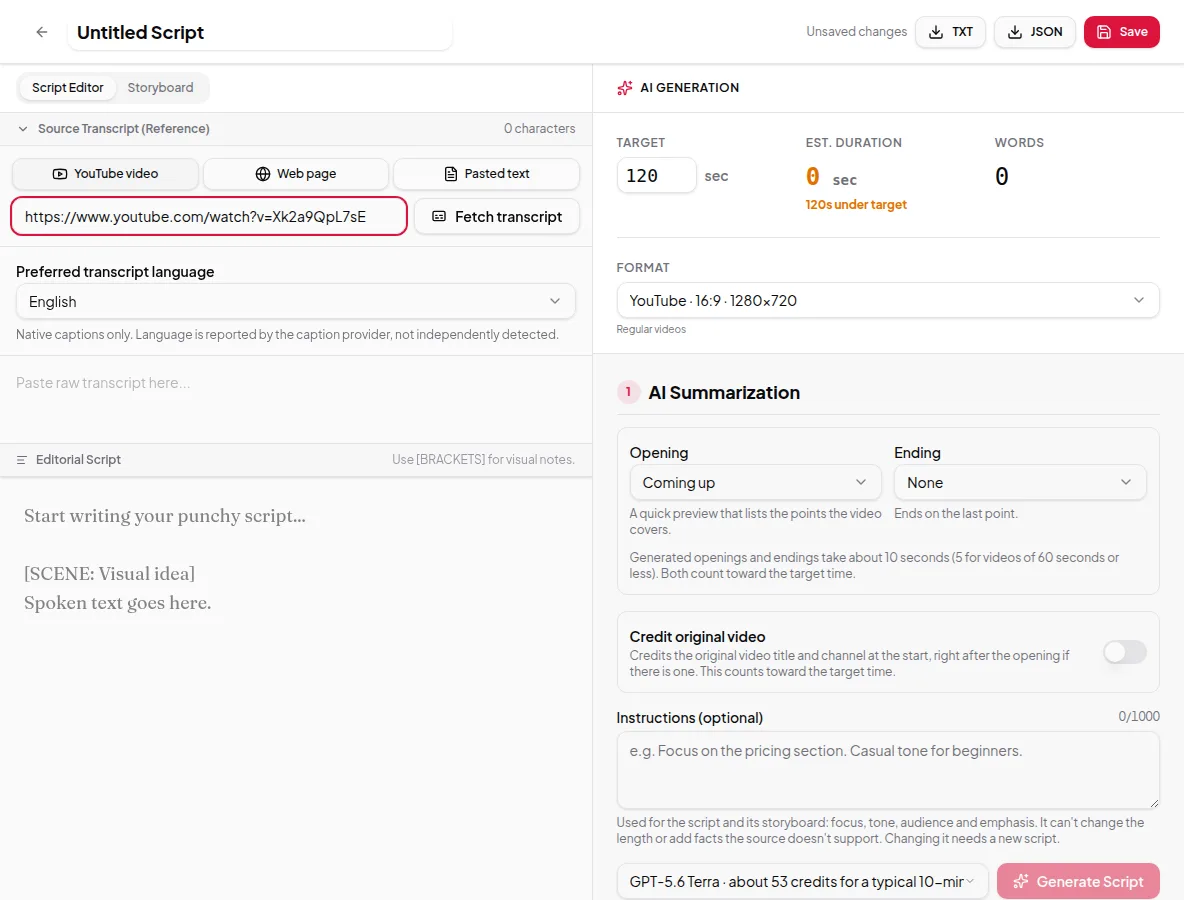
Summarize a YouTube video
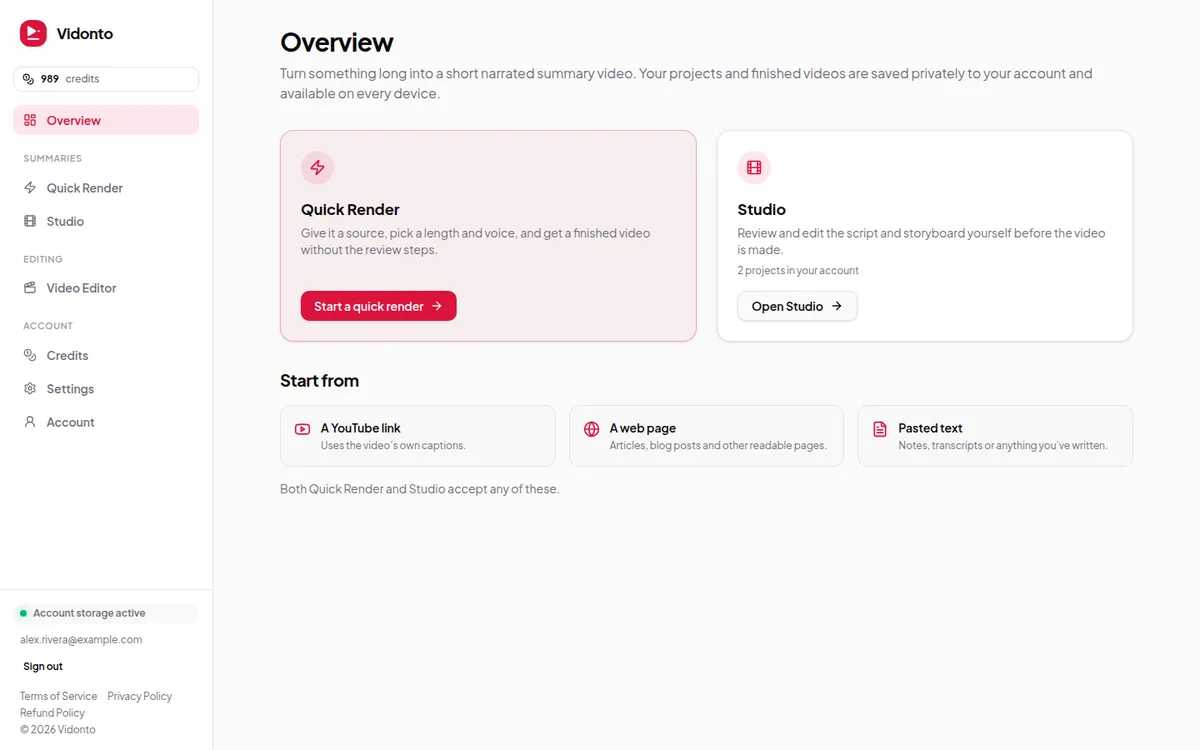
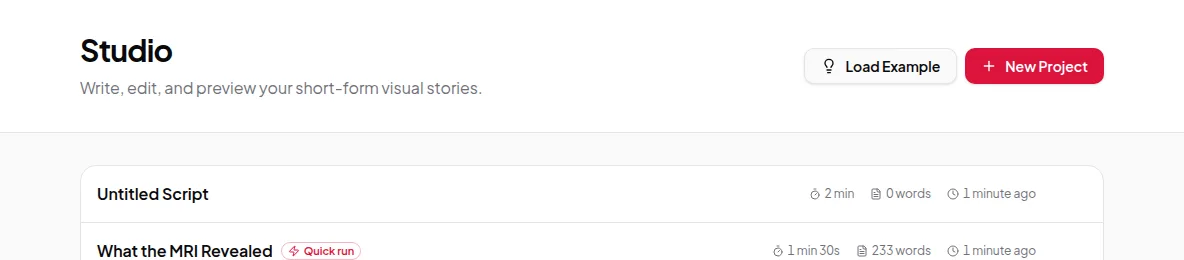
Step by step, turn a long YouTube video into a one-to-two-minute summary video in the Vidonto Studio, reviewing the script and every frame before it's narrated.
Guide
Turn a blog post into a video
Turn any blog post or article into a short narrated video with captions. Paste the link into Vidonto, shape the script, add key figures and post it next to the article.
Guide
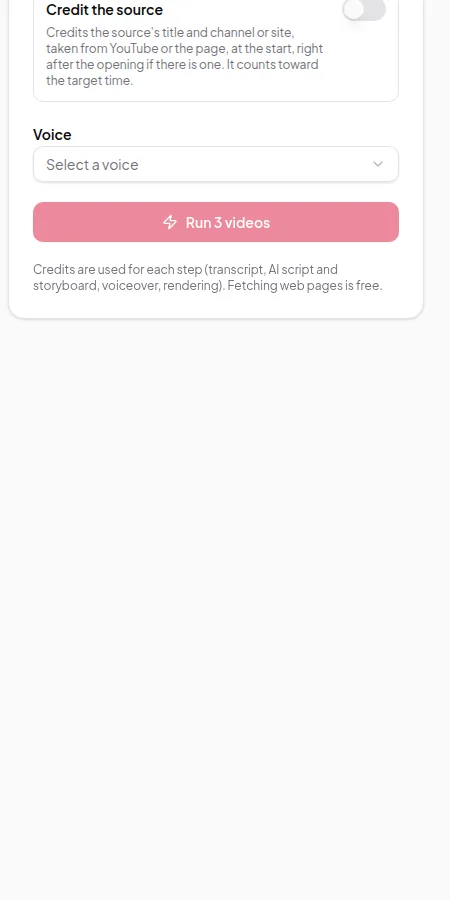
Make Shorts and Reels from a long video
Turn a long YouTube video or your own recording into vertical 9:16 videos for YouTube Shorts, Instagram Reels and TikTok, with captions and layouts made for phones.
Guide
Write creator instructions
Use Vidonto's Instructions box to steer the focus, tone, audience and structure of your AI-written scripts, with examples that work and the limits to know about.
Your recordings
Guide
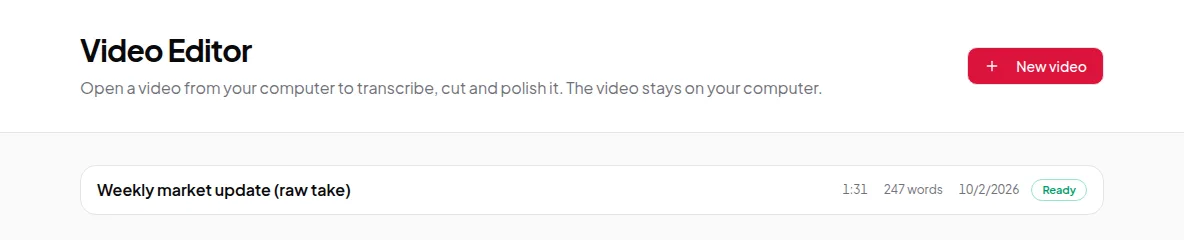
Edit a recording by deleting words
Open your recording in the Vidonto Video Editor, read the transcript, delete the words you don't want, fine-tune on the waveform and export the edited video.
Guide
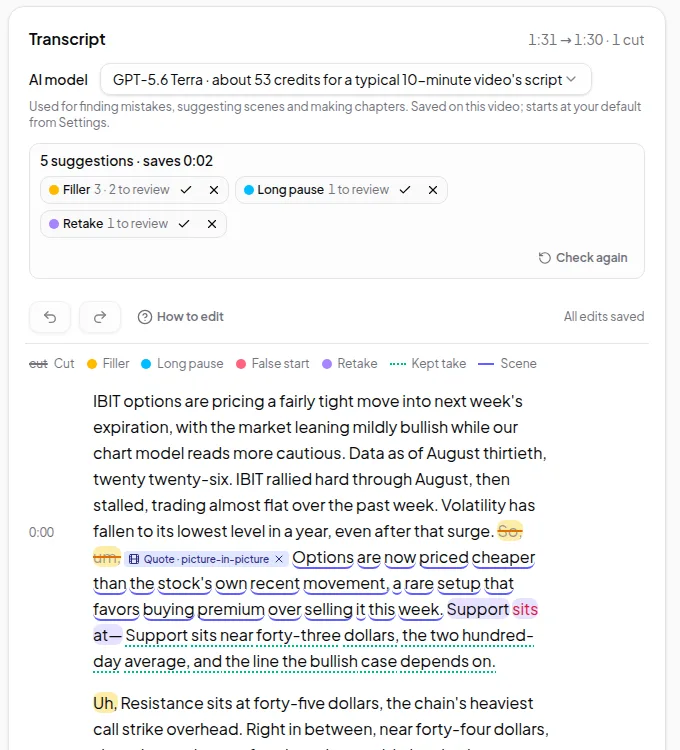
Remove ums and retakes automatically
Let Vidonto find filler words, long pauses and retakes in your recording, review each suggestion with a keystroke, and export a tighter video.
Guide
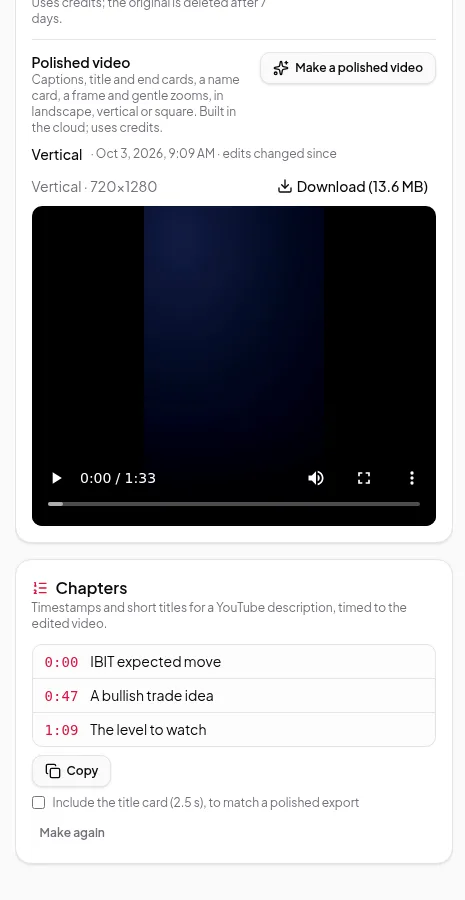
Add chapters to a recording
Make YouTube chapter timestamps from your edited recording in Vidonto, copy them into your video description, and keep them in step with your cuts and polished exports.
Guide
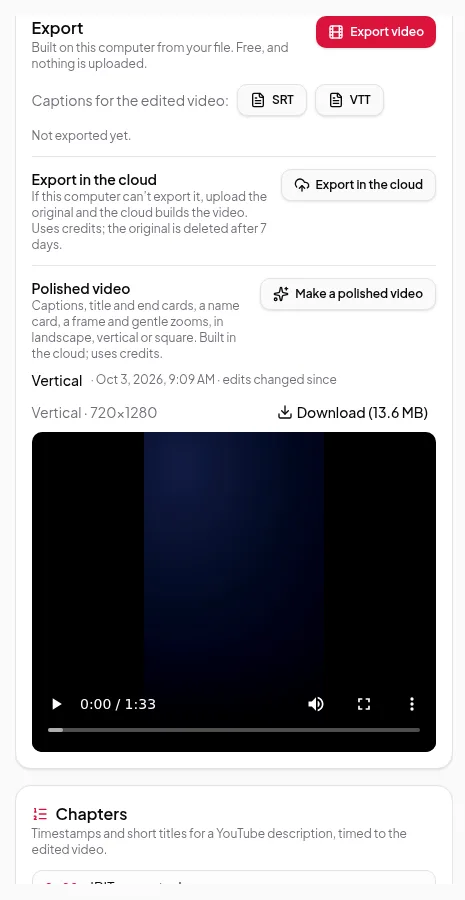
Export your finished video
Export your edited recording for free in the browser, in the cloud when your computer can't, or as a polished video with captions in vertical or square shapes.