Guide · Getting started
Make your first video in five minutes
A quick start for new Vidonto users. Create an account, paste a link or some text into Quick Render, and download a narrated, captioned video a few minutes later.
4 min read · Updated
Feature used in this guide: Quick Render for many videos at once — what it does, its limits and how credits work.
This guide takes you from a new account to a finished, narrated video in about five minutes. It uses Quick Render, which runs every step for you. Once you’ve seen the whole flow, the other guides show how to take more control in the Studio.
You’ll need: an email address, and either a YouTube link with captions, the link to an article, or a few paragraphs of text.
Step 1: Create your account and verify your email
Go to the sign-up page and create an account with your email and a password. Vidonto sends you a verification email. Click the link in it.
Verifying matters: your starter credits are added when your email is verified, and unverified accounts can’t start paid steps. If the email doesn’t arrive within a few minutes, check your spam folder or ask for a new link from the sign-in screen.
Step 2: Open the app
After you sign in you land on the Overview. On the left you’ll see two ways to make summary videos — Quick Render and Studio — and the Video Editor for your own recordings. Your credit balance is at the top of the sidebar.
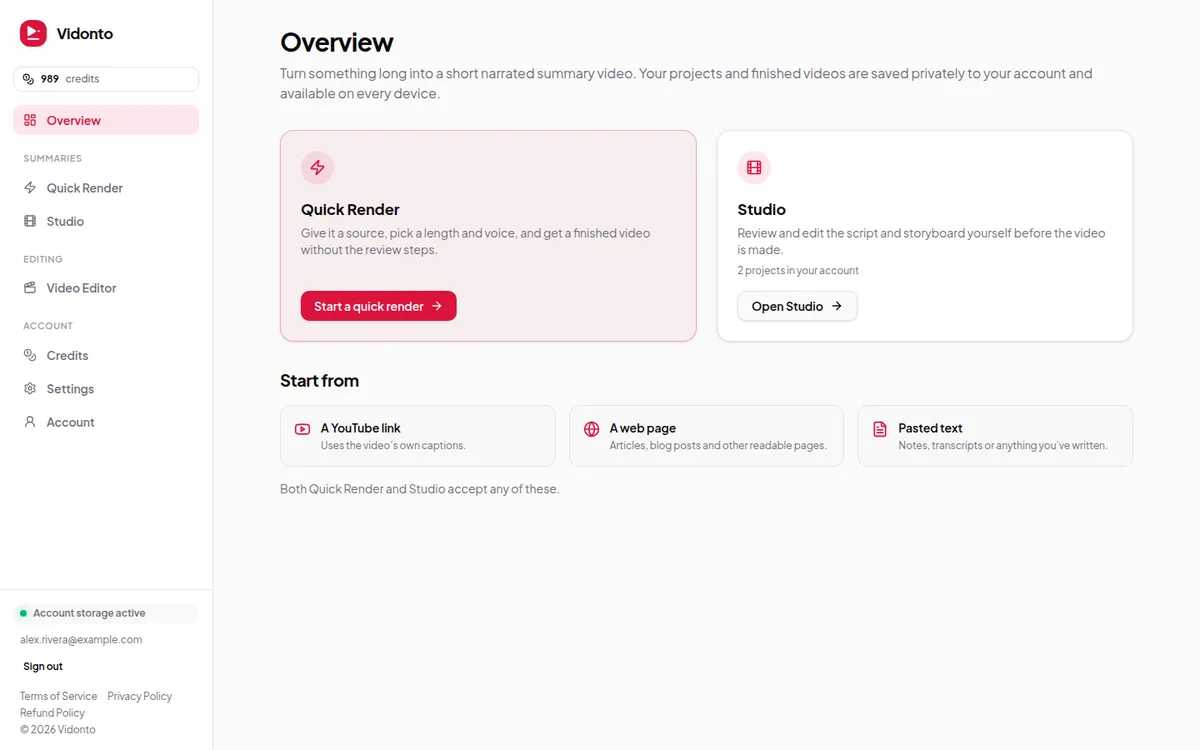
Click Quick Render.
Step 3: Add your source
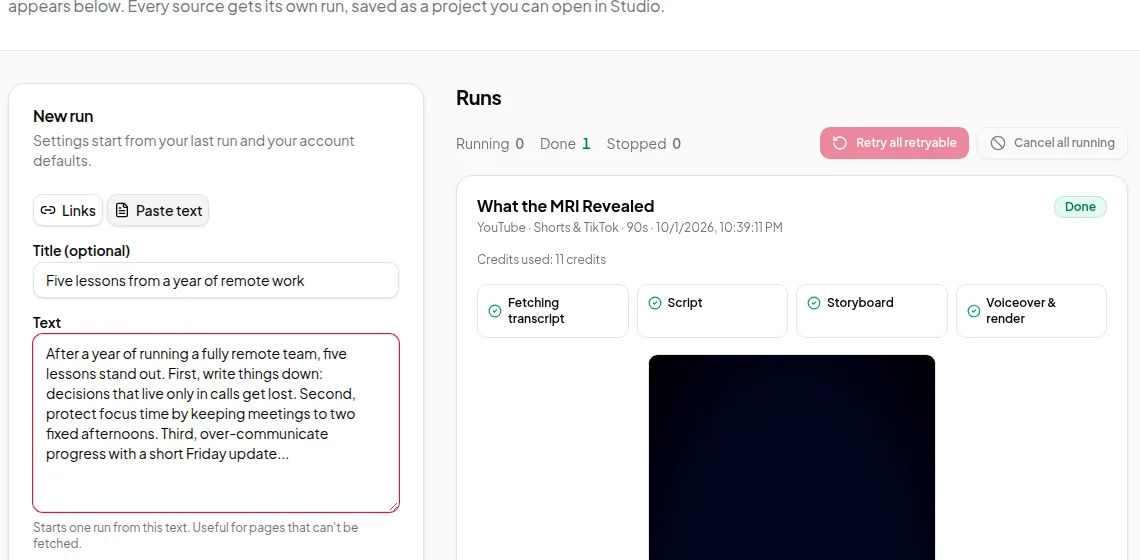
Quick Render has two modes at the top of the form:
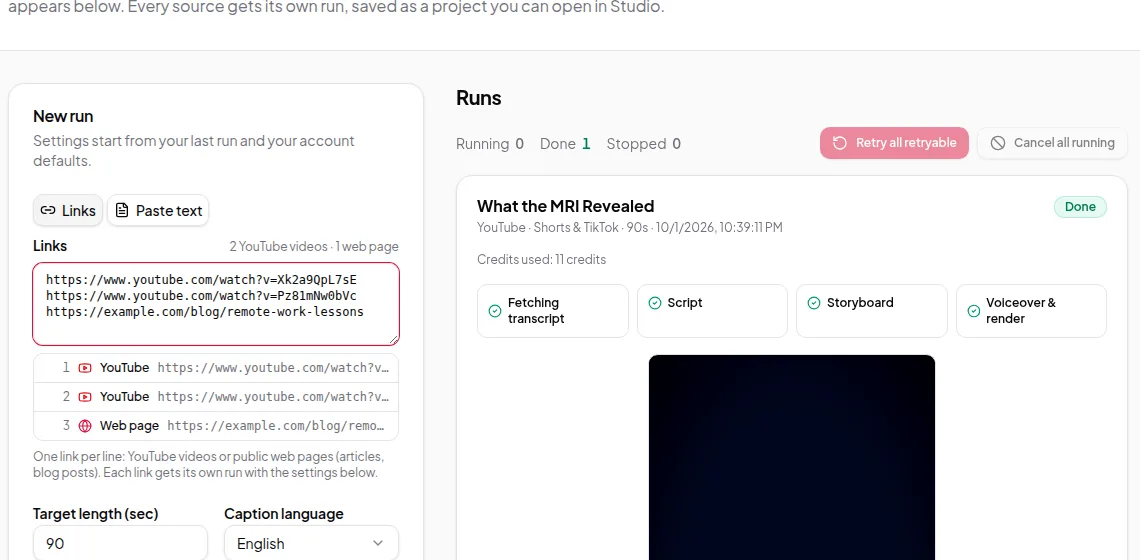
- Links — paste a YouTube video or a web page address. You can paste several, one per line, but for your first video, one is enough.
- Paste text — paste a few paragraphs of your own text and give it an optional title.
For a first try, pasted text is the most predictable: it doesn’t depend on a video having captions or a site allowing access. Paste three or four paragraphs about a topic you know well, so you can judge the summary.
Step 4: Choose the main settings
The form has sensible defaults, so you only need to check a few things:
- Target length. How long the video should be at most. Start with 60 seconds. Vidonto never cuts the narration off; if the script can’t fit, it tells you instead.
- Video size. YouTube for 16:9, Shorts & TikTok for vertical 9:16, Square or Portrait. Pick the shape of the place you’ll post it.
- On-screen text. Narration captions shows the exact words as they’re spoken. It’s the best choice for most videos.
- AI images. Leave this off for your first video. Text-led frames look clean and cost nothing extra.
- Voice. Pick a voice from the list near the bottom of the form.
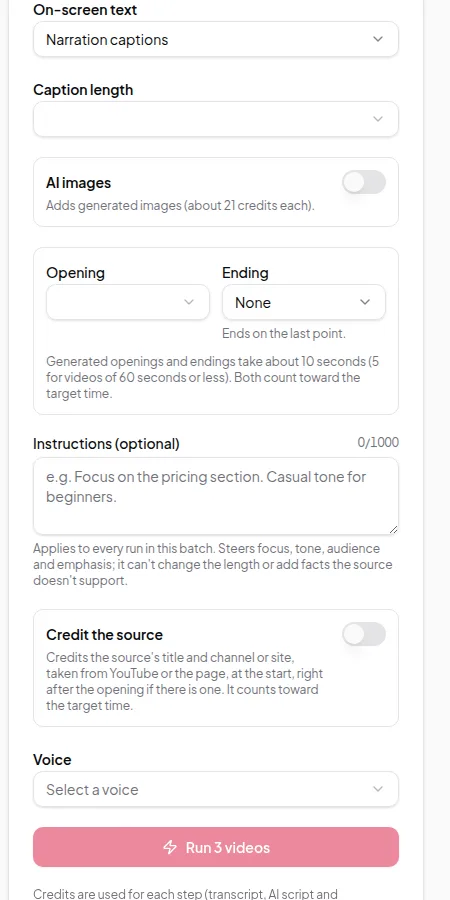
You can ignore Opening/Ending, Instructions and Credit the source for now. The creator instructions guide covers them later.
Step 5: Check the estimate and run
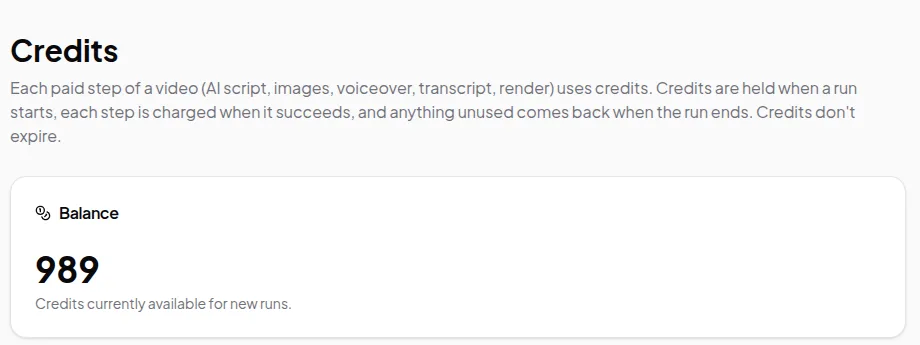
Below the button, the form shows an estimate in credits. When you click Run, that estimate is held from your balance. Each step is charged only when it succeeds, and anything not used goes straight back when the run finishes. See credits explained for the details.
Click Run. (With several links, the button says how many videos it will make, such as Run 3 videos.)
Step 6: Watch the steps
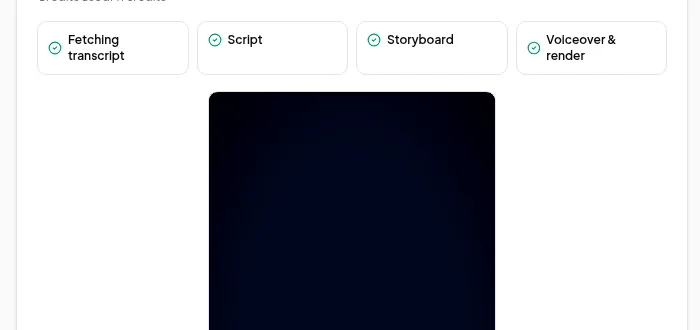
The run appears in the Runs list on the right. It moves through four steps:
- Fetching transcript — reading your text (or the video’s captions, or the web page).
- Script — the AI writes a short script that fits your target length.
- Storyboard — the script is split into frames with captions and layouts.
- Voiceover & render — the narration is recorded and the video is built.
A one-minute video usually takes a few minutes in total. You can leave the page and come back; the run keeps going.
Step 7: Download and share your video
When the run shows as finished:
- Play the video right in the list.
- Click Download MP4 to save it.
- Download Captions as an SRT file if you plan to upload to YouTube.
- Click Open in Studio if you’d like to change wording and render again.
That’s it — your first Vidonto video.
If something goes wrong
- “Not enough credits.” The run didn’t start and nothing was charged. Check your balance on the Credits page.
- The script was too long for the target. Raise the target length a little, or paste less text, and run again.
- A YouTube link has no transcript. The video needs captions on YouTube. Try another video, or paste the text instead.
- A step failed. Click Retry this step on the run. Steps that already succeeded aren’t charged again.
What to try next
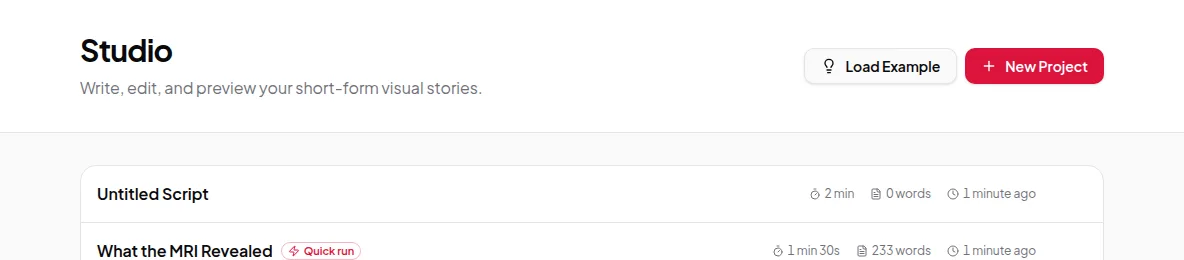
- Review every word before it’s narrated: summarize a YouTube video in the Studio.
- Make vertical videos for social: Shorts and Reels from a long video.
- Clean up your own recording: edit a talking-head video by deleting words.