Features
Everything Vidonto can do
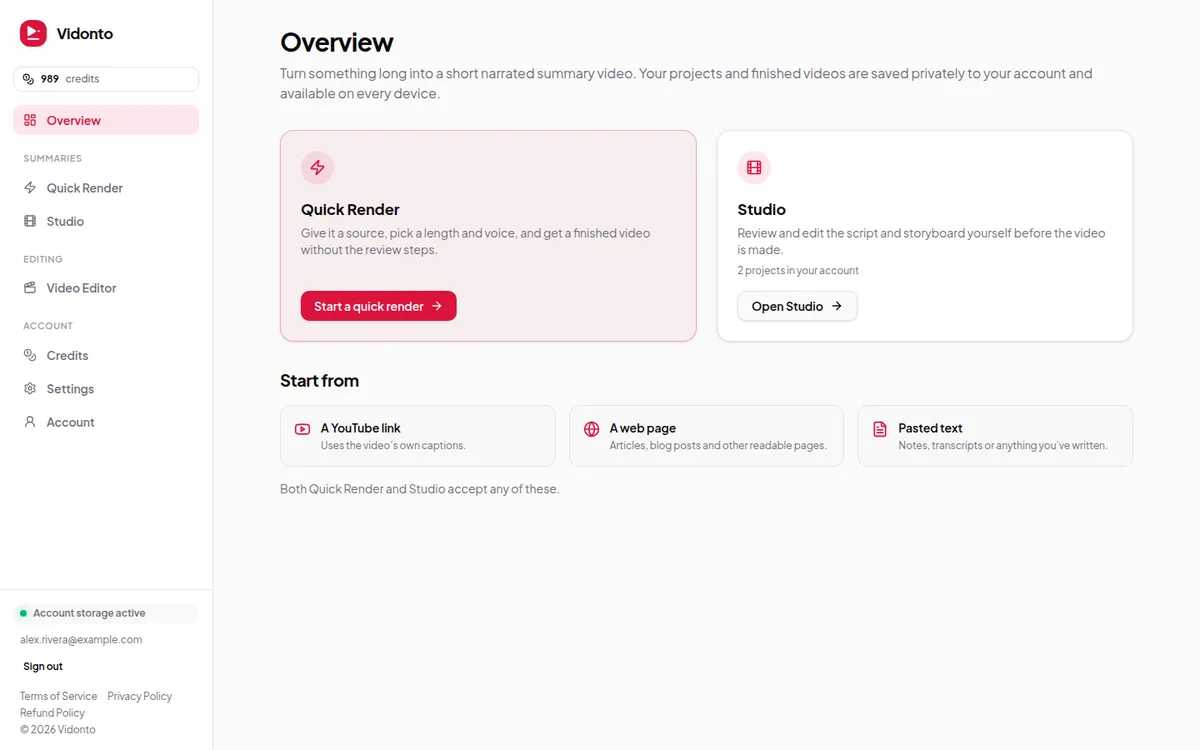
Vidonto has two halves. Summaries turn something long — a YouTube video, an article or your own text — into a short narrated video. The Video Editor cleans up your own recordings by editing the transcript. Each page below explains what a feature does today, its limits and how it uses credits.
Make videos from a source
Feature
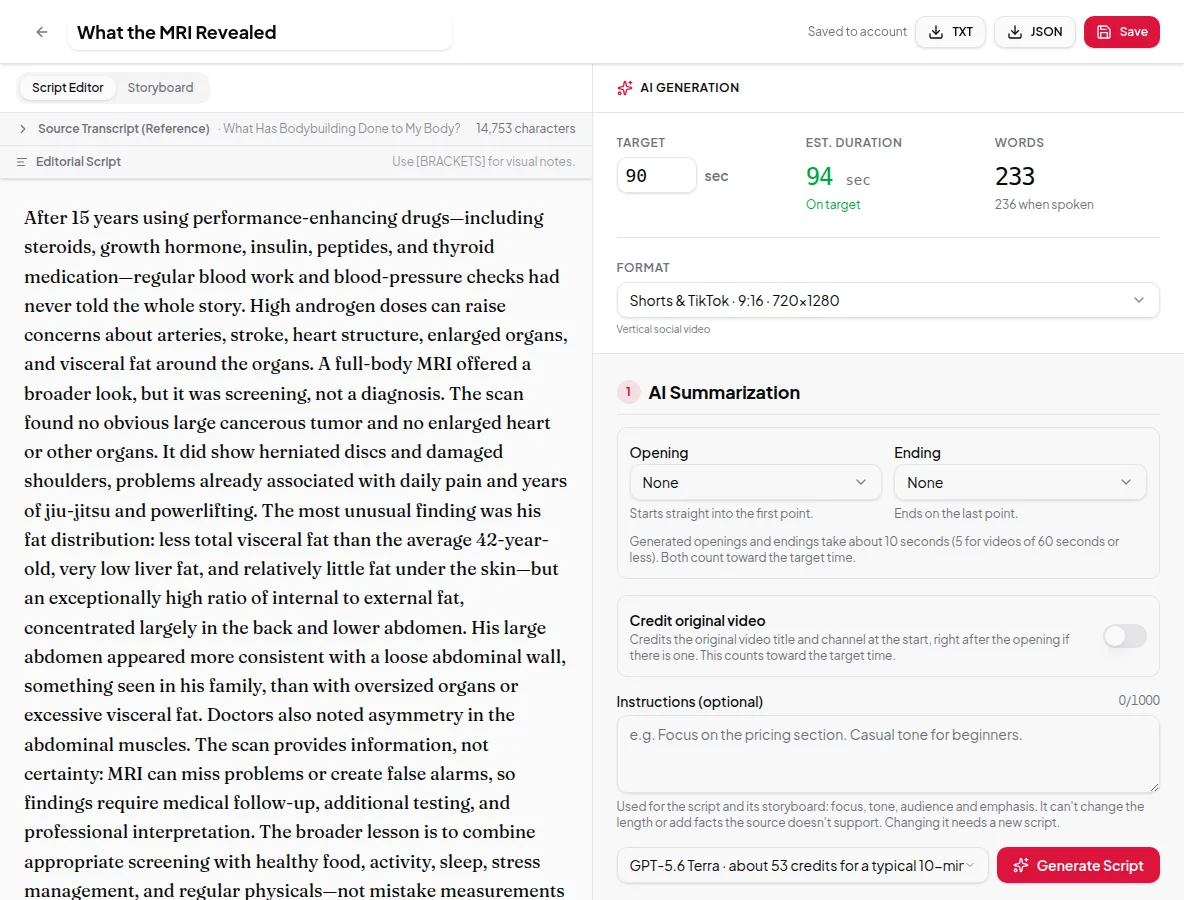
YouTube video to summary video
Paste a YouTube link and Vidonto reads the captions, writes a short script that sticks to the source, and renders a narrated, captioned summary video.
Feature
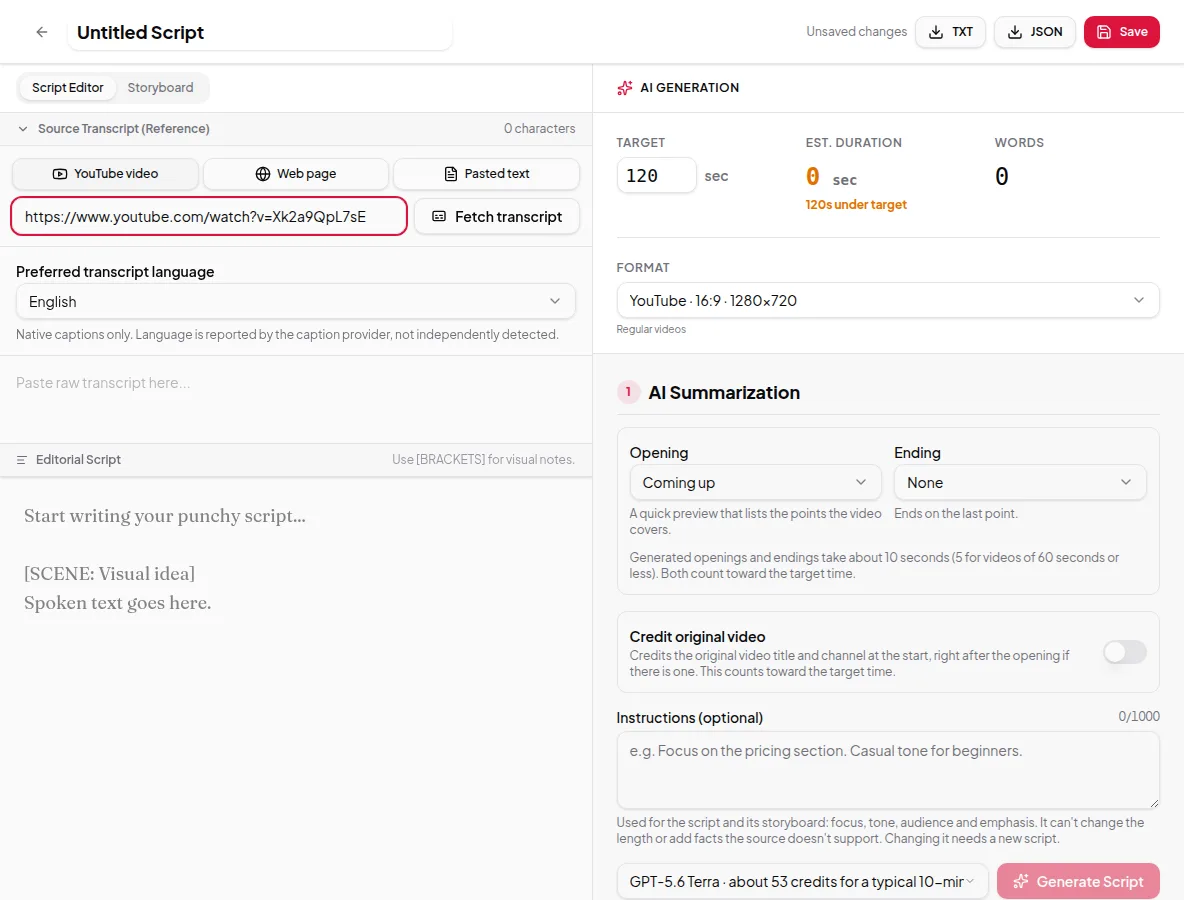
Article or web page to video
Paste the link to a blog post, news story or documentation page and Vidonto turns its text into a short narrated video with captions.
Feature
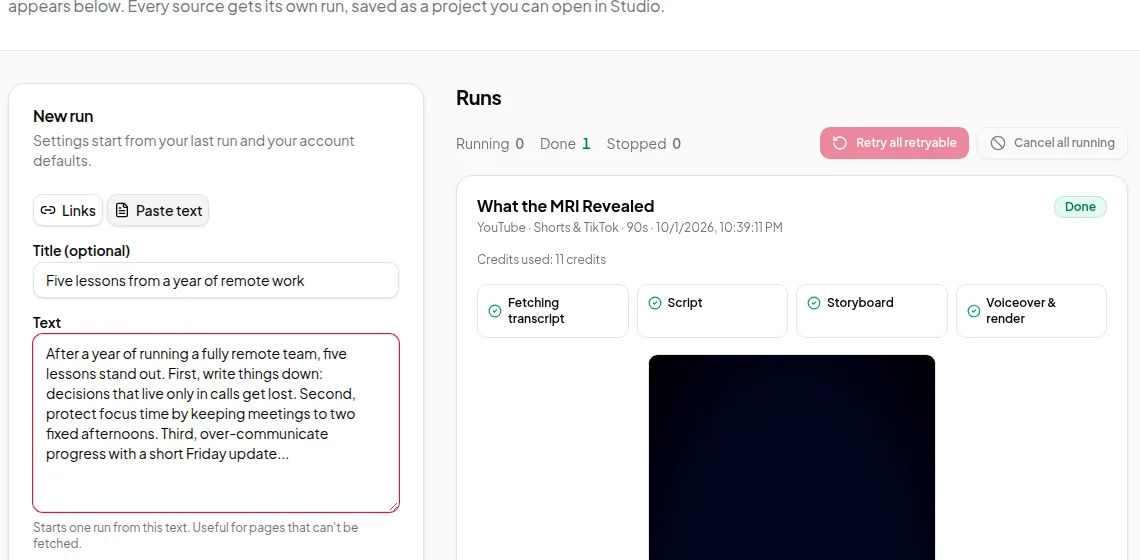
Pasted text or script to video
Paste notes, a newsletter, a transcript or a finished script, and Vidonto turns the text into a narrated, captioned video in the format you need.
Feature
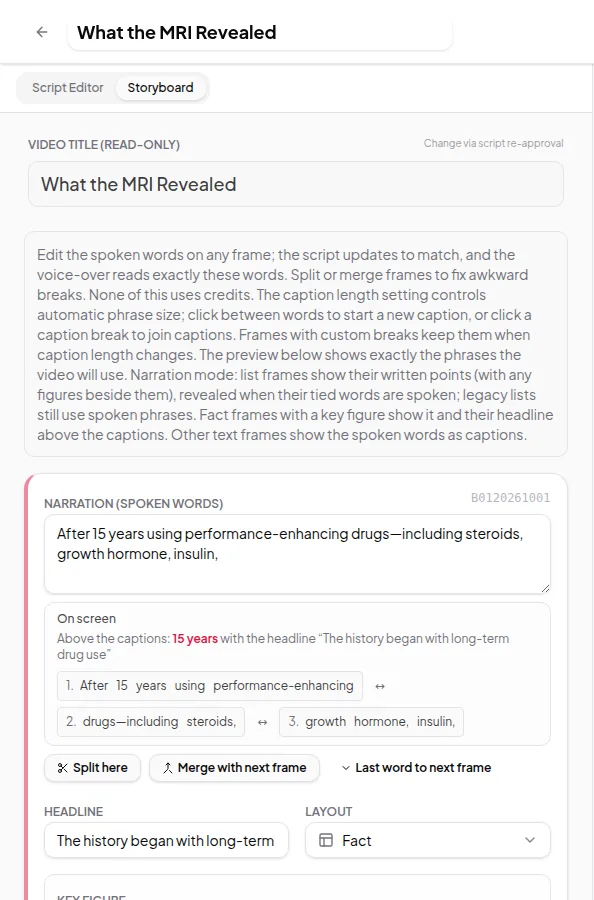
The storyboard editor
Edit the spoken words, headlines, layouts and caption breaks of every frame in your video before anything is narrated. Storyboard edits never use credits.
Feature
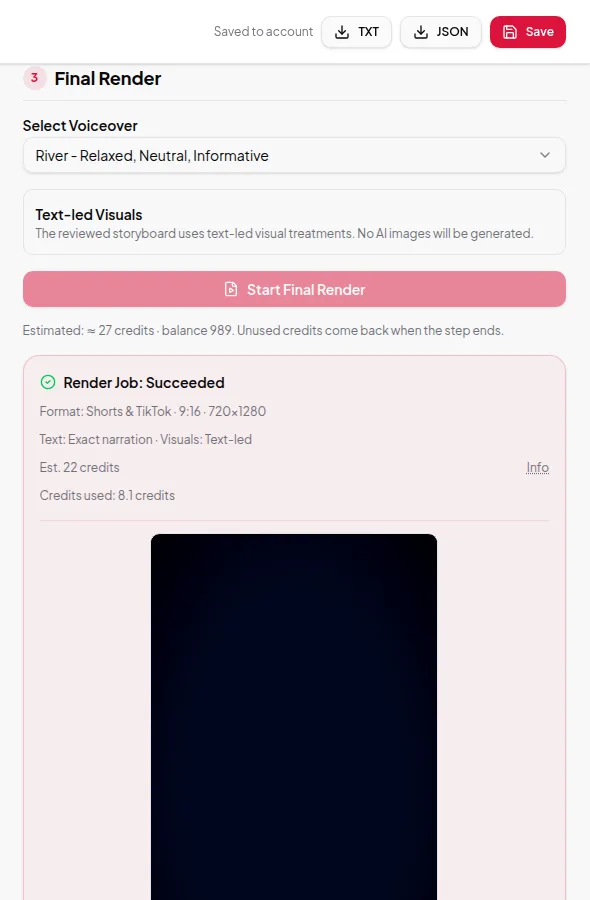
AI voice-over narration
Vidonto narrates your approved script with a natural AI voice, reads every word in full and keeps captions in sync. Pick a voice per video or set a default.
Feature
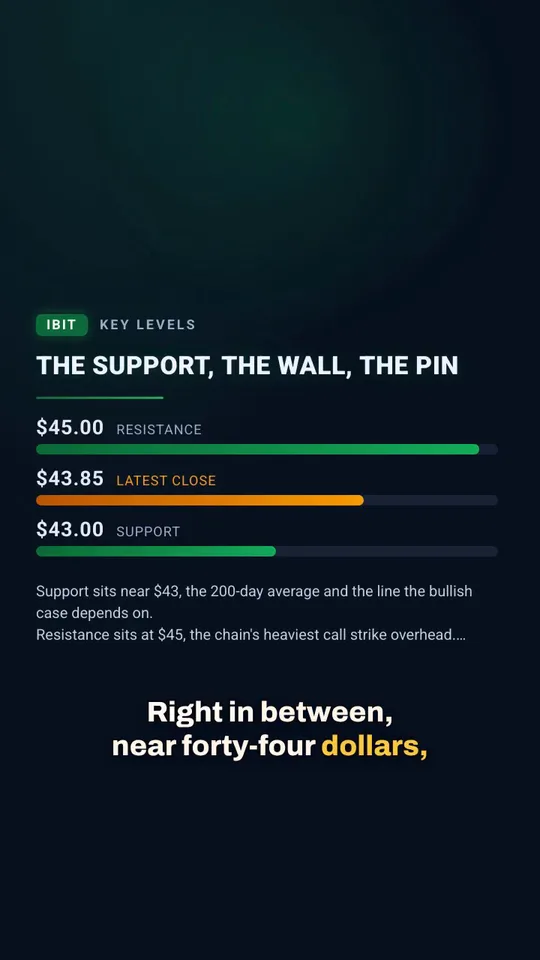
Captions
Vidonto adds captions that follow the voice word by word, lets you choose caption length and breaks, and gives you SRT and VTT files for upload.
Feature
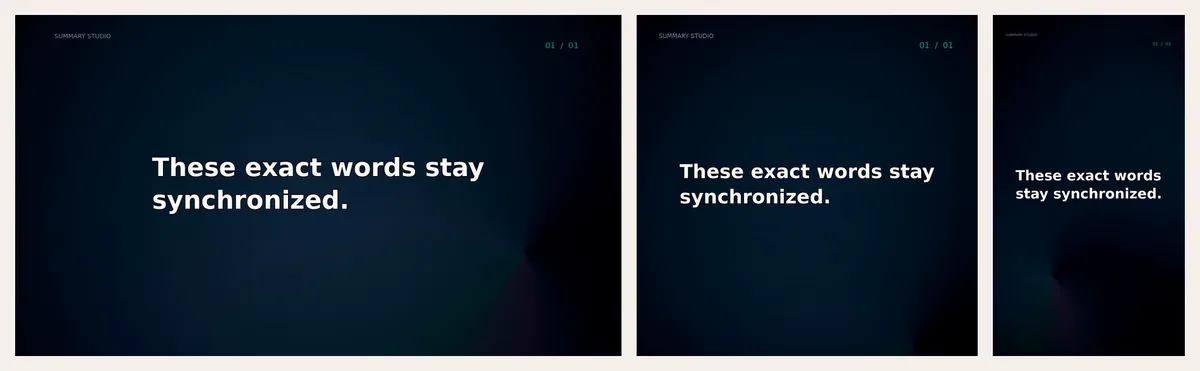
Vertical, square and landscape formats
Make the same video as a 9:16 vertical for Shorts, Reels and TikTok, a 1:1 square, a 4:5 portrait or a 16:9 landscape. Layouts are designed for each shape.
Feature
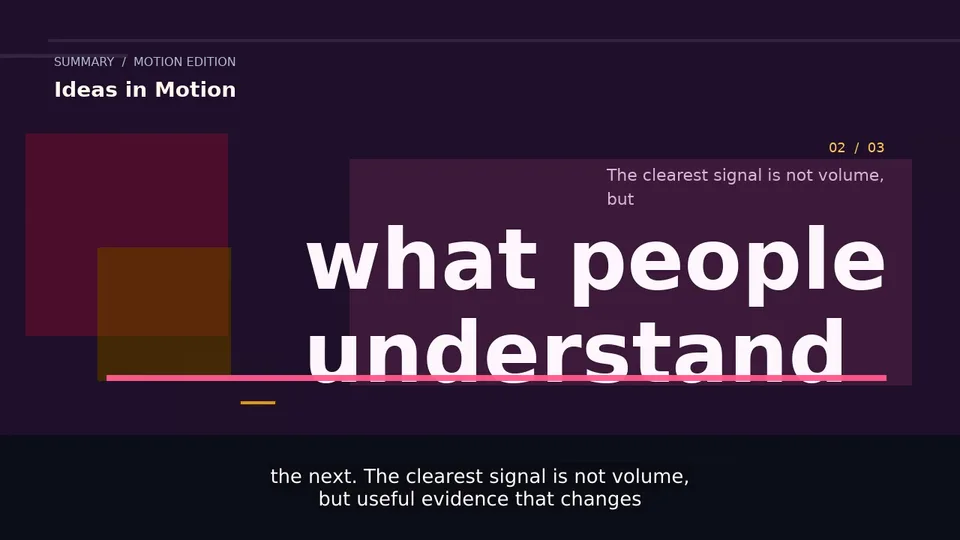
AI images, animated scenes and data visuals
Vidonto can add AI-generated images, animated headlines, lists that build point by point, and key figures and charts that appear when the narration says the numbers.
Feature
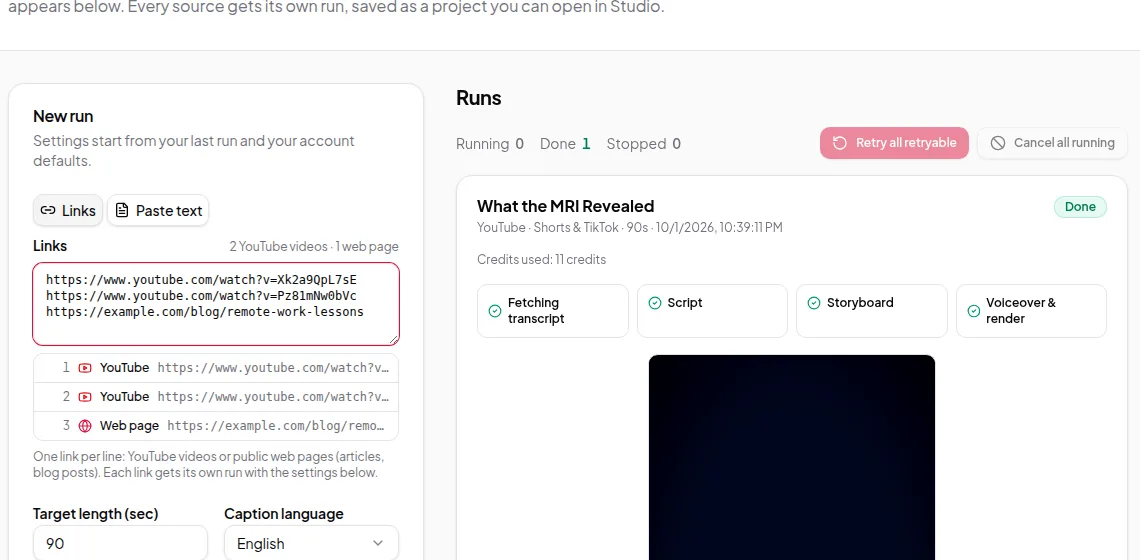
Quick Render for many videos at once
Paste a list of YouTube and web page links, one per line, and Quick Render makes one finished summary video per link with no review steps in between.
Edit your own recordings
Feature
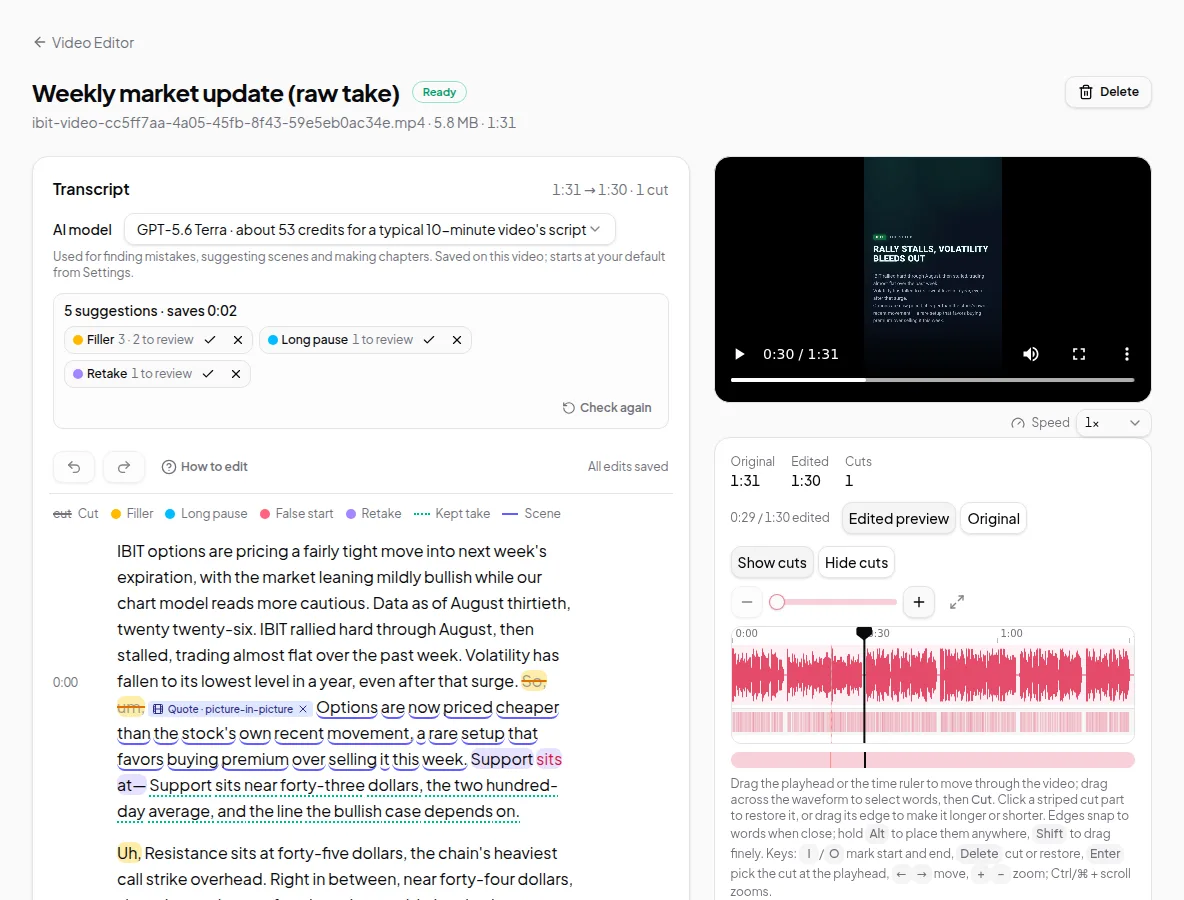
Edit a recording by deleting words
Vidonto's Video Editor turns your recording into a transcript. Delete words in the text and the video is cut to match — and the video never leaves your computer.
Feature
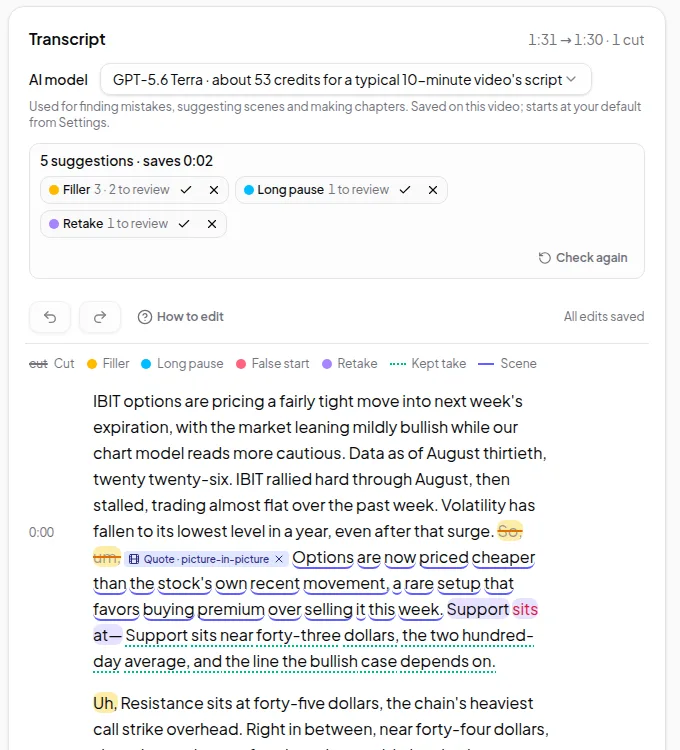
Automatic mistake and filler-word detection
Vidonto finds filler words, long pauses and repeated takes in your recording and suggests cuts you can accept or reject one by one — your own cuts are never touched.
Feature
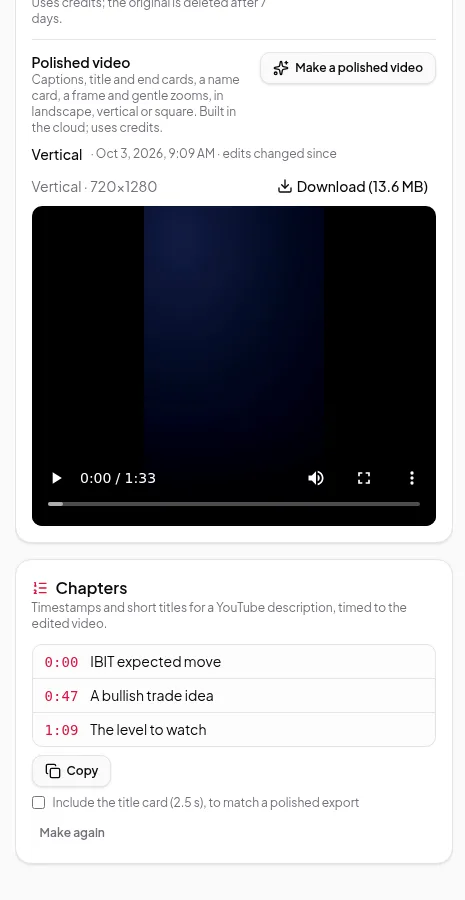
Chapters and zooms for recordings
Make YouTube chapter timestamps from your edited recording, and add animated scenes such as quotes and comparisons, plus gentle zooms, to your polished video.
Feature
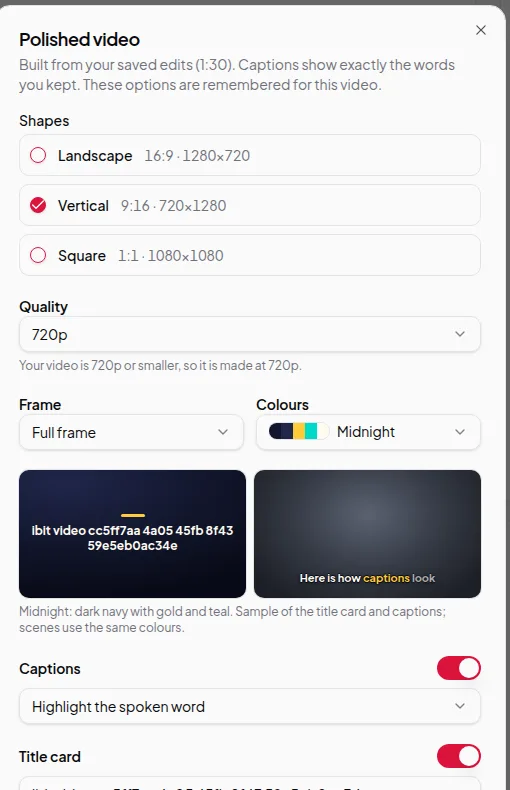
Polished videos from recordings
Turn an edited recording into a finished video with burned-in captions, title and end cards, a frame style and gentle zooms — in landscape, vertical or square.
Account, credits and API
Feature
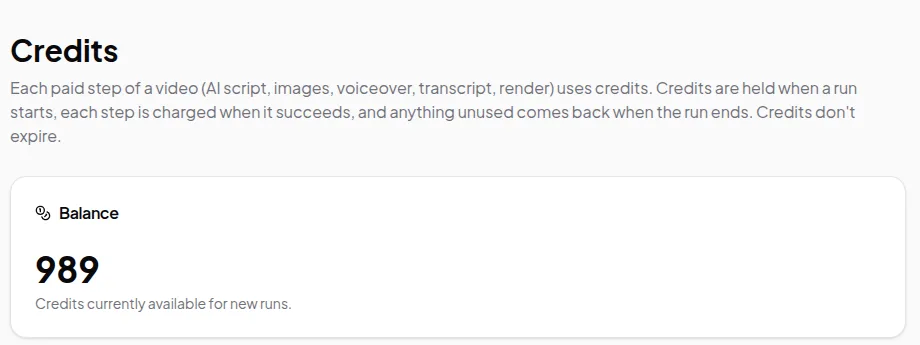
Credits and pricing
Vidonto uses credits for paid steps. See how credits are held when a run starts, charged only for steps that succeed, and returned when they're not used.
Feature
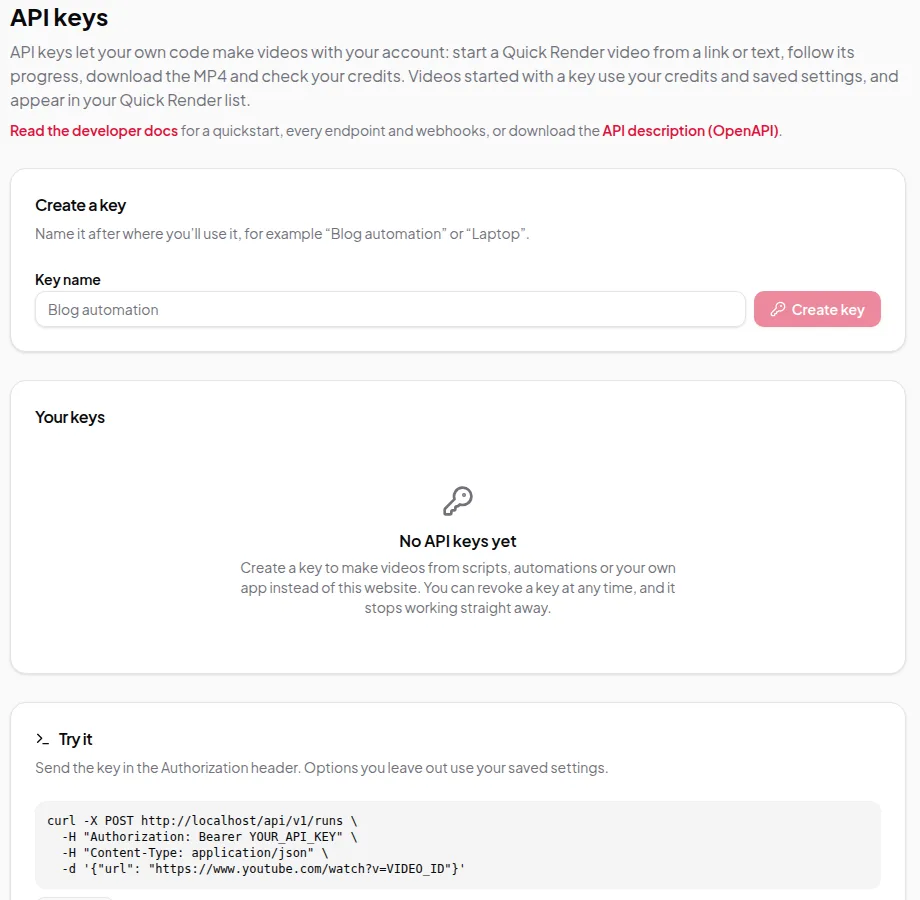
Developer API and webhooks
Start summary video runs from your own code, batch up to 100 links at once, track progress and get a signed webhook when each video is ready.