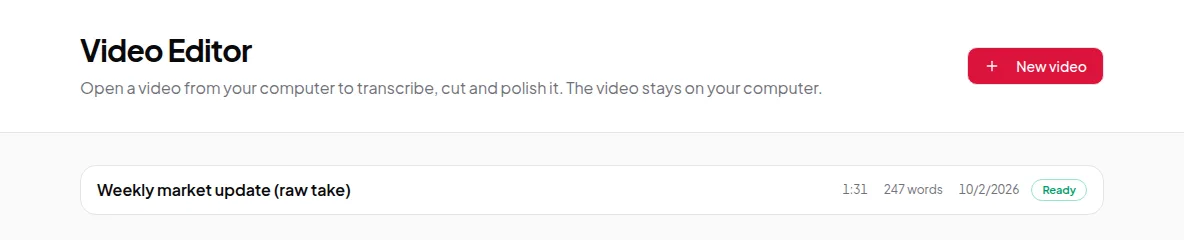
Feature
Automatic filler-word, pause and retake detection
Vidonto finds filler words, long pauses and repeated takes in your recording and suggests cuts you can accept or reject one by one — your own cuts are never touched.
Updated
“Um”, “uh”, “you know”, a long silence while you find the next thought, a sentence you started three times — every recording has them. Removing them by hand takes longer than the recording itself. Vidonto’s Video Editor looks for them automatically as soon as the transcript is ready, and shows each one as a suggestion in the transcript. You stay in control: nothing is cut until you accept it.
What it finds
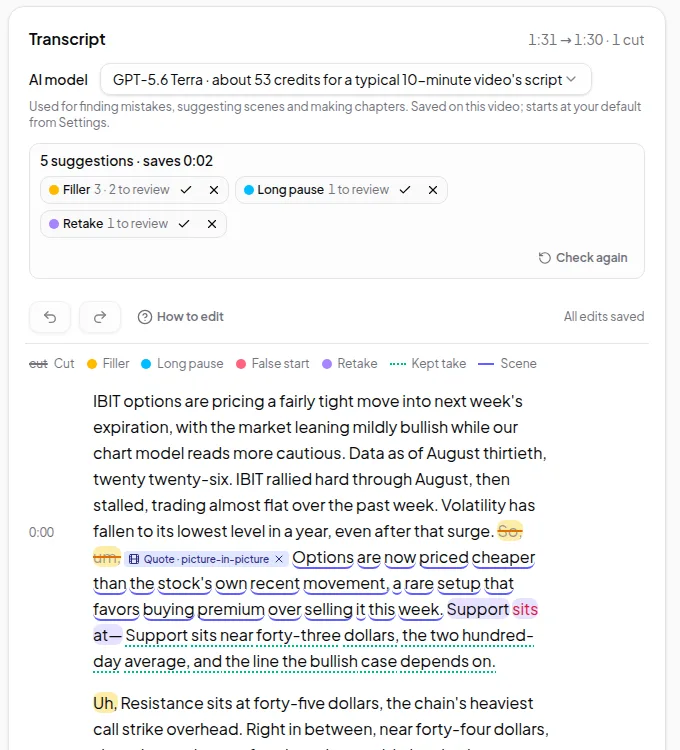
- Filler words such as um, uh and similar sounds that add nothing.
- Long pauses where nothing is said for a noticeable stretch.
- Retakes — when you say a sentence, stop and say it again. Vidonto suggests cutting the earlier attempts and keeping the last one.
The card at the top of the transcript shows how many suggestions there are and how much time they would save, with a count for each type.
Reviewing suggestions
Suggested words are highlighted in the transcript. You can:
- Click a highlighted word to review that suggestion.
- Step through them one by one with N (next) and P (previous).
- Accept with A or reject with R, or use the tick and cross buttons.
- Accept all or reject all suggestions of one type at once from the summary card.
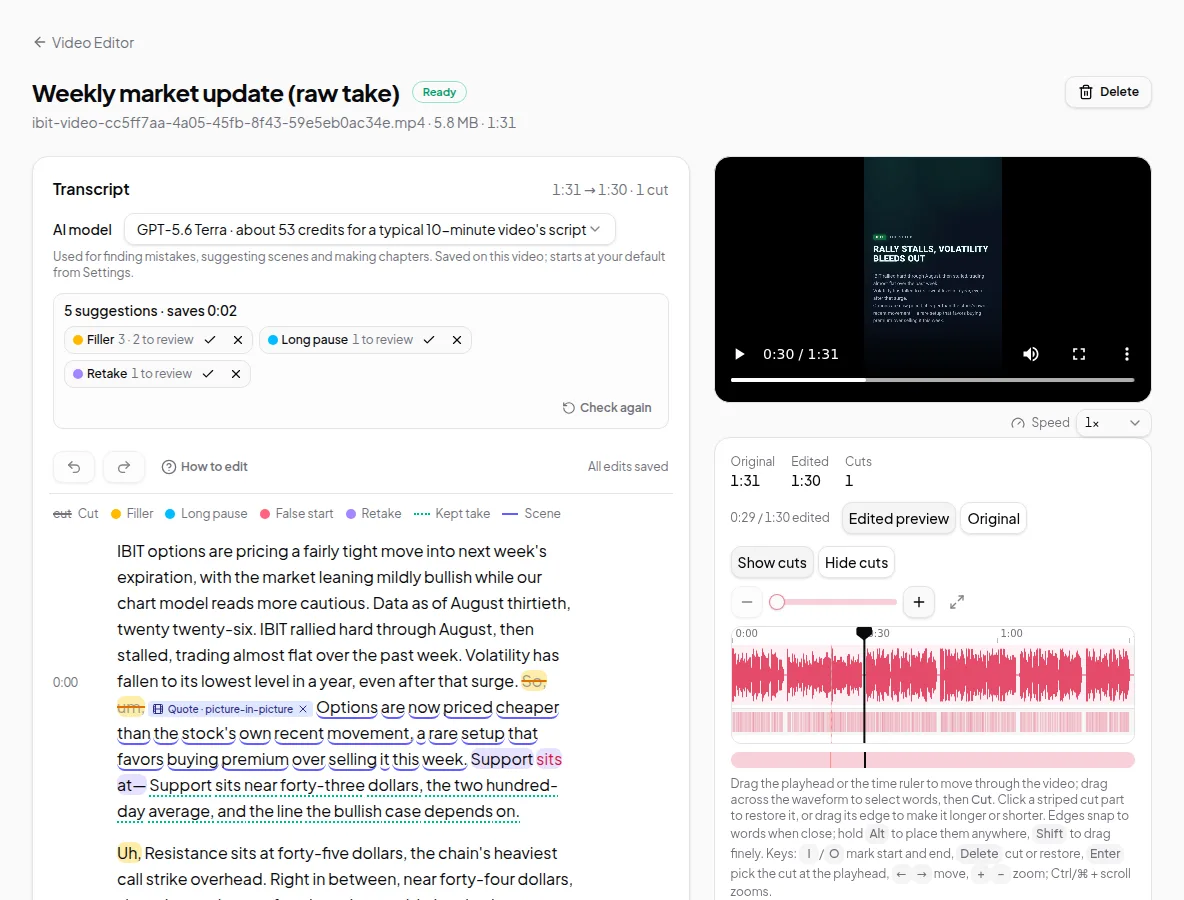
Accepted suggestions become normal cuts. They show struck through, and you can still bring any word back by clicking it.
Your own edits are safe
Suggestions never touch cuts you made yourself. If you run detection again with Check again, the new suggestions replace the old ones and your decisions on them, but words you cut or restored by hand stay exactly as you left them. The app asks you to confirm before it checks again.
Choosing the AI model
The transcript card shows which AI model is used to find mistakes, with a rough credit estimate for each choice. You can pick a different model for a recording, or set a default in Settings. If the model you chose isn’t available, Vidonto tells you instead of switching to another one without asking.
Limits worth knowing
- Detection reads the transcript, so it’s only as good as the transcription. Mumbled words may be missed.
- Not every “like” or “so” is a filler. Vidonto suggests; you decide. Review before you accept everything.
- Retakes are spotted when the repeated attempts are close together. A sentence redone minutes later may not be caught.
- Cutting many short pauses can make speech feel rushed. Keep some breathing room.
Credits
Finding mistakes uses credits. The first check runs with the transcript, and the transcript estimate covers both. Check again shows its own estimate before you confirm. Accepting, rejecting and editing suggestions is free. See credits explained.
Try it on your own recording with remove ums and retakes automatically.