Guide · Your recordings
How to remove ums, pauses and retakes from a recording automatically
Let Vidonto find filler words, long pauses and retakes in your recording, review each suggestion with a keystroke, and export a tighter video.
3 min read · Updated
Feature used in this guide: Automatic mistake and filler-word detection — what it does, its limits and how credits work.
Filler words and false starts are normal when you speak. They’re also the main reason a ten-minute recording feels like fifteen. This guide shows how to let Vidonto find the ums, uhs, long pauses and retakes for you, how to review them quickly, and how to avoid over-cutting.
You’ll need: a Vidonto account with credits, and a recording opened in the Video Editor. If you haven’t opened one yet, start with edit a talking-head video by deleting words, Steps 1–2.
Step 1: Let the automatic check run
You don’t have to start anything. As soon as the transcript is ready, Vidonto checks it for:
- Filler — um, uh and similar sounds that add nothing
- Long pause — silences long enough to feel like dead air
- Retake — a sentence you started, stopped and said again
The transcript estimate you saw when the recording was added covers both the transcript and this first check. While it runs you can already start editing; suggestions appear when they’re ready.
If the automatic check couldn’t start — for example because your balance was too low at the time — the card says why and offers a Find mistakes button with its own estimate.
Step 2: Read the summary card
At the top of the transcript, a card shows how many suggestions were found and how much time they’d save, for example “5 suggestions · saves 0:02”. Below that is one row per type with its count, how many are left to review, and Accept all and Reject all buttons.
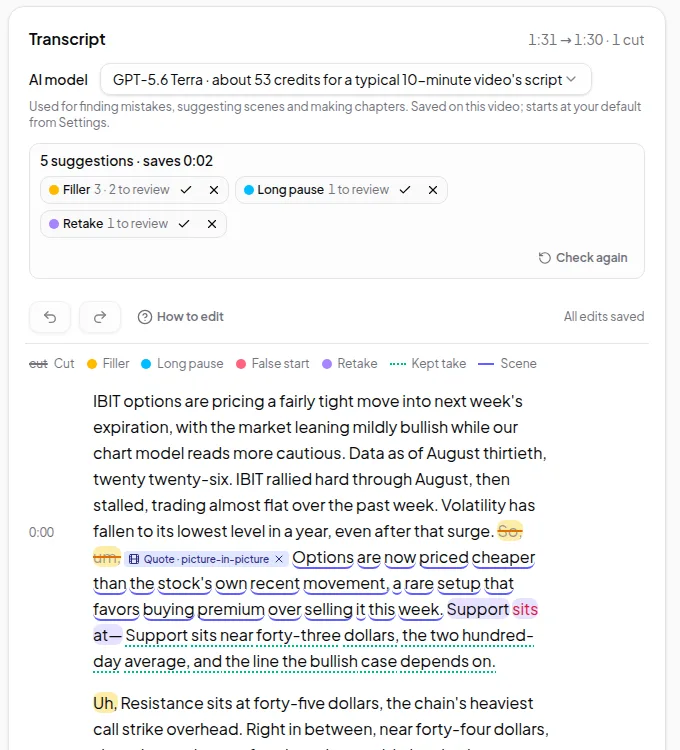
The card also shows which AI model was used and lets you pick another one for this recording. Each choice shows a rough credit estimate. Set your usual choice once under Settings → Default AI model.
Step 3: Review suggestions one by one
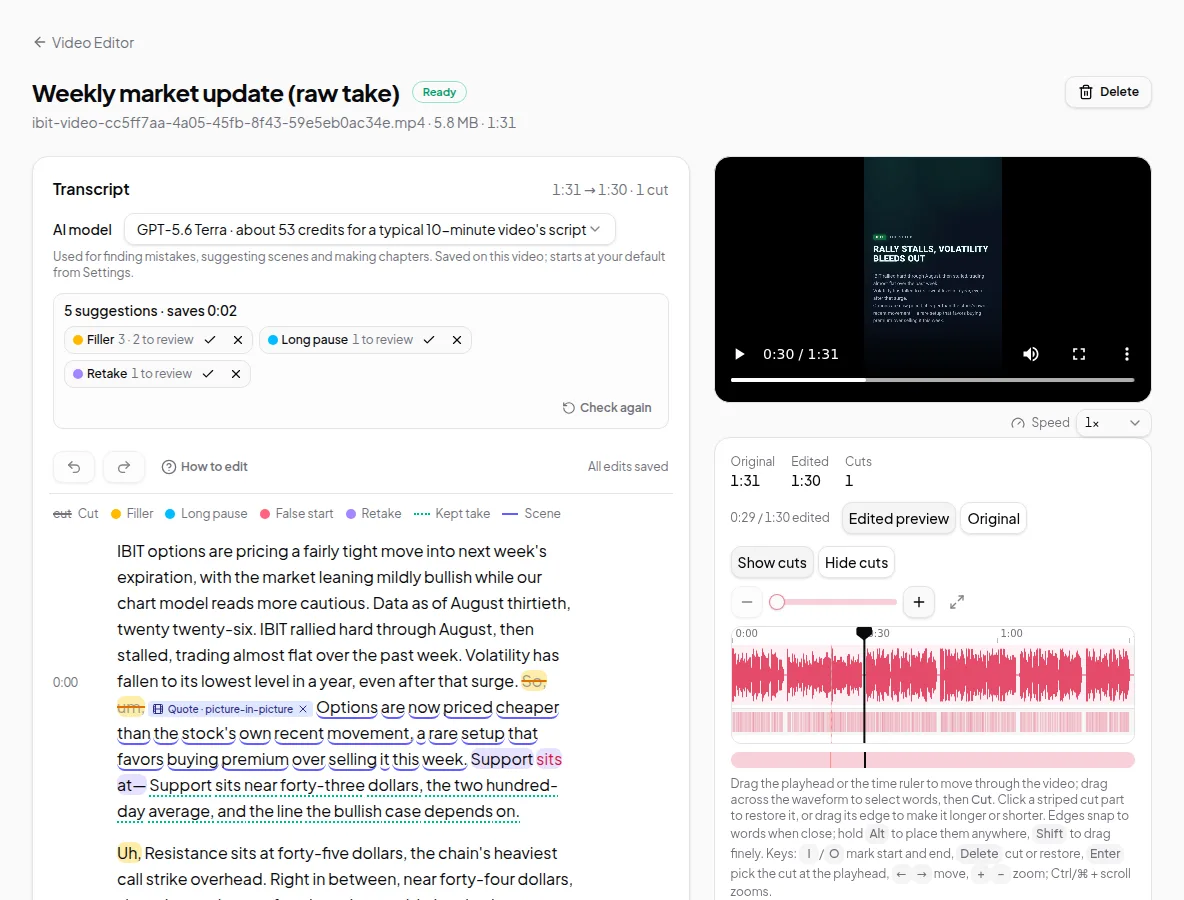
Suggested words are highlighted in the transcript. The fastest way to review is with the keyboard:
| Key | Action |
|---|---|
| N or ] | Next suggestion |
| P or [ | Previous suggestion |
| A | Accept the suggestion (cut it) |
| R | Reject the suggestion (keep it) |
| Ctrl/⌘ + Z | Undo |
Or click a highlighted word and use the Accept (A) and Reject ® buttons.
If you’re unsure about one, play the video around it to hear it in context before you decide. Accepted suggestions turn into normal cuts — struck through, and restorable with a click.
Step 4: Use Accept all where it’s safe
Some types are safe to accept in bulk; others deserve a look:
- Filler: usually safe to accept all, but scan for a “so” or “like” that carries meaning.
- Long pause: accepting all can make speech feel rushed. Review them, especially pauses before an important point.
- Retake: always review. Vidonto keeps the last attempt and suggests cutting the earlier ones, but sometimes the first take was better. Reject the suggestion and cut the later one by hand.
Step 5: Listen to the edited preview
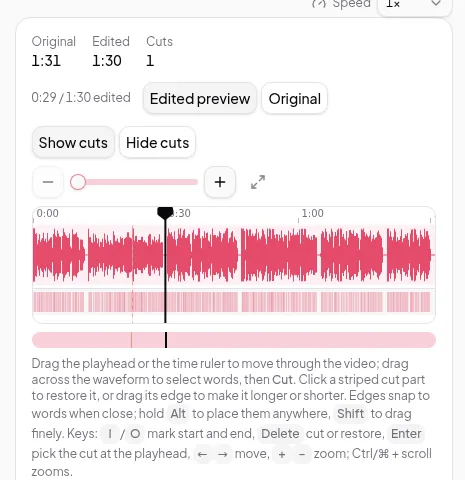
Switch the player to Edited preview and listen through. Fix anything that sounds wrong:
- A word clipped at a cut — click the struck-through word to restore it.
- A cut that sounds abrupt — restore the pause, or cut a shorter range on the timeline with I, O and Delete.
Step 6: Check again after big edits (optional)
If you’ve rewritten a lot by hand, or want a second opinion from a different AI model, click Check again on the card. The app shows an estimate and asks you to confirm, because checking again replaces the current suggestions and your decisions on them. Cuts you made yourself are never changed.
Step 7: Export
When the recording sounds right, export it from the Export panel — free in the browser, or in the cloud. See export your finished video.
Tips for fewer mistakes next time
- Pause before a retake. A clear gap before you restart a sentence makes the retake easy to spot.
- Restart the whole sentence, not just the last few words. Full retakes cut cleanly.
- Don’t aim for zero fillers. A few natural pauses make you sound human. Cut the ones that distract.
What it can’t do
Detection works from the transcript, so mumbled words that weren’t transcribed can be missed, and a retake recorded minutes later may not be linked to the first attempt. Treat suggestions as a first pass. You make the final call.