Guide · Your recordings
How to write a YouTube description and chapters from your video
Step by step, make chapters from your edited recording, write a YouTube title, description and tags from the words you kept, and copy it all with timestamps.
2 min read · Updated
Feature used in this guide: Video description writer — what it does, its limits and how credits work.
Writing the description is the last job before you post, and the one most often rushed. This guide uses the edited recording itself: Vidonto makes chapters from your kept words, writes a title, description and tags from the same words, and copies them together, with timestamps that match your edit.
You’ll need: an edited recording in the Video Editor, at least long enough for three chapters of 10 seconds or more. Making chapters and writing the description use credits, shown before each starts. Editing and copying are free.
Step 1: Finish the edit
Do your cuts first. The chapters and the description are both made from the words your edited video keeps, so anything you cut later won’t match. Your edits save automatically; the writer waits until the latest ones are saved.
Step 2: Make chapters
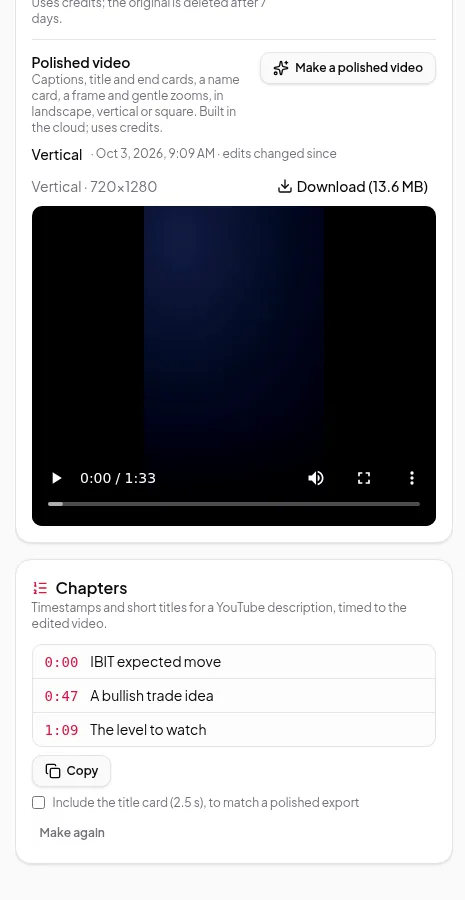
Open Chapters, description and short clips and click Make chapters in the Chapters panel. Vidonto suggests where each topic starts, with a short title for each part. If you’ll post a polished video with a title card, tick Include the title card so the times match that export.
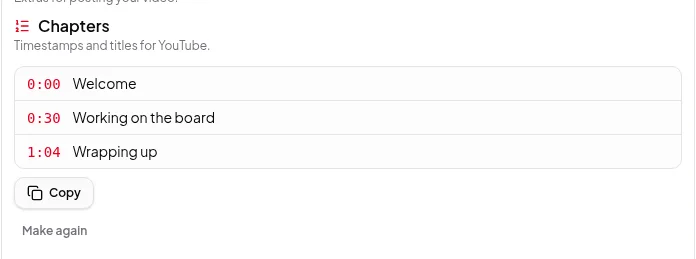
The chapters guide covers chapters in more detail.
Step 3: Write the description
Under Description, check the estimate and click Write description. It takes under a minute; keep the tab open.
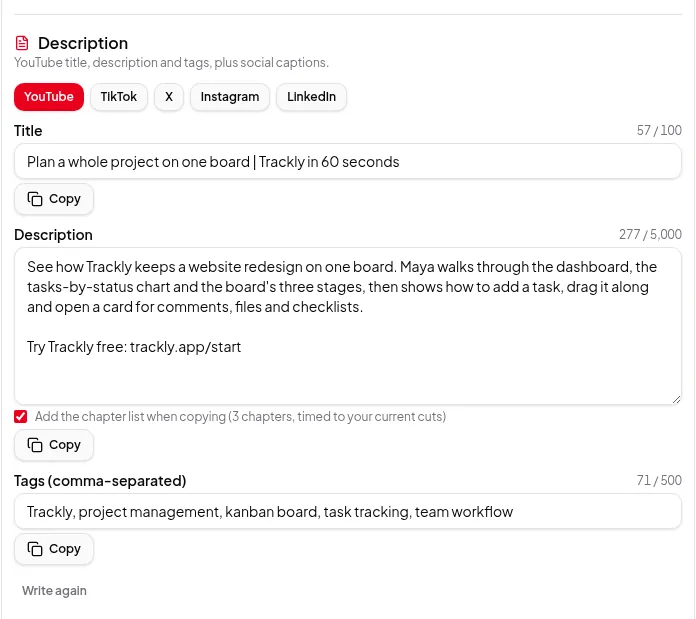
You get a YouTube tab with a Title, Description and Tags, plus tabs for TikTok, X, Instagram and LinkedIn. Each field shows its character count against that platform’s limit — for YouTube, 100 characters for the title, 5,000 for the description and 500 for tags.
Step 4: Make it yours
Read it through and edit anything you like: a call to action, a link to your product, a sentence in your own voice. Your edits are saved with the recording. If you’d rather start over, Write again writes a fresh version from your current edit and replaces the text.
Step 5: Copy the description with chapters
On the YouTube tab, tick Add the chapter list when copying. It shows how many chapters it will add and that they’re timed to your current cuts. Click Copy description: the description is copied with the chapter list under it, the first chapter at 0:00, as YouTube expects.
If the description plus chapters would be longer than YouTube allows, the panel tells you before you copy. Shorten the description and copy again.
Step 6: Paste it into YouTube
Copy the title and the tags with their own Copy buttons too, and paste each into its field in YouTube Studio. YouTube turns the chapter list into chapters on the video’s progress bar.
Posting the same video elsewhere? The other tabs have a caption or post sized for each platform, ready to copy.
Tips
- Cut before you write. If you change the edit afterwards, copy the description again so the chapter times follow the new cuts; write it again if the content changed.
- Check names and numbers. The writer uses your words, so a misheard product name in the transcript can end up in the description. Fix it in the text before you copy.
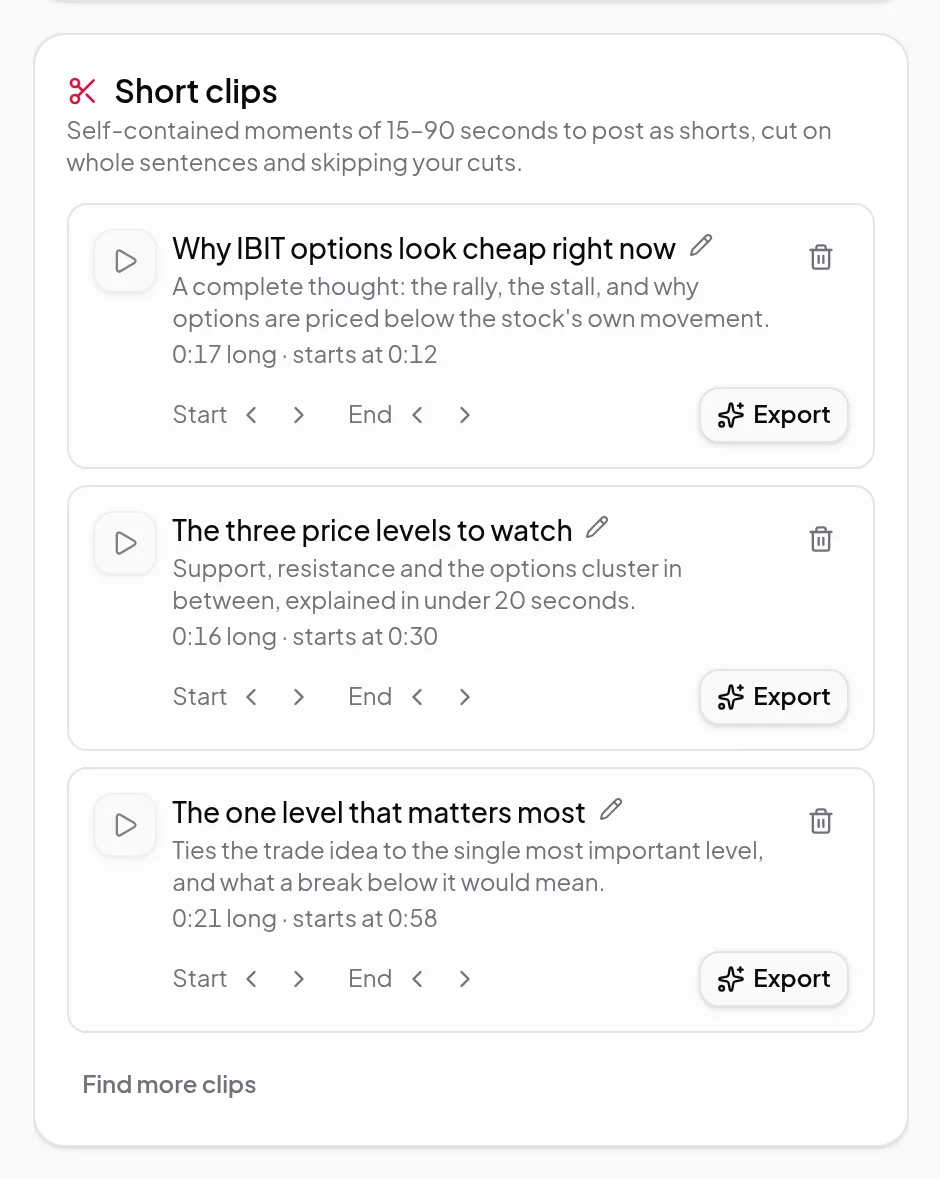
- Short clips come from the same section. While you’re there, short clips finds moments to post as Shorts.