Feature
Chapters, scenes and zooms for your recordings
Make YouTube chapter timestamps from your edited recording, and add animated scenes such as quotes and comparisons, plus gentle zooms, to your polished video.
Updated
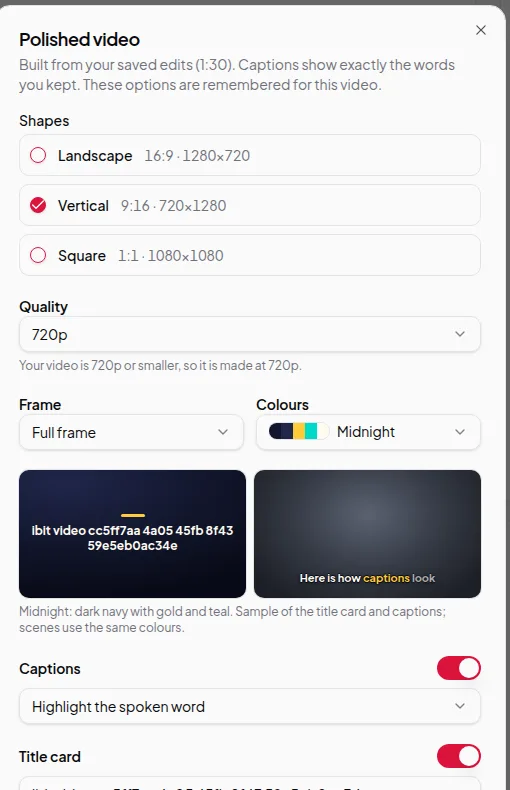
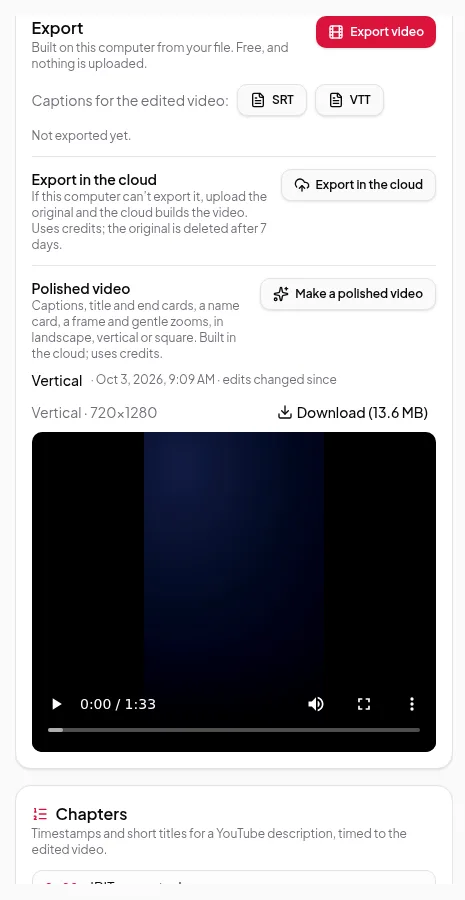
Once your recording is edited, the Video Editor can help you package it. Chapters give viewers timestamps for a YouTube description. Scenes and zooms add animated moments — a quote on screen, a side-by-side comparison, a list, a key figure — and gentle zooms on parts of your video when you make a polished version.
Chapters
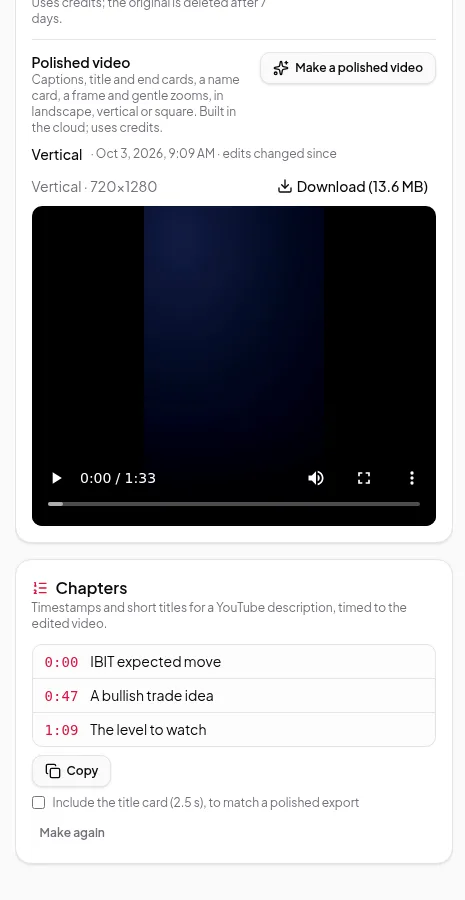
Click Make chapters in the Chapters panel. Vidonto reads your edited transcript and suggests where each topic starts, with a short title for each part.
- Timestamps follow your edits. Chapters are tied to the words where they start, not to fixed times. If you cut more words later, the timestamps move to match the edited video.
- Ready for YouTube. Click Copy to copy the list in the format YouTube expects — the first chapter starts at 0:00 — and paste it into your video description.
- Polished videos. Tick Include the title card to shift the times to match a polished export that starts with a title card.
YouTube only shows chapters when there are at least three and each is at least 10 seconds long. Vidonto follows the same rules, so the list you copy works.
Scenes and zooms
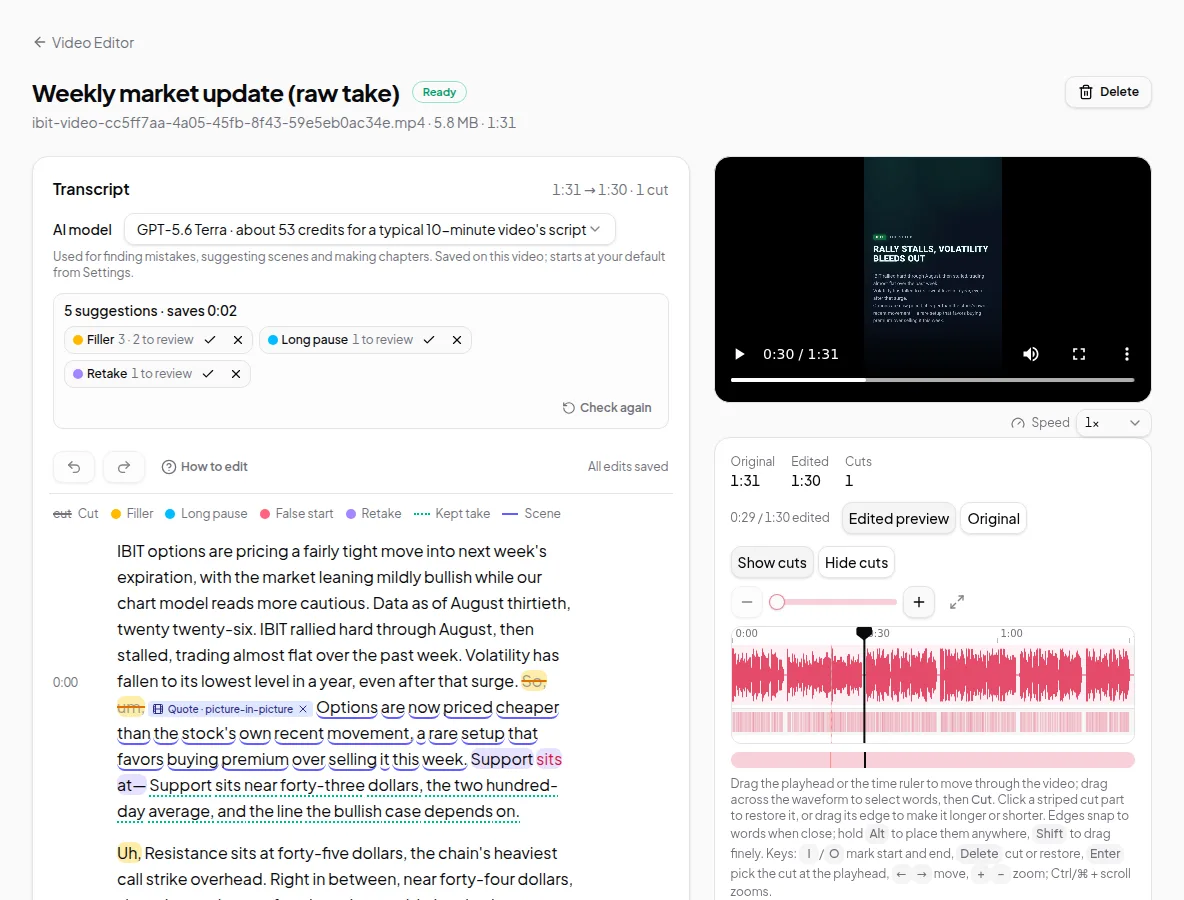
Select words in the transcript and choose Add scene or Zoom, or click Suggest again to let the app suggest scenes from what you say. Scene types include:
- Quote — puts a key line on screen in large type.
- Comparison — shows two sides, such as “bullish flows” versus “cautious technicals”.
- Lists, key figures and charts — for steps, numbers and simple comparisons.
A scene can fill the screen, or play picture-in-picture so your face stays on screen while it plays. Scenes and zooms appear in the transcript as small labels above the words they cover.
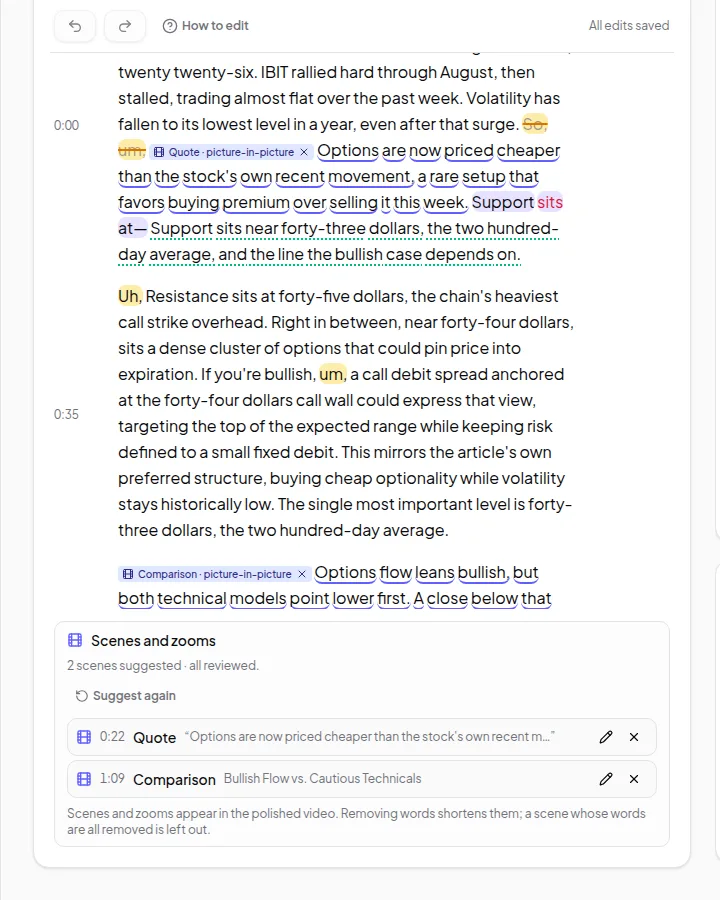
Scenes and zooms show up in polished videos, not in the plain browser export. If you cut words inside a scene, the scene gets shorter. If you remove all its words, the scene is left out.
Limits worth knowing
- Chapters need enough edited content to make at least three parts of 10 seconds or more. Very short videos won’t get chapters.
- Making chapters again replaces the list. Copy anything you want to keep first.
- Scenes are drawn from your words. They don’t add facts you didn’t say.
Credits
Making chapters and suggesting scenes use a small number of credits, shown before you start. Copying chapters, adding scenes or zooms by hand and editing them are free. See credits explained.
Follow the guide to add chapters to a recording.