Guide · Your recordings
How to add chapters to a recording for YouTube
Make YouTube chapter timestamps from your edited recording in Vidonto, copy them into your video description, and keep them in step with your cuts and polished exports.
3 min read · Updated
Feature used in this guide: Chapters and zooms for recordings — what it does, its limits and how credits work.
Chapters split a YouTube video into named sections on the progress bar. Viewers jump straight to the part they want, and the chapter titles give search engines more to work with. Writing timestamps by hand means scrubbing through the video and noting times. In Vidonto’s Video Editor, you click one button and copy the result.
You’ll need: a recording in the Video Editor that you’ve finished editing, and a few credits. The edited video must be at least 30 seconds long.
How YouTube chapters work
YouTube builds chapters from a list of timestamps in your video description. For them to show:
- The first timestamp must be 0:00.
- There must be at least three timestamps.
- Each chapter must be at least 10 seconds long.
Vidonto follows the same rules, so the list you copy works as soon as you paste it.
Step 1: Finish your edit first
Chapters are timed to the edited video. You can keep editing afterwards — the times move with your cuts — but the chapter split itself is based on what’s in the edit when you make them. So do your main cutting first: remove the intro chatter, the tangents and the ums and retakes.
Vidonto waits for your latest edits to save before it starts, so the chapters always match what you see.
Step 2: Make chapters
Scroll to the Chapters panel on the recording page. It explains what it does: “Timestamps and short titles for a YouTube description, timed to the edited video.” Below the button is a credit estimate.
Click Make chapters. Vidonto reads the edited transcript, finds where each topic starts and writes a short title for each part. It takes a few moments. If it fails, nothing is charged and you can Try again.
Step 3: Check the list
The panel shows the chapters with their times and titles. Click a chapter to jump the player there and check that it starts in the right place.
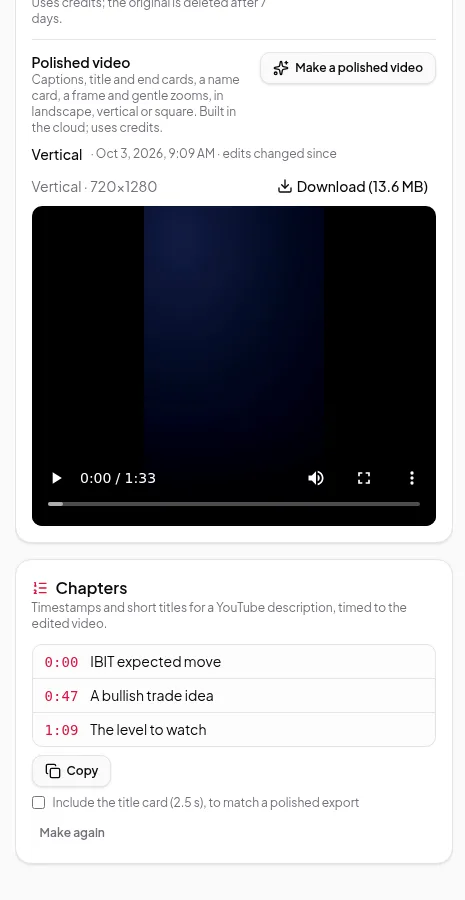
If you don’t like the split, click Make again. The app asks you to confirm, because making chapters again replaces the list.
Step 4: Copy them into your description
Click Copy chapters. The list is copied in the format YouTube expects, one chapter per line:
0:00 Why options are cheap this week
1:12 The level that matters
2:05 What would change the view
Paste it into your YouTube description — on its own lines, anywhere in the description. You can change the wording of a title after pasting; just keep the times as they are.
Step 5: Keep chapters in step with later edits
Chapters are tied to the word each one starts on, not to a fixed time. If you go back and cut more, the times are worked out again from what’s left, so copy the list again after editing.
If your cuts leave fewer than three usable chapters — for example because you removed a whole section — the panel warns you that YouTube won’t show them, and suggests making chapters again or restoring some words.
Step 6: Match a polished export
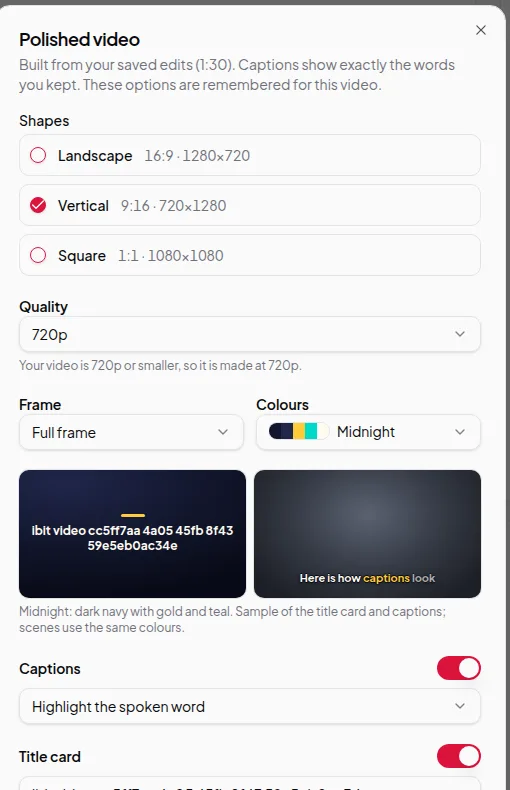
A polished video can start with a 2.5-second title card, which pushes everything back. If you’re uploading the polished version, tick Include the title card (2.5 s), to match a polished export before you copy. The first chapter stays at 0:00 and the rest shift to match.
Bonus: Scenes and zooms
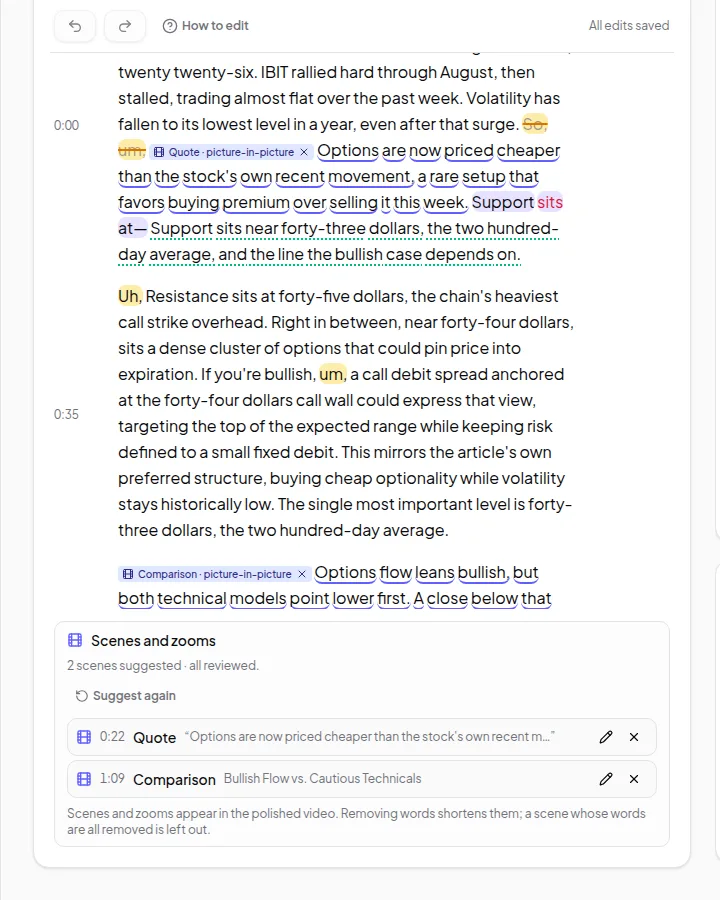
While you’re packaging the video, the Scenes and zooms panel can suggest animated moments — a quote on screen, a comparison, a key figure — that appear in polished videos. Select words and choose Add scene or Zoom, or let the app suggest scenes. See chapters, scenes and zooms.
Tips for better chapters
- Say what’s coming. A clear spoken transition (“Next, let’s look at…”) makes topic changes easier to find.
- Aim for 3–8 chapters for a 5–20 minute video. Too many chapters make the progress bar hard to use.
- Front-load keywords in titles when you edit them after pasting, for example “Pricing: what changed” rather than “So, about the pricing”.