Feature
Short clips from a long recording
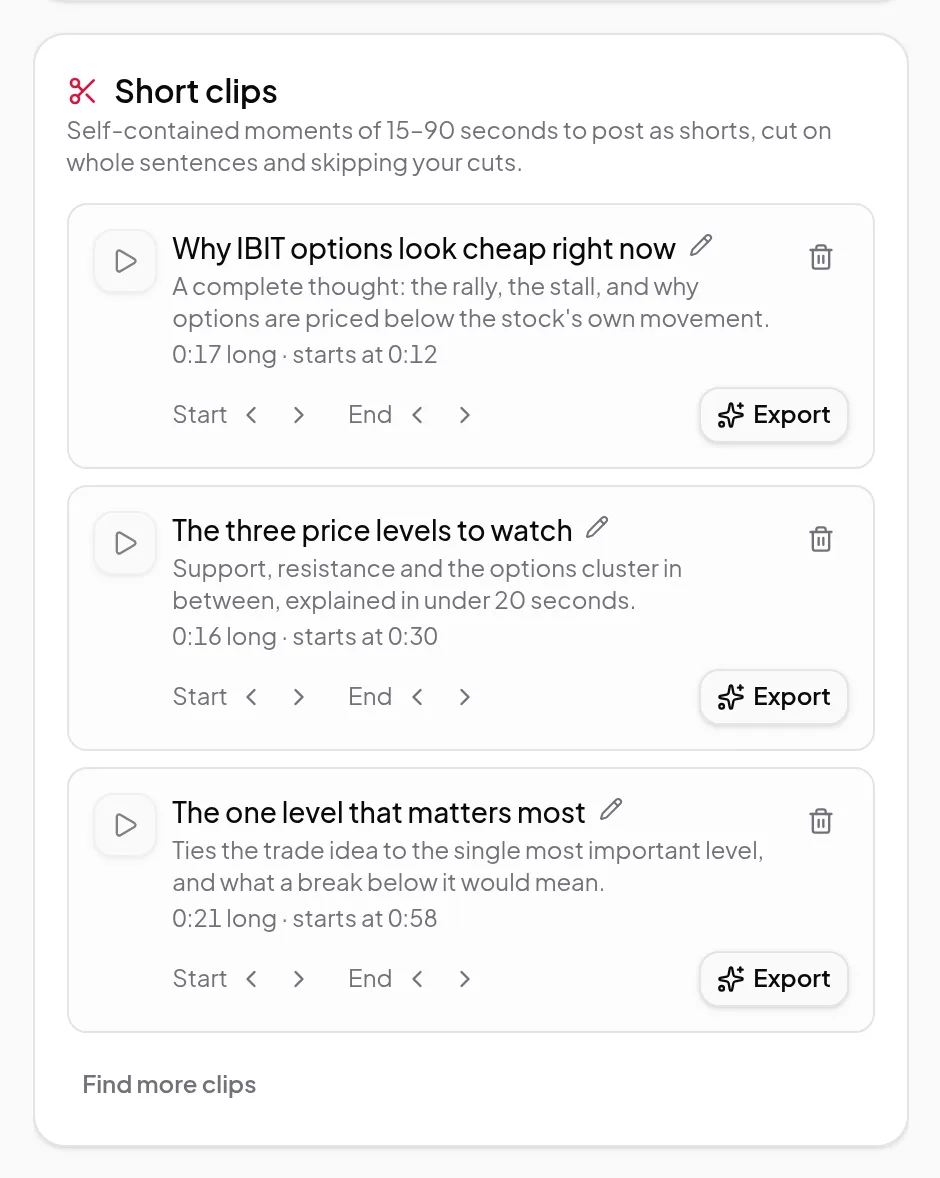
AI finds self-contained 15–90 second moments in your edited recording, each with a title and a reason. Trim them by sentence and export them vertical with captions.
Updated
A long webinar, podcast or lesson usually has a few moments that work on their own. Short clips finds them for you. It reads your edited recording and suggests self-contained moments to post as Shorts, Reels or TikToks, each with a title and a short note on why it works.
How it works
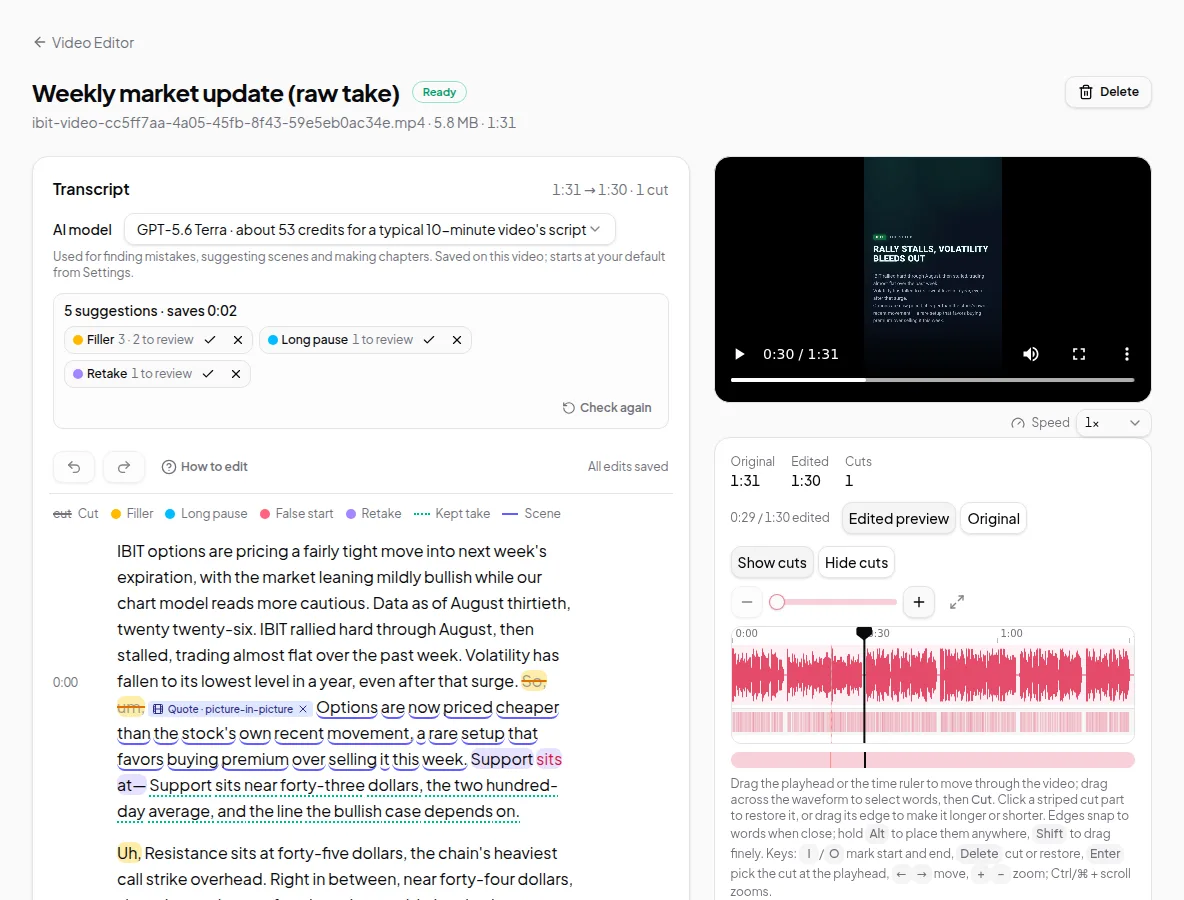
- Open a recording in the Video Editor and make your edits first. Clips skip anything you’ve cut.
- In Short clips, click Find clips. The estimate is shown before it starts.
- Each suggestion is 15–90 seconds long and is cut on whole sentences. You get up to 8 clips, depending on the length of the video.
- Play a clip to check it. Use Start and End to move either edge one sentence earlier or later, rename it, or delete it.
- Click Export to make the clip as a polished video.
Exporting a clip
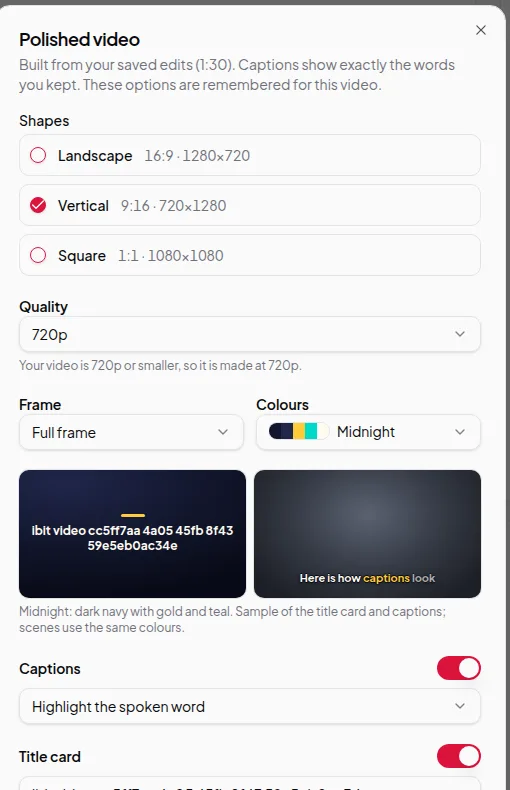
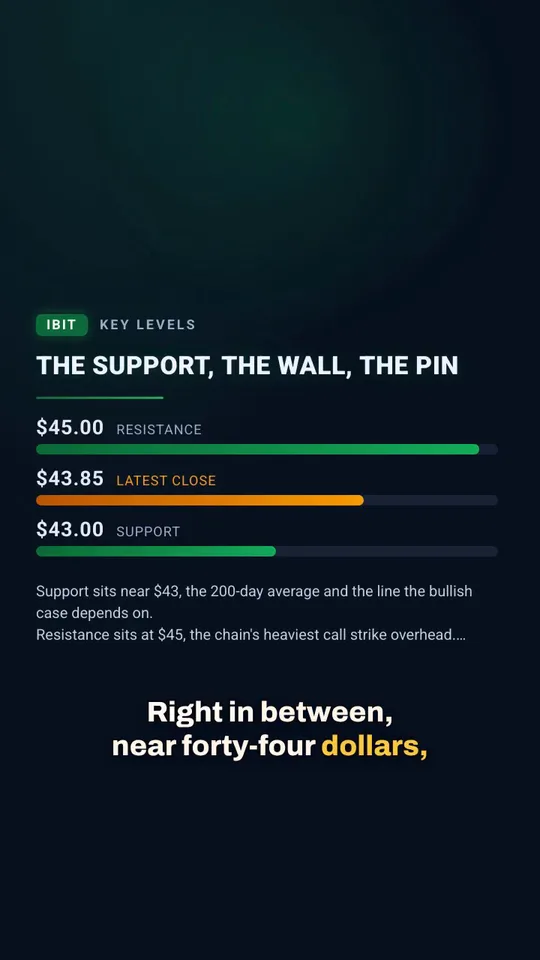
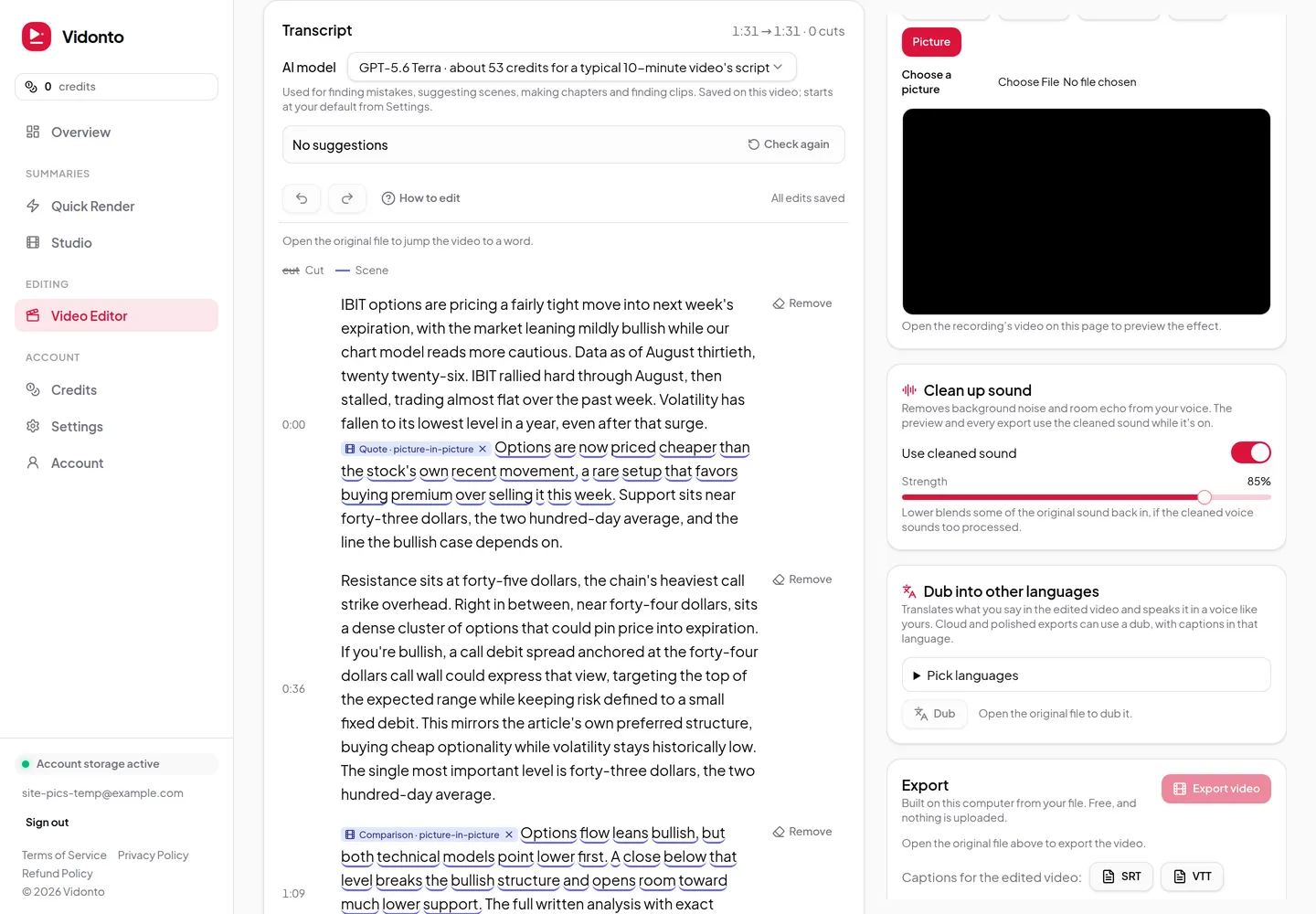
A clip exports as a polished video of just that moment. The export starts out vertical (9:16) with the clip’s title on the title card, and you can change the options before you confirm. Captions, colours and frames work as they do for a full polished video. Clip exports use your cleaned-up sound and any dub you have, so a clip can go out in another language too.
When you change the edit
Clips follow your cuts. If you cut more words later, each clip updates to match without a new run. If you click Find more clips, untouched suggestions are replaced, while clips you renamed, trimmed or exported stay.
Limits worth knowing
- The edited video needs to be at least 30 seconds long to find clips in it.
- Wait for your latest edits to save first. The panel says so while it waits, so the clips match them.
- Exporting a clip needs the original file uploaded, like any polished video.
Credits
Finding clips uses credits, with an estimate shown before you start. If no usable clips are found, nothing is charged. Exporting a clip is priced like a polished video of the clip’s length. See credits explained.
Planning short-form posts? See make Shorts and Reels from a long video.