Feature
Video description writer for YouTube and social posts
Write a YouTube title, description and tags, captions for TikTok, X, Instagram and LinkedIn, or a blog post or how-to article, from the words your edited video keeps.
Updated
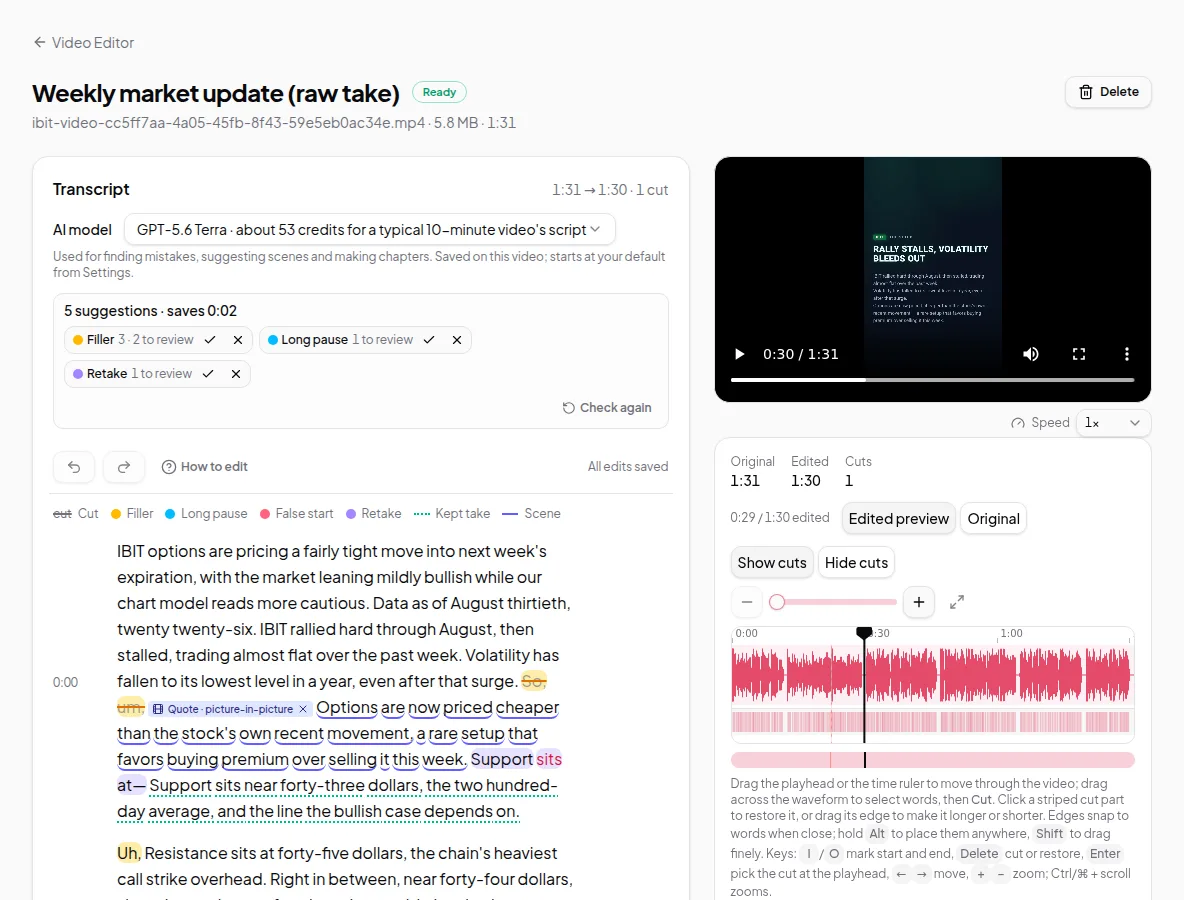
The video is edited; now it needs words to go with it. The description writer in the Video Editor reads the words your edited video actually keeps and writes a YouTube title, description and tags, plus a caption or post for TikTok, X, Instagram and LinkedIn. Your chapter list can be added to the YouTube description when you copy it, timed to your current cuts.
Write a description
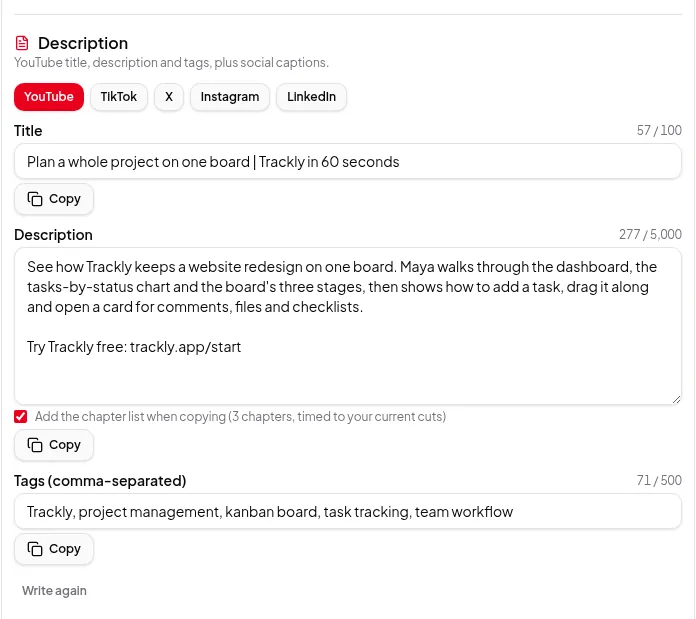
Open the Chapters, description and short clips section of the Video Editor and find Description. Click Write description. It takes under a minute; keep the tab open. The writer uses your saved edits, so it starts once your latest changes are saved.
Because it reads only the words you kept, anything you cut — a retake, an aside, a wrong figure — isn’t described.
What you get
Tabs for each platform, each with a character count against that platform’s limit:
| Tab | What’s written | Limit |
|---|---|---|
| YouTube | Title, description and tags | 100, 5,000 and 500 characters |
| TikTok | Caption | 2,200 characters |
| X | Post | 280 characters |
| Caption, with a hashtag count | 2,200 characters, 30 hashtags | |
| Post | 3,000 characters |
Every field can be edited. Your changes are saved with the recording, and each field has its own Copy button.
Chapters added for you
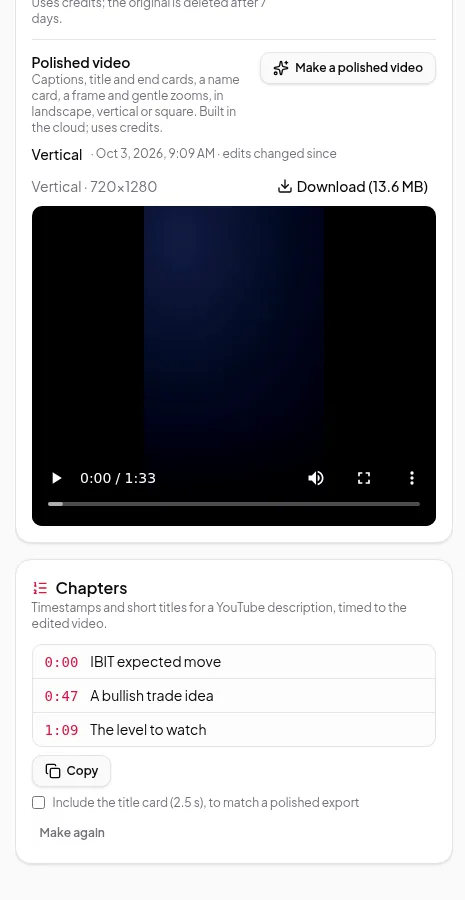
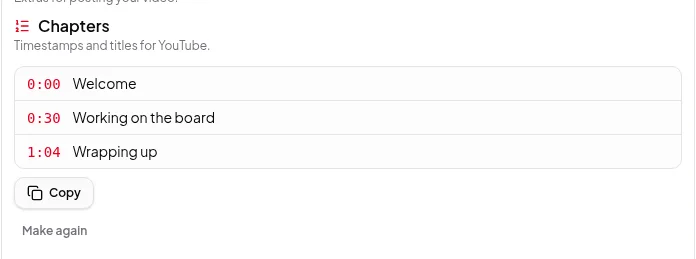
If the video has chapters, the YouTube tab offers Add the chapter list when copying, with the number of chapters and a note that they’re timed to your current cuts. Tick it and Copy description pastes the description followed by the chapter list, ready for YouTube. If you cut more words later, the times in the copied list follow the new edit.
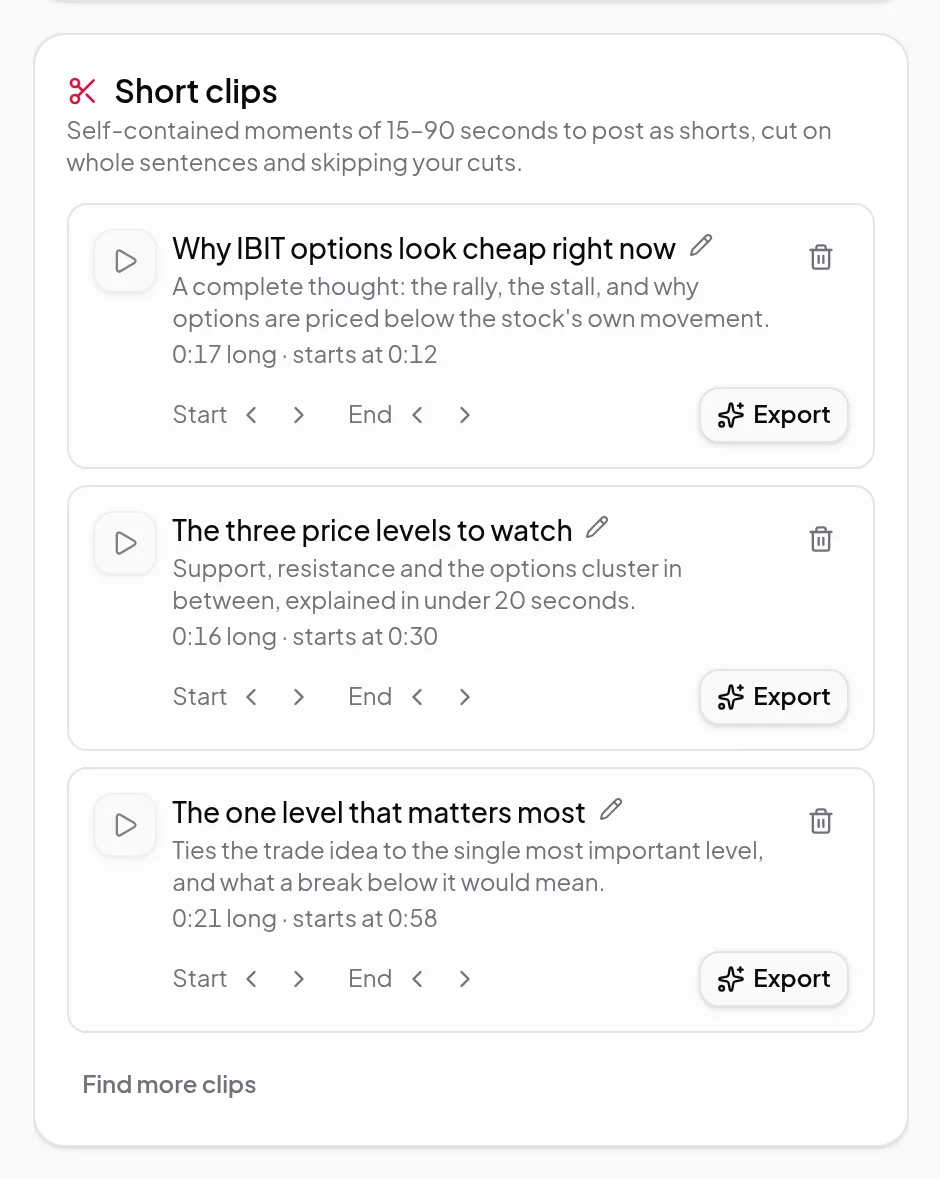
No chapters yet? Make them first in the Chapters panel above — see chapters, scenes and zooms. If the description plus chapters would be longer than YouTube allows, the panel says so before you copy.
Write again
Click Write again for a fresh version written from your current edit. It replaces the current text, so copy anything you want to keep first.
Turn it into an article
The same words can become a written article. Open the Write an article section of the Video Editor, choose Blog post (headings and paragraphs) or How-to steps (numbered steps), and click Write article. The price is shown next to the button first. If the video has at least three chapters, Use my chapters as headings makes one part of the article per chapter.
You get a draft with a title, headings and paragraphs or steps, written only from the words your edited video keeps. Edit it in place and Save; your changes stay with the recording. Copy text copies it without formatting, Copy Markdown keeps the headings and numbered steps for a blog editor, and Download .md saves it as a file. Writing again asks first when you’ve edited the draft, because it replaces it.
Limits worth knowing
- The writer works from your words. It doesn’t add facts you didn’t say, but read the text before posting.
- Vidonto doesn’t post for you. Copy the text into YouTube, your blog or the other platform yourself.
- Articles are text only: screenshots from the video aren’t added.
- Chapters need at least three parts of 10 seconds or more, as YouTube requires.
Credits
Writing a description or an article uses credits, and the estimate is shown next to Write description or Write article before you start. Editing, copying, downloading and adding chapters to the copied text are free. See credits explained.
Step by step: write a YouTube description and chapters from your video.