Feature
AI avatar for your recordings
Record your screen and voice, then let an AI avatar appear in place of your camera, speaking your own words with your voice, in polished videos of up to 10 minutes.
Updated
Not every day is a camera day. With the AI avatar, you record your screen and talk as usual, and a realistic AI presenter appears where your camera would be, lip-synced to your own voice. Your words, cuts, captions, scenes and camera views stay exactly as you edited them.
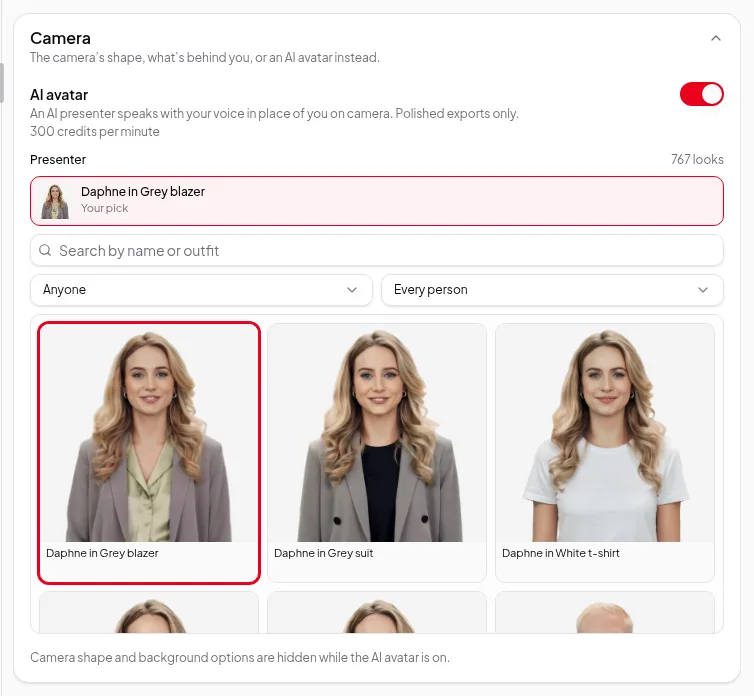
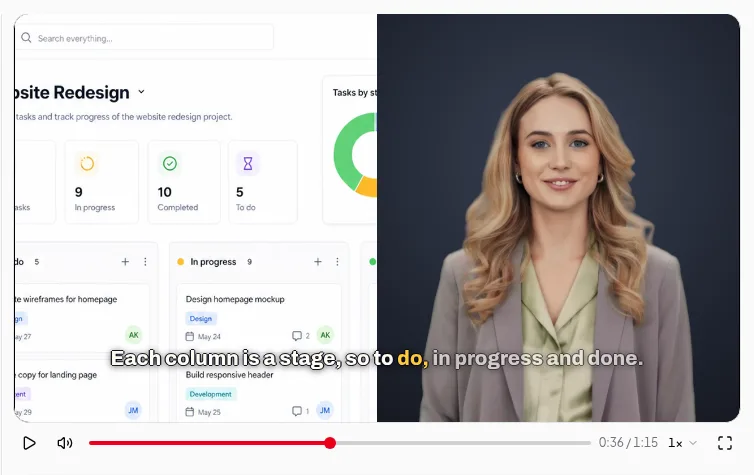
Step by step, with screenshots: replace your camera with an AI avatar.
How it works
- Open your recording in the Video Editor and edit it as usual.
- In the Camera section (called Background for recordings without a separate camera file), switch on AI avatar: “An AI presenter speaks with your voice in place of you on camera.”
- Pick a look. Search the list or filter it to find a presenter that suits the video.
- Make a polished video. The avatar speaks with your recorded voice, in the bubble, side by side or full screen — wherever your camera views put the camera.
The editor’s player shows the chosen look as a still picture in place of your camera, so you can check where it sits before you pay. The moving, lip-synced avatar is made when the polished video is made.
What changes and what doesn’t
- Your voice stays. The avatar speaks with the sound of your recording, after your cuts. It doesn’t change your words.
- Your camera is replaced. While the avatar is on, the camera’s shape and background options are hidden, because your camera isn’t shown.
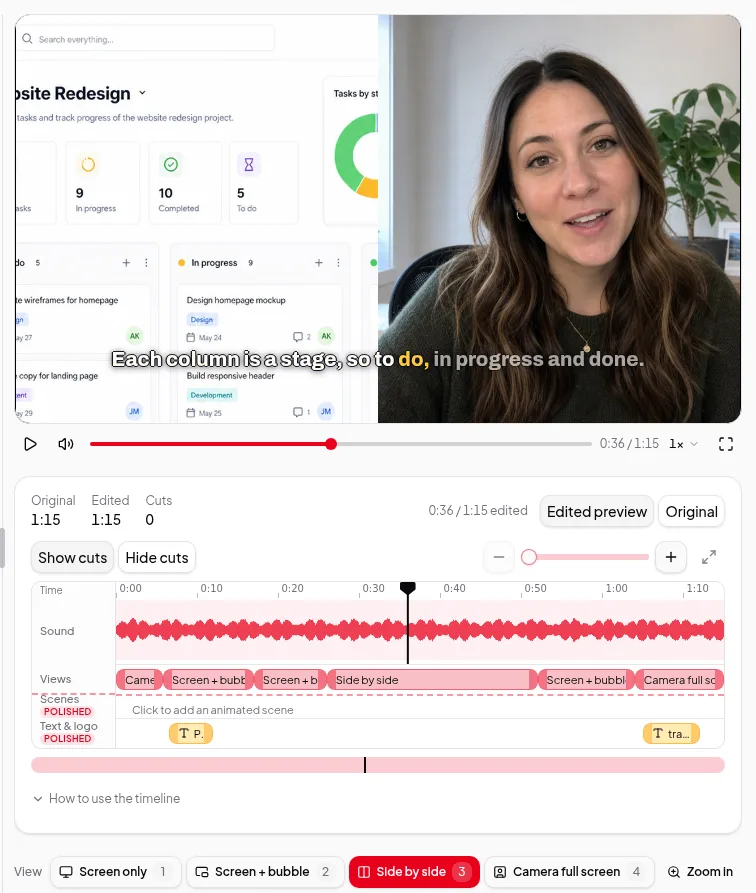
- Views still apply. Screen only, Screen + bubble, Side by side and Camera full screen work as before, with the avatar in place of you. See camera views.
- Logo and text fit around it. Your corner logo and text items are placed around the avatar the same way as around your own camera.
Where it shows up
The AI avatar is for polished videos only. The free export on your computer and cloud renders show your own camera. What’s in each video in the Export section shows the difference.
Limits worth knowing
- Works for videos up to 10 minutes after cuts.
- It speaks your own voice, so it’s off while a dubbed language is chosen.
- If a look is no longer offered, the editor asks you to pick another.
- Making the avatar can add time to the polished video, because the presenter is made first.
Credits
The AI avatar adds to the price of a polished video, based on the length after cuts. The full price is shown on the Start button before anything starts. If you make another polished video with the same cuts and the same look — another shape, for example — the avatar already made is used again at no extra cost. See credits explained.
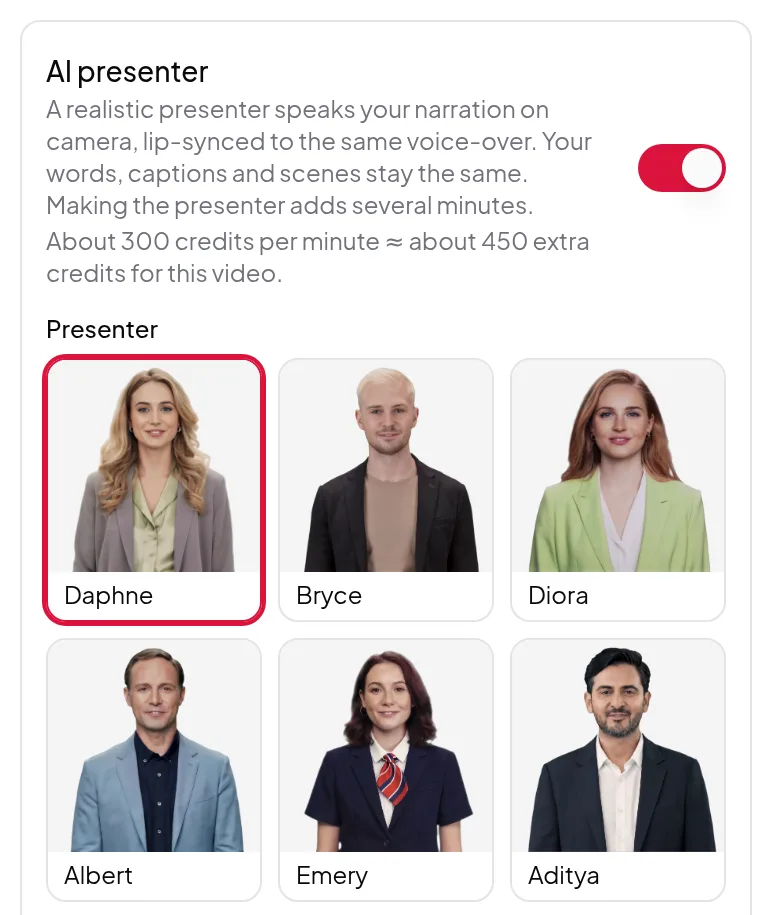
For summary videos made from a link or text, the separate AI presenter speaks the AI voice-over instead.