Feature
AI presenter — a realistic presenter who speaks your narration
Add a realistic AI presenter who speaks your narration on camera, lip-synced to the voice-over — in the corner, at the opening and ending, full screen or in the scene.
Updated
A summary video with only scenes and a voice can feel faceless. The AI presenter puts a realistic person on screen who speaks your narration, lip-synced to the same voice-over. Your words, captions and scenes stay exactly as they were. The presenter is added on top.
Where to find it
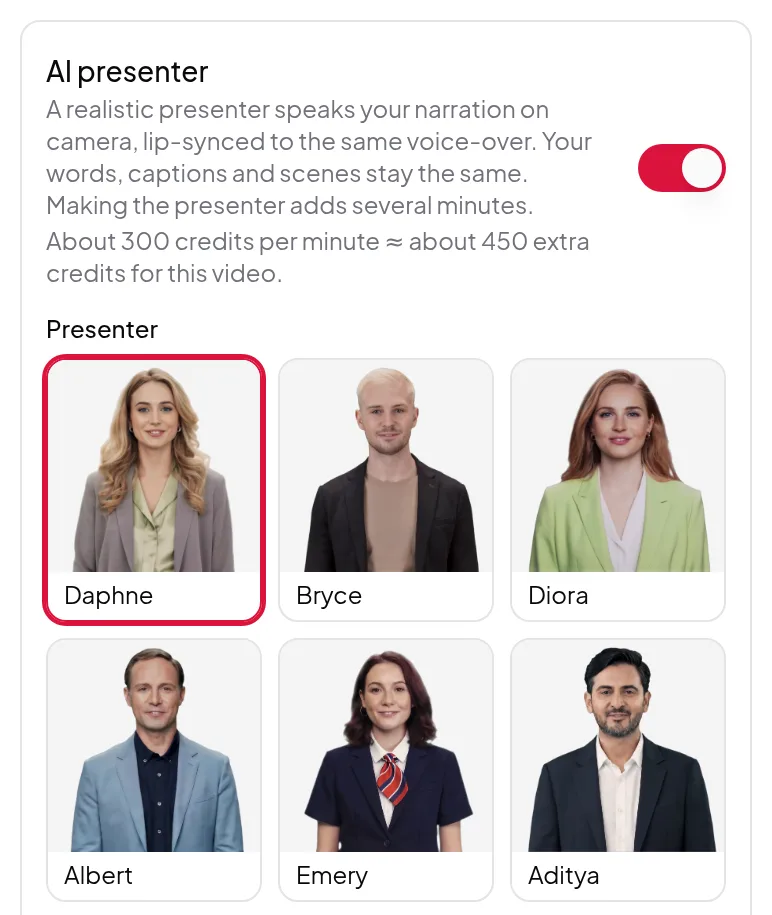
The AI presenter switch is in the render settings of the Studio and in Quick Render. Switch it on and choose:
- Presenter. Six presenters, each shown with a preview picture: Daphne, Bryce, Diora, Albert, Emery and Aditya.
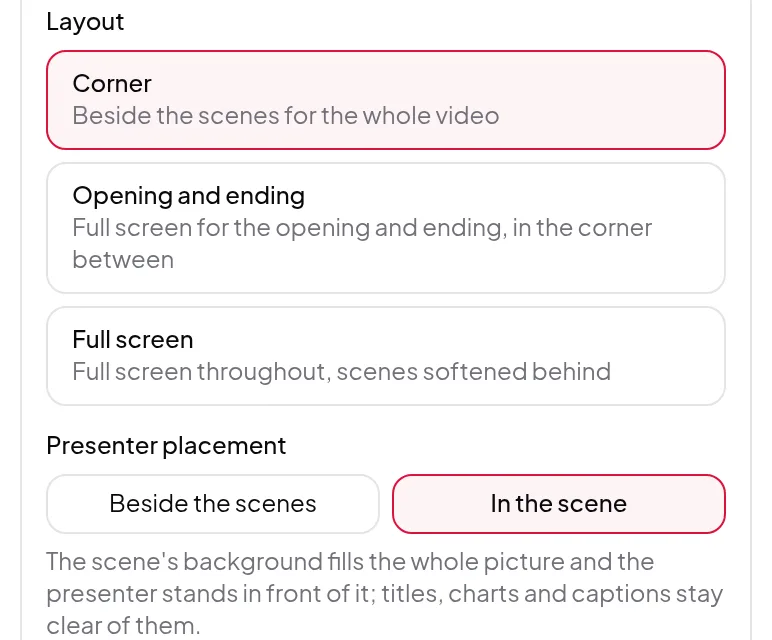
- Layout. Corner keeps the presenter beside the scenes for the whole video. Opening and ending shows the presenter full screen for the opening and ending, and in the corner in between. Full screen keeps the presenter full screen throughout, with the scenes softened behind.
- Presenter placement (Corner and Opening and ending). Beside the scenes puts the scenes in their own box beside the presenter. In the scene lets the scene’s background fill the whole picture with the presenter standing in front of it, and keeps titles, charts and captions clear of them.
- Presenter side (Left or Right) and Presenter size (Small, Standard or Large).
How it works
The presenter is made from the finished voice-over, so the lips match the words you hear. Making the presenter adds several minutes to the render. Nothing about your script or storyboard changes: if you edit the words, render again and a new presenter is made for the new words.
If you render the same approved words again — for example in another video size — the voice-over and presenter from your last finished render are reused, so you don’t pay for them twice. If you change the presenter, a new presenter video is made and the voice-over is reused.
Limits worth knowing
- The AI presenter works for narration up to 10 minutes. For a longer script, shorten it or render without the presenter.
- The presenter speaks the narration only. It doesn’t react to the scenes or point at them.
- If AI presenters are temporarily unavailable, the switch is turned off and the app says so.
- The developer API can add a presenter to runs too.
Credits
The presenter costs extra credits per minute of narration. The option shows the price per minute and an estimate for the video you’re making before you start, and a failed render costs nothing. See credits explained.
Walk through it in add an AI presenter to a video.