Guide · Your recordings
How to replace your camera with an AI avatar
Step by step, switch on the AI avatar, pick a look, check where it sits in the preview, and make a polished video where it speaks with your own voice.
3 min read · Updated
Feature used in this guide: AI avatar for recordings — what it does, its limits and how credits work.
Not every day is a camera day. With the AI avatar, a realistic AI presenter appears where your camera would be in a polished video, lip-synced to your own recorded voice. This guide shows how to switch it on, choose a look and make the video.
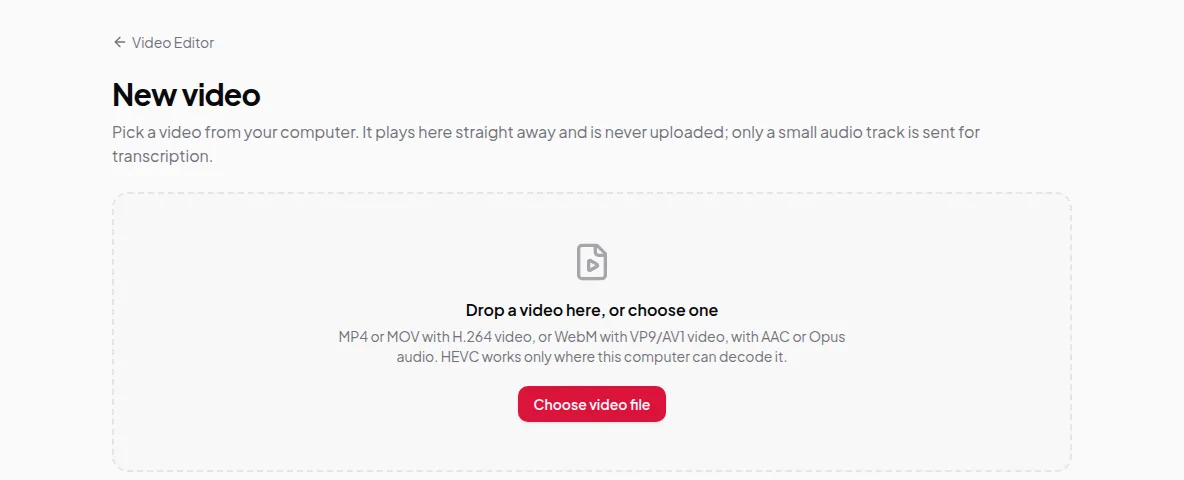
You’ll need: a Vidonto account with credits, and a recording in the Video Editor, edited to under 10 minutes. It can be a screen recording with or without a camera. To make the polished video, the original file must be open on this computer or the recording kept in the cloud.
Step 1: Edit the recording first
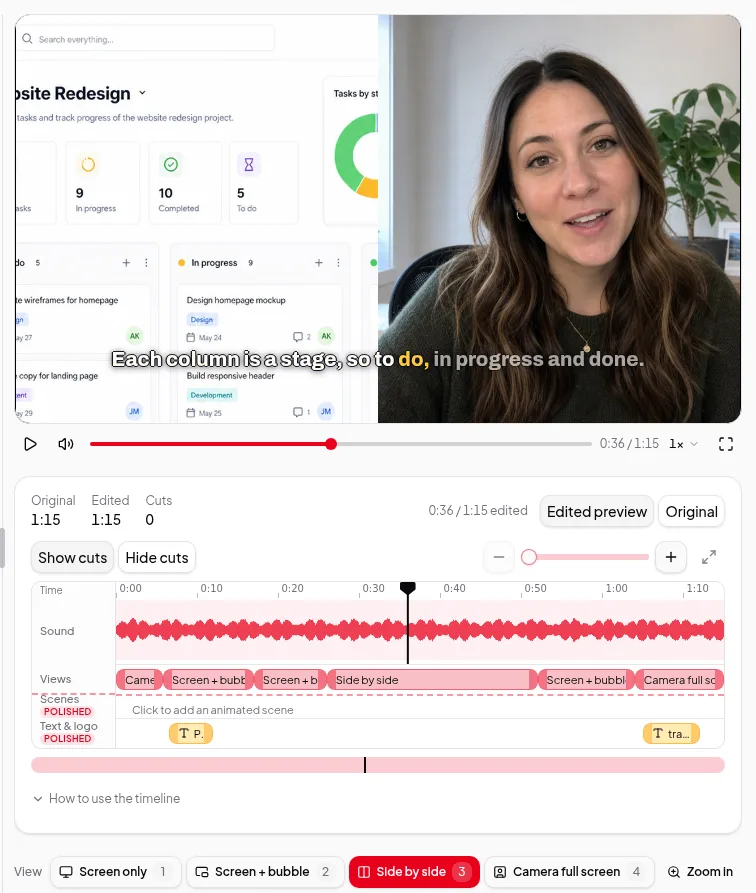
The avatar speaks your recorded voice after your cuts, so finish your edit before you make the video: cut mistakes, set your camera views and add any scenes or text. The avatar works for videos up to 10 minutes after cuts; the panel tells you if yours is longer.
Step 2: Switch on AI avatar
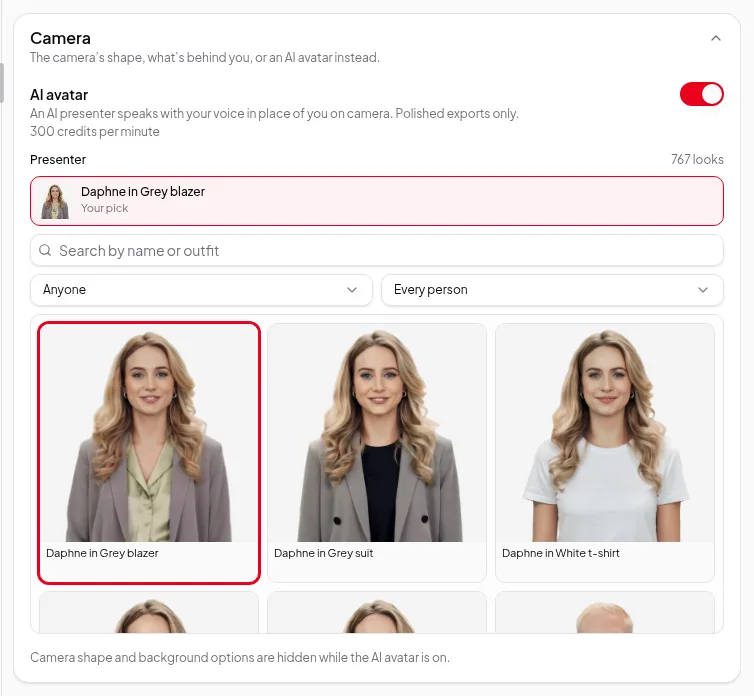
Open the Camera section (it’s called Background for recordings without a separate camera file). Switch on AI avatar: “An AI presenter speaks with your voice in place of you on camera. Polished exports only.” The panel shows the price per minute.
While the avatar is on, the camera’s shape and background options are hidden, because your own camera isn’t shown.
Step 3: Pick a look
Choose a presenter from the list. Type a name or an outfit in Search by name or outfit, or narrow the list to women or men, or to one person. Your chosen look stays at the top, marked Your pick.
Step 4: Check where it sits
Under the player, switch from Simple export to Polished video. The preview shows a still of the chosen look wherever your camera views put the camera: in the bubble, side by side or full screen. Your corner logo and text items fit around it the same way as around your own camera.
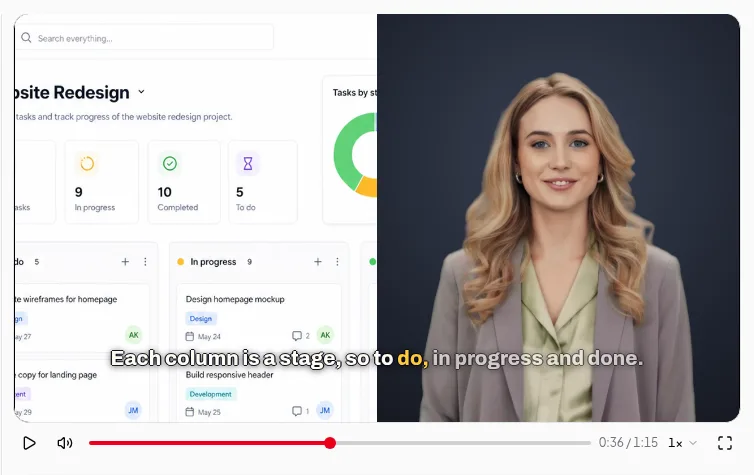
The moving, lip-synced avatar is made only when you make the polished video, so nothing is paid while you try looks.
Step 5: Make a polished video
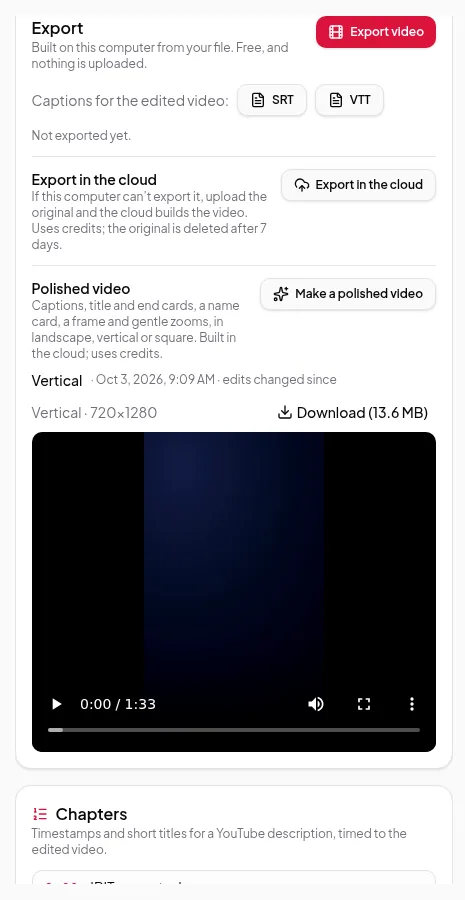
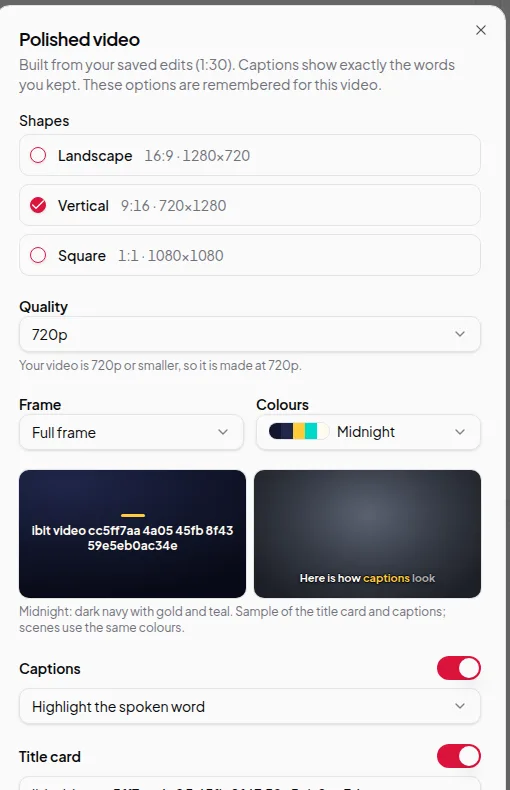
In the Export section, click Make a polished video, choose your shapes and quality, and check the price on the Start button. It includes the avatar. Click it to start. Making the avatar adds some time, because the presenter is made before the video. The full steps are in export your finished video.
Step 6: Make more versions
If you make another polished video with the same cuts and the same look, for example a vertical one after a landscape one, the avatar already made is used again at no extra cost. If you change the cuts or the look, a new avatar is made and priced.
Good to know
- Polished videos only. The free export on your computer and Render in cloud show your own camera. What’s in each video in the Export section shows the difference.
- Your words stay yours. The avatar uses the sound of your recording; it doesn’t change what you said.
- Not with dubs. The avatar speaks your own voice, so it’s off while a dubbed language is chosen.
- Retired looks. If a look is no longer offered, the panel says “This look is no longer offered. Pick another.”
Credits
The AI avatar adds to the price of a polished video, based on its length after cuts. The full price is on the Start button before anything starts, and trying looks in the preview is free. See credits explained.