Feature
Blur or replace your background — no green screen
Blur what's behind you, or swap it for a colour or your own picture, in cloud and polished exports of your recording. No green screen needed, with a live preview first.
Updated
A messy room or a busy office distracts from what you’re saying. The Background effect blurs or replaces what’s behind you in your recording. No green screen needed: Vidonto finds the person on camera and leaves them sharp.
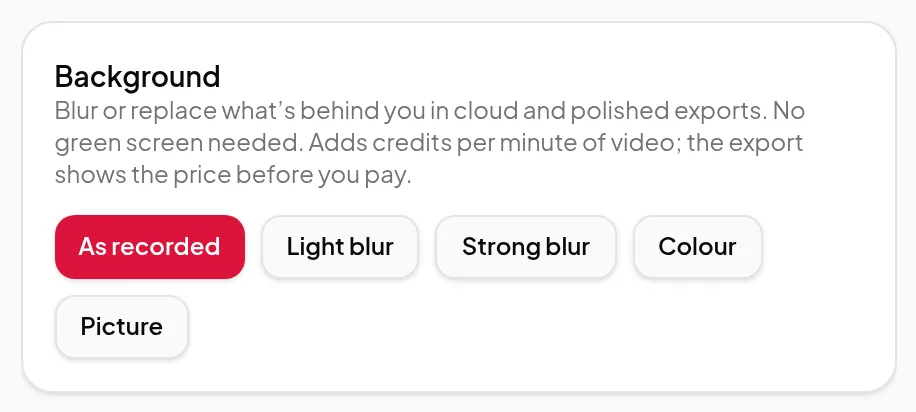
The choices
- As recorded — no effect. This is the default.
- Light blur and Strong blur — soften what’s behind you.
- Colour — a plain colour of your choice behind you.
- Picture — your own picture behind you: PNG, JPEG or WebP, up to 10 MB.
How it works
- Open the recording in the Video Editor with its original file.
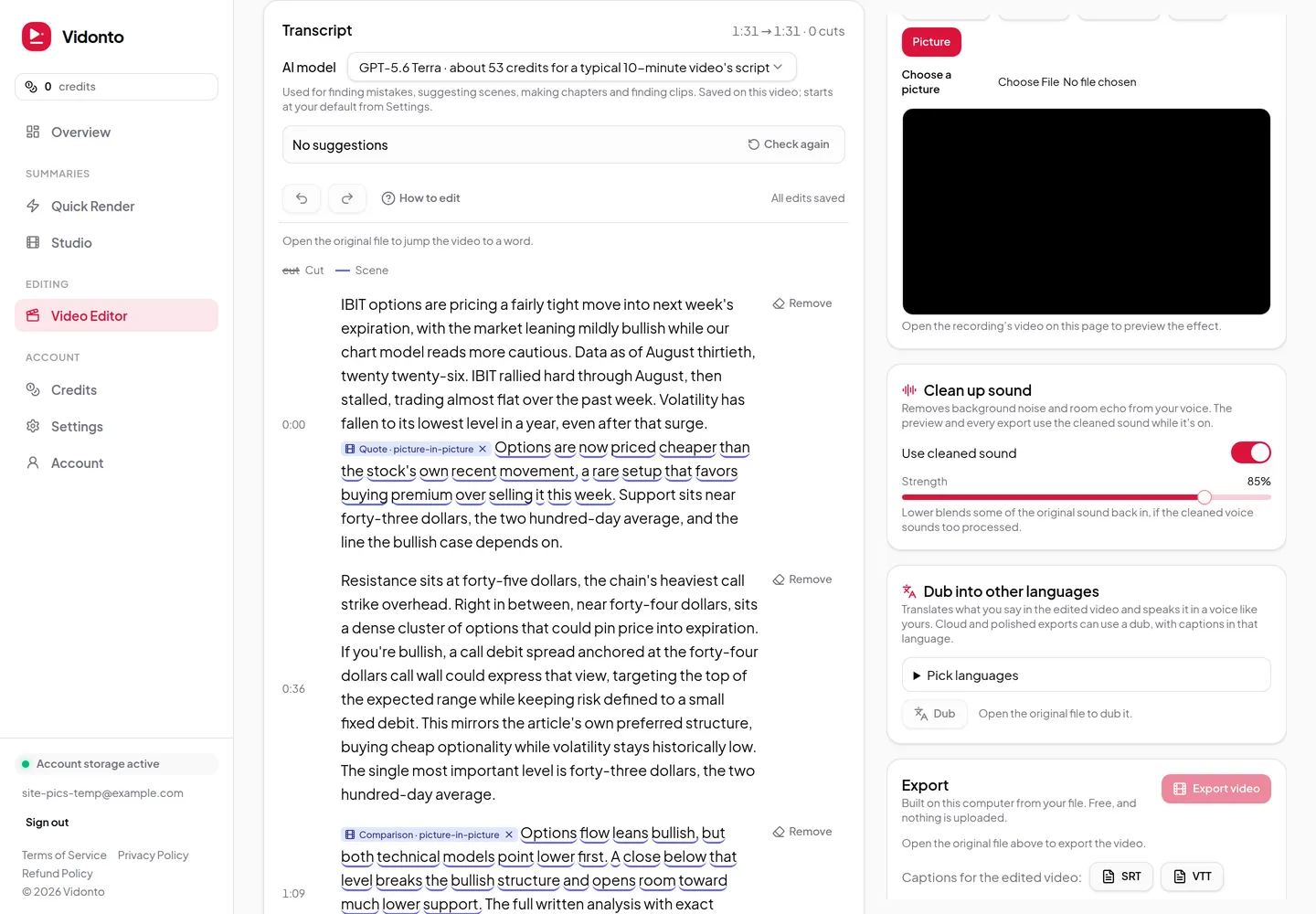
- In Background, pick an effect. The preview follows the video, so play or scrub it to check the edges.
- Vidonto checks a set of moments in your video for a person on camera and tells you how many it found someone in. If the check doesn’t pass, change the effect or click Check again.
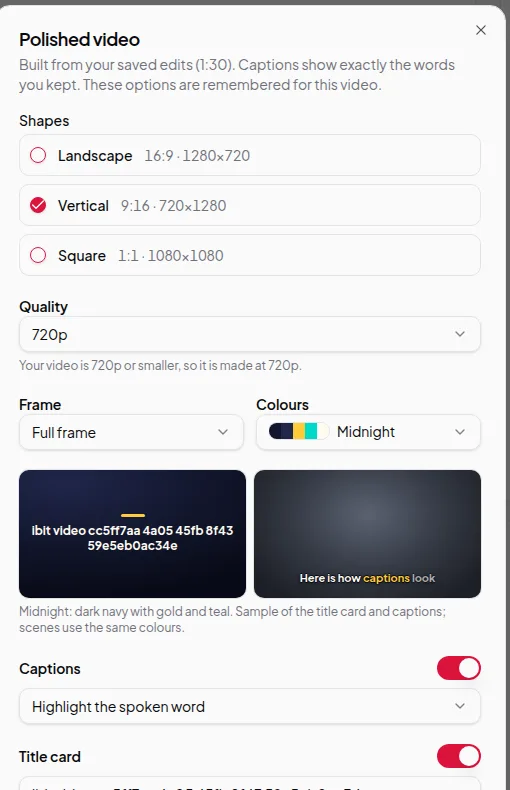
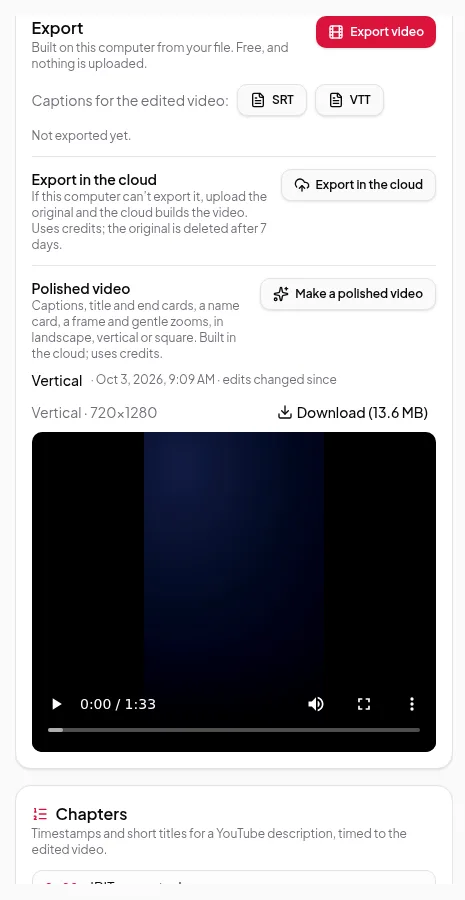
- Make a cloud export or a polished video. The export shows the price before you pay, and the background is applied to the whole video.
Limits worth knowing
- The effect is for videos with a person on camera, such as talking-head videos or a camera recording. A screen recording with no one on camera has nothing to separate.
- The free export on your computer keeps the background as recorded. The effect is used in cloud and polished exports.
- Fine detail such as stray hair or fast hand movements can look softer at the edges. Check the preview before you export.
Credits
Choosing and previewing an effect is free. A background effect adds credits per minute of video to a cloud or polished export, shown in the export’s price before you pay. You’re only charged for the effect when the finished export has it. See credits explained.