Feature
Record your screen and camera in the browser
Record your screen, your camera or both right in the Video Editor, with a round camera bubble and floating controls, then edit the take by deleting words.
Updated
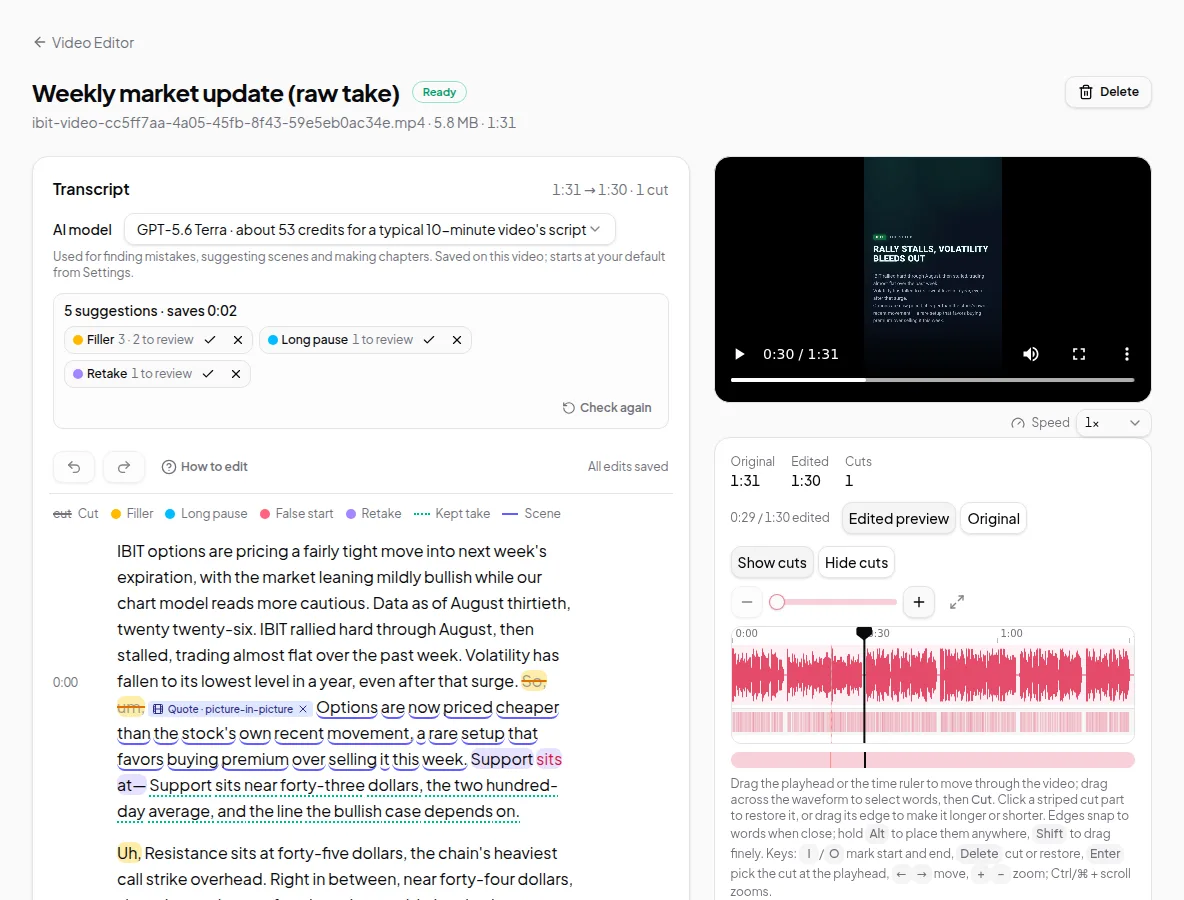
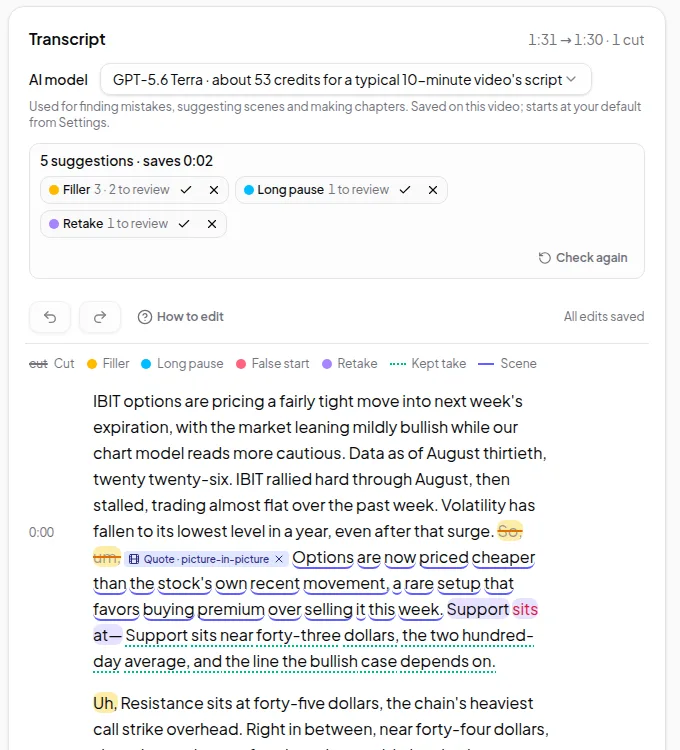
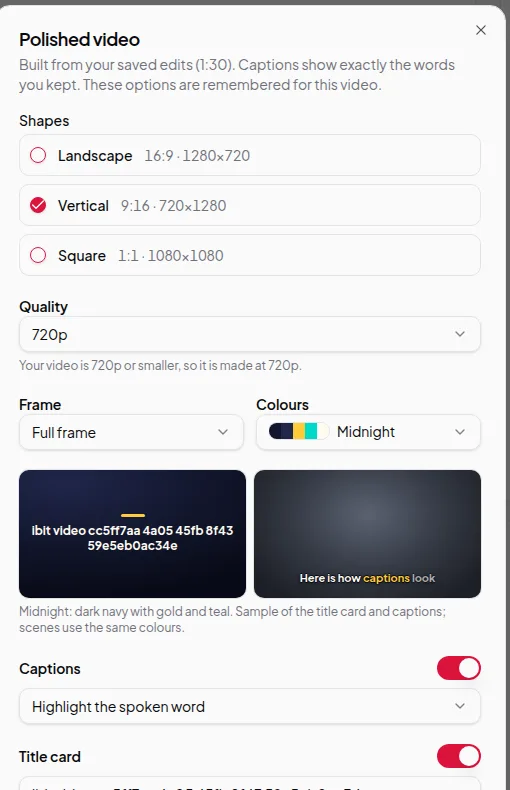
You don’t need a separate recording app to make a tutorial, a demo or a talking-head update. The Video Editor has a recorder built in. Record your screen, your camera or both, watch the take back, and go straight into editing it by text.
What you can record
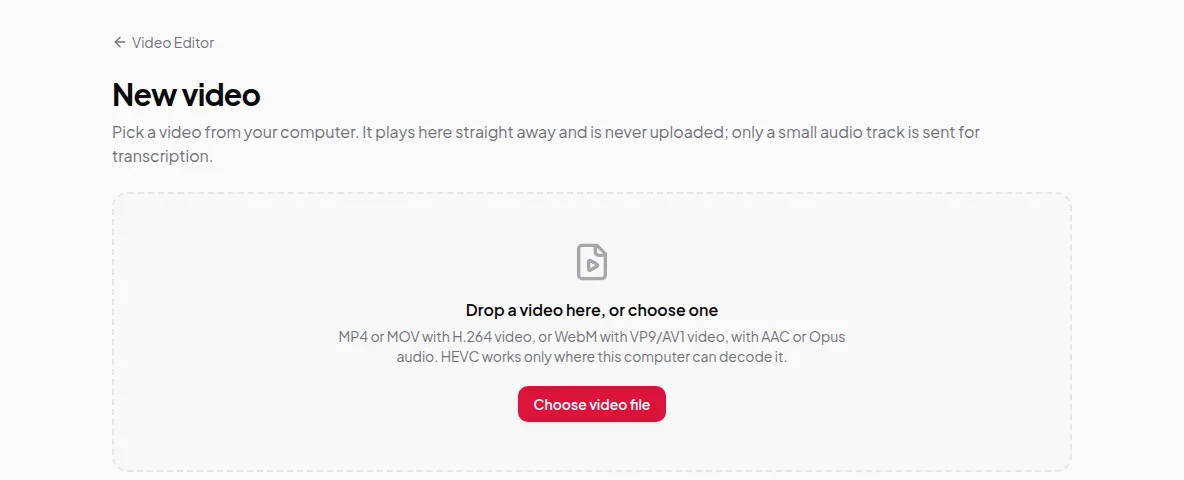
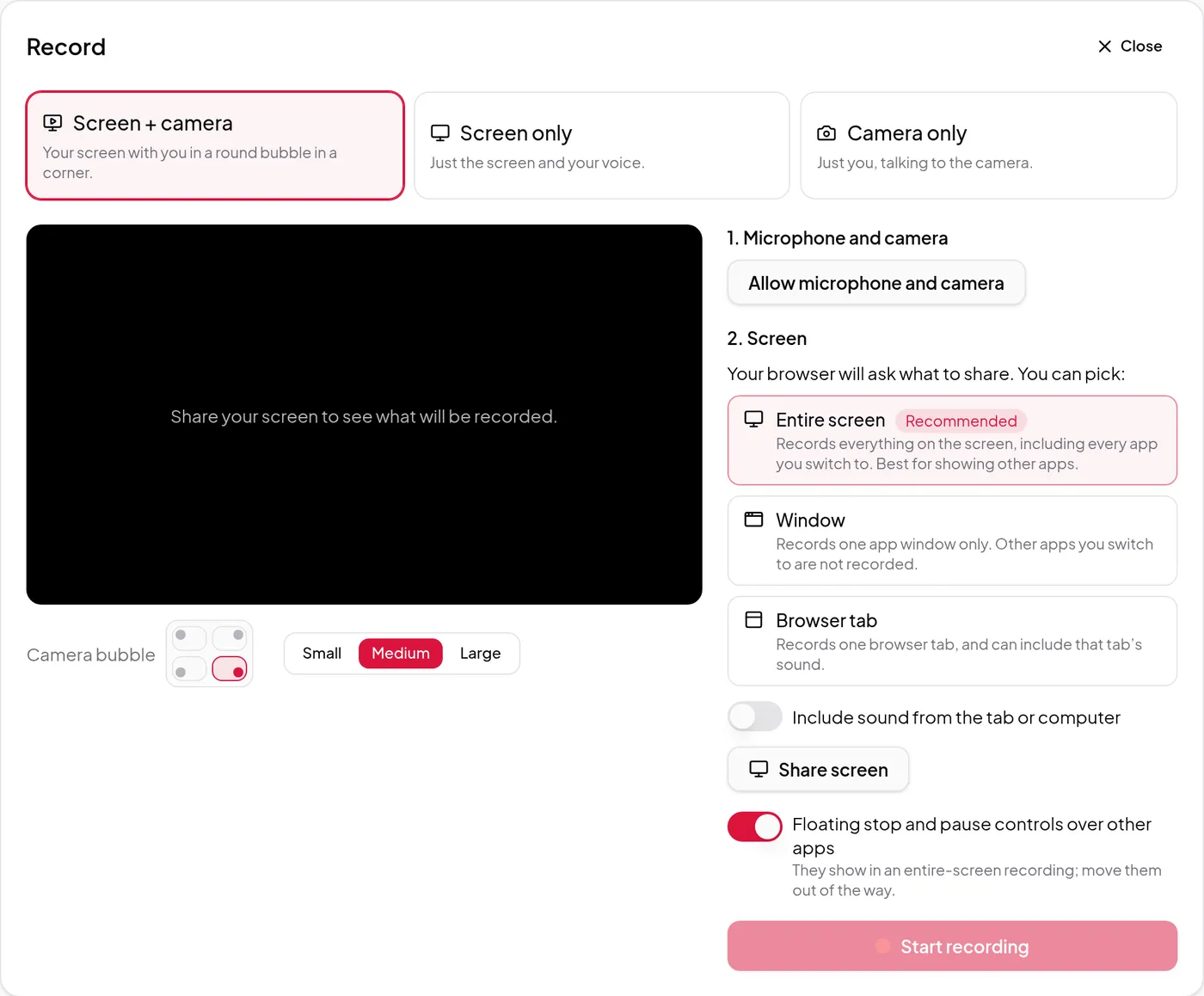
Open Video Editor → New video and click Record screen or camera. Then pick what to record:
- Screen + camera — your screen with you in a round bubble in a corner.
- Screen only — just the screen and your voice.
- Camera only — just you, talking to the camera.
When you share your screen, your browser asks what to share. Entire screen (recommended) records everything, including every app you switch to. Window records one app window only. Browser tab records one tab, and can include that tab’s sound. Switch on Include sound from the tab or computer to record that sound along with your microphone.
Recording
- Camera bubble. Choose the corner (top left, top right, bottom left or bottom right) and the size: Small, Medium or Large.
- Countdown. Recording starts after a three-second countdown.
- Pause and resume as often as you like, then Stop.
- Floating controls. In browsers that support it, switch on Floating stop and pause controls over other apps to keep stop and pause within reach while you work in another app. They show in an entire-screen recording, so move them out of the way.
When you stop, watch the take back. Click Use this recording to keep it, or Record again.
Your recording stays on your computer
When you use a recording, you choose where to save the video on your computer, or it goes to your Downloads folder. It is never uploaded. The Video Editor then opens it like any other file: only a small audio track is sent to make the transcript, and you edit it by deleting words.
Limits worth knowing
- Use a recent Chrome, Edge, Firefox or Safari on a computer. Phone browsers can’t share their screen.
- Some browsers keep the recording in memory while you record. When that’s the case, the recorder says so: keep takes under about 20 minutes.
- In some browsers the camera bubble may stop moving while you’re in another app. Chrome and Edge keep it moving.
- If your computer is running short of space, the recorder shows roughly how many minutes are left.
Credits
Recording is free. The transcript of the take uses credits based on the length of the audio, as for any other recording. See credits explained.
Step by step: record your screen and camera.