Guide · Your recordings
How to blur or replace the background of your recording
Step by step, blur what's behind you or swap it for a colour or your own picture, check the edges in the preview, and export a video with the new background.
3 min read · Updated
Feature used in this guide: Background blur and replace — what it does, its limits and how credits work.
A cluttered room or a busy office pulls attention away from what you’re saying. In the Video Editor you can blur what’s behind you, or replace it with a plain colour or a picture, without a green screen. This guide shows how to pick an effect, check it and export it.
You’ll need: a Vidonto account with credits, and a recording with a person on camera in the Video Editor: a talking-head video, or a screen recording with a separate camera. The video file must be open on this page, because the effect is previewed and checked on your computer.
Step 1: Open the Background choices
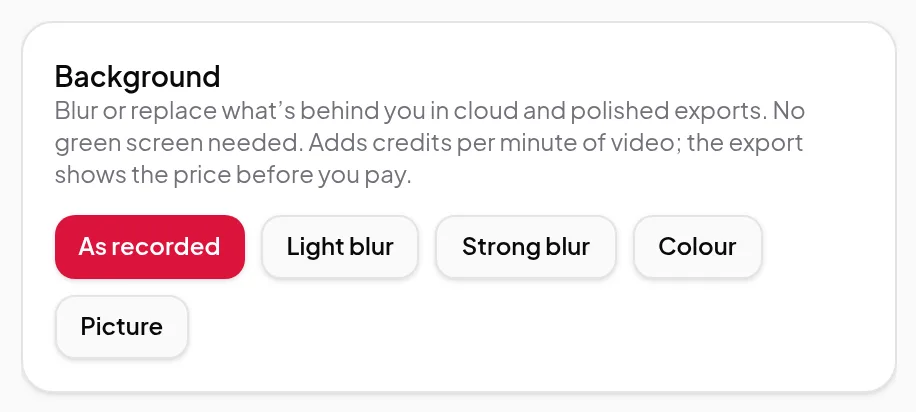
In the editor’s right-hand column, open the section for your camera. It’s called Camera when the recording has a separate camera file and Background otherwise; its line reads “Blur or replace what’s behind you, or add an AI avatar.”
Under Background behind you (“For cloud renders and polished videos · adds credits per minute”) you’ll find five choices:
- As recorded — no effect. This is the default.
- Light blur — softens what’s behind you a little.
- Strong blur — makes the background unreadable.
- Colour — a plain colour of your choice.
- Picture — your own picture: PNG, JPEG or WebP, up to 10 MB.
If the panel asks you to open the recording’s video (or the camera file) on this page, open it first. The effect can’t be previewed or checked without it.
Step 2: Pick an effect
Click a choice. For Colour, pick the colour. For Picture, click Choose a picture and select the file; it’s uploaded once and kept with the recording. Use Change picture to swap it.
In a screen-and-camera recording the effect is applied to your camera. If you’d picked the Cut-out camera shape, which already removes the background, choosing a background puts the camera back in its frame.
Step 3: Let Vidonto check someone is on camera
When you first pick an effect, Vidonto looks at a handful of moments in your video for a person (“Checking that someone is on camera…”) and then tells you what it found, for example “Someone is on camera in 8 of 8 checked moments.” The check runs on your computer.
The effect is meant for videos with someone on camera most of the time. If no one is found in at least half of the moments checked, exports can’t use the effect and the editor tells you so. Choose As recorded to export without it. If you think the check got it wrong, click Check again.
The check belongs to the file you had open. If you later open a different file for this recording, the editor asks for a new check: click Check again.
Step 4: Check the edges in the preview
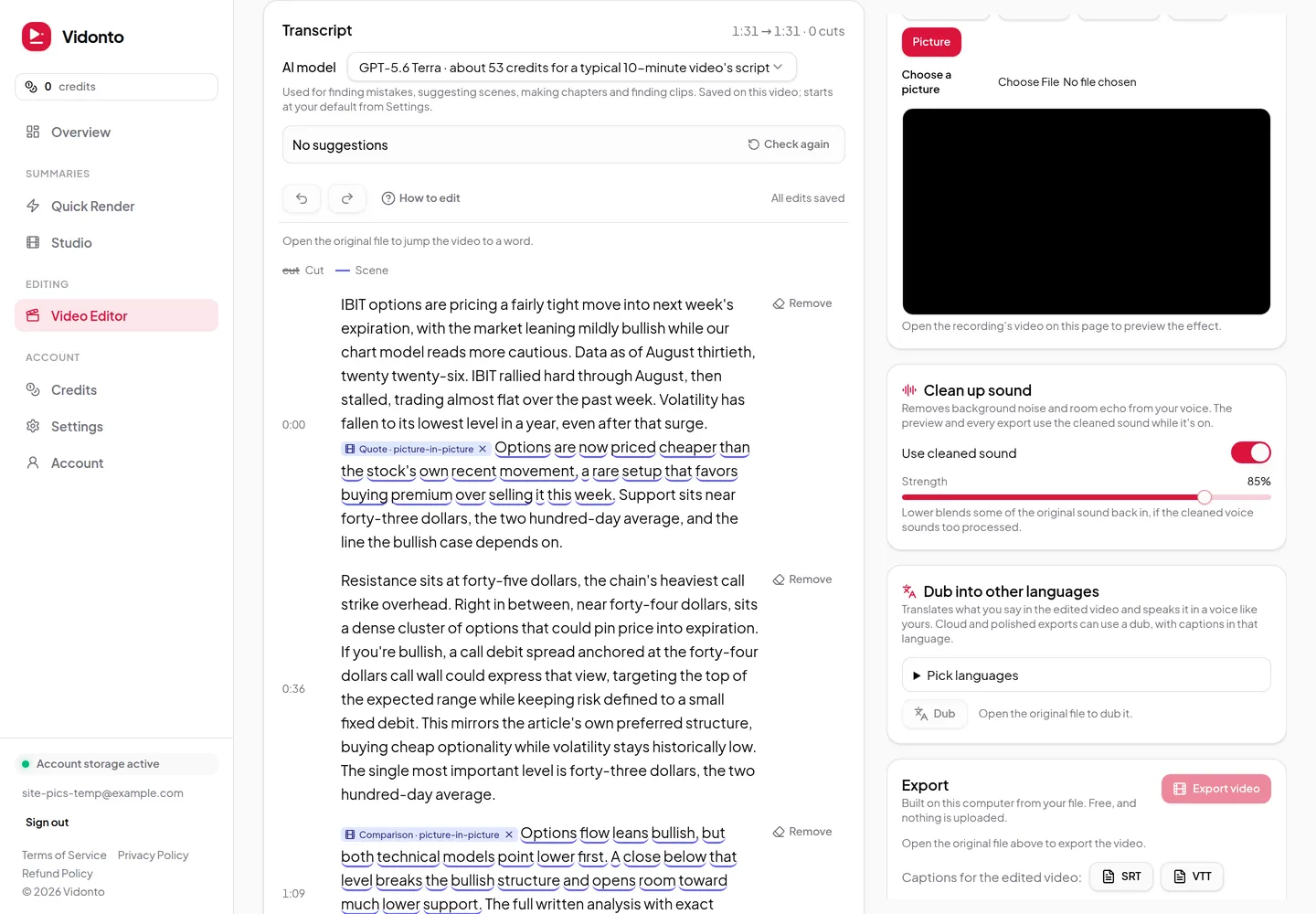
Below the choices, a preview box shows your video with the effect: “Play the video above to check the edges.” Play a few parts of the recording in the player: where you move, turn or gesture, and where your hair or shoulders meet the background.
Step 5: Export with the new background
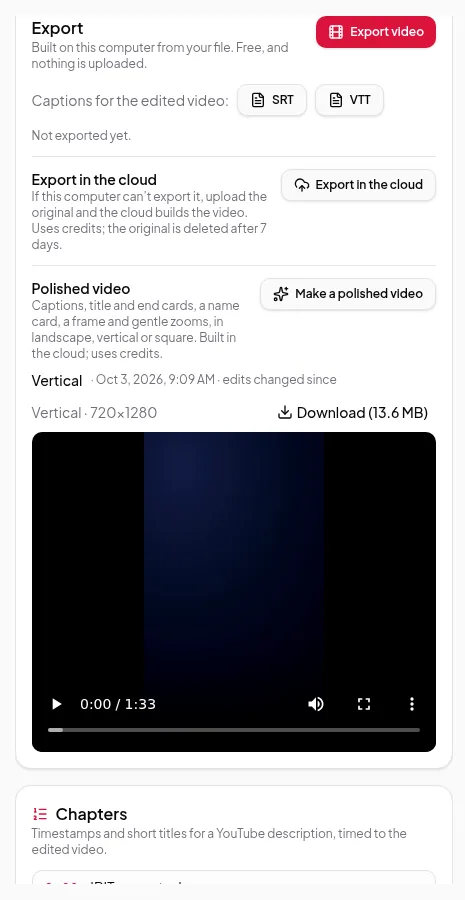
The background is used in Render in cloud and Polished video in the Export section. The free export On this computer keeps the background as recorded. What’s in each video in the Export section shows the difference at a glance.
Start the export you want; its price, including the background, is shown before you pay. The step-by-step is in export your finished video.
Tips for a cleaner result
- Light yourself from the front and avoid a background the same colour as your clothes or hair.
- Stay in frame. Leaning out of shot or a hand moving fast past the camera can look softer at the edges.
- Pick a calm picture. A busy image behind you is as distracting as a messy room. A light blur often looks the most natural.
Credits
Choosing and previewing an effect is free, and so is the person check. A background adds credits per minute of video to a cloud render or a polished video, and that price is shown before you start. You’re only charged for the effect when the finished export has it. See credits explained.