Feature
Highlights videos — the best moments of one long recording, in the speaker's own words
AI picks the best sound bites of one long recording and links them with short narrated bridges or text cards. Review every bite in the storyboard, then render.
Updated
A talk, a webinar or a long interview usually has a few minutes that say it all. A highlights video finds them. The AI reads one of your recordings and picks its strongest moments as sound bites: whole sentences that play as clips, with the speaker’s own picture and sound. Between the bites, short bridges tie the story together, either spoken by the AI voice or shown as text cards. You check every bite in the storyboard before anything is rendered.
Two ways to link the bites
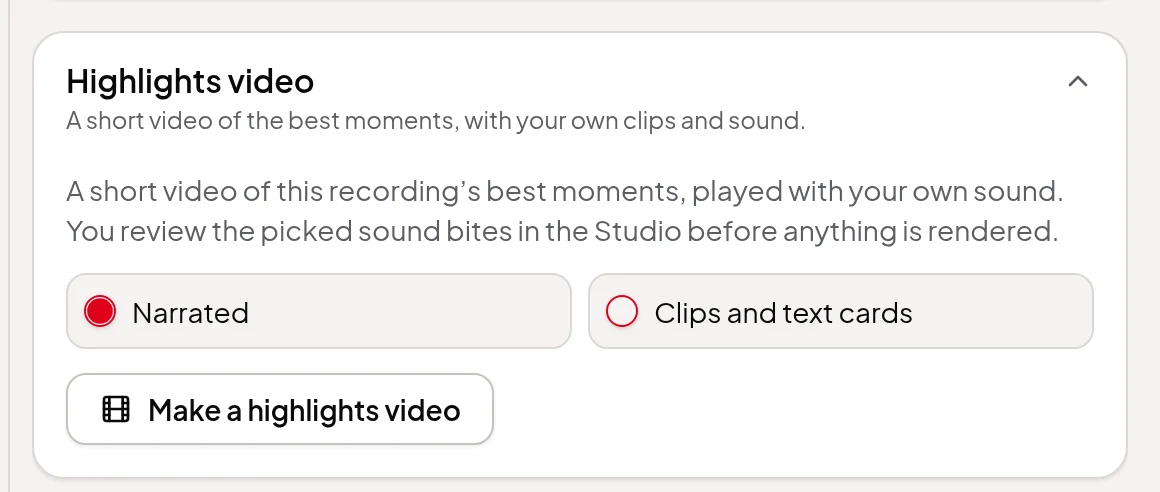
Under Between the bites, pick one:
- Narrated. The AI voice links the bites with short spoken bridges. The first bridge introduces the video and the last one closes it, so the video starts and ends cleanly. The voice only says the bridges; the bites keep the speaker’s own voice.
- Clips and text cards. No voice at all: short text cards (14 words at most, on screen for 2.5 to 6 seconds) link the bites. There’s no voice-over charge.
How it works
- Pick the recording. In the Video Editor, open a recording’s Highlights video section, choose a style and click Make a highlights video. Or, in the Studio or Quick Render, choose My recording as the source and pick a recording from the list.
- The AI picks the bites. It reads the recording’s transcript as you’ve edited it and picks moments of about 5 to 60 seconds each, filling about two thirds of the target length, then writes the bridges around them.
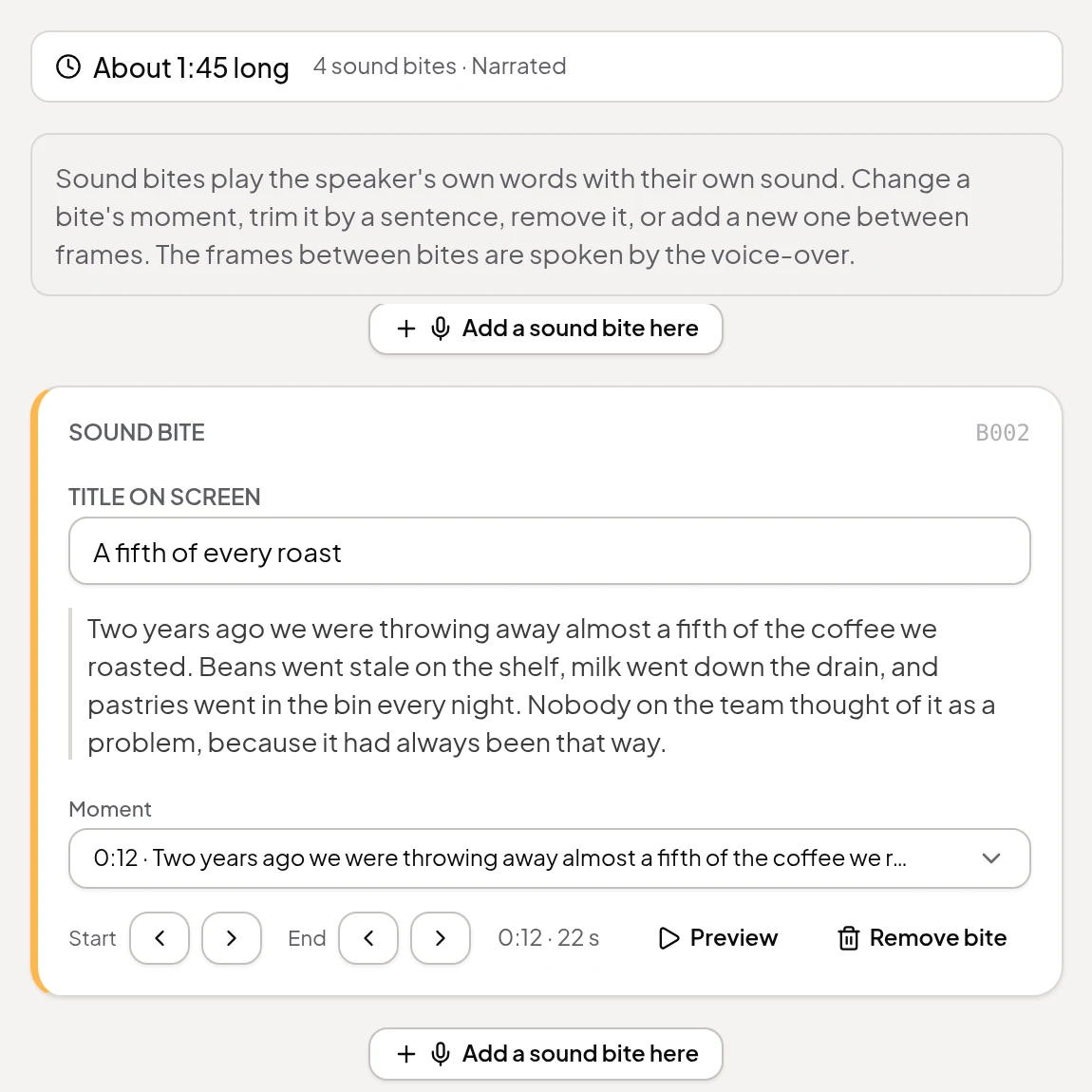
- Review the storyboard. Each bite is a Sound bite frame with its own Title on screen. Move its start or end by a sentence, choose a different moment, play a Preview of the edited clip, Remove bite, or Add a sound bite here between any two frames. The bridges are ordinary frames whose words you can edit. A line at the top shows the length as you go, such as “About 1:45 long · 4 sound bites · Narrated”.
- Render. Pick the look and quality in Final Render and render it in landscape, vertical, square or portrait. Bites and narration get captions; text cards don’t need them.
What carries over from your edit
The clips are cut from the recording as you’ve edited it in the Video Editor. They keep its camera views, cuts, zooms, cleaned-up sound and text or logo items. Background effects, the AI avatar, animated scenes, dubs and the recording’s caption style aren’t used. Because the speaker is on screen, a highlights video has no AI opening, ending, source credit or AI presenter.
Highlights video or compilation?
- A highlights video works from one recording and adds narration or text cards between the speaker’s own moments. It’s made and reviewed in the Studio like a summary video.
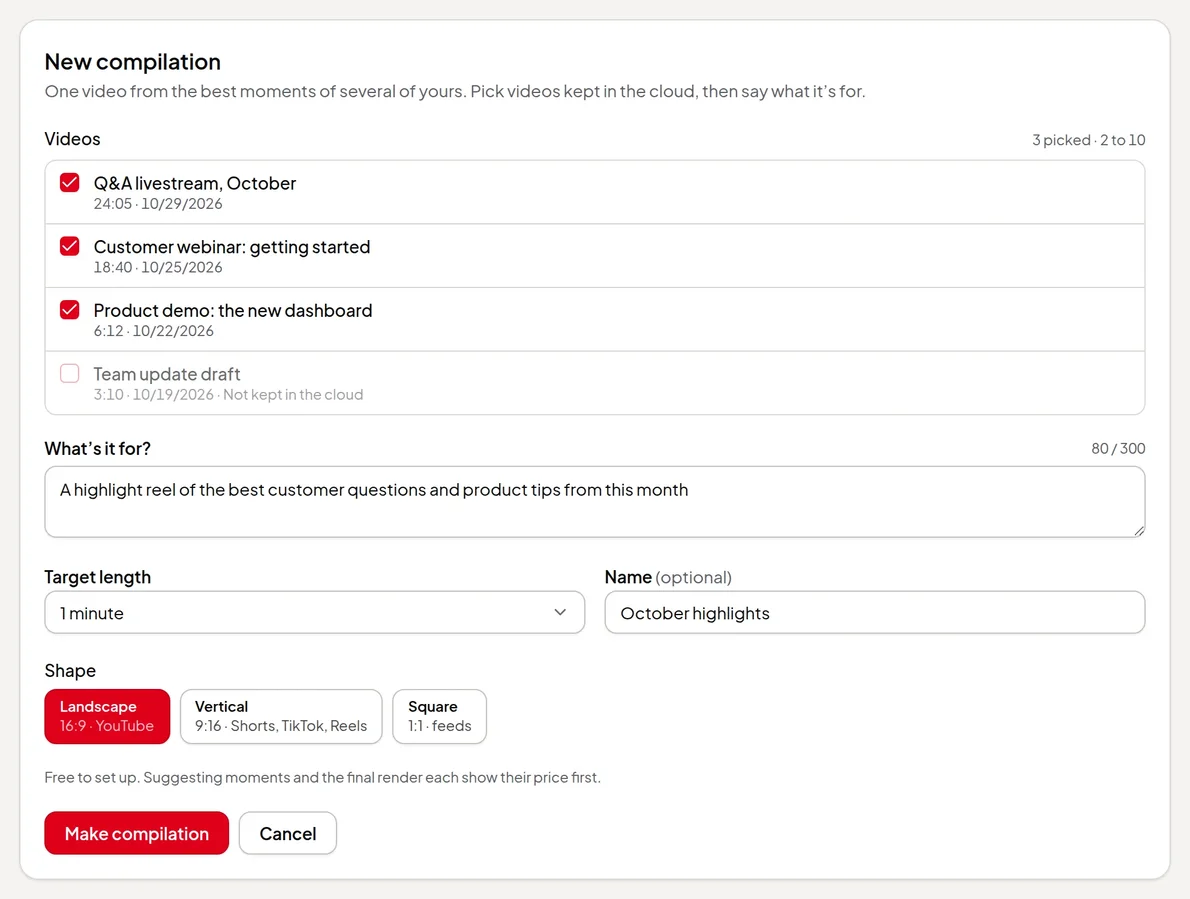
- A compilation puts moments from 2 to 10 recordings in one video, with title and label cards but no narration.
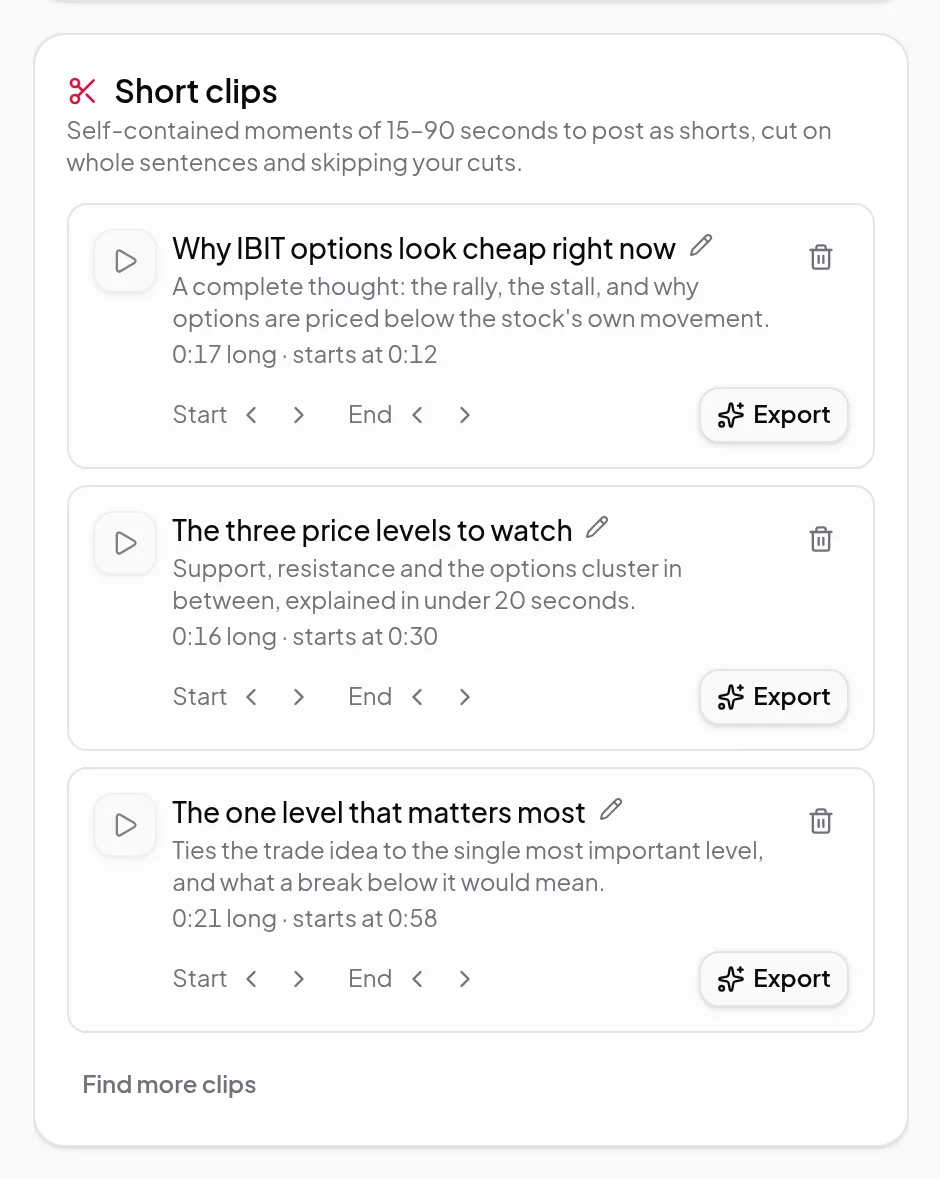
- Short clips are separate 15 to 90 second moments, each exported as its own video for Shorts and Reels.
Limits worth knowing
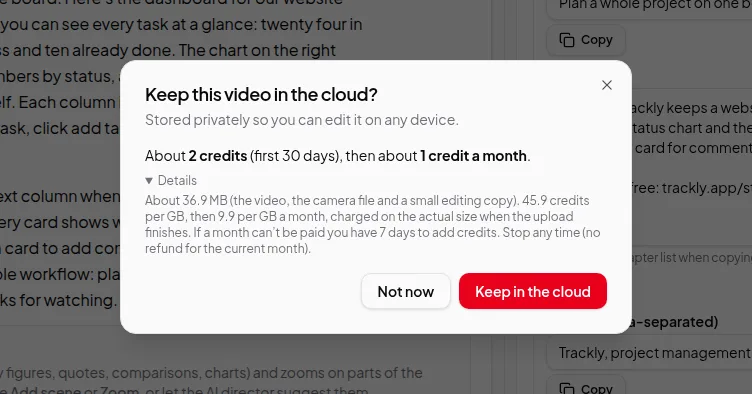
- The recording must be transcribed and kept in the cloud, because the clips are rendered in the cloud from the original video. A recording that’s still uploading, has no transcript yet or whose cloud copy isn’t finished can’t be picked yet, and the list says why. To use a video you’ve posted online, add it from a link first.
- A sound bite always says what the recording says. You can move or trim a bite, but not rewrite its words; edit the bridges around it instead.
- Every bite must play. If one can’t be cut from the recording, for example because you’ve since cut its words in the editor, the render stops before anything is charged and asks you to change or remove that bite in the storyboard.
From code or an AI assistant
The developer API starts a highlights video with a recording’s ID and an optional style, narrated or cards, and the AI assistant connector can do the same from a chat. Reviewed runs pause for the script and storyboard like any other run, and sound bites keep the recording’s words there too.
Credits
Writing the script and storyboard and rendering are charged like any summary video, and the render price depends on the length and quality. In a narrated video the voice is charged only for the bridges; with text cards there’s no voice charge. Every step shows its price before you pay, and a step that fails isn’t charged. See credits explained.
Next: turn a long video into a highlights video, step by step.