Feature
Turn an article or web page into a video
Paste the link to a blog post, news story or documentation page and Vidonto turns its text into a short narrated video with captions.
Updated
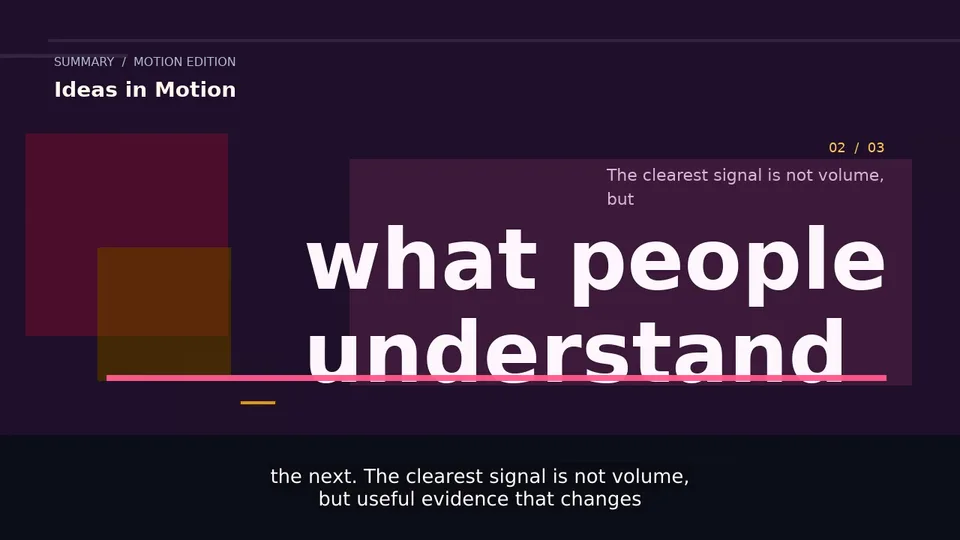
Most of what people read online never reaches the people who’d rather watch. Vidonto turns an article or any web page into a short narrated video: paste the link, and it reads the page’s text, writes a script from it and renders a captioned video you can post next to the original.
How it works
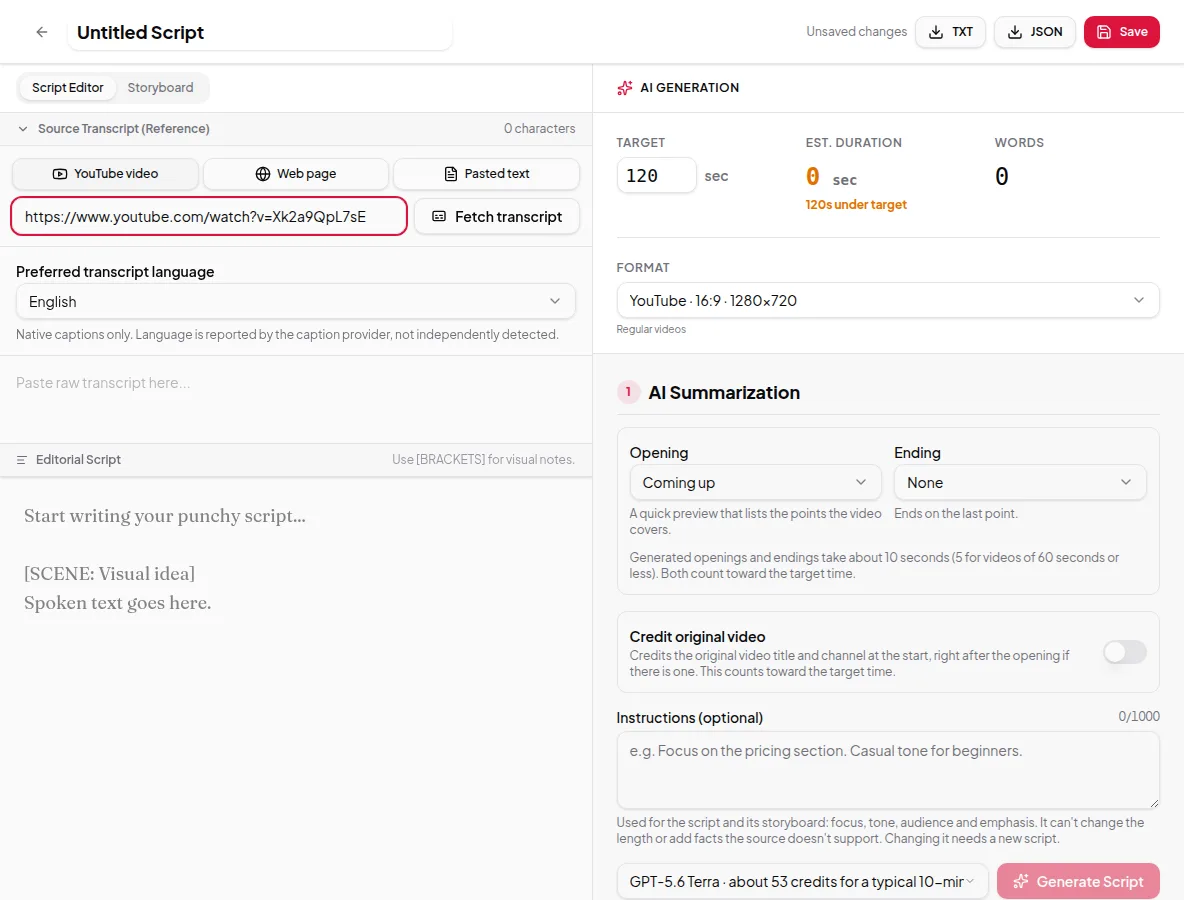
In the Studio, start a new project and choose Web page as the source. Paste the address and fetch it. Vidonto loads the page and pulls out its readable text — the article itself rather than the menus and footers around it. From there the steps are the same as for a YouTube video:
- Set a target length and a format (landscape, vertical, square or portrait).
- Generate the script. Add an opening or an ending if you want one, and choose whether to credit the source. Crediting adds the page title and site at the start, after the opening if there is one.
- Approve the script, generate the storyboard and render the video with the voice you pick.
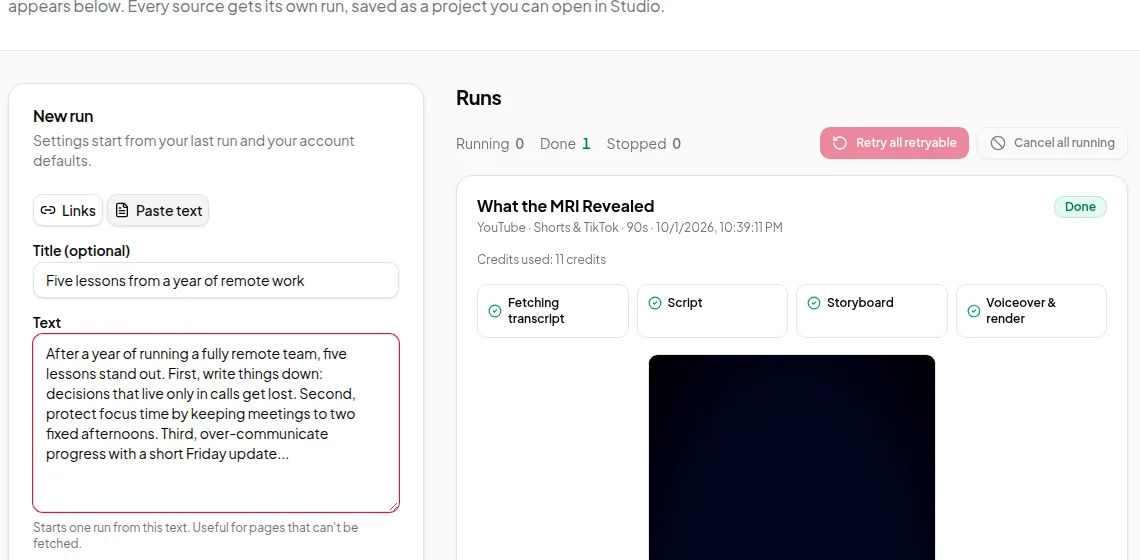
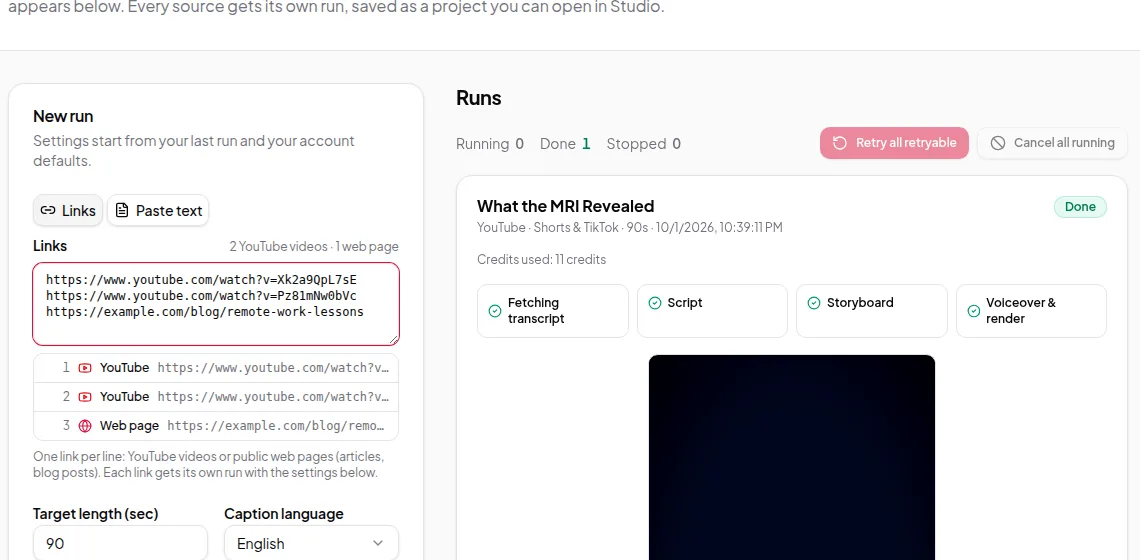
In Quick Render you can paste several page links at once, one per line, and mix them with YouTube links. Each link becomes its own video.
Good pages to turn into videos
- Blog posts and guides with a clear point of view
- News stories and announcements
- Product pages, changelogs and release notes
- Help center articles you want to reuse as short explainers
- Research summaries and reports
Pages with numbers work especially well. When the narration says a figure, the storyboard can show it as a big key figure or a simple chart. See AI images, animated scenes and data visuals.
Limits worth knowing
- The page has to be publicly reachable. Pages behind a login, a paywall or heavy bot protection can’t be fetched; paste the text instead with pasted text to video.
- Pages that load all their text with scripts after the page opens may come through incomplete. Check the fetched text before you generate the script.
- Very long pages can be over the source limit for one run. The app tells you before anything starts.
- Only use pages you have the right to adapt.
Credits
Fetching a web page is free. The script, storyboard, voice-over and render use credits. The Studio shows an estimate in credits before each step, and Quick Render shows one for the whole run before you start. See credits explained.
For a full walkthrough with screenshots, read turn a blog post into a video.