Feature
Make one video from several sources, or find sources for a topic
Combine 2 to 5 web pages, YouTube videos, notes or files into one narrated video, as a new piece or a summary. Or type a topic and let Vidonto find readable sources.
Updated
One article rarely tells the whole story. With Several sources, you give Vidonto two to five sources — web pages, YouTube videos, pasted notes or files, mixed however you like — and it writes one script from all of them. Don’t have sources yet? Type a topic into Find sources for me and pick from articles and videos it has already read.
Build your list of sources
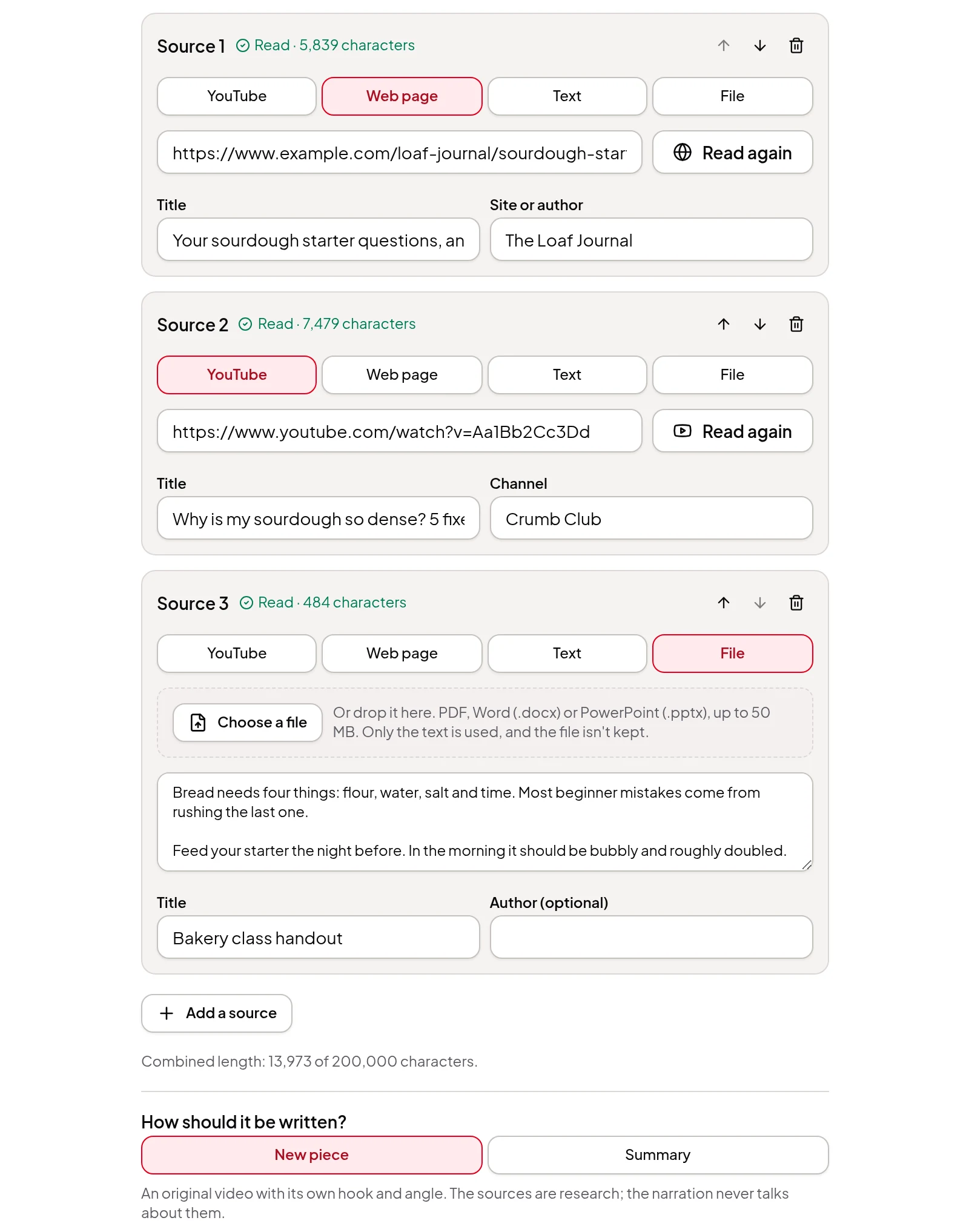
In the Studio, start a new project and choose Several sources. Each source in the list can be:
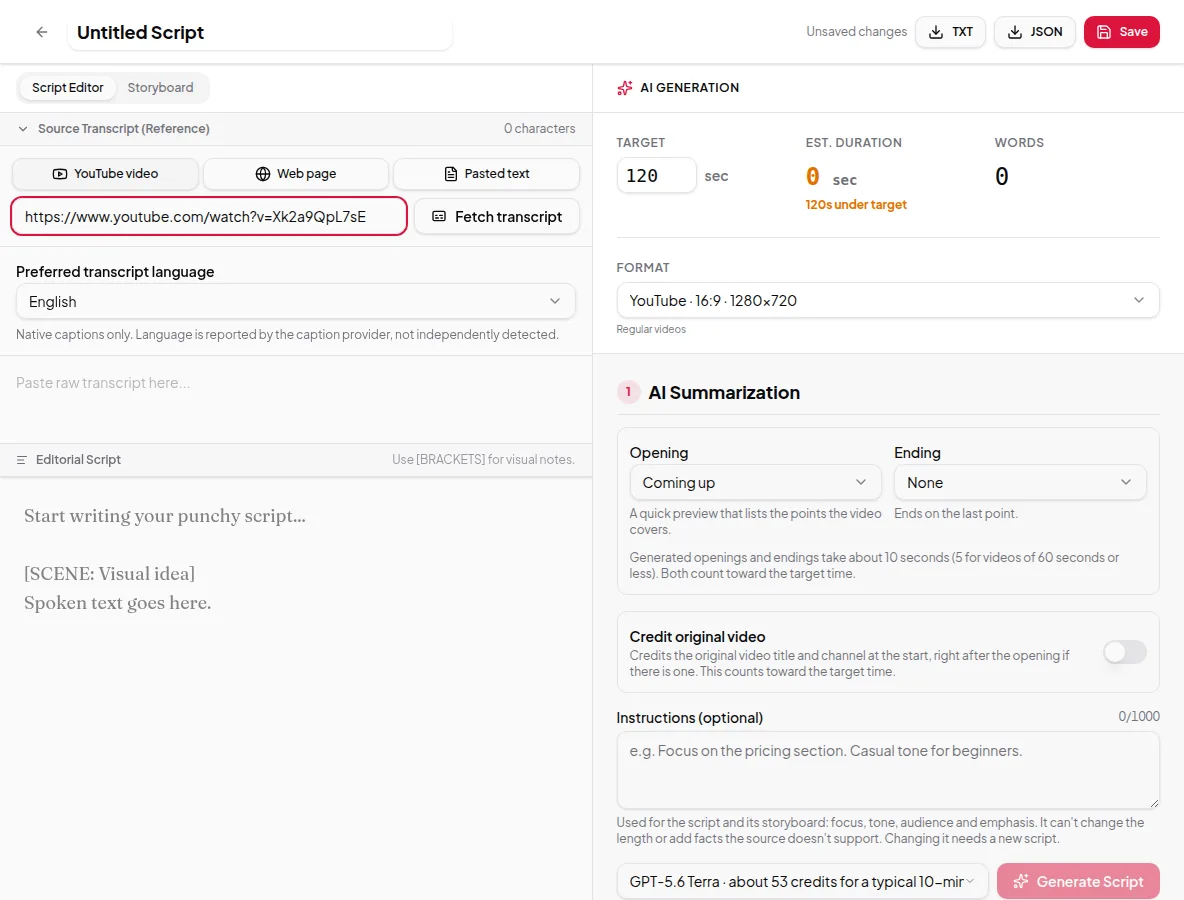
- YouTube — a video with captions. Reading its captions uses a few credits.
- Web page — a public article or blog post. Reading it is free.
- Text — notes or any text you paste in.
- File — a PDF, Word document (.docx) or PowerPoint deck (.pptx), up to 50 MB. Only the text is used, and the file isn’t kept.
Add between 2 and 5 sources. Each one is read before the script is written, and you can check its title, move it up or down, or remove it. The combined length of all of them counts toward the same length limit as a single pasted text, and the app shows how close you are.
A new piece, or a summary
Under How should it be written? pick one:
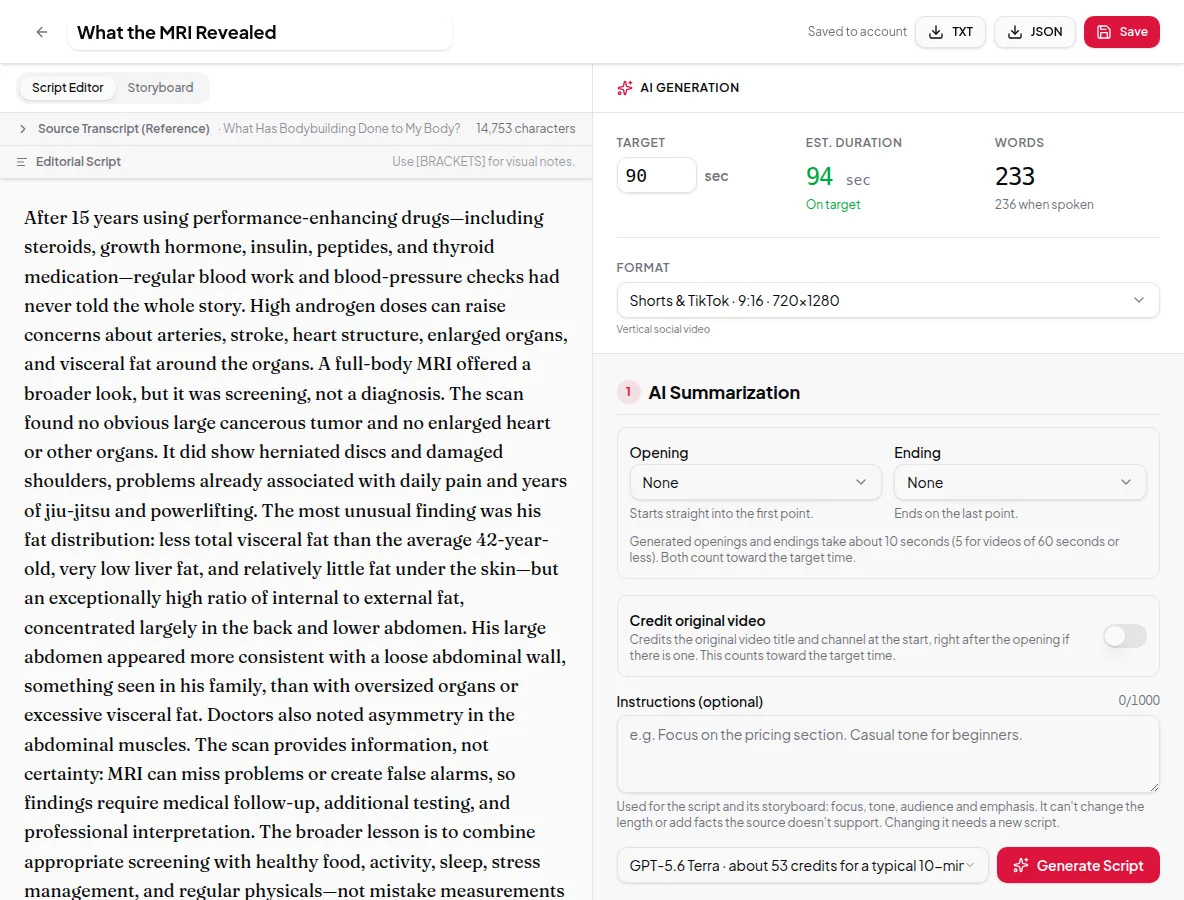
- New piece — an original video with its own hook and angle. The sources are research, and the narration never talks about them. This is the default.
- Summary — retells what the sources say, organised by idea rather than source by source, and says where they disagree.
Either way, you see the script before anything else is made. Each quote in the script review is labelled with the source it came from, so you can check where a point came from before you approve it.
Credit for your sources
Every video made from several sources gets a numbered Sources: list, with links, in its video description. Turn on Say it’s based on several sources and the narration also adds one short line, like “Based on three sources.”, and the full list is shown at the end of the video. The switch starts off for a new piece and on for a summary; change it either way.
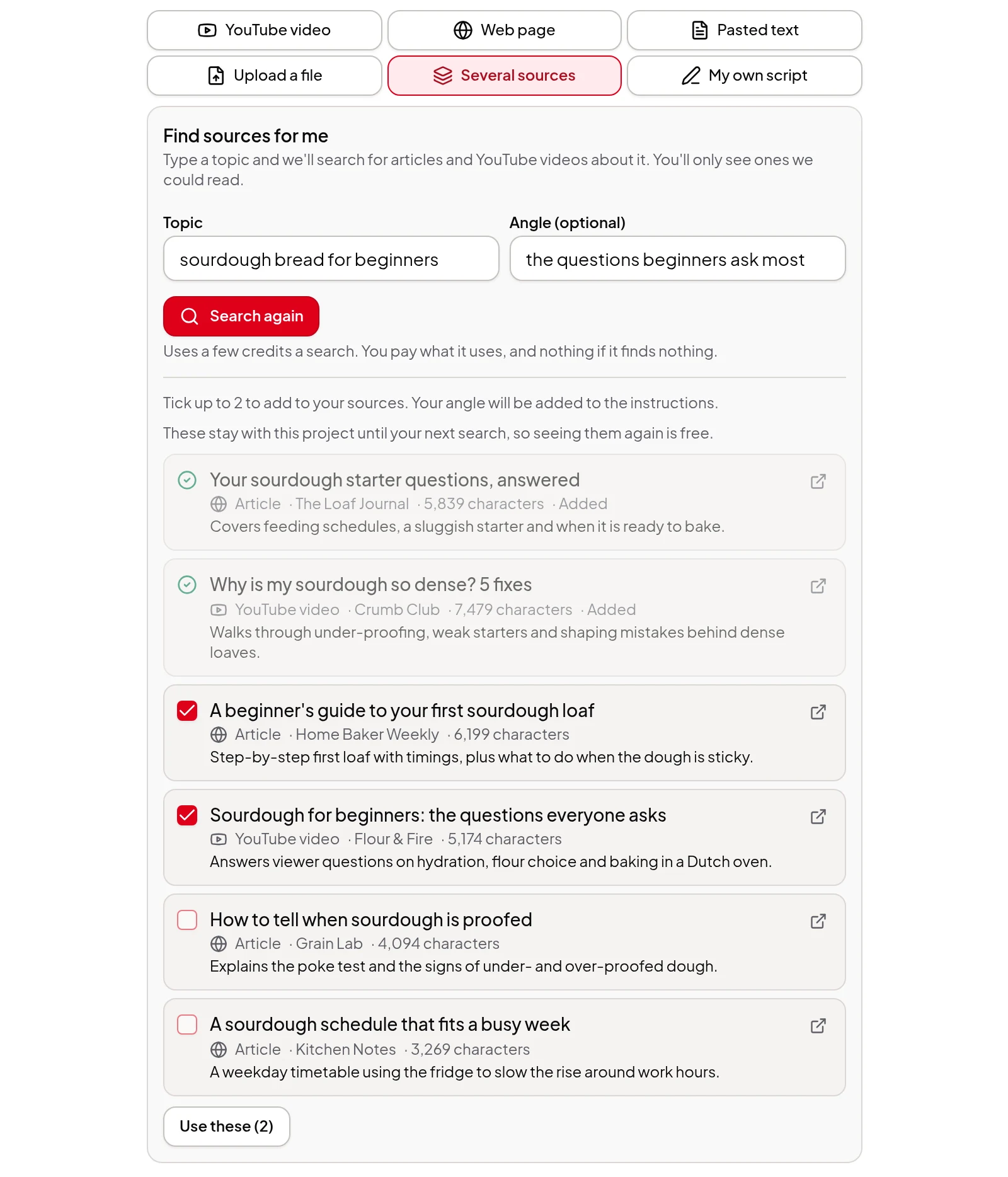
Find sources for me
Not sure where to start? Find sources for me sits above the source list.
- Type a Topic, such as “sourdough bread for beginners”. Add an Angle if you have one, such as “the questions beginners ask most”.
- Click Find sources. Vidonto searches the web for articles and YouTube videos on the topic and reads what turns up, in the project’s Video language where it can. This can take up to a minute.
- You get up to 8 suggestions. Each shows its title, the site or channel, whether it’s an article or a video, its length and a one-line note on what it covers.
- Tick the ones you want, up to the room left in your list (5 sources at most), and click Use these. They join the list already read, so there’s no second charge for reading them.
Some things worth knowing:
- Only sources it could read are shown. Forums, Q&A sites, social media posts and PDFs are left out, and so are pages and videos it couldn’t read.
- Your angle becomes an instruction. When you add found sources, the angle is added to the project’s instructions as “Angle: …”, so the script follows it. See creator instructions.
- The price is shown before you search. A search uses credits for what it actually does, and nothing if it finds nothing.
- Results stay with the project. The last search is kept until you search again, so coming back to the project shows the same suggestions without paying again.
- Look before you use. Every suggestion links to the original page or video, so you can check it first.
Where you can use it
- Studio — everything on this page: YouTube, web page, text and file sources, checking each source before the script, Find sources for me, and reviewing the script before anything else is made.
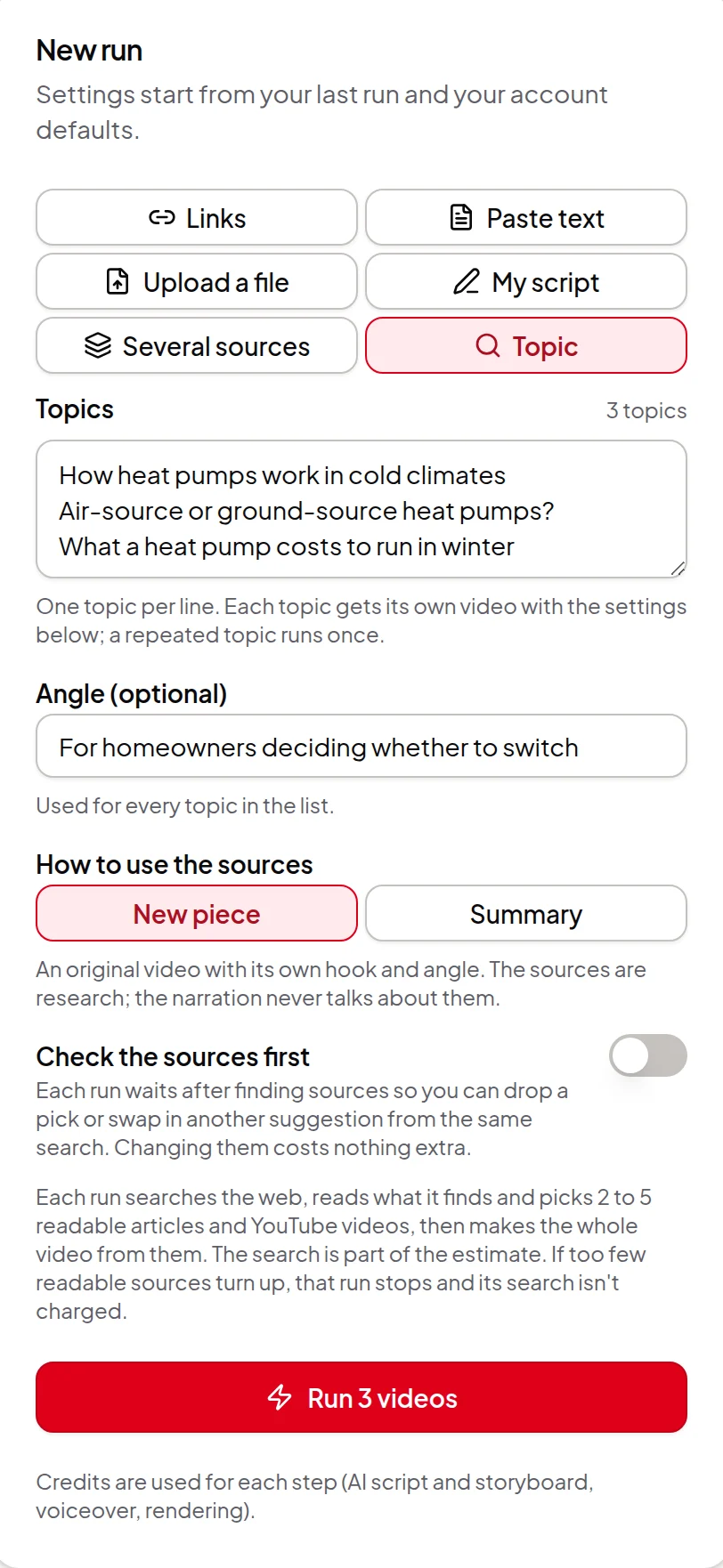
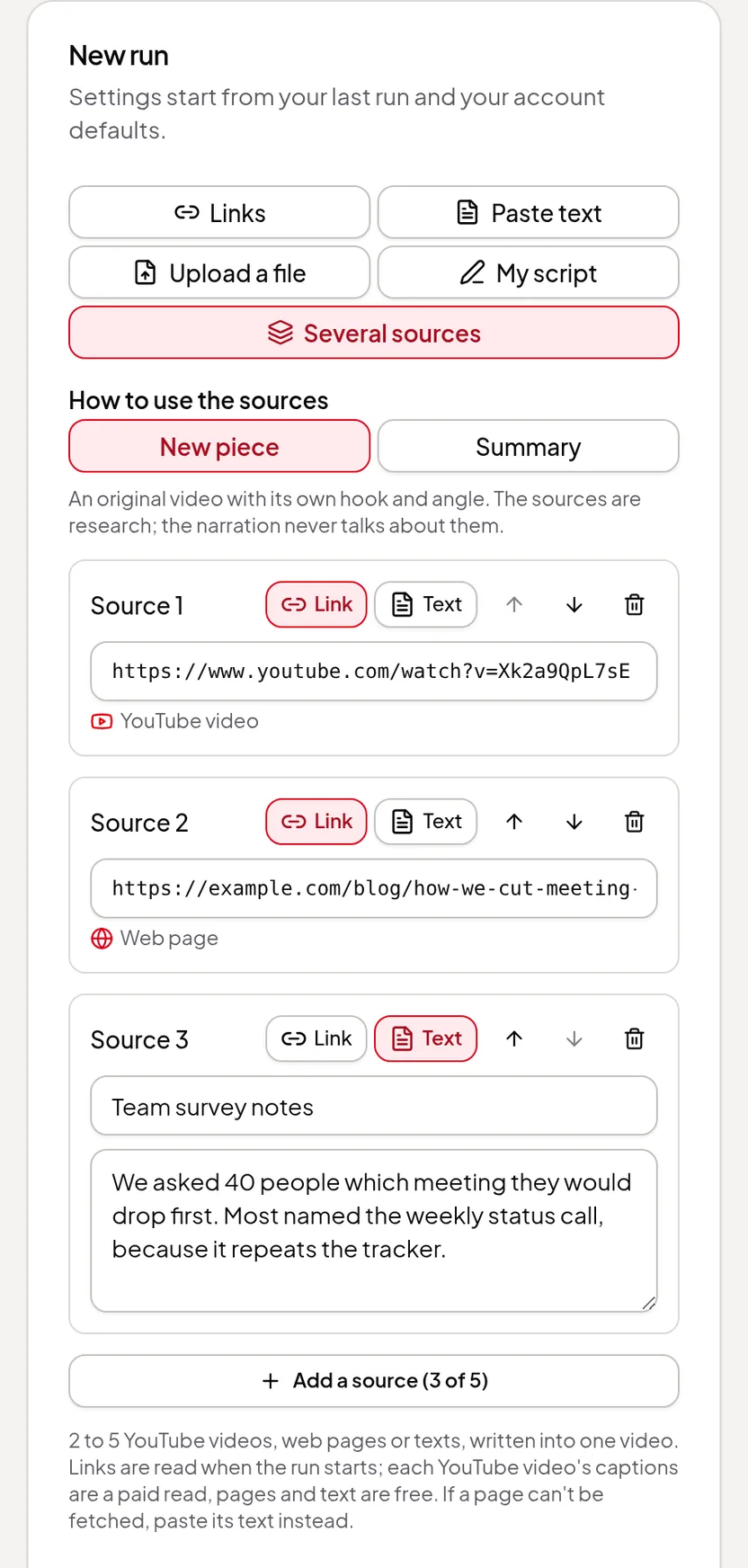
- Quick Render — choose Several sources, add 2 to 5 links, pasted texts or files, pick New piece or Summary, and press Run. A File source reads a PDF, Word file or deck into its text box right away, where you can check and edit it. Links are read when the run starts and the rest happens on its own, like any Quick Render run.
- Developer API — send a
sourceslist (2 to 5 links, texts ordocumentUrllinks to PDF, Word or PowerPoint files) and an optionalwritingMethodwhen starting a run. Text and file sources can carry their own title and author or site. - AI assistant connector — ask Claude or ChatGPT for one video from several links, texts or links to files; it uses the same
sourcesoption as the API. - From just a topic — in Quick Render, choose Topic and type a topic (or up to 20) and an optional angle. The run finds and picks 2 to 5 readable sources itself and makes the whole video. The API (
topicandangle) and the AI assistant connector can do the same.
Find sources for me, where you pick the sources yourself and can add your own, is in the Studio only. A Quick Render, API or assistant topic run picks them for you; switch on Check the sources first (or send review: true from the API) to drop a pick or swap in another suggestion from the same search before the script is written.
Limits worth knowing
- At least 2 and at most 5 sources in one video. For one source, use YouTube to video, article to video, pasted text or PDF, Word or slides.
- YouTube videos need captions, and web pages need readable article text. Pages behind a login or paywall can’t be read; paste their text as a Text source instead.
- Find sources for me suggests sources; it doesn’t make a video from the topic on its own. You still pick the sources and approve the script. To go straight from a topic to a finished video, use Topic in Quick Render.
- Outside the Studio, there’s no step to check each source first. Quick Render and the API read all the links when the run starts; if a page can’t be read, the run stops before the script and you can retry it or start again with that page’s text. Files are read before anything starts: a file the API can’t open (for example a scanned PDF or a password-protected file) is refused, naming the source, before anything is charged.
Credits
Reading web pages, text and files is free, and reading a YouTube video’s captions uses a few credits. A Find sources for me search shows its most-it-can-cost price next to the button. Writing the script, the storyboard, the voice-over and the render use credits as for any summary video, based on the combined length of your sources. The estimate is shown before each step, and anything not used is returned. See credits explained.
Step by step: make one video from several sources.