Feature
Organise your videos, projects and runs with tags, search and filters
Tag your recordings, Studio projects and Quick Render runs, find them with search and filters, and pick several at once to tag or delete them together.
Updated
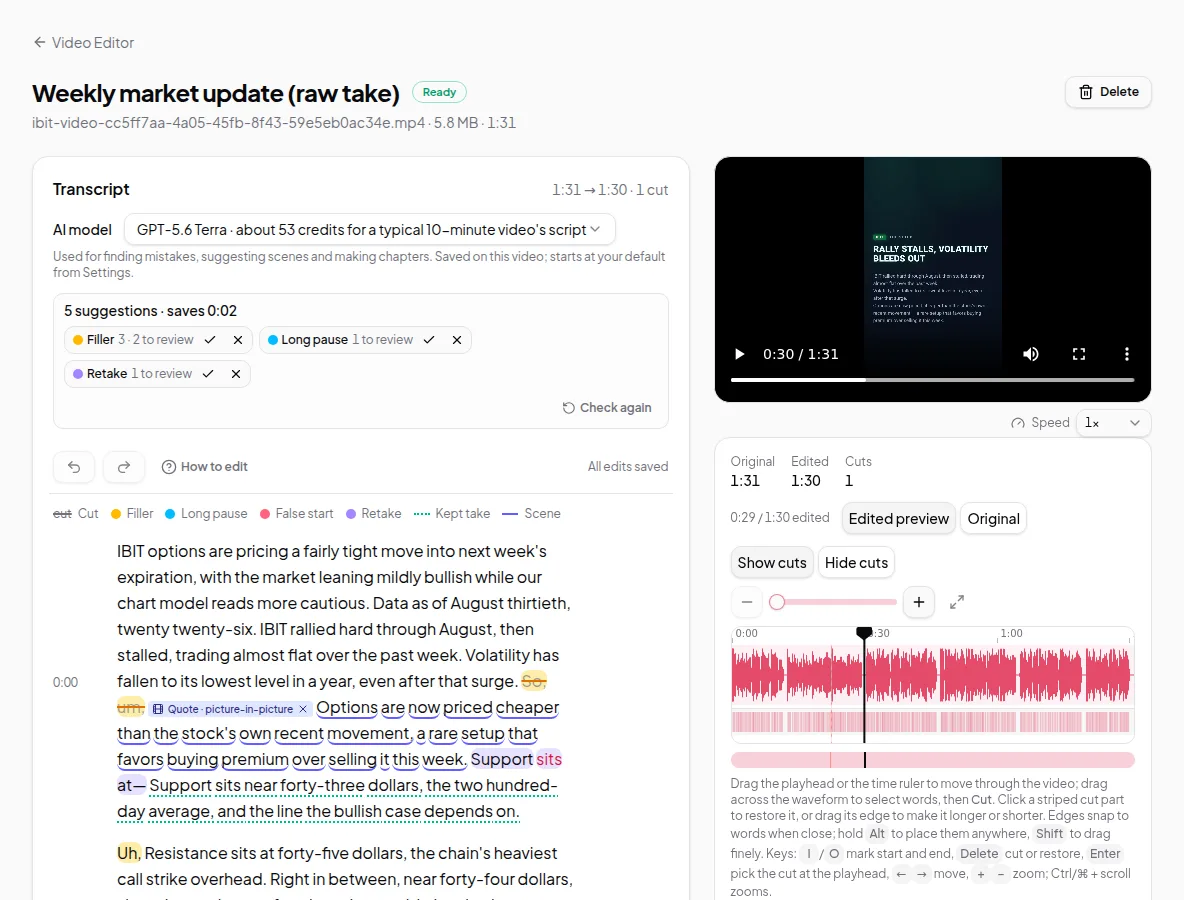
Once you’ve made a few dozen videos, finding the right one matters. The Video Editor, the Studio and Quick Render each have a search box, filters and sorting, and you can give anything a tag such as a client, a series or a topic. Pick several items at once to tag or delete them together.
Search, filter and sort
- Video Editor: search by title or file name, filter by status (processing, ready or failed) and sort by newest, oldest or name.
- Studio: search by project title and sort by last edited, newest, oldest or name.
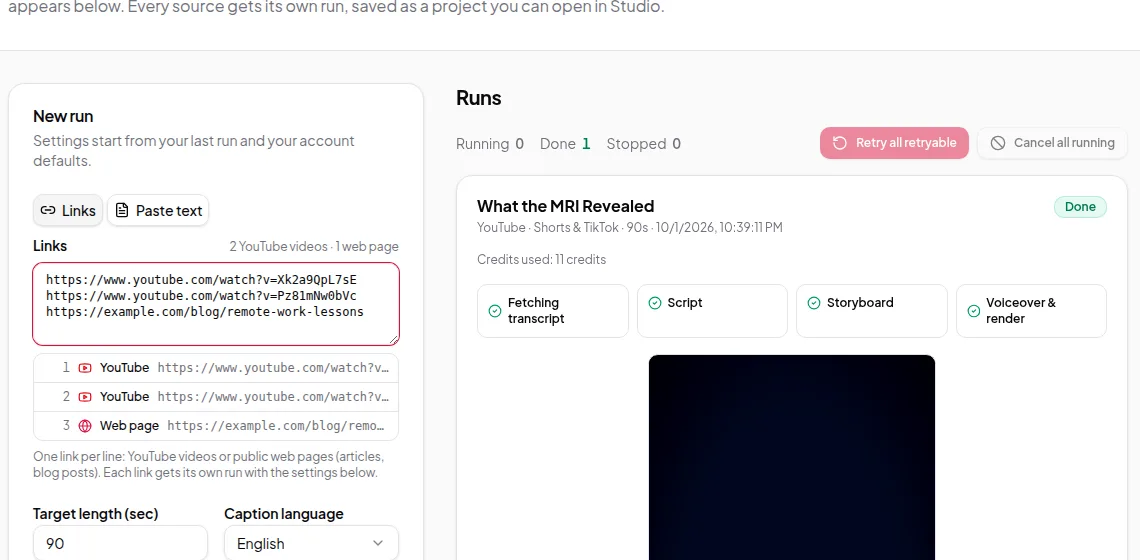
- Quick Render: search runs by title or link, and filter by status (running, done, stopped or cancelled) and sort by newest, oldest or name. Retry all retryable and Cancel all running act on many runs at once.
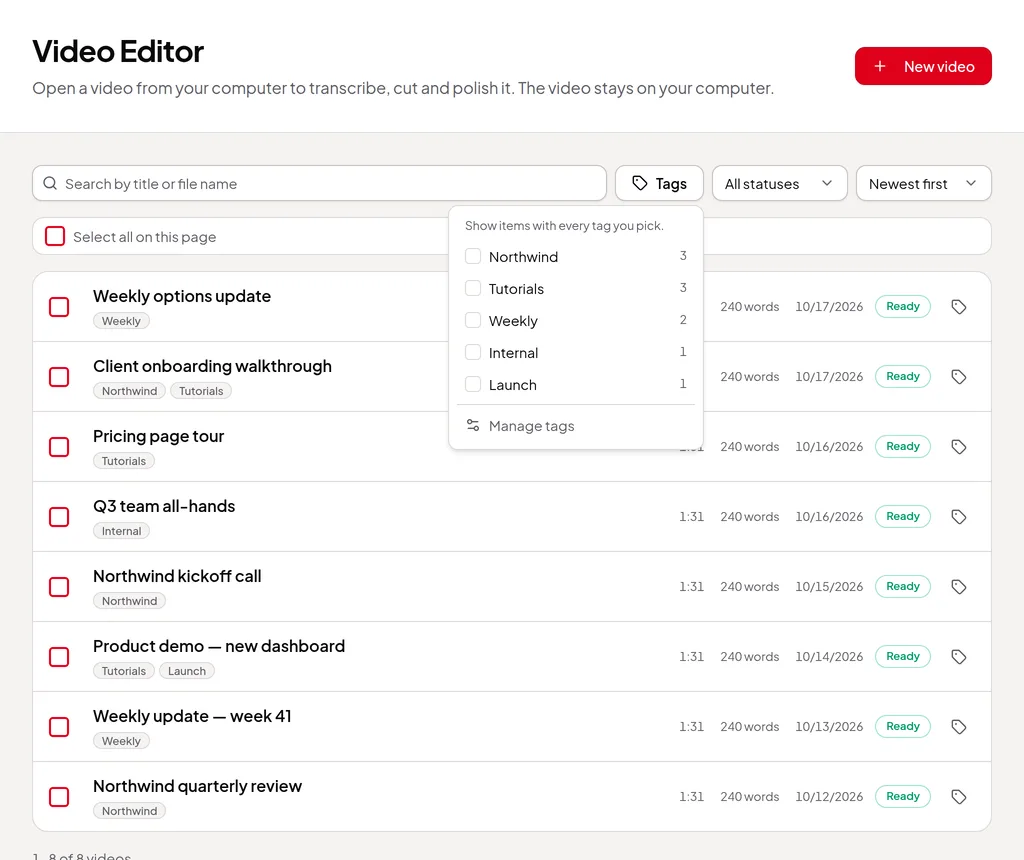
- Tags: in each list, the Tags menu shows your tags and how many items have each one. Pick one or more, and the list shows only items that have every tag you picked.
- Long lists are split into pages.
Tags
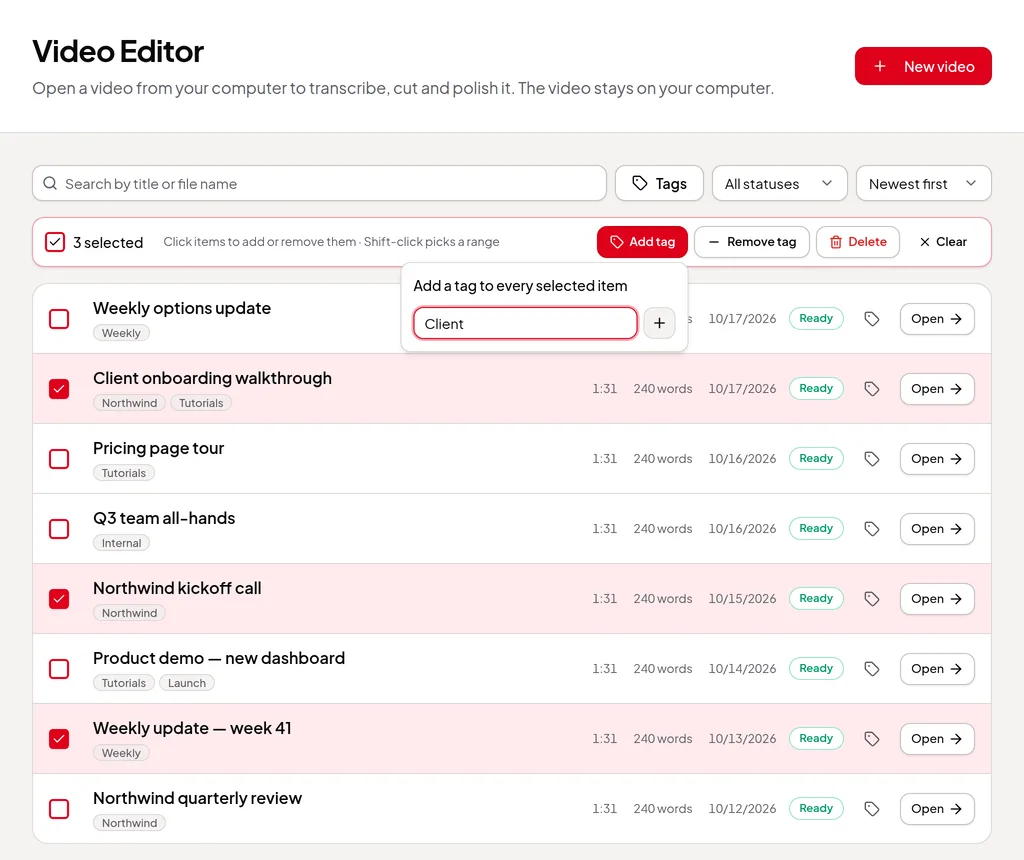
- Tag one item with the tag button on its row. Tags you’ve used before are suggested.
- Shared across your account. The same tags work on videos, projects and runs, so “Client A” can gather a recording, its summary project and its Quick Render runs.
- Up to 10 tags per item, each up to 30 characters, without commas. Capital letters don’t make a different tag: “Client a” and “Client A” are the same.
- Manage tags (at the bottom of the Tags menu) renames or deletes a tag everywhere at once. Renaming a tag to one you already have merges the two.
- Tagging never changes an item’s “last edited” time.
Pick several at once
- Tick an item’s box to pick it, or use Select all on this page. Shift-click picks everything between two items.
- You can pick up to 100 items at once.
- With items picked, the bar offers Add tag, Remove tag and Clear. In the Video Editor and the Studio it also offers Delete.
- Deleting projects removes their scripts and storyboards, and their watch links stop working.
- Deleting videos removes their transcripts, edits and uploaded sound, and deletes any copies kept in the cloud. Video files on your computer aren’t touched. Videos still being worked on are left as they are.
- Deleting always asks you to confirm first.
From the API and AI assistants
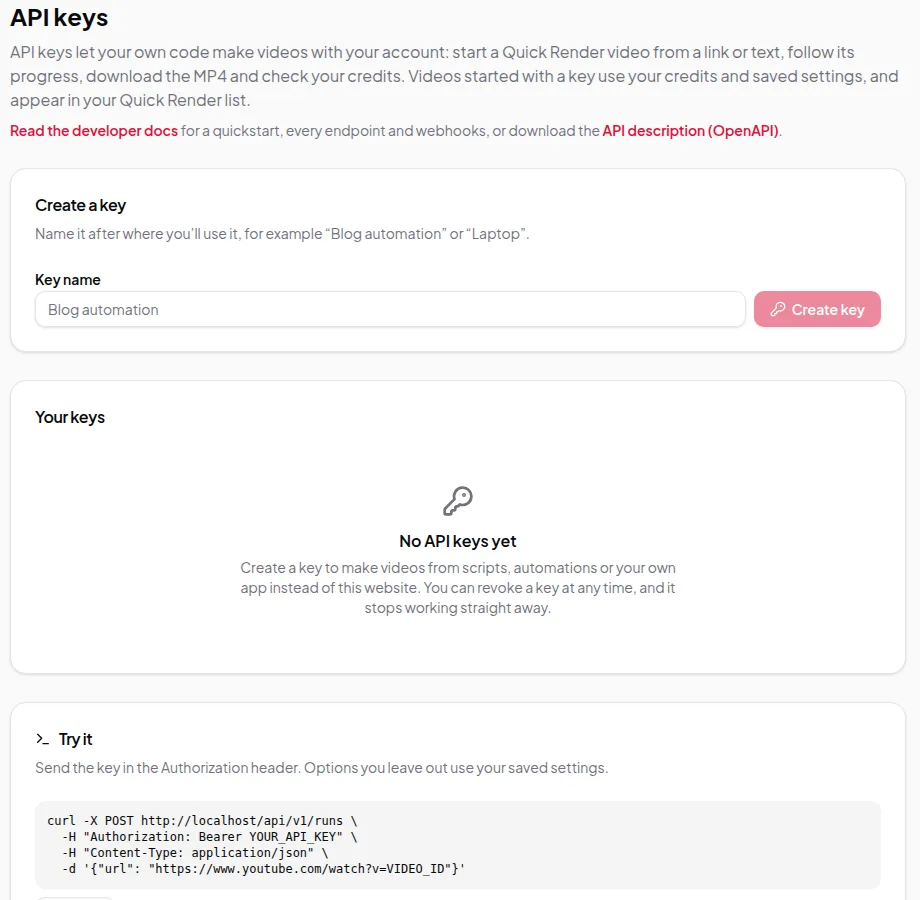
The developer API and the AI assistant connector can list and search your recordings, filter them by tag, and set their tags too.
Credits
Searching, filtering, tagging and deleting are free. See credits explained for what uses credits.