Feature
Use Vidonto from Claude, ChatGPT and other AI assistants
Connect Vidonto to Claude, ChatGPT, Cursor or another AI assistant and ask for videos, reviews, brands, recording edits, dubs or exports in plain words.
Updated
If you already work with an AI assistant, you can make Vidonto videos without leaving the chat. Add Vidonto as a connector once, then ask in plain words: “turn this article into a one-minute vertical video”, “make a video from each of these five links” or “how many credits do I have left?”. The assistant uses the same options, credits and saved settings as Quick Render, and the videos appear in your Quick Render list.
It works with assistants that support MCP connectors (MCP, the Model Context Protocol, is the open standard assistants use to call outside services), such as Claude and ChatGPT, and with coding tools such as Claude Code, Cursor and VS Code. You don’t need an API key or any code.
Step by step, with screenshots: make videos from Claude or ChatGPT.
How to connect
- Copy the connector address,
https://www.vidonto.com/api/mcp. It’s also on your Account page under Connected assistants. - Add it in your assistant as a custom connector. Assistants call this a connector, an app or an MCP server; which plans allow custom connectors is up to each assistant. Coding tools take a short command or settings entry, shown in the developer docs.
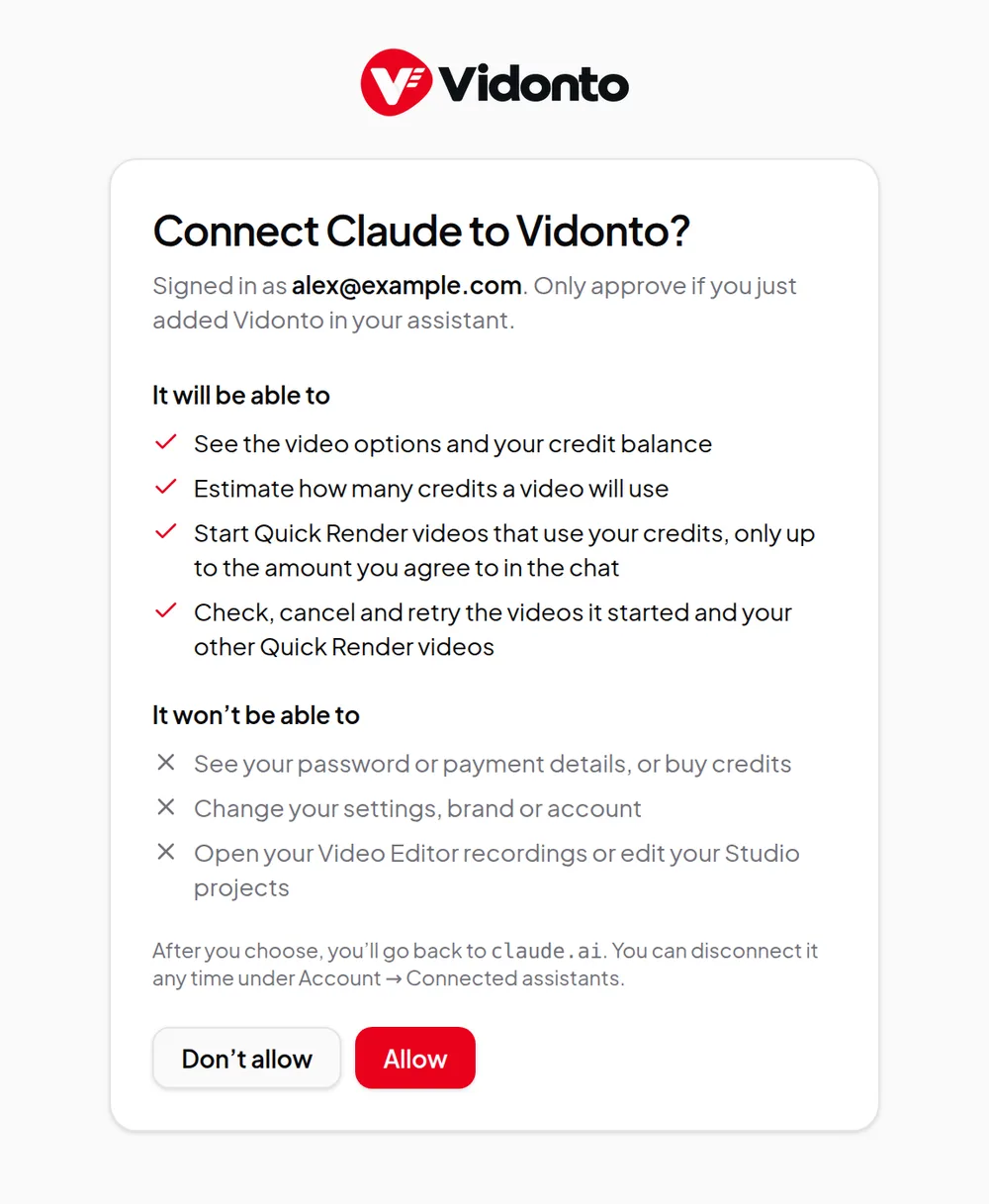
- Sign in and approve. The assistant opens a Vidonto page. Sign in if asked, read what the assistant will be able to do and select Allow. You’re sent back to the assistant, ready to go.
What the assistant can do
- See your options — formats, voices, the 26 video languages, opening and ending styles, AI presenters, your brands and your saved defaults.
- Estimate credits before it starts anything, for one video or a batch.
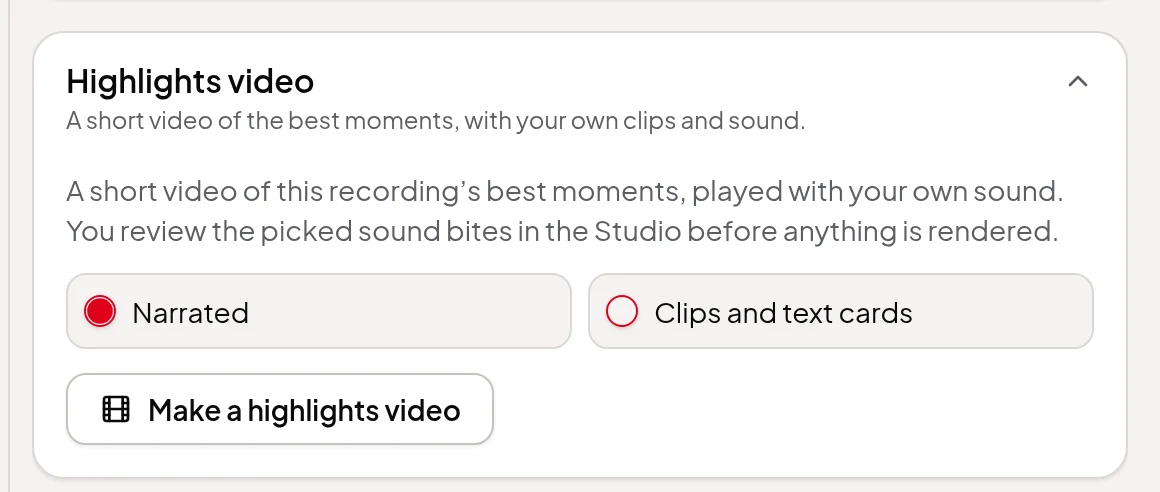
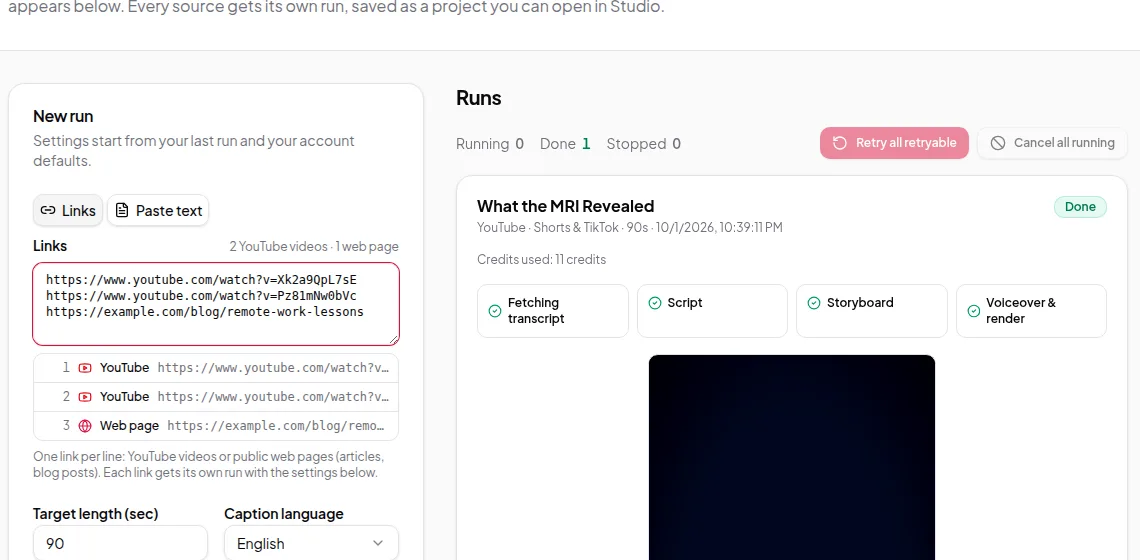
- Start videos from a YouTube link, a web page, pasted text, your own script or a link to a PDF, Word file or deck, or one video per link for up to 100 links. Give it 2 to 5 links, texts or links to files and ask for one video from all of them, as a new piece or a summary, and it makes one video from several sources. Or just give it a topic, such as “a 2-minute video on heat pumps in cold climates”, and the run finds its own sources and makes the whole video. Ask for a kind of video, such as “a how-to guide on bleeding radiators”, “a feature tour of Figma” or “a comparison of heat pumps and gas furnaces”, and it sets the type (how-to guide, feature tour, comparison or explainer), which shapes the search, the script and the scenes at no extra cost. Give it a list of up to 20 topics and it makes one video per topic; the assistant checks the credits with you first, since the search is part of the cost. Ask for a brand by name (say, “in the Northwind brand”) and the video uses that brand’s colours, fonts and logo; otherwise it uses your default brand. It can add an AI presenter on the side and at the size you ask for, or let the director place them scene by scene. Ask for “a highlights video of yesterday’s webinar” and it finds the recording and makes a highlights video of its best moments, with narrated bridges or, if you ask, text cards; the recording must be kept in the cloud.
- Show you the script and storyboard first. Ask it to check with you before making the video and it pauses after the script and again after the storyboard, shows you what was written, makes the changes you ask for and carries on only once you approve. A video from a topic pauses first after finding its sources: the assistant shows you its picks and the other suggestions from the same search, and can drop a pick or swap in another suggestion before the script is written. Reviewing costs nothing extra.
- Look after your brands and saved items — add, rename or delete brands, change their colours and fonts, set a logo from a picture link, and save, rename or delete intros and polished-video styles.
- Follow progress, cancel a video that’s still being made, or retry one that failed.
- Check your balance.
- Work with your Video Editor recordings — list and search them, check one’s progress, read its transcript (with your fixes to misheard words), change its tags, or delete it after you confirm. Ask “what did I say about pricing in yesterday’s call?” and the assistant can read the transcript to answer.
- Add a recording from a link. Give it a YouTube, TikTok, X or Facebook video link (it asks you first to confirm you own the video or have permission to use it) or a direct download link to a video file, and Vidonto fetches it, keeps it in the cloud and transcribes it, ready to edit in the Video Editor. The same links work as with From a link in the app: Instagram and Vimeo links can’t be used, and a link that’s refused charges nothing.
- Edit your recordings. Ask it to find mistakes and accept them, direct the video, suggest scenes, make chapters or find short clips, then accept or dismiss the suggestions. It can also cut parts, fix misheard words, add zooms, camera views, scenes, text and logos, or change the background, AI avatar, camera shape, cleaned-up sound and polished video options. Edits follow the Video Editor’s rules and show up there straight away; if you changed the recording in the app in the meantime, the assistant reads it again before changing anything.
- Finish your recordings. Ask it to dub a recording into up to five languages at a time, render it in the cloud, make a polished video with your saved options, or export a short clip, with the original sound or a dub. It can write the YouTube description and social posts or a blog post, give you an SRT or WebVTT caption file, and make or end share links. Exports and dubs are charged once, when they finish, exactly as in the app.
When a video is ready, the assistant gives you a link to it in Vidonto, where you watch, download and share it as usual. Recordings and their exports come with a link to open them in the Video Editor, where you download them; the assistant never gets a download link.
Recordings made in the app whose video is only on your computer are listed with their transcript and can be edited, but anything that needs the video itself is done in the app on that computer. Exports need the video kept in the cloud, and dubbing needs the recording opened once in the Video Editor; recordings added from a link are ready for both. A background effect is used in exports only after the recording has been opened in the Video Editor, which checks that someone is on camera.
It can’t buy credits, see your password or payment details, change your other account settings, create API keys, or edit your Studio projects.
You stay in control of credits
Every request that spends credits carries a limit you agreed to. The assistant is told to estimate first, tell you how many credits a video, recording, AI tool, dub, export or written piece will use and wait for your yes. If it would need more than you agreed, nothing is started or charged, and the assistant can come back to you with the figure. For a recording, the check is made again once its length is known, before anything is charged. If the assistant repeats a request, for example after a dropped connection, the same video, recording or export is returned instead of a second one being started and charged. Starting videos needs a confirmed email address, just like in the app.
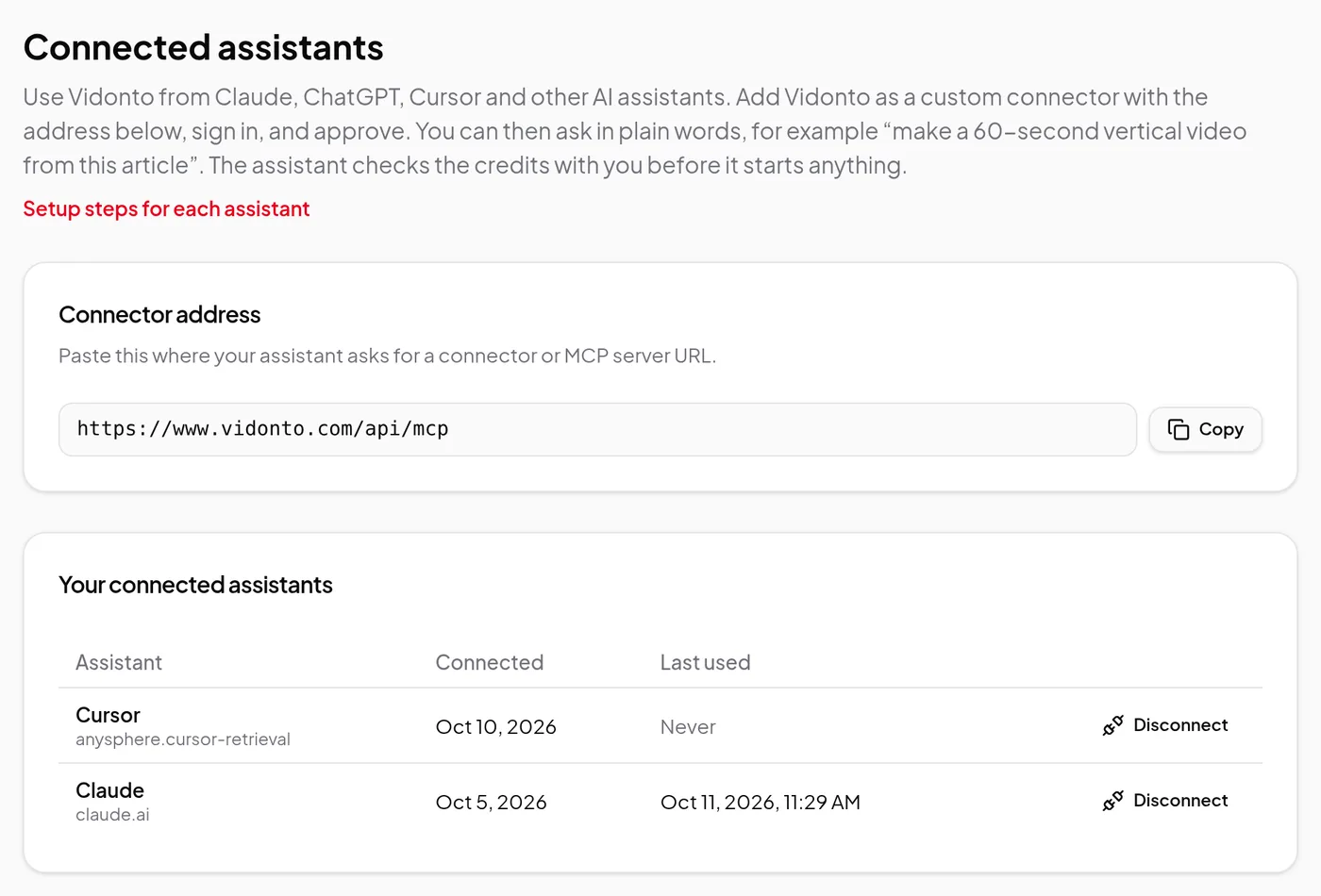
See and disconnect assistants
The Connected assistants section of your Account page lists each assistant you’ve connected, when you connected it and when it last used Vidonto. Disconnect stops it straight away. Resetting your password disconnects every assistant, and an assistant that goes unused for 30 days has to be approved again.
Good to know
- Videos made by an assistant are approved automatically unless you ask it to check with you first.
- Assistants follow the same rate limits as the API, so very large numbers of requests in a minute are slowed down.
- Prices are the same as in the app. See credits explained.
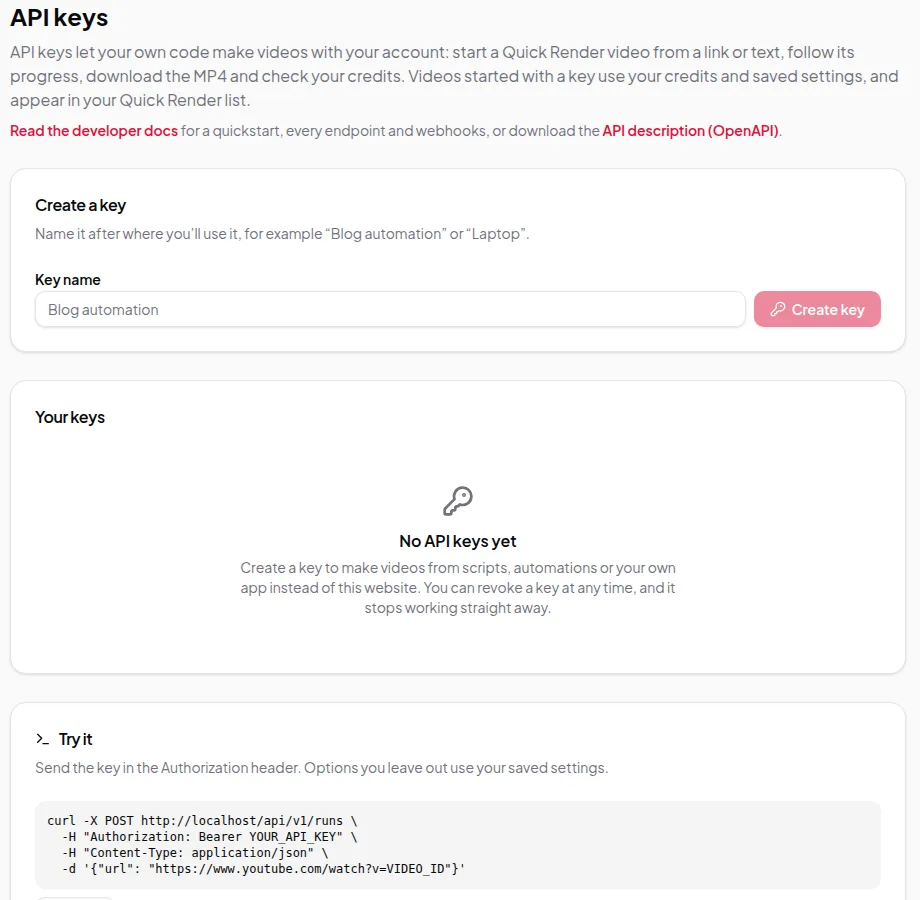
Building your own integration instead? The developer API gives your code the same abilities, plus downloads and webhooks.