Feature
Keep your recordings in the cloud
Store a recording privately in the cloud only if you choose to, upload it while you record, edit it on any device, download the original, and see the price first.
Updated
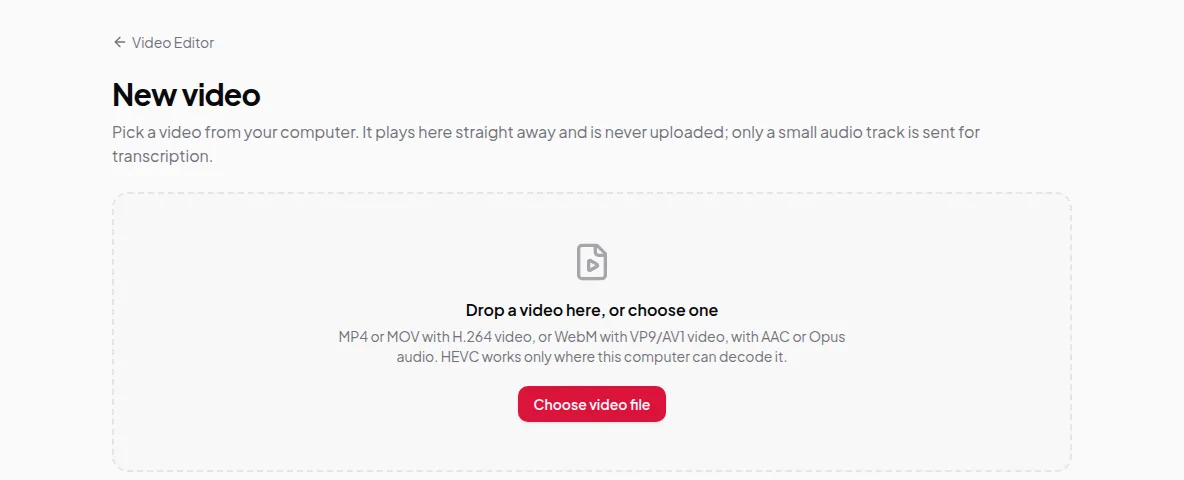
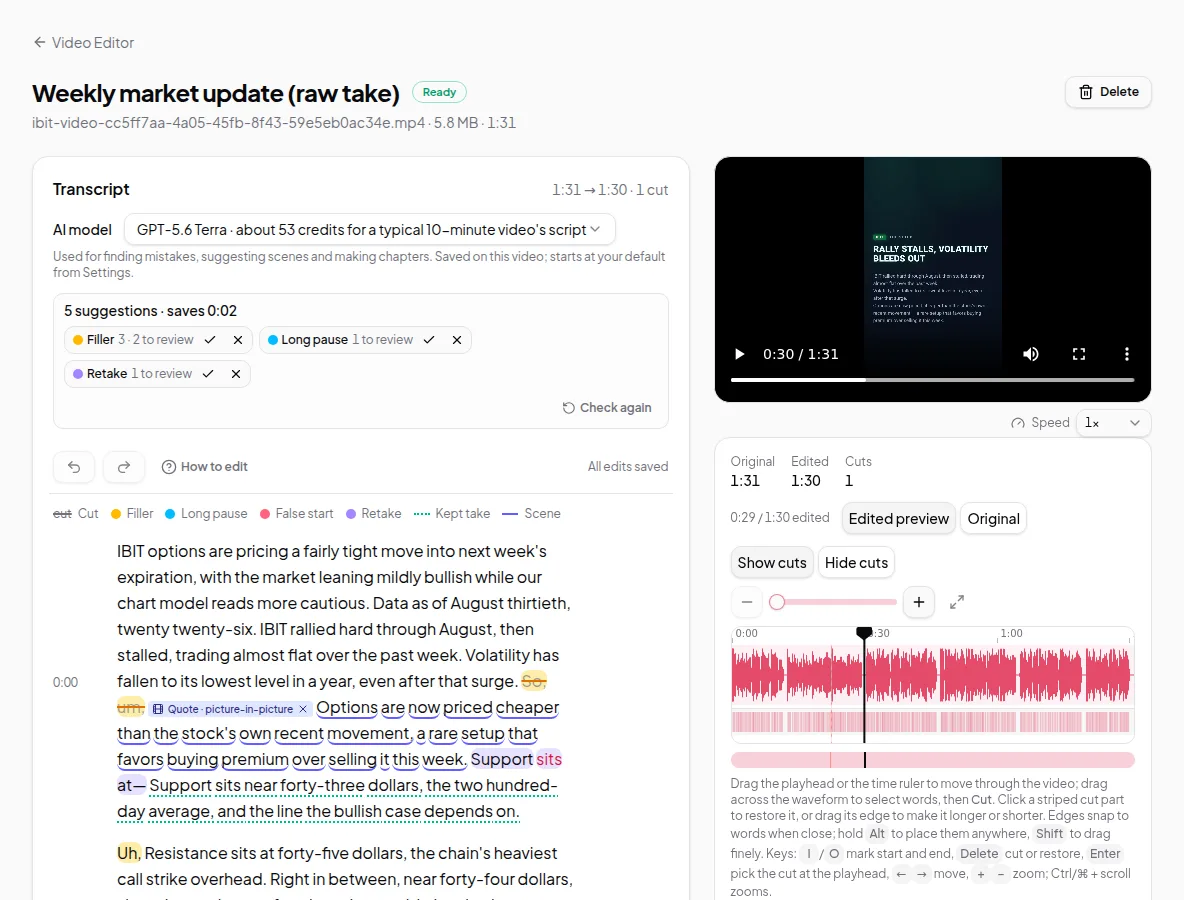
By default, your recordings stay on your computer: the Video Editor plays the file from there and only sends a small audio track to make the transcript. When you want to edit on a laptop as well as your desktop, or make exports without uploading again, you can choose to keep a video in the cloud. It’s opt-in for each video, and you see the price before you choose.
Keep a video in the cloud
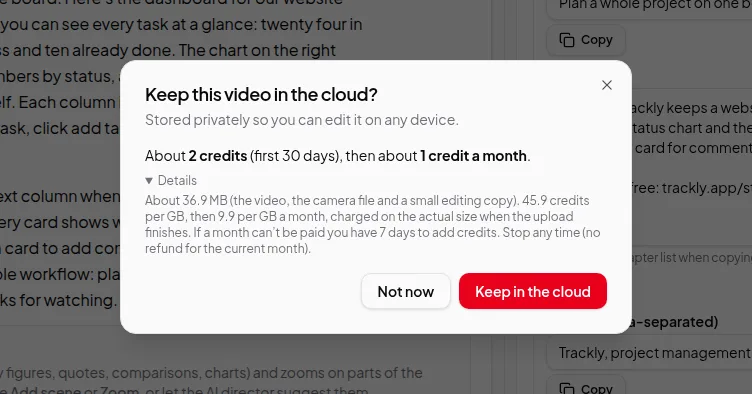
Open the recording in the Video Editor and click Keep in the cloud… in the Keep in the cloud card. The dialog shows about what it costs to upload, which covers the first period, and then about what it costs each month. Details explains how that’s worked out: the size of the video, the camera file if there is one, and a small editing copy, at a price per GB.
Click Keep in the cloud and the upload starts. Keep the tab open until it finishes. You can Pause and later Continue uploading with the same file. When it’s done, the card says the video is kept and can be opened on any device.
You’re charged for the size actually stored when the upload finishes. If you cancel an upload before it finishes, what was uploaded is deleted and nothing is charged.
Upload while you record
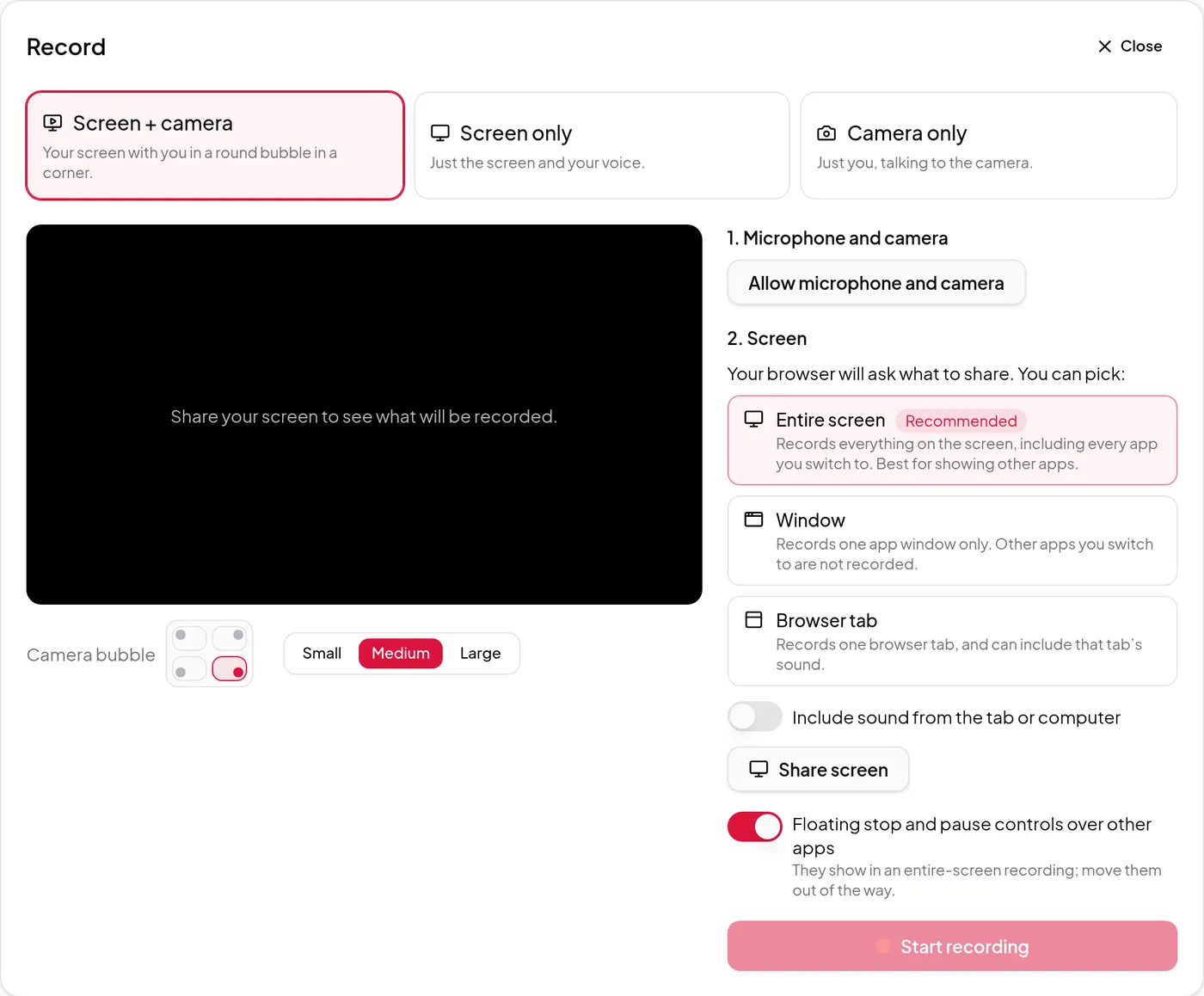
In the built-in recorder, set Save to to Cloud. The take is sent while you record, so it’s ready soon after you stop. When you stop, choose Keep in the cloud to keep it — the button shows the price, and what it costs each month after that. Choose Save to my computer instead and nothing is charged for storage.
If sending while you record can’t keep up, the take is finished normally and uploaded after you choose to keep it.
Edit on any device
A kept video opens on any computer where you’re signed in, without the original file. The editor plays a small editing copy from the cloud, so you can change the words, cuts, views, scenes and polished settings from there.
- Cloud renders and polished videos use the stored original, so nothing needs to upload again.
- Highlights videos and compilations are made only from kept videos: a highlights video turns one into a short video of its best moments, and a compilation combines moments from several.
- Exporting on your computer, cleaning up the sound and dubbing still need the original file opened on that device.
Download the original
From the same card, Download original saves the file exactly as it was uploaded. If your browser had to make a full-size copy because the original’s format couldn’t be read in the cloud, the button says Download full-size copy. A recording with a separate camera file can download that too.
A download uses a small amount of credits for the data sent, shown before you confirm. Starting the same download again shortly after is free, so a dropped connection doesn’t charge twice.
Share it as recorded
Share link on the same card makes a watch link to the stored recording, without making an export first. Viewers watch it as you recorded it, without your cuts, on a Vidonto page with no sign-in. Each view is charged from your credits like a download. The link stops working when you stop storing the video.
Stop storing, or remove videos automatically
Click Stop storing on the card to delete the stored files. A watch link to the stored recording stops working too. Your transcript, edits and finished videos stay, and so do the links to them. If the stored copy is the only one you have, the editor reminds you to download it first.
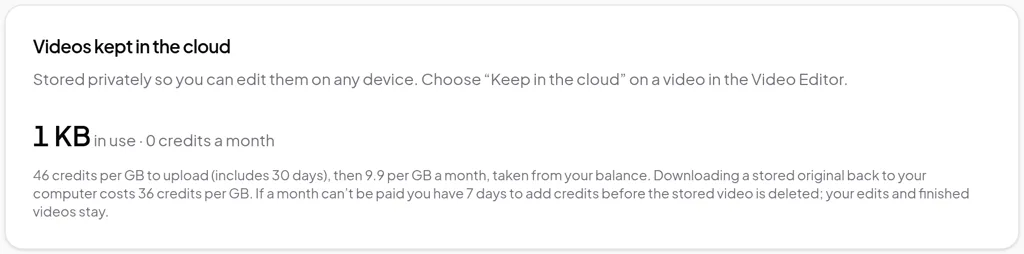
Settings → Videos kept in the cloud shows how much you store and what it costs a month, with a list of every kept video. Select videos to Remove from cloud together, or switch on Automatically remove stored videos after 30, 60 or 90 days. Automatic removal happens at the end of a paid month, so you’re never charged for a month and then lose the video during it. Tick Don’t remove this video automatically on any video you want to keep longer.
How monthly storage is charged
- The upload price covers the first period. After that, each month is charged from your credit balance, based on the stored size.
- If a month can’t be paid, you have a few days to add credits before the stored video is deleted, and you get an email. Your edits and finished videos stay either way.
- Stopping is immediate. There’s no refund for the current month.
Limits worth knowing
- Without keeping it in the cloud, an original uploaded for a cloud render or polished video is deleted after 7 days. Your edits and finished videos stay.
- Uploading a large recording takes time on a slow connection. The upload can be paused and continued.
- Phone browsers can open and edit kept videos, but recording your screen needs a computer.
Credits
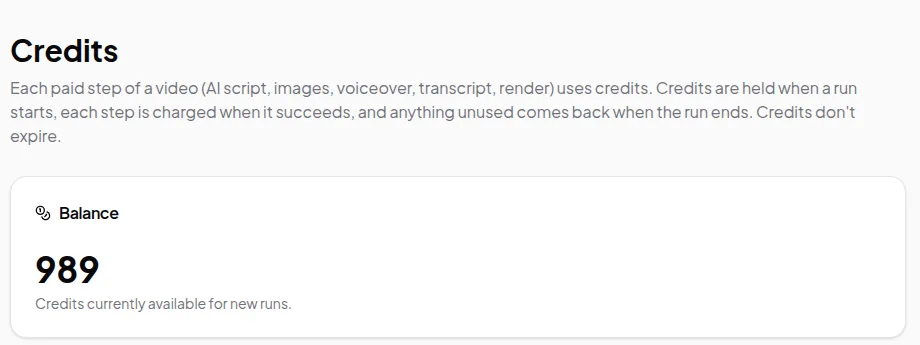
Keeping a video in the cloud uses credits for the upload and then a small amount each month, based on the size. Downloading a stored file back uses credits for the data sent. Every price is shown before you choose. See credits explained.
Step by step: keep a recording in the cloud and edit it on another device.