Feature
Share a link where viewers can watch your video
Make a link to a finished video. Anyone with it can watch on a Vidonto page without signing in; you see the view count and can turn the link off.
Updated
Sometimes you don’t want to send an MP4 file. A share link opens a simple Vidonto watch page where anyone with the link can play the video on a phone or a computer, without signing in or making an account. You see how many times it’s been watched, and you can turn the link off whenever you like.
What you can share
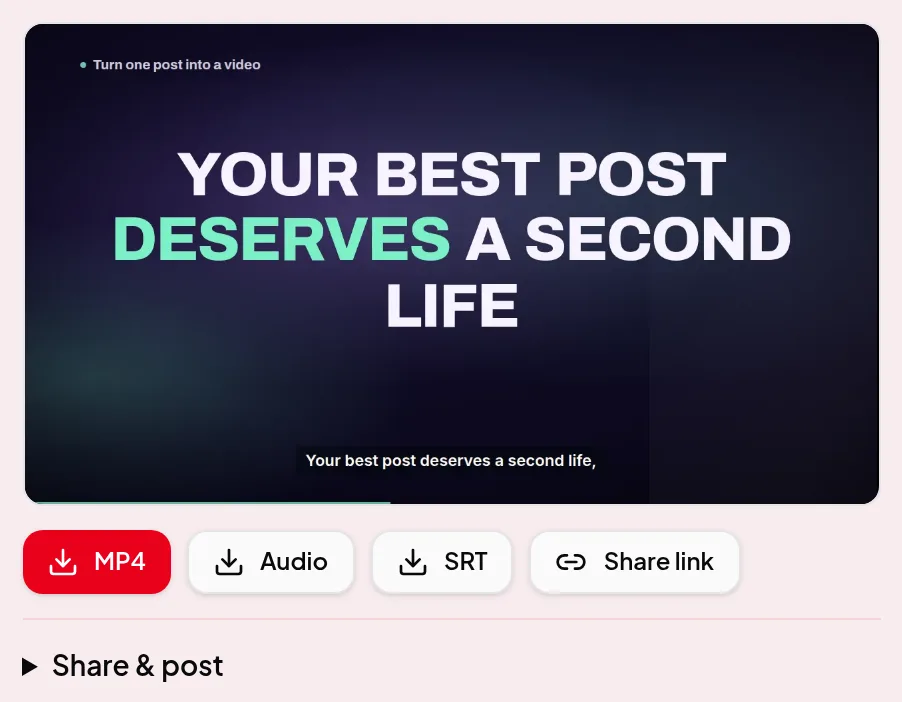
Look for the Share link button next to Download on:
- Summary videos, on the project page and in Quick Render.
- Cloud renders of a recording.
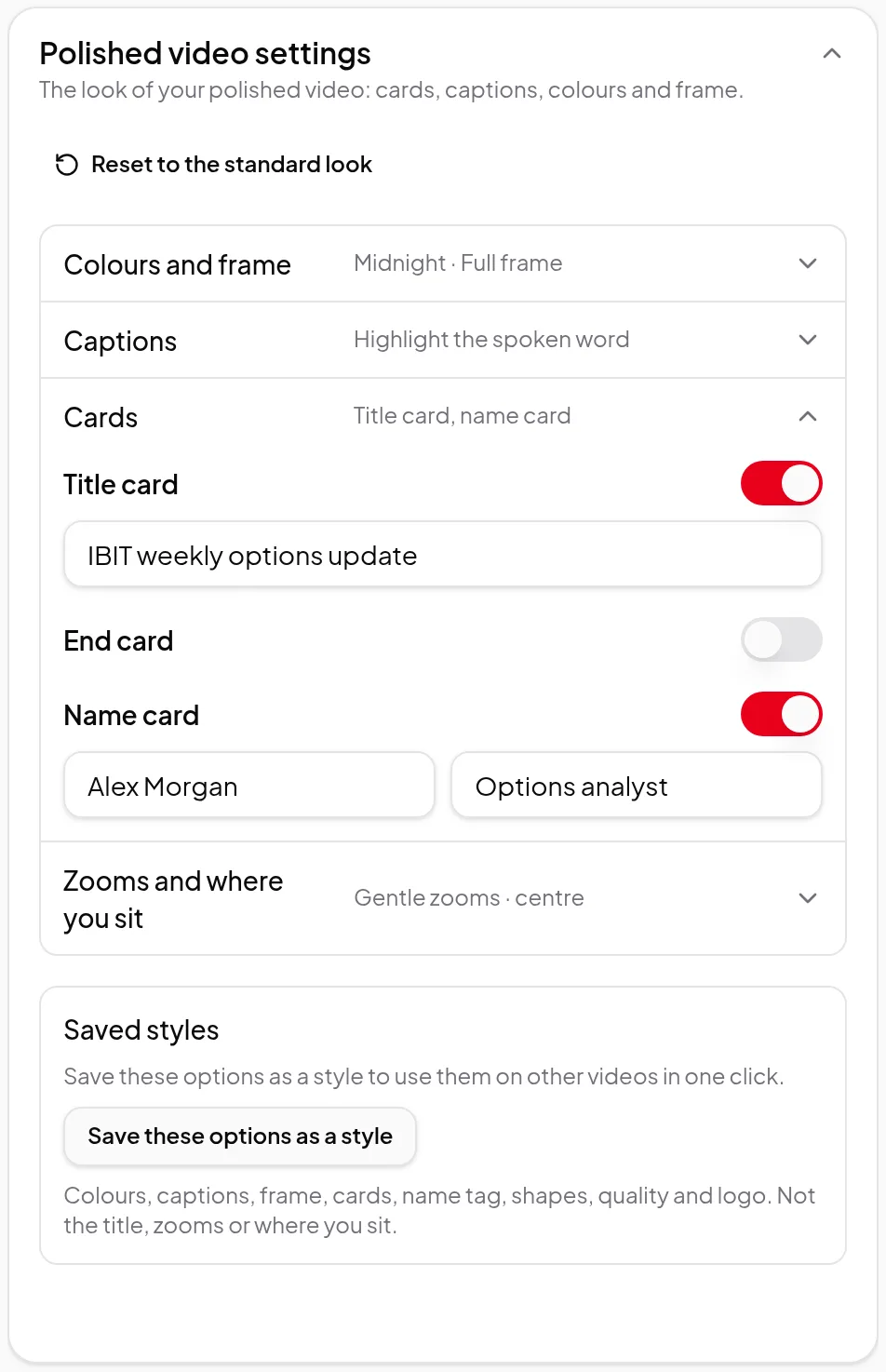
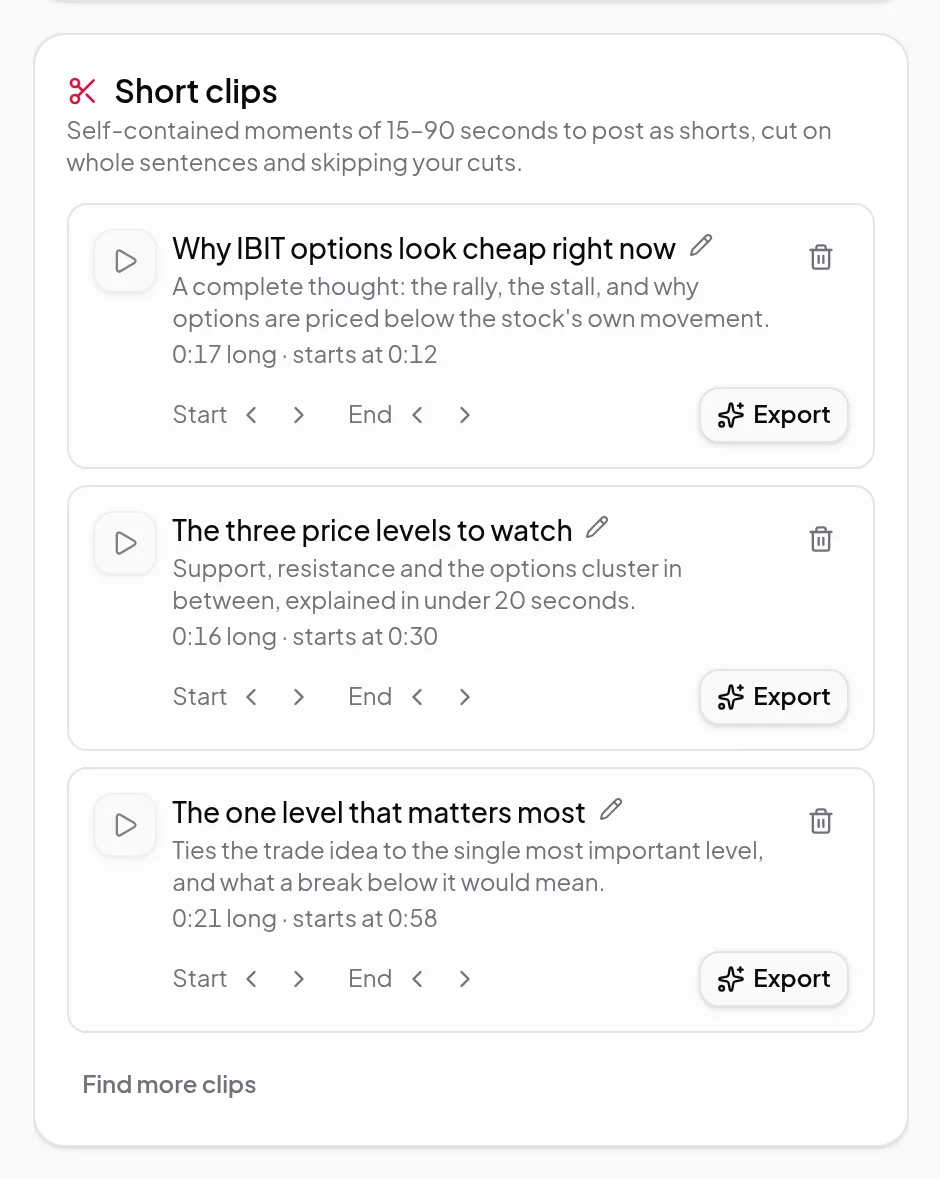
- Polished videos and short clips. Each format, such as vertical or square, gets its own link.
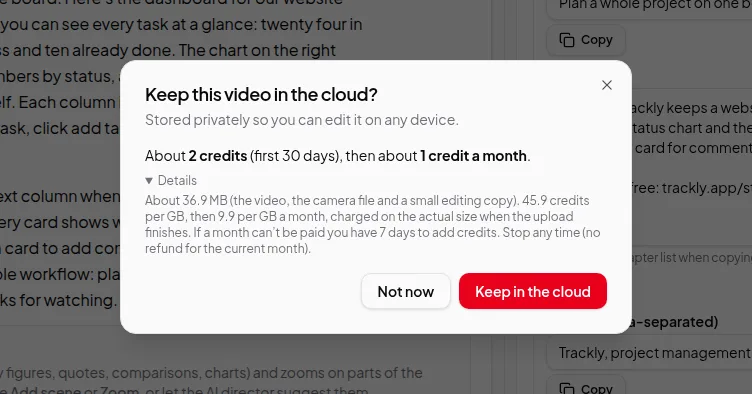
- A recording kept in the cloud, as you recorded it. The button is on the Keep in the cloud card in the Video Editor, so you don’t have to make an export first.
Videos you export on your own computer stay on your computer, so they can’t be shared this way.
Sharing a recording kept in the cloud
The link plays the stored recording without your cuts or other edits. Export it first if you want viewers to see the edited version.
- Which file plays. Viewers get the stored original. If your browser made a full-size H.264 copy when you kept it, because the original’s format couldn’t be read in the cloud, they get that copy. If web browsers can’t play the stored original — anything other than an MP4 or WebM file, such as a MOV or MKV, or a format like HEVC or ProRes — they get the 720p editing copy instead. The dialog tells you which one before you make the link.
- Screen and camera recordings. Viewers see the screen recording only, without the camera. Export the video to share it with the camera.
- The link ends with the storage. If you stop storing the recording, or it’s removed because a month couldn’t be paid or because of automatic removal, the link stops working at once. Keeping the recording in the cloud again later doesn’t bring the old link back; make a new one.
Make and copy a link
Click Share link to open the dialog, then Make a link. Making a link is free. Copy the address and send it however you like: in an email, a chat message or a document.
The dialog shows the link’s view count every time you open it. A video has one link at a time, so clicking Share link again shows the same address.
Step by step, with pictures: share your video with a link.
What viewers see
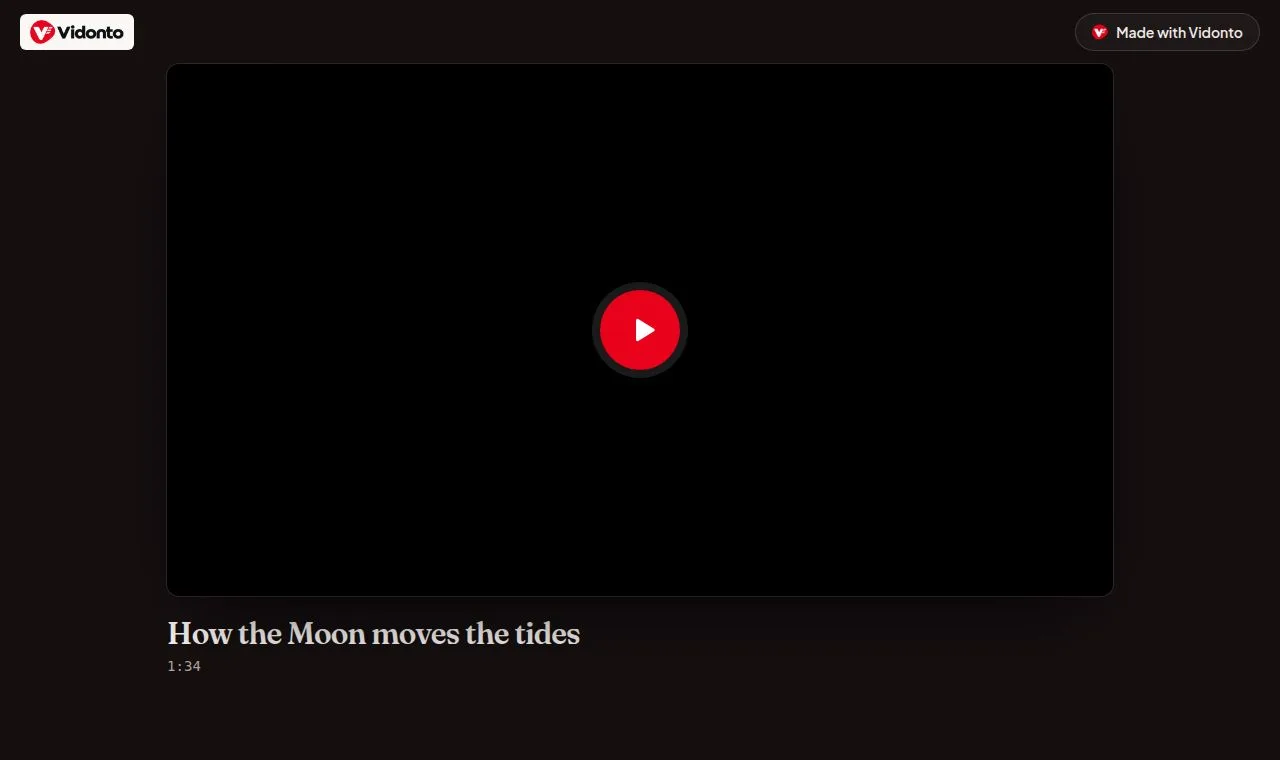
The watch page shows the video’s title and length and a play button, with a Made with Vidonto link at the top. Summary videos come with captions that viewers can turn on in the player. Polished videos and clips play with the captions you burned into them.
The page doesn’t show your name, your email or your other videos. It is kept out of search engines, and the address is a long random code that can’t be guessed.
Turn a link off
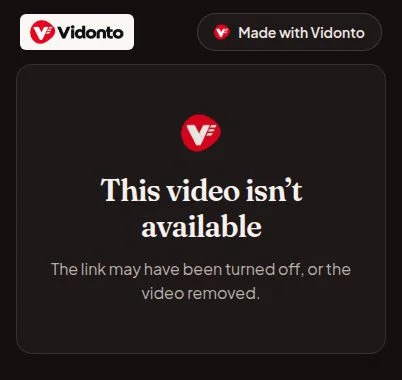
Click Turn off link in the dialog. It stops working at once: new viewers see a page saying the video isn’t available, and anyone part-way through can only finish the few seconds their player has already loaded. If you share the video again later, it gets a new address; the old one stays off.
Deleting the project or the recording also ends its links. Stopping cloud storage for a recording ends only the link to the stored recording itself: its exports stay, so their links keep working.
How views are charged
Each view streams the whole video from storage, so it’s charged from your credits at the same per-GB price as downloading a stored recording. The dialog shows about what one view of that video costs before you make the link, and every view appears in your credit history as Watch link views.
- A view is one person pressing play. Opening the page, or a link preview in a chat app, costs nothing.
- Rewatching is free for a while. Playing it again, reloading the page or skipping around on the same device within at least an hour (longer for longer videos) doesn’t count as a new view, up to a few full replays.
- If you run out of credits, new viewers see a polite page saying the video can’t be played right now. It plays again as soon as you add credits.
- Very busy links may ask new viewers to try again in a few minutes, so views from a link posted somewhere unexpected build up gradually rather than all at once.
Worth knowing
- The view count is a simple total. There are no comments, reactions or detailed viewer statistics.
- Links don’t have passwords or expiry dates. Turn a link off when you no longer want it used.
- There is no embeddable player for other websites. Download the MP4 if you want to put the video on your own site or a video platform.