Guide · Getting started
How to share your video with a link
Step by step, make a link to a finished video, send it to anyone, check how many times it's been watched, and turn the link off when you're done.
3 min read · Updated
Feature used in this guide: Share links — what it does, its limits and how credits work.
Your video is finished and you want someone to watch it, without sending a large MP4 file. A share link opens a simple Vidonto watch page that plays on a phone or a computer, and viewers don’t need to sign in or make an account.
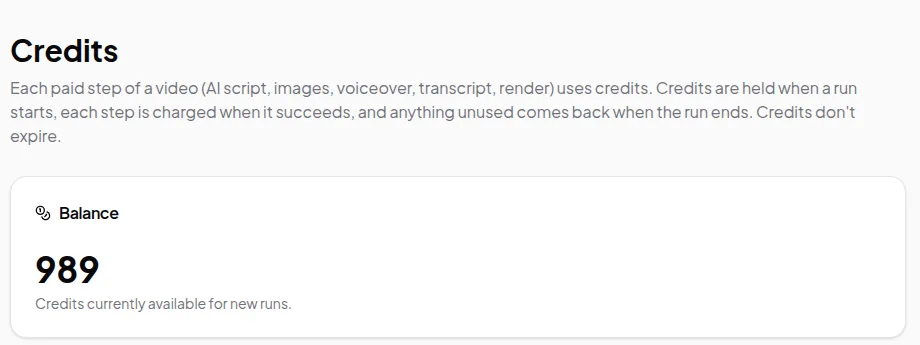
You’ll need: a finished video in Vidonto. Making a link is free. Each view is charged from your credits, and the dialog shows about what one view costs before you make the link.
Step 1: Find the Share link button
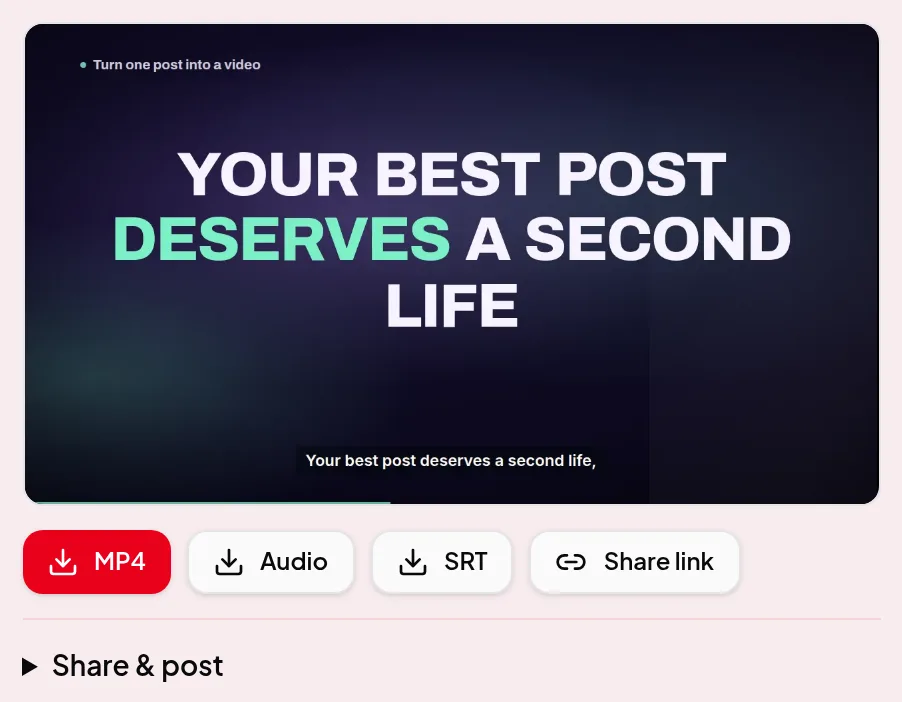
The Share link button sits next to the download buttons on:
- Summary videos, under the finished render on the project page in the Studio, and on each finished run in Quick Render.
- Cloud renders, polished videos and short clips of a recording in the Video Editor. Each format, such as vertical or square, gets its own link.
- A recording kept in the cloud, on the Keep in the cloud card. This link plays the recording as you recorded it, without your cuts or edits.
Videos you export on your own computer stay on your computer, so they can’t be shared this way.
Step 2: Make the link
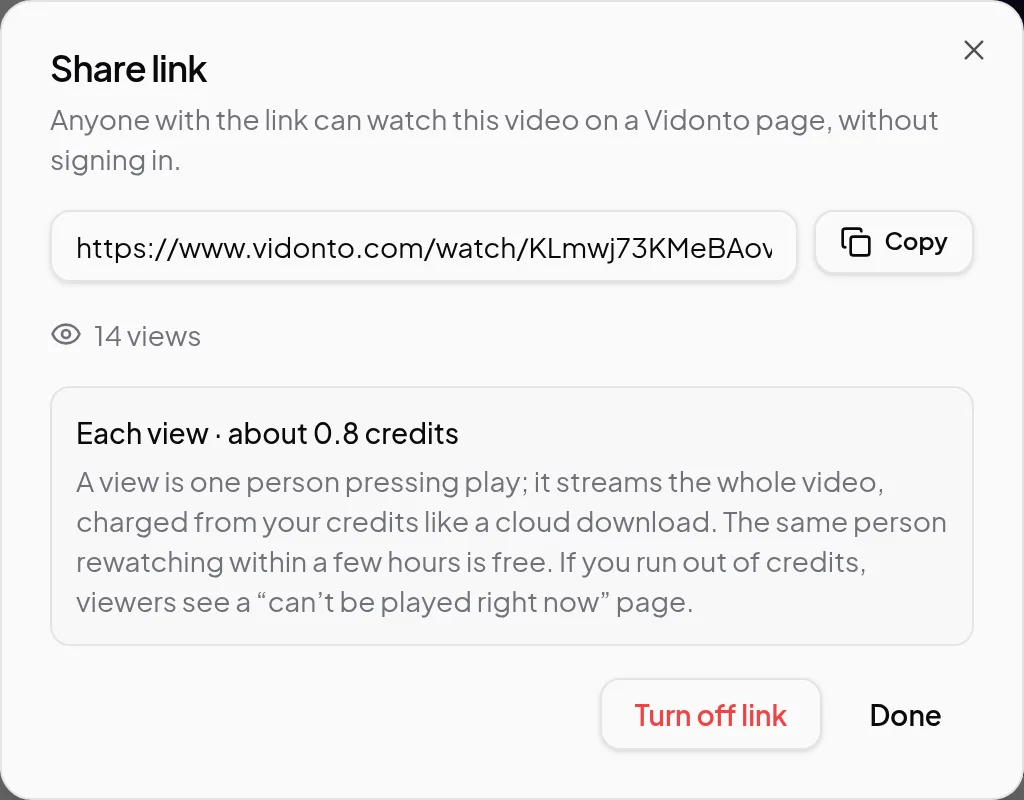
Click Share link. The first time, the dialog says there’s no link yet and shows about what one view of this video costs. Click Make a link.
Step 3: Copy it and send it
Click Copy and paste the address wherever you like: an email, a chat message or a document. A video has one link at a time, so clicking Share link again later shows the same address.
Step 4: What your viewers see
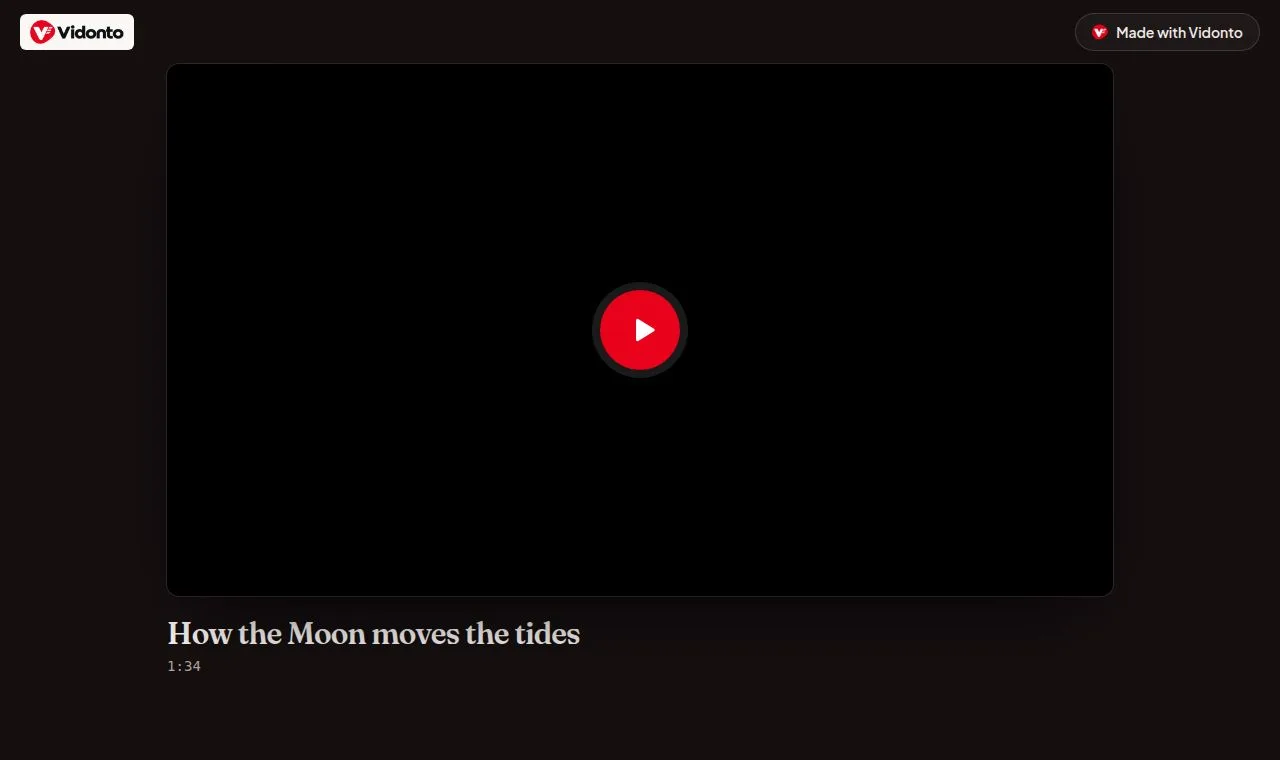
The link opens a watch page with the video, its title and length, and a Made with Vidonto link at the top. Summary videos have captions viewers can turn on in the player; polished videos and clips play with the captions burned into them.
The page doesn’t show your name, your email or your other videos. It’s kept out of search engines, and the address is a long random code that can’t be guessed.
Step 5: Check the views
Open Share link again at any time to see how many times the video has been watched. A view is one person pressing play; opening the page or a link preview in a chat app doesn’t count. Each view appears in your credit history as Watch link views.
If you run out of credits, new viewers see a page saying the video can’t be played right now. It plays again as soon as you add credits.
Step 6: Turn the link off
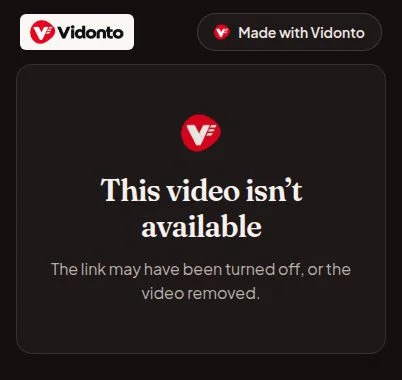
When you no longer want the video watched, open Share link and click Turn off link. The link stops working at once, and new viewers see a page saying the video isn’t available. If you share the video again later, it gets a new address; the old one stays off.
Deleting the project or the recording also ends its links, and so does stopping cloud storage for a recording you shared as recorded.
Tips
- Share the edited version. A link to a kept recording plays it without your cuts. Export it first, then share the export.
- Turn off links you no longer need. Links don’t have passwords or expiry dates.
- Putting the video on your own site? There’s no embeddable player, so download the MP4 and upload it there instead.
More detail on how views are counted and charged: share links.