Feature
Topic to video — a finished video from just a topic
Type a topic, or up to 20, and Vidonto finds 2 to 5 real articles and YouTube videos, reads them and makes a finished narrated video from them, with the sources listed.
Updated
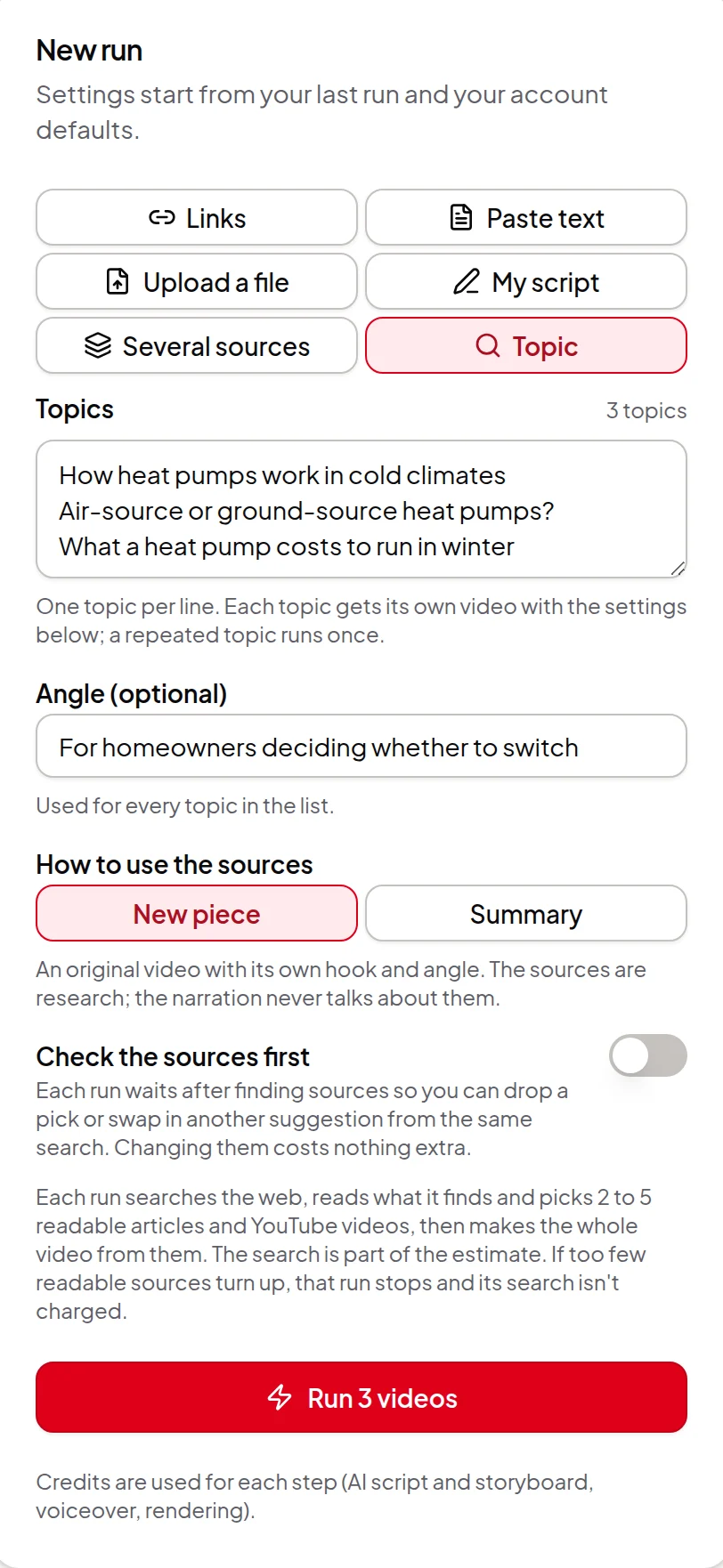
You know what the video should be about, but you haven’t gathered any sources yet. Choose Topic in Quick Render, type the topic, and press Run. Vidonto searches the web, reads what it finds, picks 2 to 5 readable articles and YouTube videos, and makes the whole video from them: script, storyboard, voice-over and render.
It’s not a video made up from a prompt. Every point in the script comes from the sources the run found and read, and those sources are listed on the run and in the video description, so you can check where each one came from. The visuals are the same scenes, AI images and data visuals as any Vidonto summary video, not generated footage.
What you can set
- Topic — what the video is about, up to 200 characters, such as “how heat pumps work in cold climates”.
- Type of video (optional) — How-to guide, Feature tour, Comparison or Explainer. The type steers what the search looks for (tutorials, feature pages, head-to-head comparisons or overviews), how the script is ordered and which scenes the storyboard favours. For example, a how-to guide uses clear steps and list scenes, and a comparison puts the options side by side and ends with who should pick which. For a comparison, name the options in the topic, such as “heat pumps vs gas furnaces”. Leave it on Any type for the usual video. It costs nothing extra.
- Angle (optional) — who it’s for or what to focus on, such as “for homeowners deciding whether to switch”. It’s added to the run’s instructions as one “Angle: …” line, so the script follows it.
- How to use the sources — New piece makes an original video with its own hook, using the sources as research. Summary retells what the sources say and points out where they disagree.
- Check the sources first — off by default. Switch it on and the run waits after its search so you can check the picks (see below).
Everything else — length, format, voice, look, video language, AI images, presenter — comes from the usual Quick Render settings. The search looks for sources in the video language where it can.
Many topics at once
Type one topic per line, up to 20, and each topic gets its own video with the same settings, angle and type of video. A repeated topic (even with different capital letters or spacing) runs once. The Run button shows how many videos will start and the estimate for all of them. The credits for every run are held together when you press it, or nothing starts.
What happens during the run
- Finding sources. The run searches the web and reads what turns up. Forums, Q&A sites, social media posts, PDFs, and pages or videos it can’t read are left out. It then picks 2 to 5 sources, mixing articles and YouTube videos where it can.
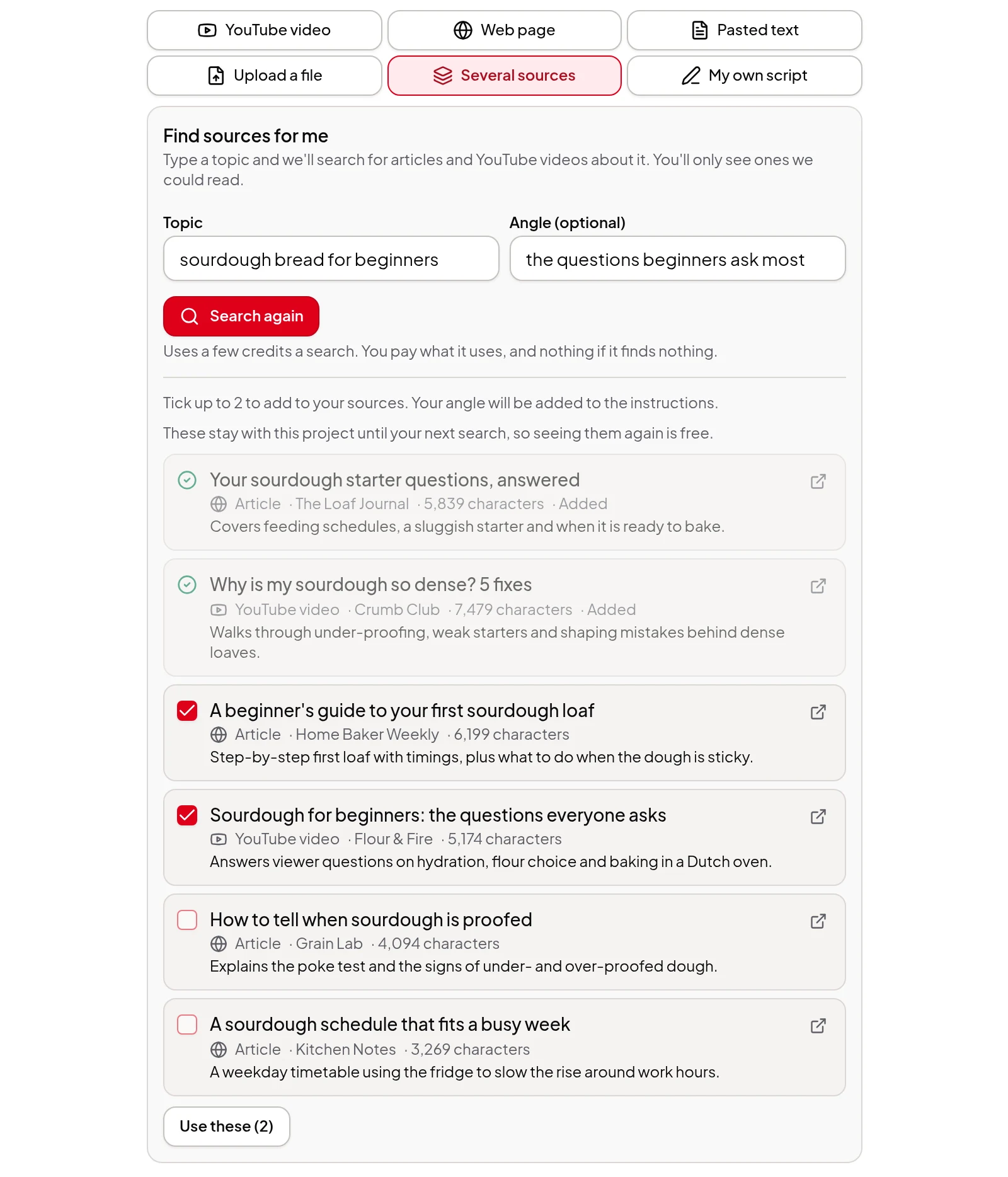
- Check the sources (only if you switched it on). The run card shows Check the sources before it writes, with the picks and the other readable suggestions from the same search. Untick a pick to drop it, or tick another suggestion to swap it in, keeping 2 to 5, then press Continue with the number of sources you kept. Every suggestion was read during the search, so changing them costs nothing. With a list of topics, each run waits on its own card.
- Script, storyboard, voice-over and render. These run on their own, as for any Quick Render run, and the run card shows each step.
When it’s done, the run lists the sources it used, each with its title, site or channel and a link, and shows the type of video if you picked one. The video description gets a numbered Sources list. Turn on Credit the source and the narration also says it’s based on several sources.
Credits
The estimate under the Run button covers the search as well as the whole video, and the credits are held before anything starts. Each step is charged as it succeeds, and anything not used is returned. The type of video, the angle and checking the sources cost nothing extra. Cancelling a run that’s waiting for you to check its sources still pays for the search it already made.
If fewer than 2 readable sources turn up, the run stops with a message saying so, nothing is charged for the search, and nothing else is made. Retry it or start again with broader words. A retry never searches twice: once the sources are picked, they’re reused. See credits explained.
Choose the sources yourself instead
A topic run picks from what its own search found. To add a source you already trust, mix found sources with your own links, texts or files, or read each source before the script is written, use Find sources for me in the Studio. It suggests up to 8 articles and videos for a topic, you tick the ones you want, and they join a several sources project where you review the script and storyboard before anything is narrated.
From the API and AI assistants
- Developer API — send
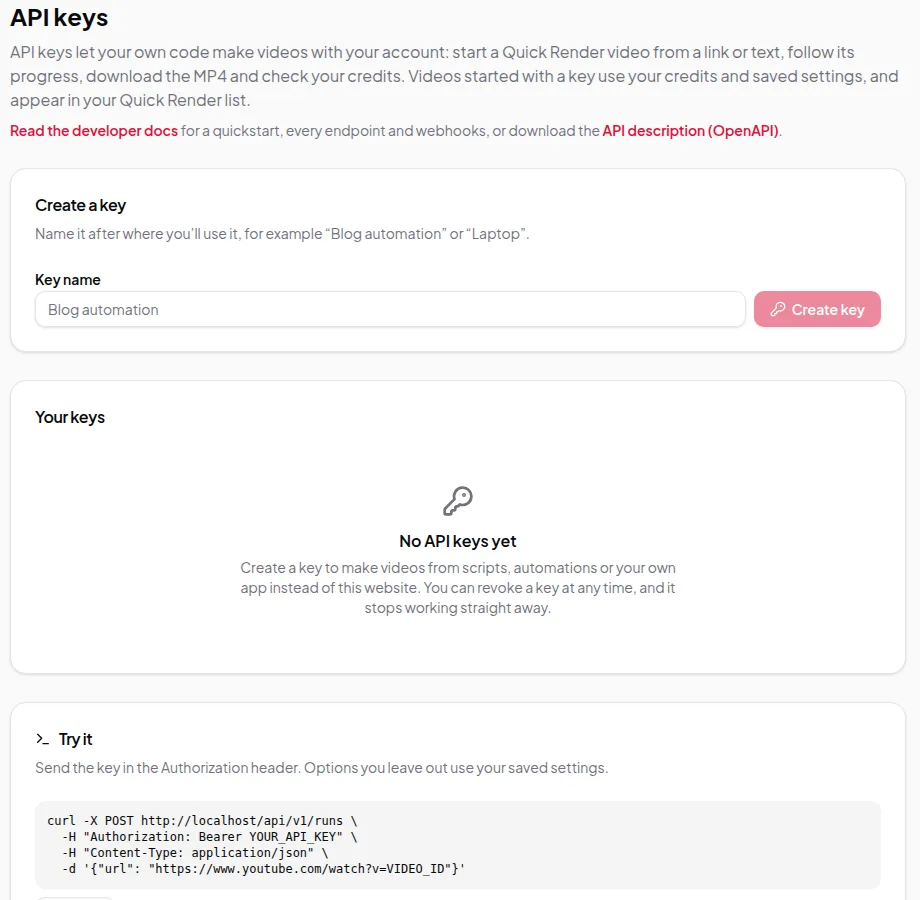
topicand an optionalangle,writingMethodandvideoType(how_to,feature_tour,comparisonorexplainer) to start a run, ortopics(up to 20) to the batch endpoint. Estimate withsourceKind=topic. Withreview: true, the run also waits for you to check its sources before the script. - AI assistant connector — ask Claude or ChatGPT for “a 2-minute how-to guide on bleeding radiators” or “a comparison of heat pumps and gas furnaces”, and it starts a topic run with the right type. It checks the credits with you first, since the search is part of the cost, and can show you the sources before the script is written.
Step by step: make a video from just a topic.