Guide · Summary videos
How to write creator instructions for better AI scripts
Use Vidonto's Instructions box to steer the focus, tone, audience and structure of your AI-written scripts, with examples that work and the limits to know about.
3 min read · Updated
Feature used in this guide: YouTube video to summary video — what it does, its limits and how credits work.
Without guidance, an AI summary covers the main points in a neutral voice. That’s often fine. But you usually know more than the AI does: who the video is for, which part matters most, what to leave out. The Instructions box lets you say so in plain words. This guide shows how to write instructions that make a real difference.
Where to find it
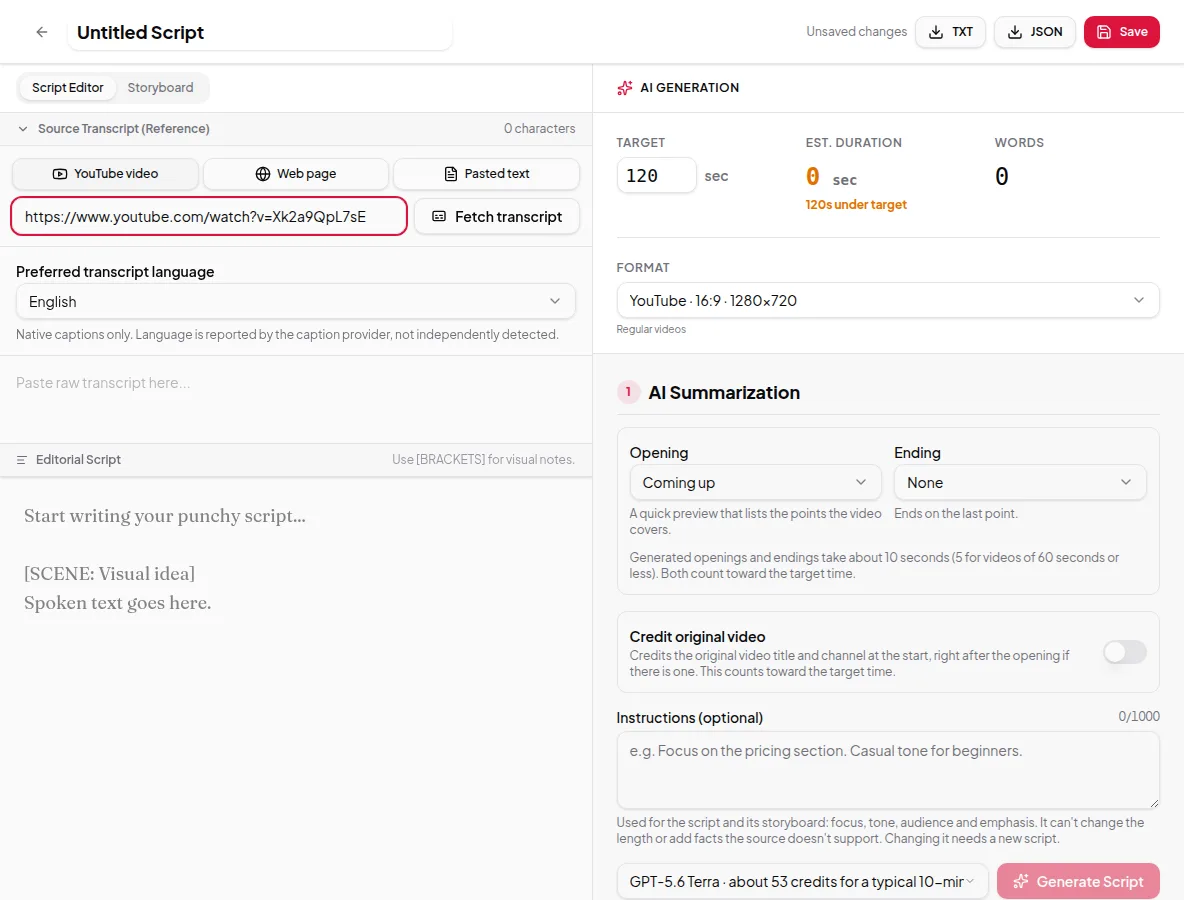
- Studio: in Step 1: AI Summarization, under the Opening and Ending options. The box is labelled Instructions (optional).
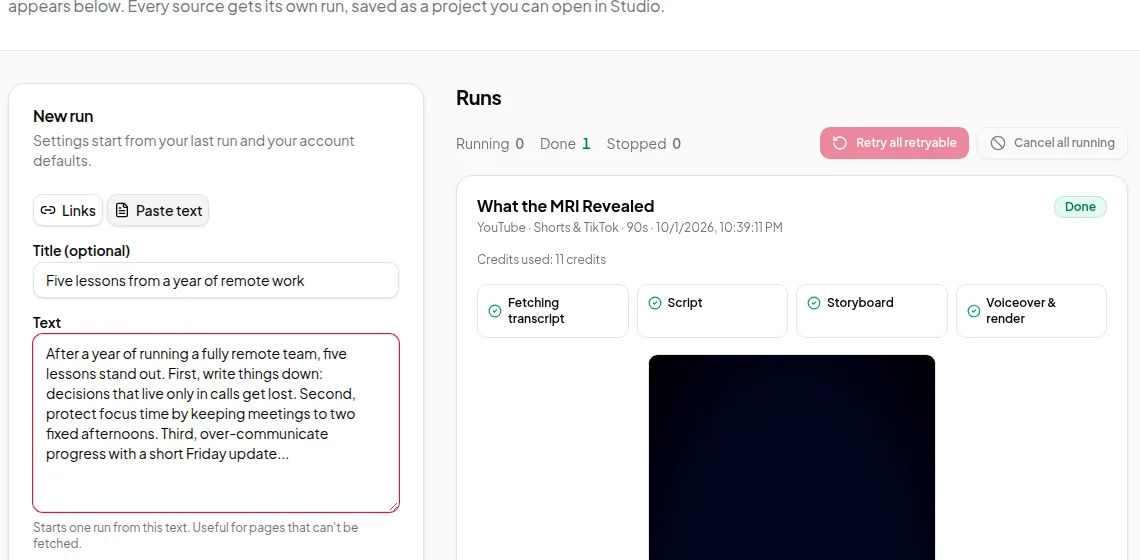
- Quick Render: in the settings column, under Opening and Ending. In a batch, the same instructions apply to every link.
- API: the
instructionsoption on a run. See the developer docs.
You can write up to 1,000 characters, about 150–200 words.
What instructions can and can’t do
The box tells you itself: instructions steer focus, tone, audience and emphasis. They can’t change the length — that’s the target duration — and they can’t add facts the source doesn’t support.
That second limit is deliberate. Vidonto writes scripts from the source, and an instruction like “mention our 20% discount” won’t put a discount in a video whose source never mentions one. If you need words that aren’t in the source, add them yourself in the script editor before approving.
Instructions are used when the script is written. The storyboard and the render follow the approved script, so you don’t need to repeat them later.
The four things worth steering
1. Focus
Tell the AI which part of the source matters.
- “Focus on the section about pricing. Skip the company history.”
- “Only cover the second half of the interview, where they discuss hiring.”
- “Pick the single most surprising finding and build the video around it.”
Focus instructions make the biggest difference on long sources, where a general summary has to skim everything.
2. Audience
Say who’s watching. The AI adjusts vocabulary and how much it explains.
- “Audience: complete beginners. Explain any technical terms.”
- “For experienced developers. Skip the basics.”
- “For busy executives. Lead with the decision and the numbers.”
3. Tone
Describe the voice in a few words.
- “Casual and friendly, like explaining to a friend.”
- “Calm and neutral, like a news briefing.”
- “Energetic, but no hype words.”
4. Structure and emphasis
Shape the order and the ending.
- “Structure it as three tips, each in one or two sentences.”
- “Start with the question the video answers, then the answer.”
- “End by inviting viewers to watch the full video.”
Examples that work
Turning a webinar into a teaser:
For marketing managers. Focus on the three tactics from the case study, with their results. Friendly and practical. End by inviting viewers to watch the full webinar.
Summarizing a research talk for social:
General audience, no jargon. Lead with the main finding and why it matters in daily life. Keep any numbers the speaker gives. Calm, curious tone.
Making a product update video from a changelog page:
For existing customers. Cover only the two biggest changes. Say what each one lets them do, not how it was built. Upbeat but not salesy.
Common mistakes
- Asking for a length. “Make it 30 seconds” won’t change the length; set the target duration instead.
- Asking for facts not in the source. Add them in the script editor after generating.
- Too many goals at once. Five competing priorities produce a muddled script. Pick the one or two that matter most.
- Writing the script in the box. If you already know the exact words, paste them as a Pasted text source and edit the script directly. See pasted text to video.
Check the result
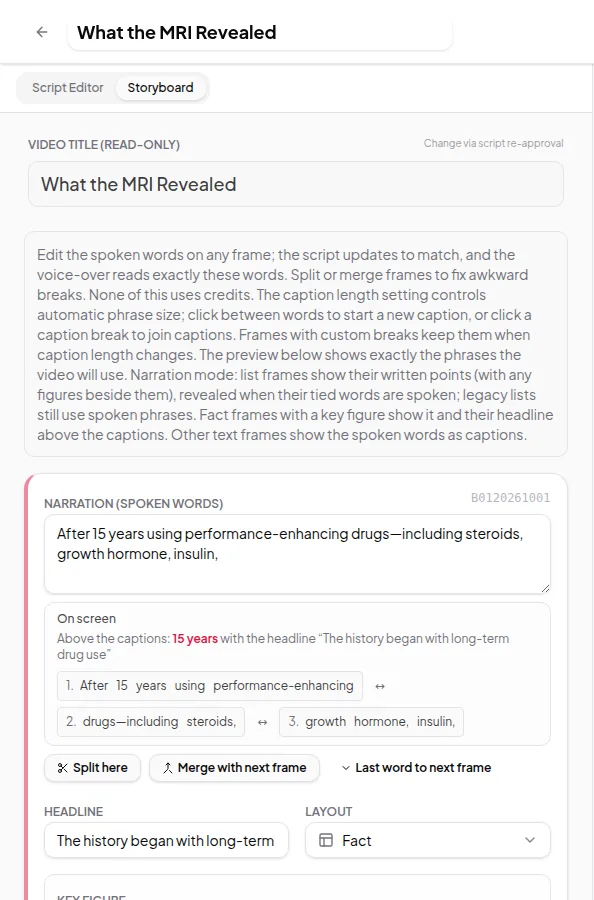
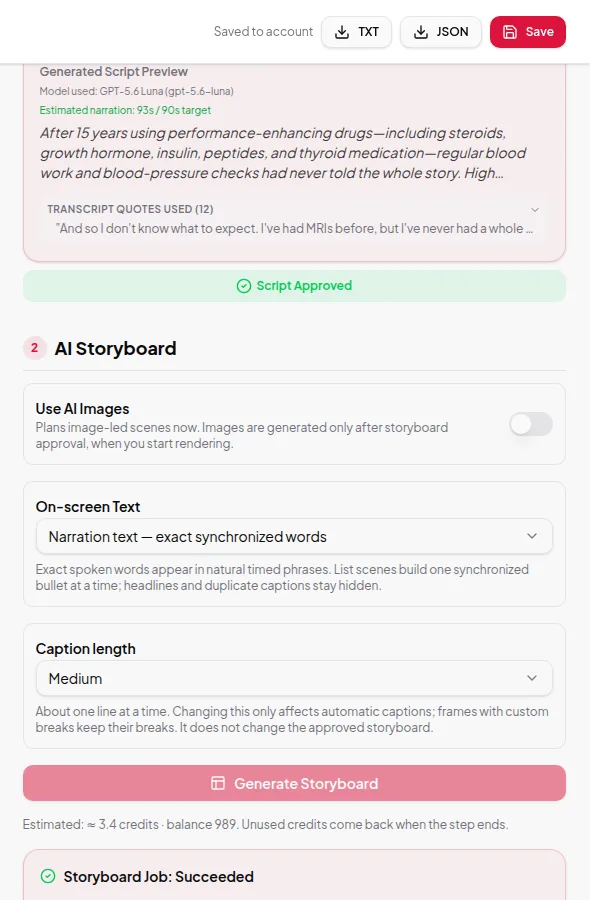
After generating, read the script with your instructions in mind. The Studio shows the transcript quotes the script used, so you can check whether it picked the right parts. If it missed, sharpen the instruction — usually by being more specific about focus — and generate again. Each generation uses credits, so a clear instruction the first time saves both time and credits.
Pair instructions with the right settings
- Opening and ending handle the start and end. You don’t need instructions for “add an intro”.
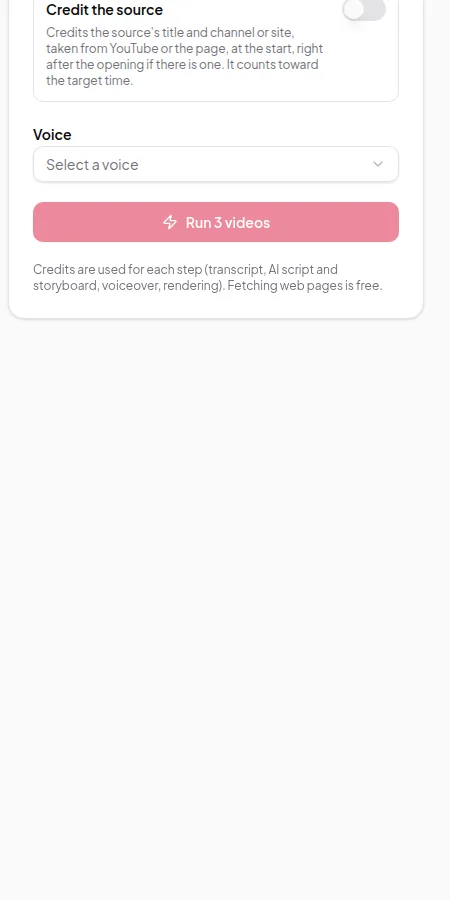
- Credit the source adds the source title and channel or site. You don’t need to ask for it.
- Format affects pacing. Vertical videos favour shorter sentences, and the AI already knows the format you picked.
Ready to try it? Use your instructions in the YouTube summary guide or the blog post guide.