Feature
Turn a YouTube video into a short summary video
Paste a YouTube link and Vidonto reads the captions, writes a short script that sticks to the source, and renders a narrated, captioned summary video.
Updated
A forty-minute interview, a long lecture or a product walkthrough usually has two or three minutes of real substance. Vidonto turns a YouTube video into a short summary video that keeps that substance: it reads the video’s captions, writes a short script grounded in what was actually said, and renders a narrated video with captions in the size you need.
How it works
- Paste the link. In the Studio, choose YouTube video, paste the address and click Fetch transcript. Vidonto reads the captions that the video already has. You can pick a preferred transcript language; Vidonto uses captions in that language when the video has them and never swaps in a translation without asking you.
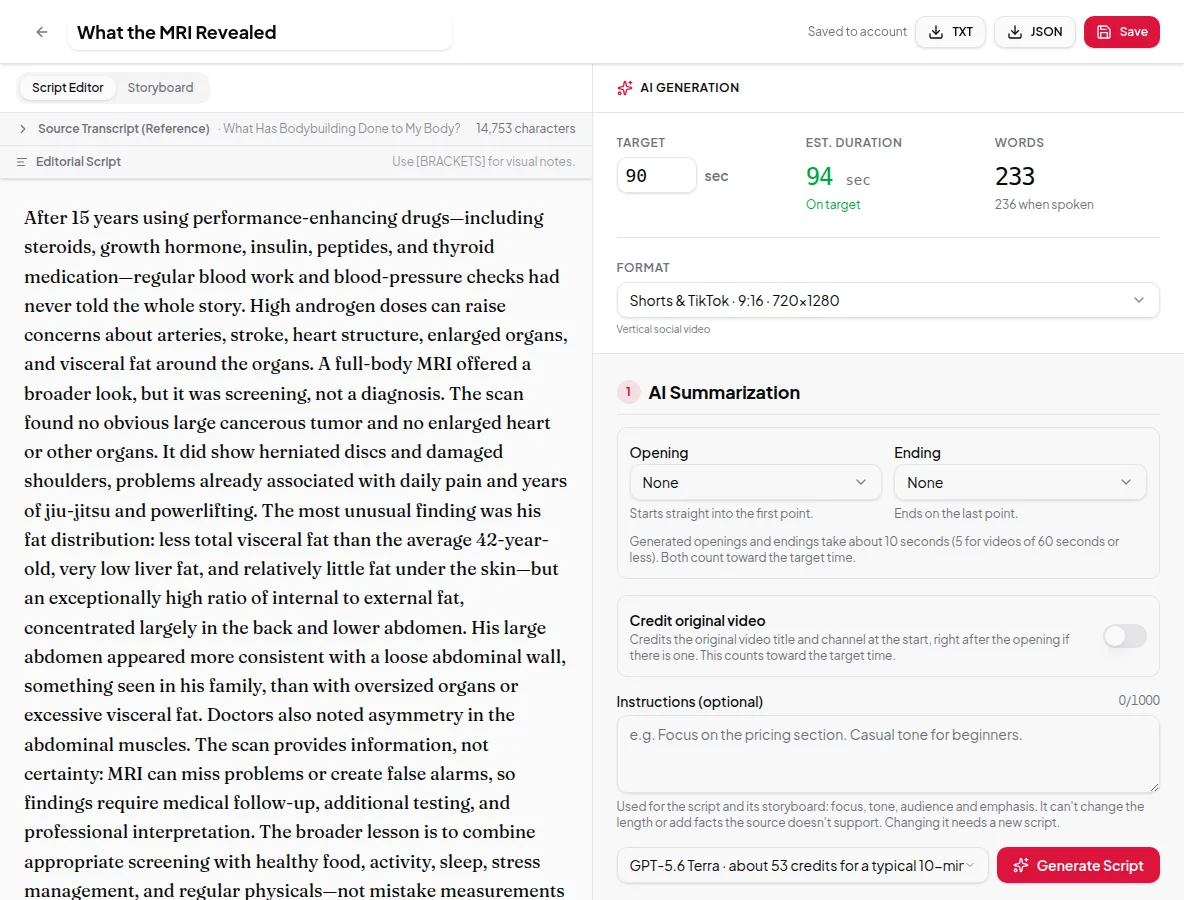
- Set the target. Choose a target length in seconds and a format — YouTube (16:9), Shorts & TikTok (9:16), Square (1:1) or Portrait (4:5). The panel shows the estimated duration as you go.
- Generate the script. The AI summary step writes a short script from the transcript. You can add an opening and an ending, credit the original video, and give it instructions such as “focus on the pricing section”.
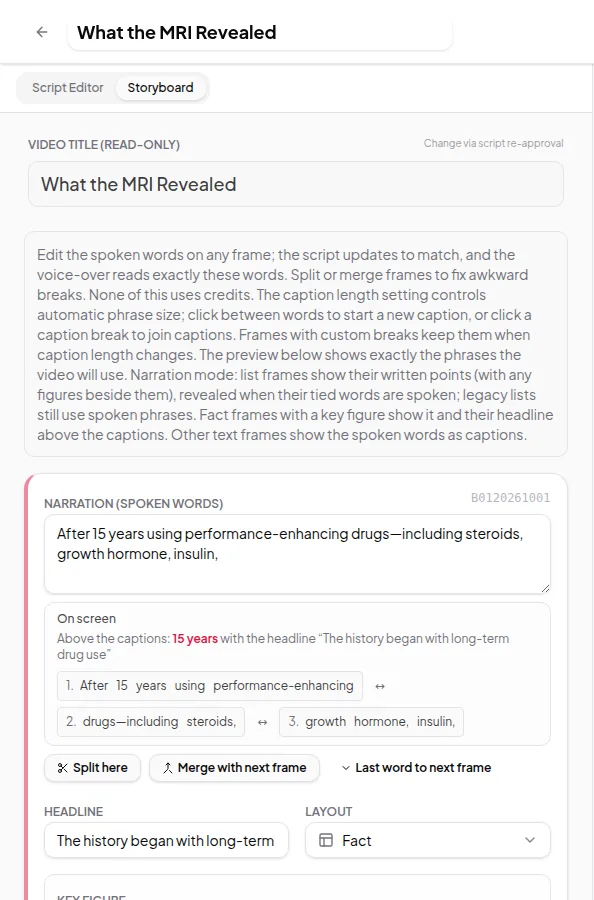
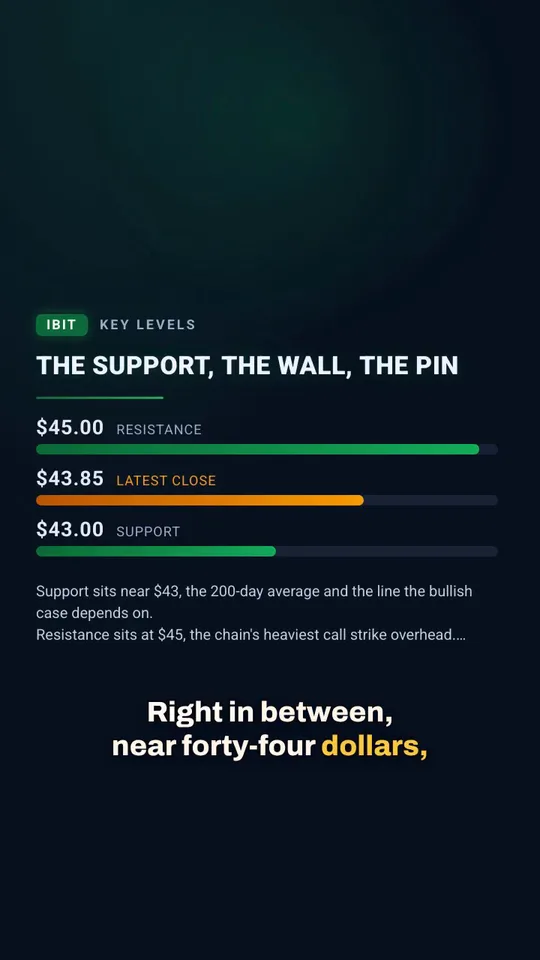
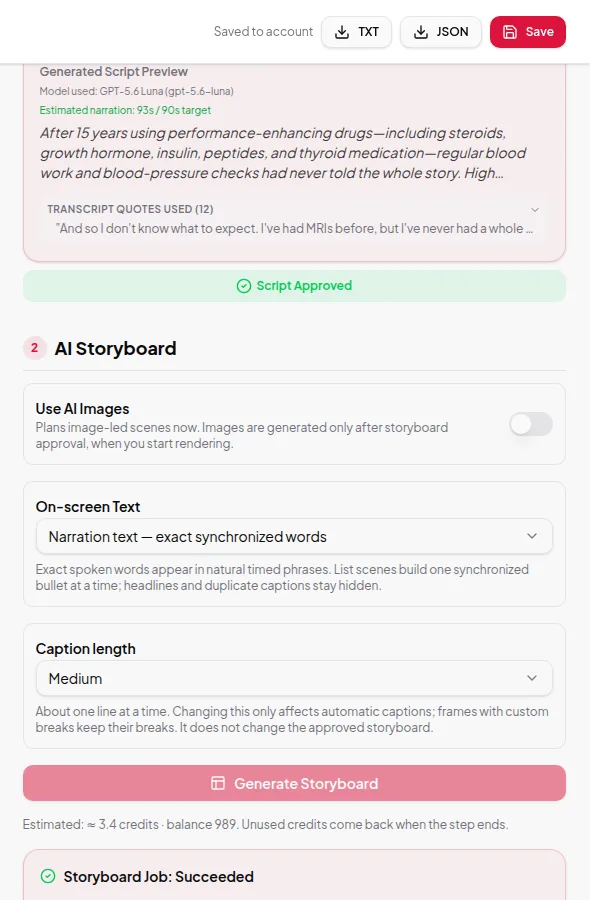
- Review, storyboard and render. Approve the script, generate a storyboard of on-screen frames, then start the final render with the voice you choose.
You get an MP4 to download, plus the narration as audio and the captions as an SRT file.
What makes the summary trustworthy
The script is written from the transcript, not from the video title or general knowledge. When the script quotes the source, the app keeps track of which part of the transcript it came from, and the Studio shows the quotes it used so you can check them before you approve anything. Nothing is narrated until you approve the script.
Two ways to run it
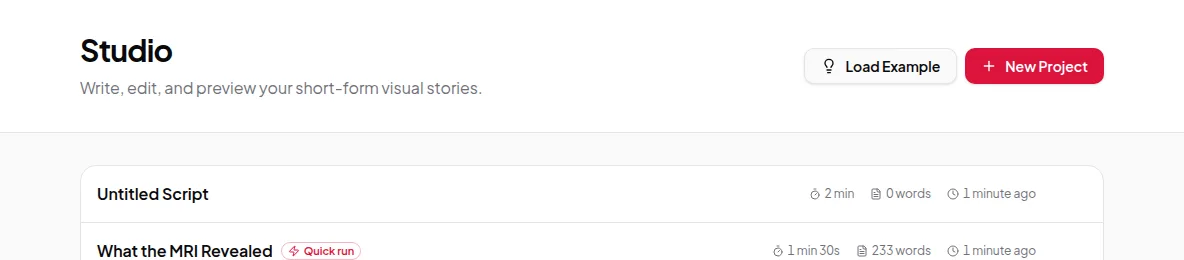
- Studio is review-first. You read and edit the script, then the storyboard, before anything is narrated. Use it when the wording matters.
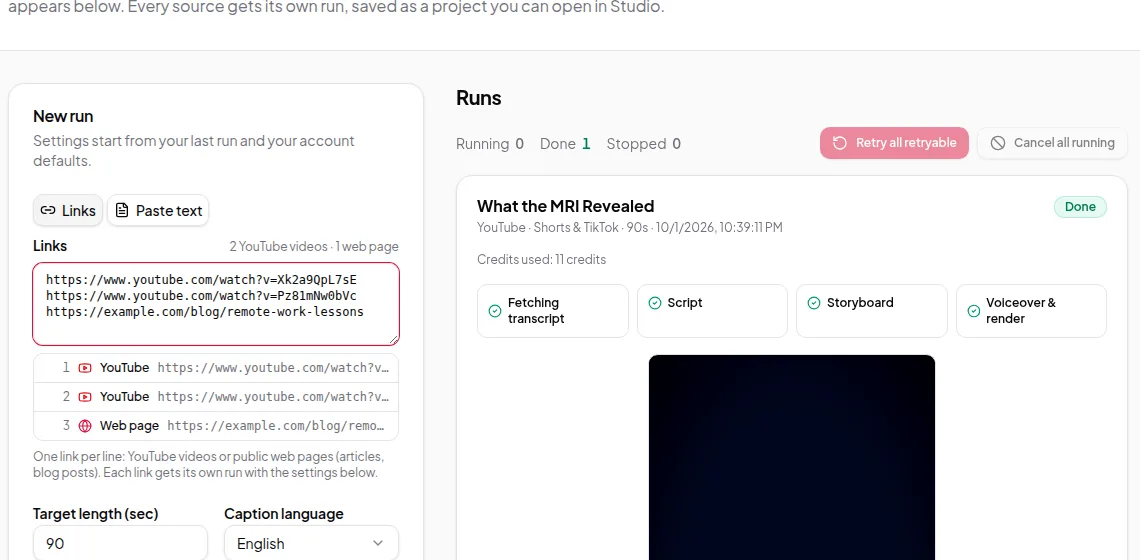
- Quick Render runs every step for you in one go, and can take a list of links, one per line. Use it when you trust the defaults and want results fast.
Limits worth knowing
- The video needs captions on YouTube. Vidonto doesn’t transcribe YouTube audio itself.
- The target length is a maximum. Vidonto never cuts the narration off mid-sentence; if the script can’t fit, the step fails instead of producing a clipped video.
- Very long sources can be over the length limit for one run. The app tells you before anything is charged.
- An opening or ending takes about 10 seconds (5 seconds for videos of 40 seconds or less), and that time counts toward the target.
Credits
Every paid step — the transcript, the script, the storyboard, the voice-over and the render — uses credits. When you start a step, the estimate is held from your balance. You are charged for each step that succeeds and anything unused goes back. See credits explained for the details.
Ready to try it on a real video? Follow the step-by-step guide to summarize a YouTube video.