Feature
The storyboard editor — check every frame before you render
Edit the spoken words, headlines, layouts and caption breaks of every frame in your video before anything is narrated. Storyboard edits never use credits.
Updated
Most AI video tools give you a finished file and a regenerate button. Vidonto gives you a storyboard first. After the script is approved, the storyboard breaks it into frames — each with its spoken words, what appears on screen and a layout — and you can change any of it before the voice-over and render start.
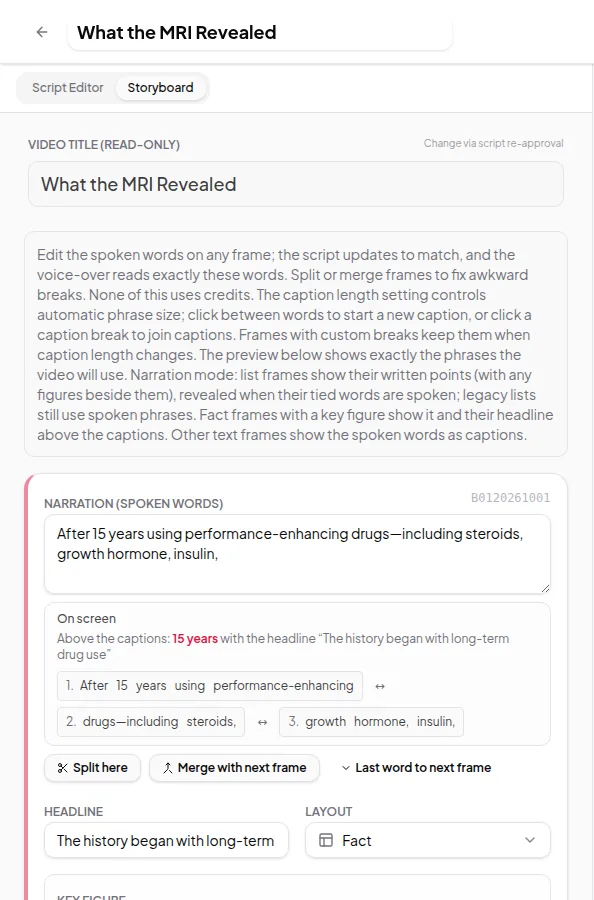
What you can edit
- Spoken words. Change the narration of any frame. The script updates to match, and the voice-over reads exactly these words.
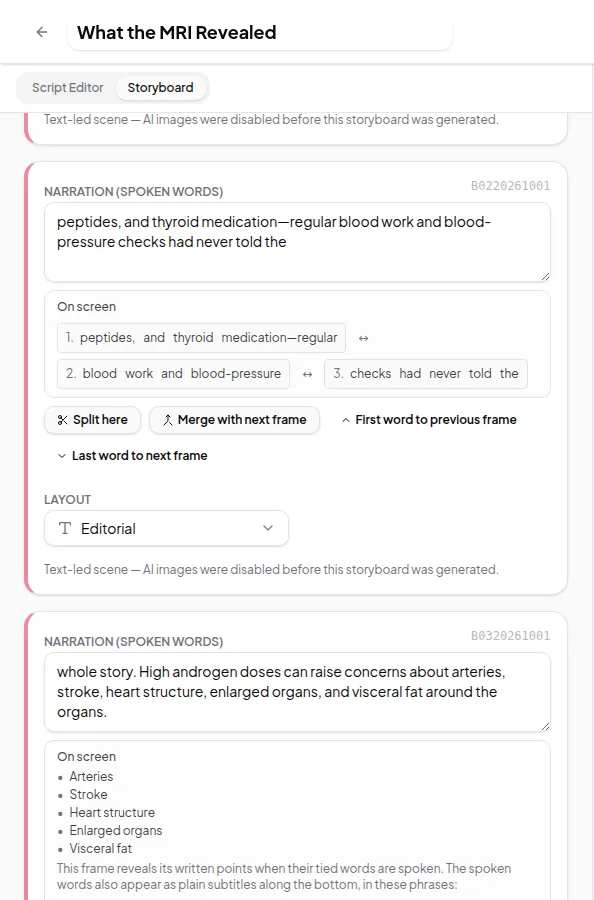
- Split and merge frames. Click between words to split a frame in two, or merge a frame with the next one. Use this to fix awkward breaks or give an important line its own moment.
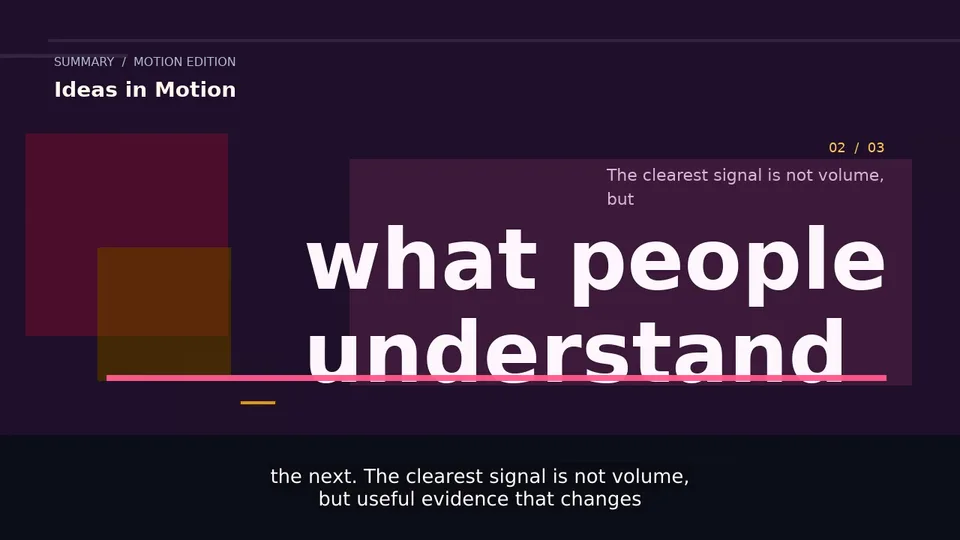
- Caption breaks. Click between words to start a new caption, or click a caption break to remove it. You can move the first or last word of a frame to the neighbouring frame.
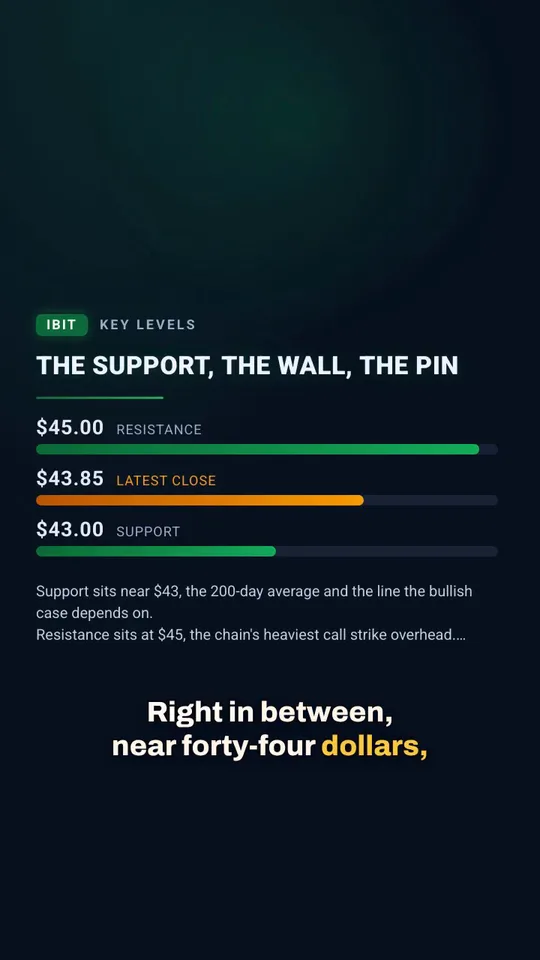
- Headline and layout. Many frames have a short headline. Layouts include editorial text frames, list frames that build their points one by one, and fact frames with a key figure.
- List points. For list frames, edit each point, add one or remove one. Points appear as the narration reaches them.
- Key figures. Fact frames can show a number such as a price or a percentage. A figure only appears when the narration actually says it, so the screen never shows a number the voice doesn’t.
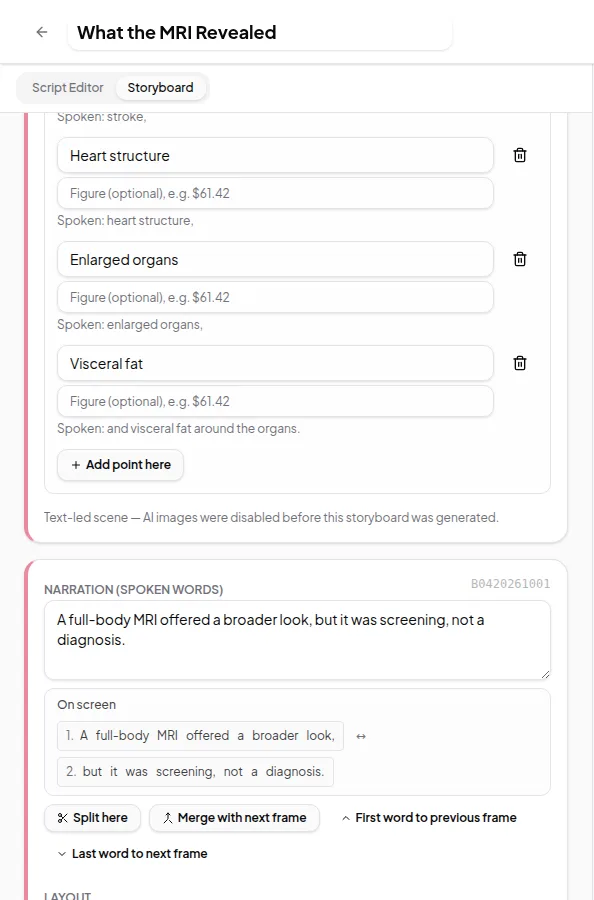
Previews match the render
The preview in the Studio uses the same caption splitting as the final video, so the caption breaks you see are the caption breaks you get. Changing the caption length setting re-splits automatic captions, but frames where you’ve placed your own breaks keep them.
Saving and exporting
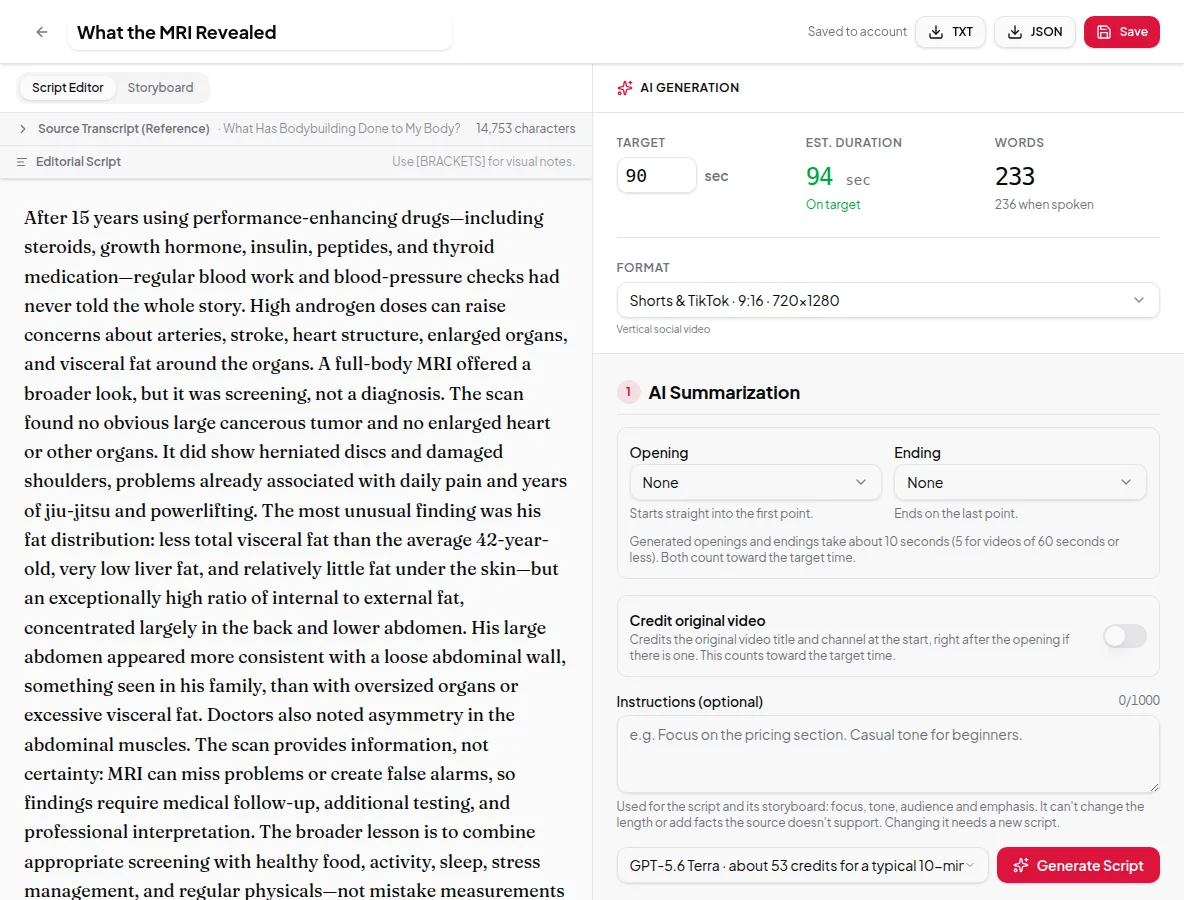
Your edits are saved to your account as you work. You can also export the script as TXT or JSON from the top bar. When the storyboard looks right, approve it and move on to the final render.
Limits worth knowing
- The storyboard follows the approved script. To change what the video is about, go back to the script.
- Figures and charts are only kept when they match what’s spoken. If you change the narration so that a figure is no longer said, the editor tells you instead of silently showing a wrong number.
- Quick Render skips the review: it approves the storyboard automatically. Use the Studio when you want to edit frames.
Credits
Generating the storyboard uses a small number of credits. Editing it — words, frames, captions, layouts and points — is always free, as many times as you like.
See the storyboard step in context in the guide to summarize a YouTube video.