Feature
Turn your own script into a narrated video, word for word
Paste a finished script and Vidonto narrates it exactly as written, with scenes, captions and visuals around it. No AI script step and no script charge.
Updated
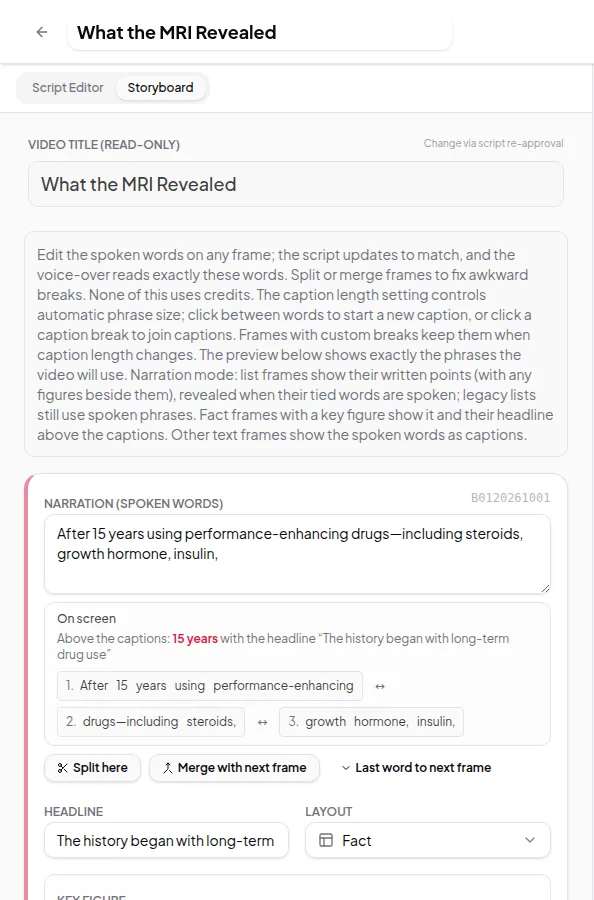
Already written what you want to say? Choose My own script and Vidonto speaks your words exactly as written. Nothing is summarized or reworded. The storyboard splits your script into scenes and picks the headlines, visuals and captions around it, then the voice-over reads it and the video is rendered.
Where you can use it
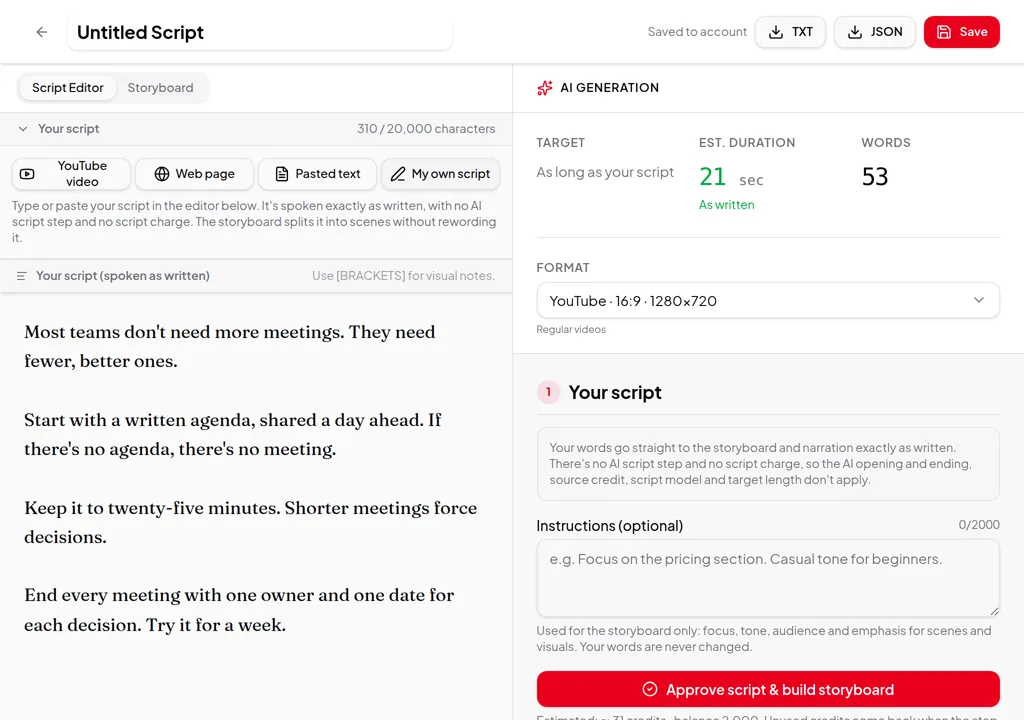
- In the Studio: start a new project and choose My own script. Paste or type your script and give the project a title. The panel shows Your script instead of the AI script settings: pick the video size and click Approve script & build storyboard. Then review the storyboard and render, as with any project.
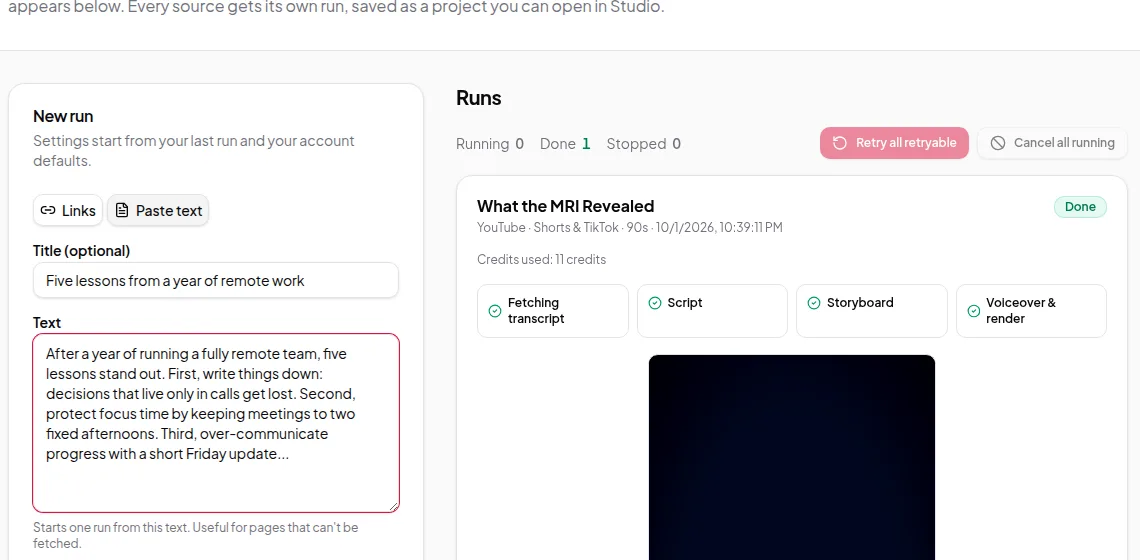
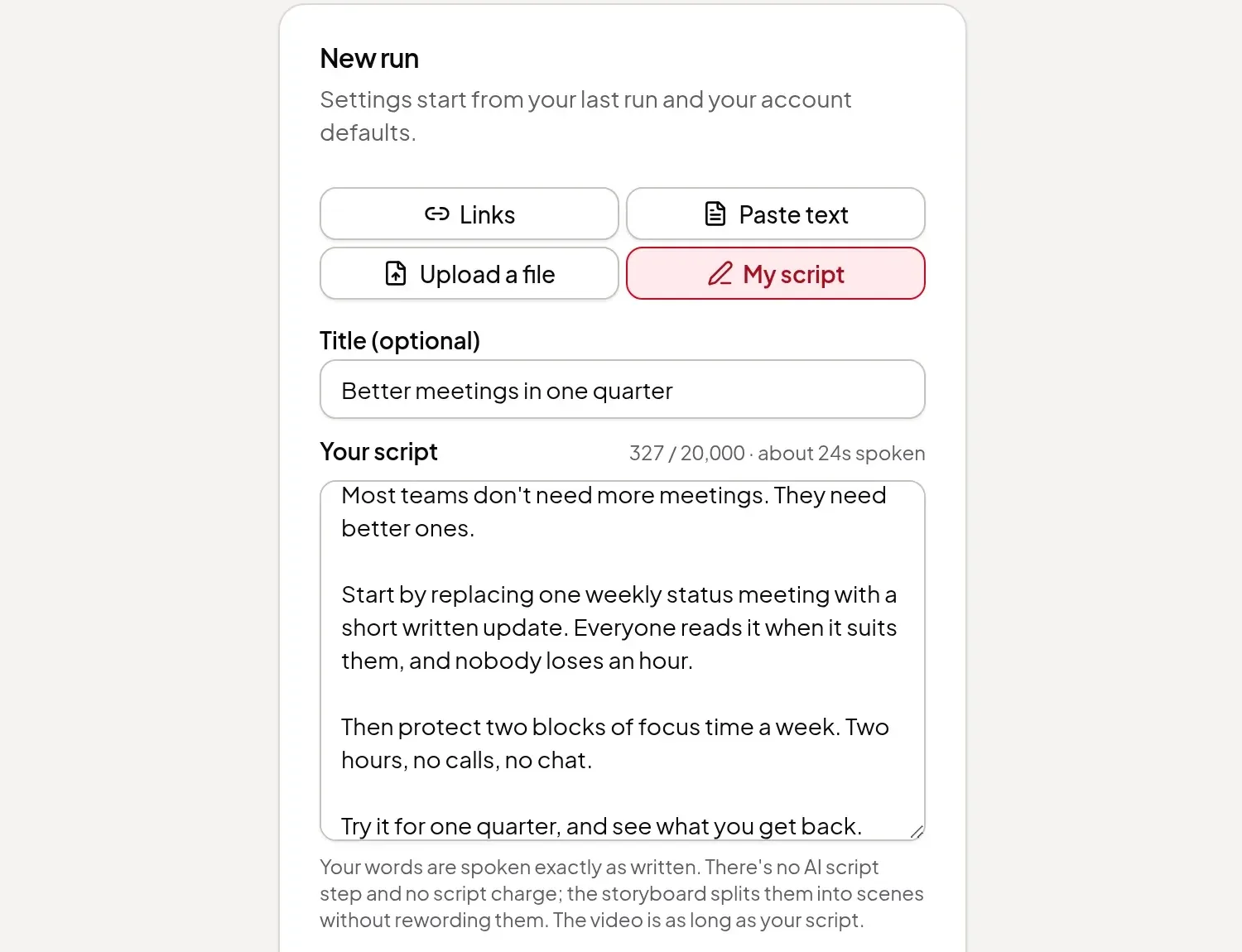
- In Quick Render: switch the source to My script, add an optional title and paste the script. One script makes one video, and every step runs automatically. A blank line starts a new scene.
- From the API: send
scriptinstead of a link or text. See the developer API. - From Claude or ChatGPT: ask the AI assistant connector to make a video from your own script.
What stays the same, and what changes
- Your words, spoken as written. The approved script is exactly what the voice-over says. The storyboard chooses scenes, headlines and visuals without changing a word.
- The length is your script’s length. There’s no target length to set. The app shows the character count and about how long the script takes to speak.
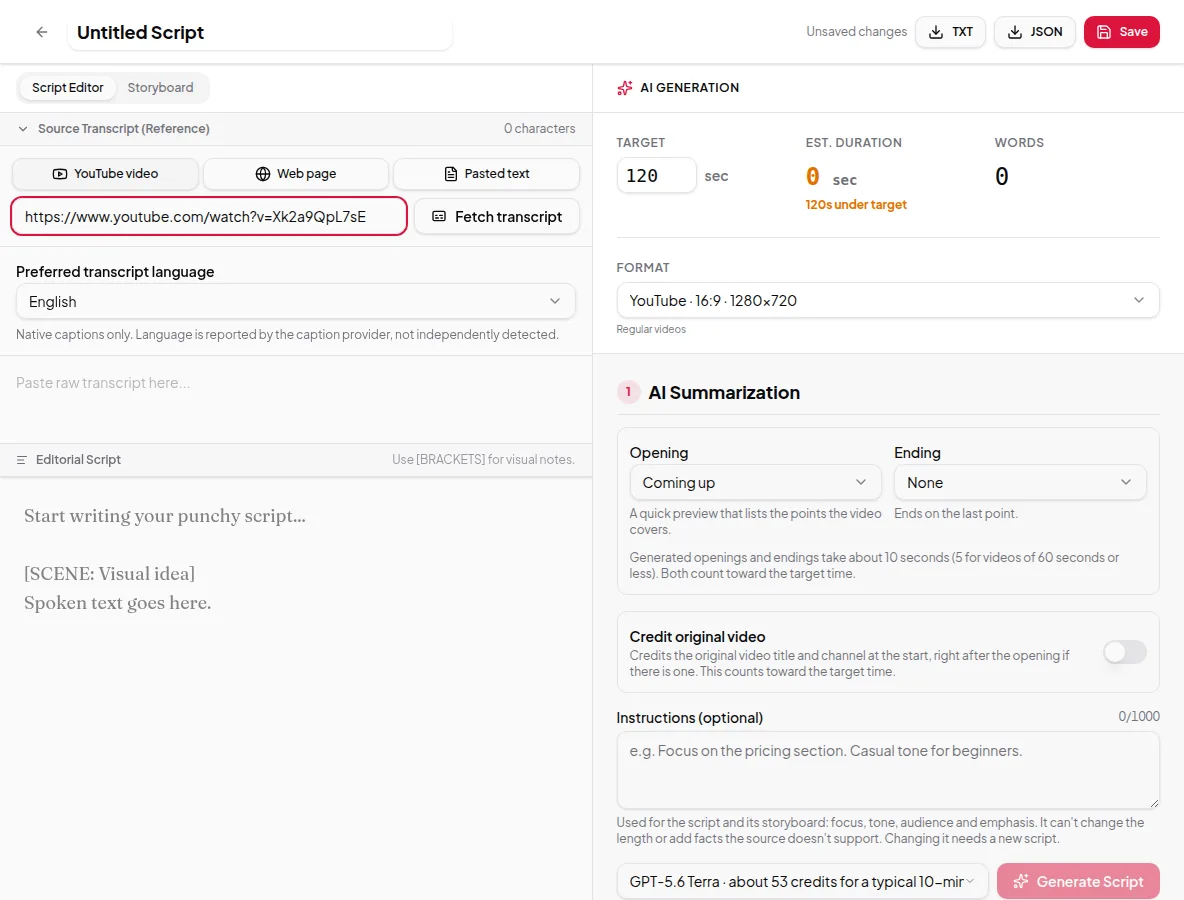
- AI-only options are off. The AI opening and ending, crediting the source and the AI script model don’t apply, because there’s no AI script.
- Everything else works as usual. Video size, quality, on-screen text, captions, AI images, custom animated scenes, the look, your brand and the AI presenter all work with your own script.
- Instructions steer the storyboard only. Creator instructions set focus, tone and emphasis for scenes and visuals. Your words are never changed.
- The title can come from the script. In Quick Render, leave the title empty and the first sentence is used.
Scripts in other languages
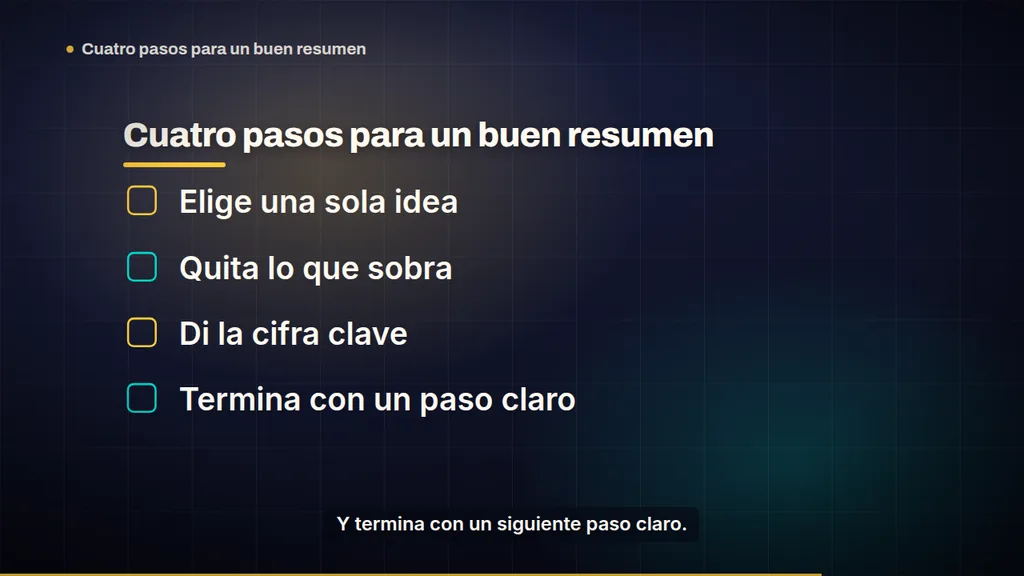
Your script is never translated. Set Video language to the language you wrote in, and the headlines, list points and other on-screen text are written in it too, while the voice-over reads your words. See summary videos in other languages.
Tips for better results
- Write for the ear: short sentences, one idea each.
- Write numbers the way you want them said. The storyboard shows figures on screen only when the narration says them.
- Spell out unusual names or abbreviations the way they should sound.
- Use blank lines between ideas so each one can get its own scene.
Limits worth knowing
- A script can be up to 20,000 characters. The app checks this before anything starts.
- The video is as long as the script takes to say, so a long script makes a long video.
- Want a shorter version of a long text instead? Use pasted text and let Vidonto summarize it.
Credits
There’s no AI script step, so there’s no script charge. Building the storyboard, the voice-over and the render use credits, and the estimate is based on your script’s real length. Anything not used is returned when the run ends. See credits explained.
Step by step: turn your own script into a narrated video.