Guide · Summary videos
How to summarize a YouTube video into a short video
Step by step, turn a long YouTube video into a one-to-two-minute summary video in the Vidonto Studio, reviewing the script and every frame before it's narrated.
4 min read · Updated
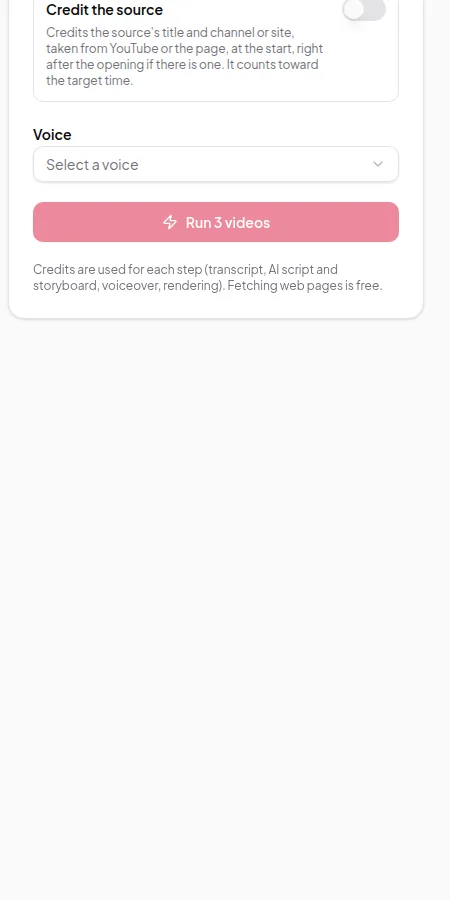
Feature used in this guide: YouTube video to summary video — what it does, its limits and how credits work.
A long YouTube video — a lecture, an interview, a webinar — often has a few minutes that really matter. This guide shows you how to turn it into a short summary video in the Vidonto Studio, where you approve the script and the storyboard before anything is narrated. It takes about ten minutes, most of it reading.
You’ll need: a Vidonto account with credits, and the link to a YouTube video that has captions (most do, including automatic captions).
Step 1: Start a new project
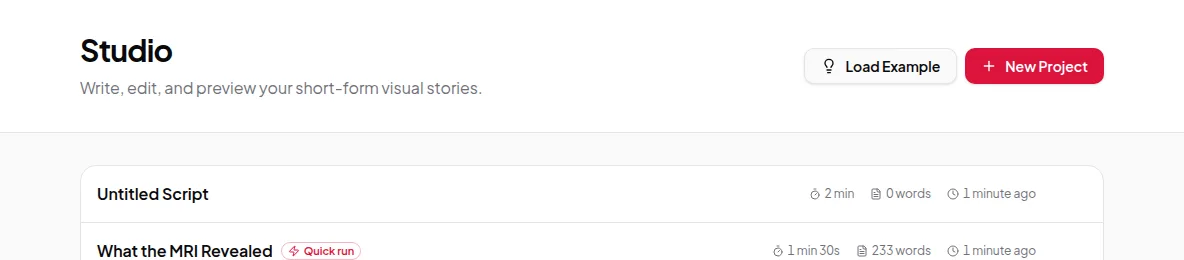
Open Studio in the sidebar. You’ll see your existing projects. Click New Project.
Step 2: Paste the YouTube link and fetch the transcript
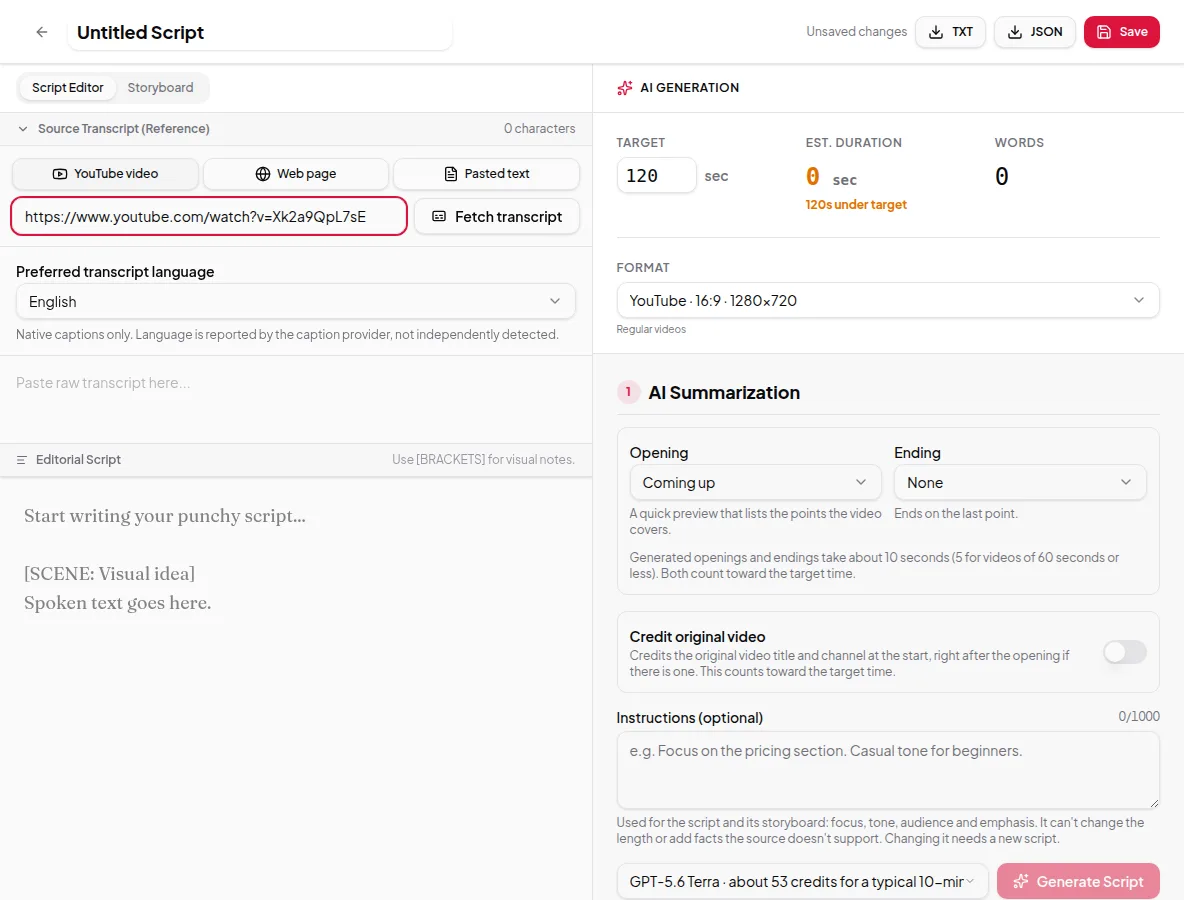
Choose the YouTube video tab and paste the video’s address. Under it, pick your preferred transcript language. Vidonto uses the video’s captions in that language when they exist. If they don’t, it tells you rather than using a translation without asking.
Click Fetch transcript. After a few seconds the project opens in the Script Editor with the full transcript.
If the fetch fails, the video probably has no captions, is private or is age-restricted. Try another video, or copy the text into a Pasted text project instead.
Step 3: Set the length and format
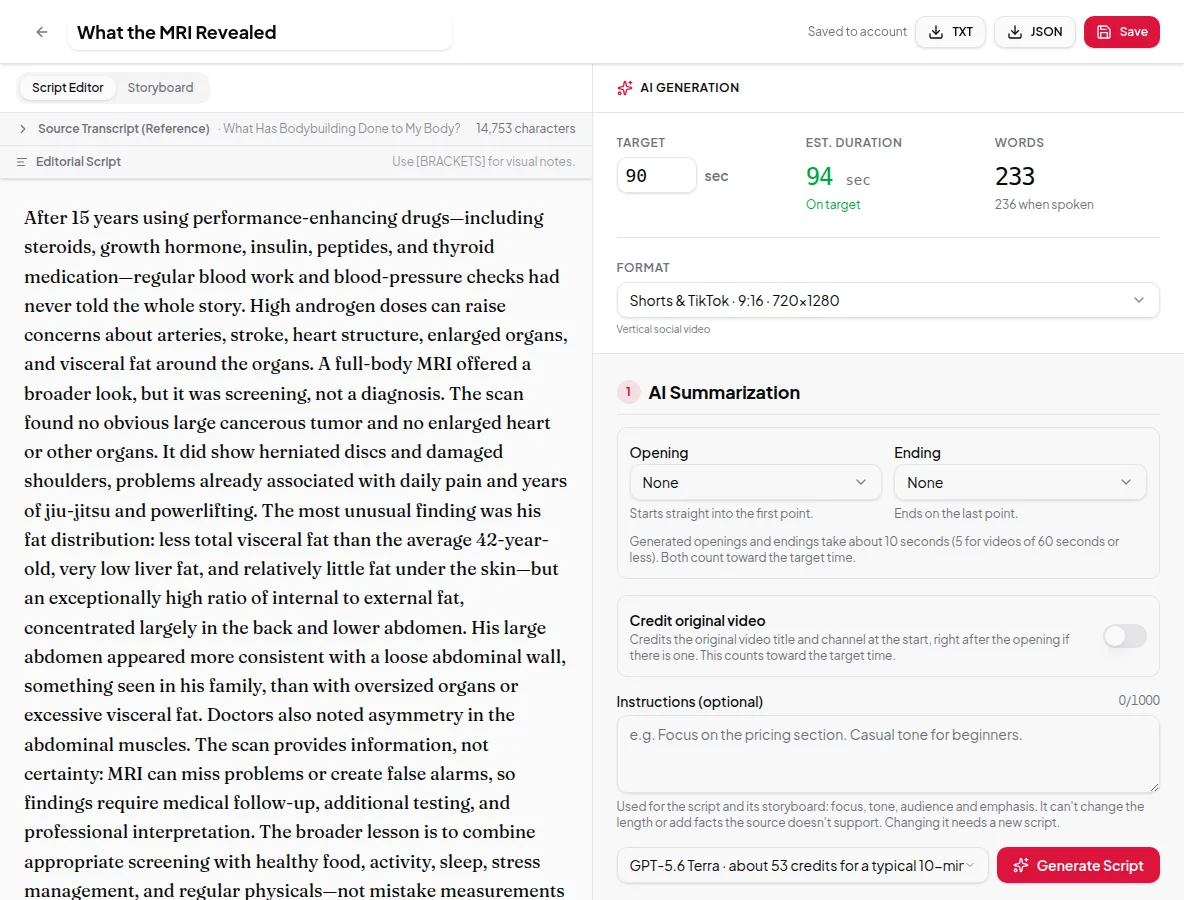
On the right, the AI Generation panel has the settings for your summary:
- Target duration (seconds). The longest the video should be. For a summary of a long video, 60–120 seconds works well.
- Format. YouTube (16:9), Shorts & TikTok (9:16), Square (1:1) or Portrait (4:5). Choose it now — the script and layouts are planned for this shape.
The panel shows an estimated duration and word count. A good rule of thumb is about 2.5 spoken words per second.
Step 4: Generate the script
In Step 1: AI Summarization you’ll find a few optional settings:
- Opening and Ending. A short spoken intro (for example “Coming up…”) or outro. Each takes about 10 seconds of your target (5 seconds for videos of 40 seconds or less). Choose None to skip.
- Credit original video. Adds a short credit to the channel and video, after the opening.
- Instructions (optional). Up to 1,000 characters telling the AI what to focus on, the tone, or what to leave out. See write creator instructions.
- AI model. Each option shows a rough credit estimate.
Click Generate Script. The estimate in credits is held when you click and you’re charged for what’s used.
Step 5: Read and approve the script
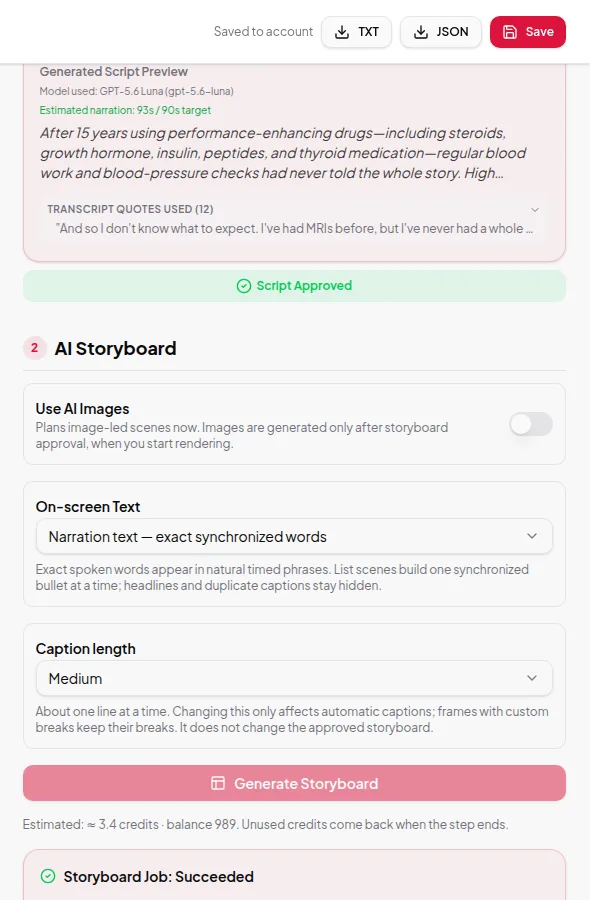
The generated script appears with its estimated duration and the transcript quotes used, so you can check that the summary says what the video said. Edit any sentence directly in the editor. When you’re happy, approve it.
Approval matters: the voice-over will read exactly these words. Nothing is narrated until you approve.
Step 6: Generate the storyboard
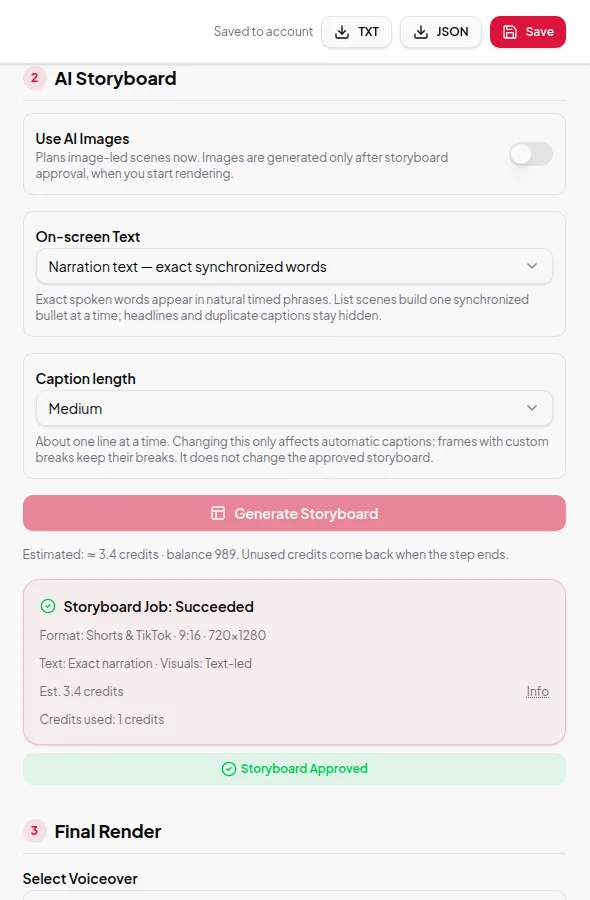
In Step 2: AI Storyboard, choose:
- Use AI Images — on for image-led scenes, off for clean text-led frames. Images are only made when you start the final render.
- On-screen Text — Narration text for exact captions of the spoken words, or Key points for short points on screen.
- Caption length — Short, Medium or Full sentence.
Click Generate Storyboard.
Step 7: Review the frames
Open the Storyboard tab to see every frame. For each one you can change the spoken words, split or merge frames, move caption breaks, and adjust the headline and layout. These edits are free. The storyboard editor page explains every option.
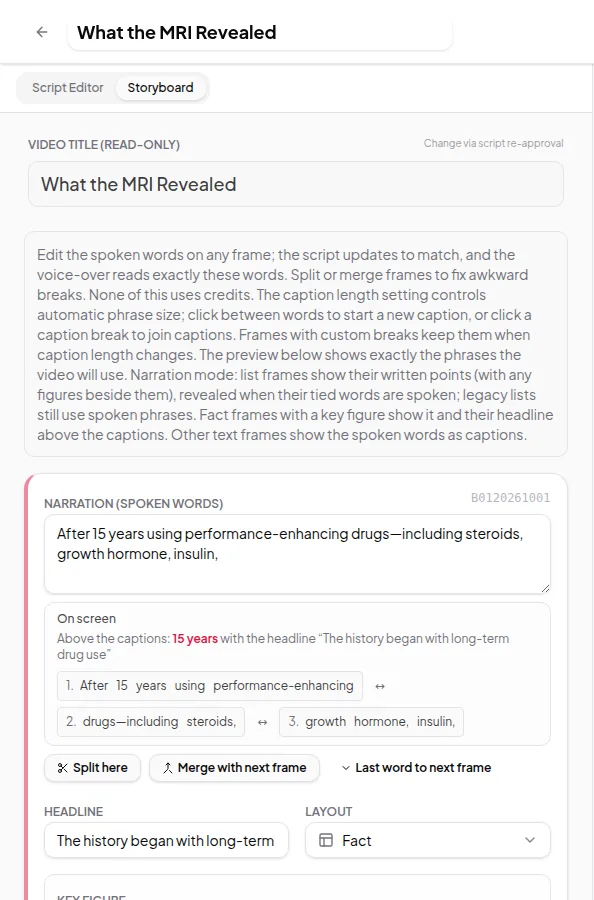
When the frames look right, approve the storyboard.
Step 8: Pick a voice and render
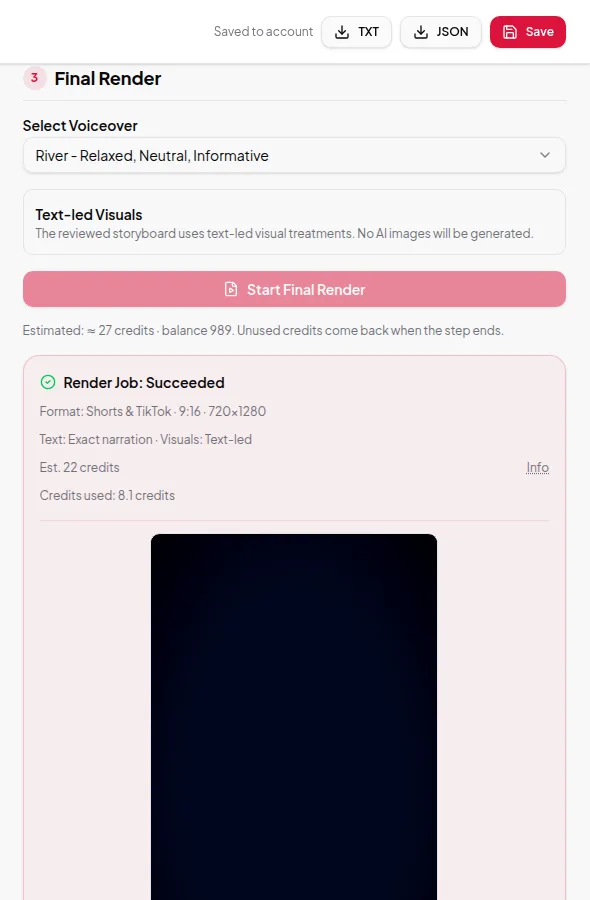
In Step 3: Final Render, choose a voice from Select Voiceover and click Start Final Render. The voice-over is recorded, AI images are made if you turned them on, and the video is built. A short video usually takes a few minutes.
Step 9: Download and post
When the render has succeeded, you’ll see the video with buttons to download the MP4, the narration Audio and the SRT captions. Under Share & post there’s a ready-made video description you can edit and copy, and shortcuts that open the upload page of YouTube, TikTok, X, Instagram or LinkedIn.
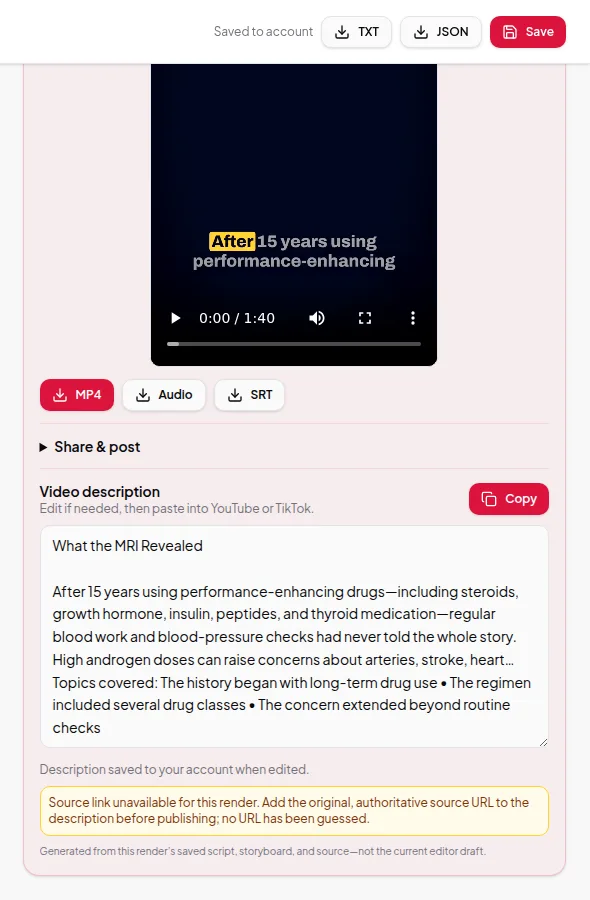
Add a link to the original video in your description so viewers can watch the whole thing.
Tips for better YouTube summaries
- Pick videos with clear speech. Automatic captions of music, crosstalk or heavy accents can contain mistakes, and the summary inherits them.
- Tell the AI what matters. “Focus on the three main recommendations” beats a generic summary.
- Keep it short. A 60-second summary that makes one point well outperforms a rushed three-minute one.
- Only summarize videos you have the right to use, and credit the source.
Next steps
- Make the same video vertical for Shorts and Reels: Shorts and Reels from a long video.
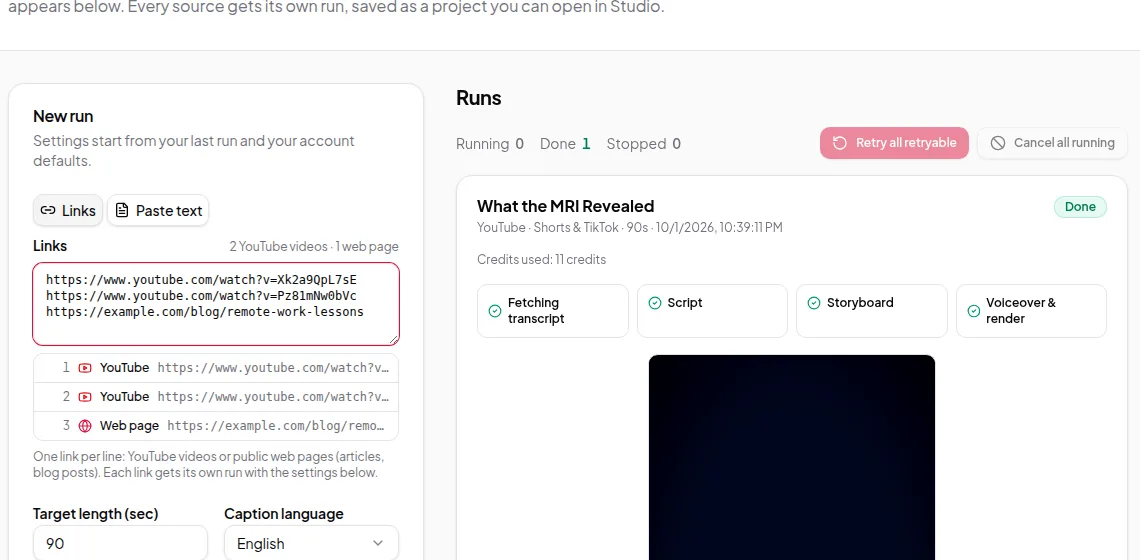
- Summarize many videos at once with Quick Render.