Feature
AI voice-over narration for your videos
Vidonto narrates your approved script with a natural AI voice, reads every word in full and keeps captions in sync. Pick a voice per video or set a default.
Updated
Every Vidonto summary video is narrated. Once the script and storyboard are approved, Vidonto turns the words into a natural-sounding AI voice-over, then builds the video and captions around that audio so everything lines up.
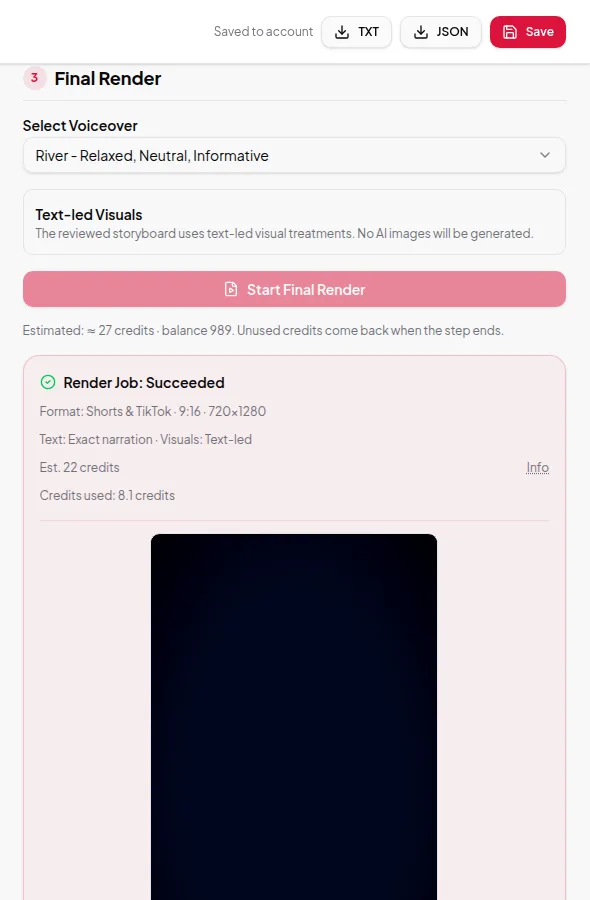
Choosing a voice
In the Studio, the Final Render step has a Select Voiceover list. Each voice has a short description, such as relaxed, neutral or informative, so you can pick one that suits the topic. Quick Render has the same list under Voice.
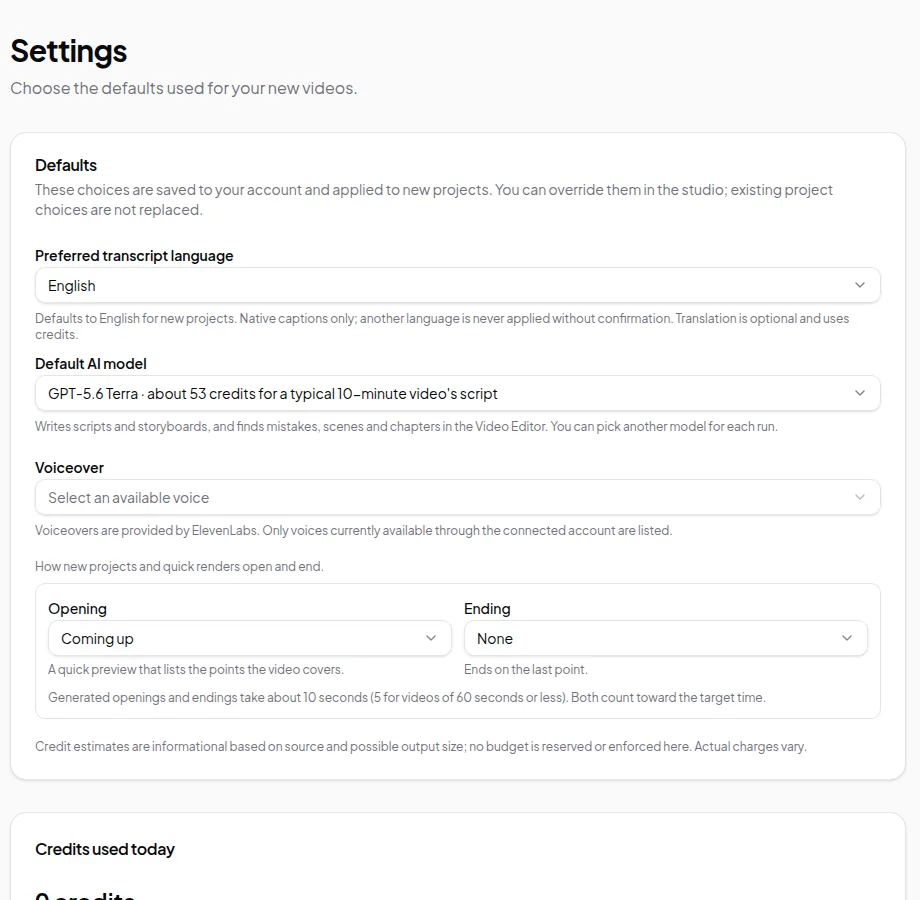
To stop choosing every time, set a default voice in Settings. New projects and Quick Render runs start with it, and you can still change it for any single video.
What the voice says
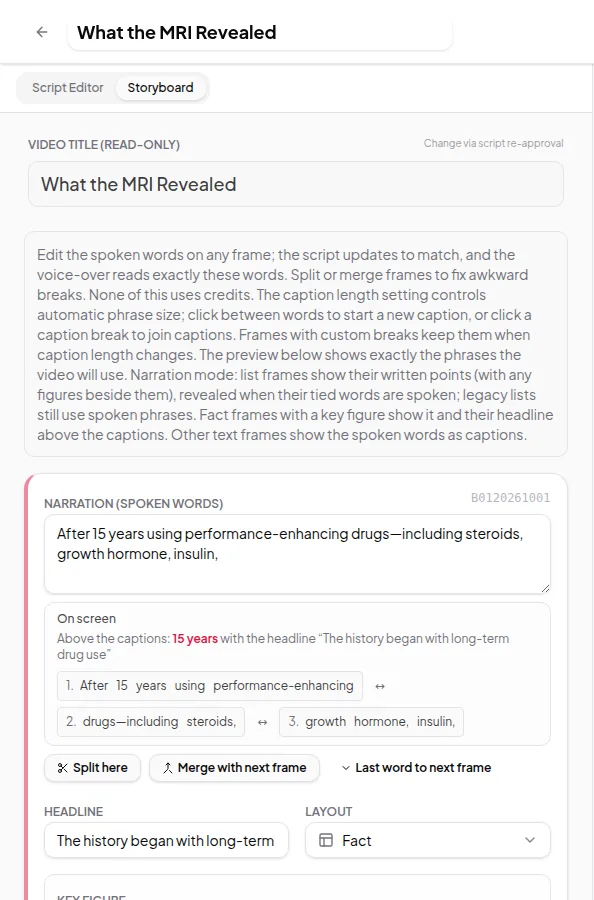
The voice reads exactly the words in the approved storyboard — including any edits you made there. It doesn’t paraphrase, skip sentences or add words of its own. If you want different wording, change it in the storyboard editor before you render.
Narration always renders in full. The target length is a limit for the script, not a reason to speed up the voice or cut the last sentence. If the narration would run longer than the target, the step fails and tells you, so you never get a video that stops mid-word.
Captions follow the voice
Captions are timed from the voice-over itself, so they appear as the words are spoken. In narration mode the screen shows the exact words being said. You can also download the captions as an SRT file and the narration as a separate audio file. Read more in captions.
Tips for natural narration
- Write the way people speak. Short sentences sound better than long ones with many clauses.
- Spell out names, abbreviations and symbols the way they should be said.
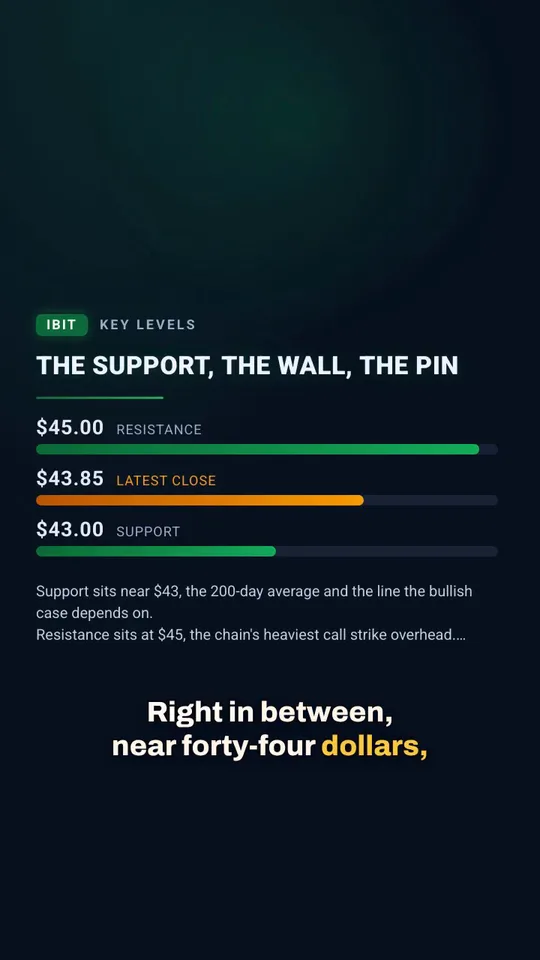
- Write numbers in words when the exact reading matters (“forty-three dollars” rather than “$43”).
- Use punctuation for pauses. A full stop gives a clear pause, and a comma a short one.
Limits worth knowing
- Voices read the language your script is written in. The list of voices can change over time.
- You can’t upload your own voice or clone a voice.
- For your own recordings, the Video Editor keeps your real voice. It doesn’t replace it with an AI voice.
Credits
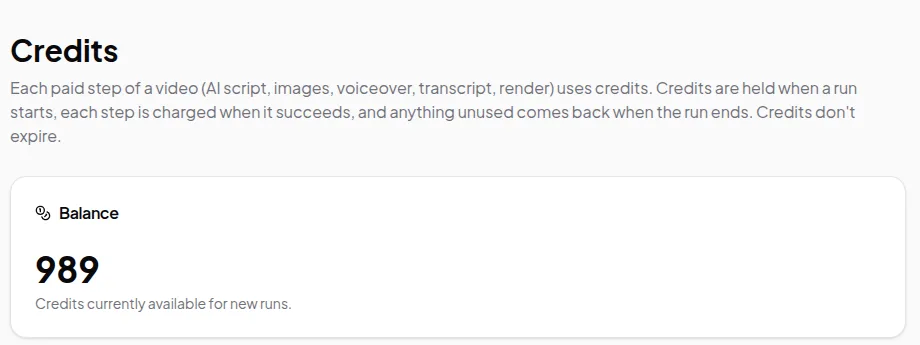
The voice-over is charged in credits based on how much narration was actually produced, which depends on the length of your script. The Studio shows an estimate before you start the render, and unused credits are returned when the run ends. See credits explained.
Try it with the first video in five minutes guide.