Feature
Automatic captions for summary videos and recordings
Vidonto adds captions that follow the voice word by word, lets you choose caption length and breaks, and gives you SRT and VTT files for upload.
Updated
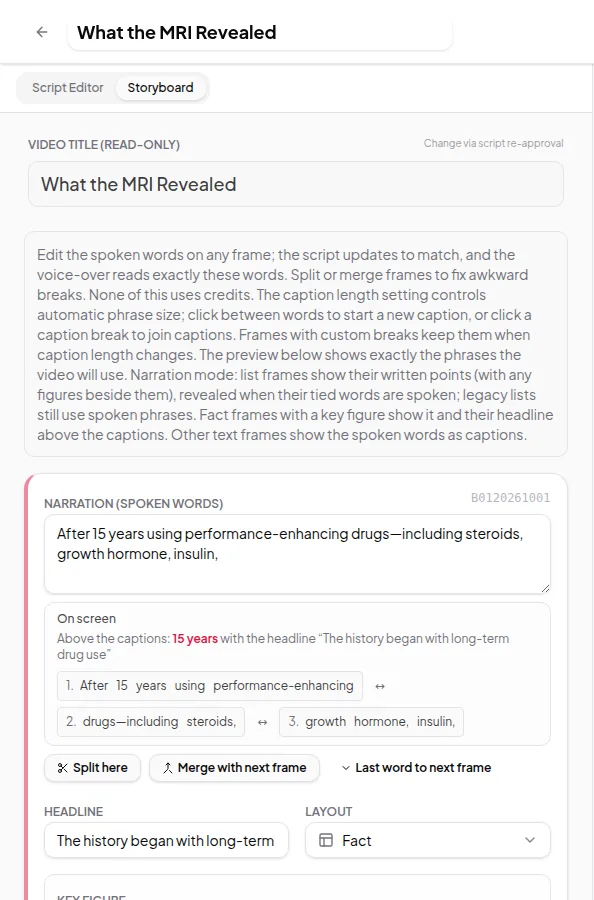
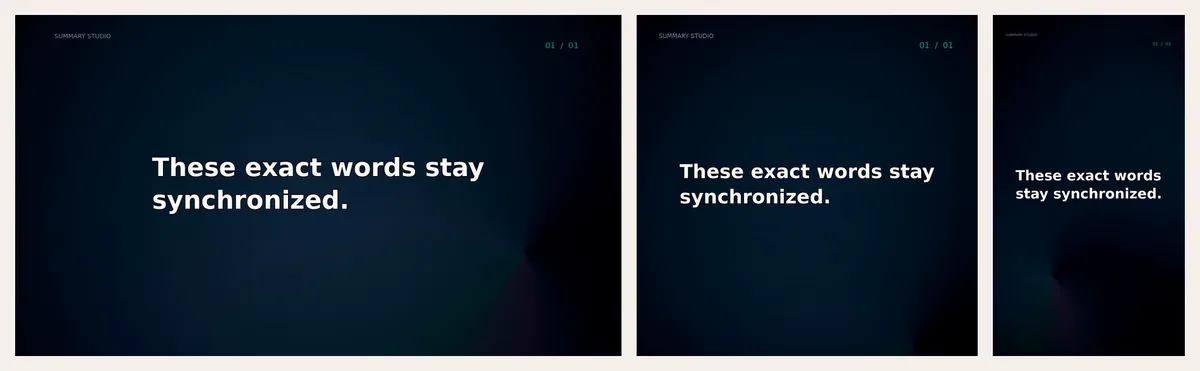
Most people watch short videos with the sound off. Every video Vidonto makes has captions, timed to the voice so they change as the words are spoken. You choose how much text appears at once, and you can fine-tune where each caption breaks.
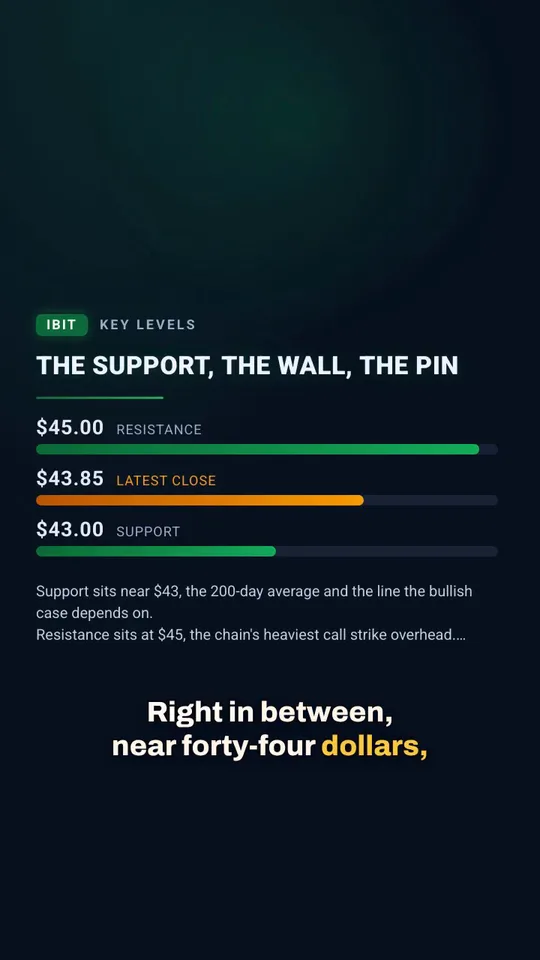
Captions in summary videos
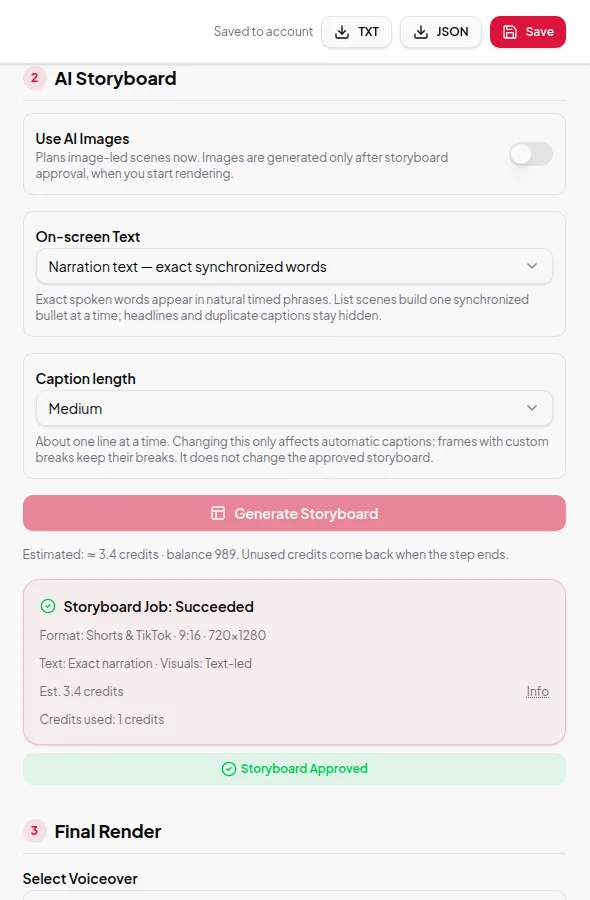
When you build a storyboard, two settings decide how text appears:
- On-screen text. Narration text shows the exact words being spoken, in synchronized phrases. Key points shows short points on screen while the narration plays, with plain subtitles underneath.
- Caption length. Short shows a few words at a time, Medium about one line, and Full sentence a whole sentence when it fits.
You can change both in the Studio or in Quick Render, and set them once as defaults in Settings.
Edit caption breaks
In the storyboard editor, click between two words to start a new caption there, or click a break to remove it. The preview uses the same splitting rules as the final render, so what you see is what you get. If you later change the caption length, automatic captions are re-split, but frames where you placed breaks by hand keep them.
Download caption files
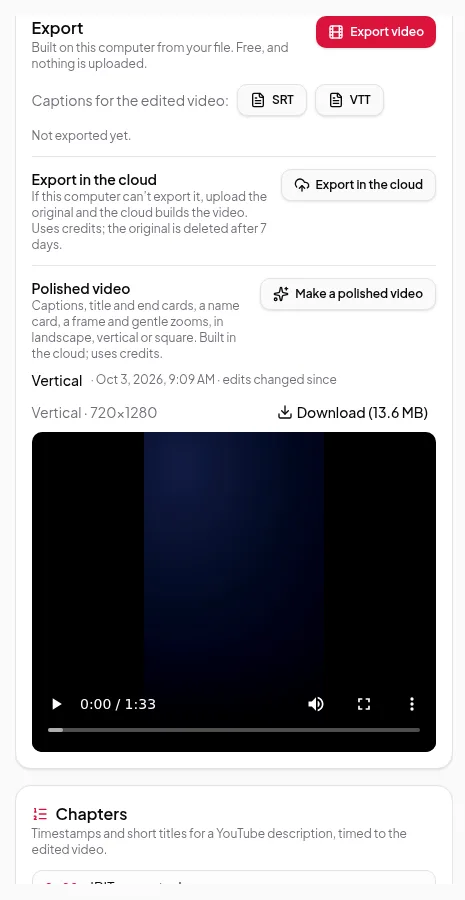
After the render, download the captions as an SRT file next to the MP4. Upload it to YouTube or another platform as a separate subtitle track. This makes the words searchable and lets viewers turn captions off.
Captions for your own recordings
The Video Editor makes captions from your recording’s transcript. They follow your edits, so words you cut never appear in the captions.
- In the browser export, download captions for the edited video as SRT or VTT.
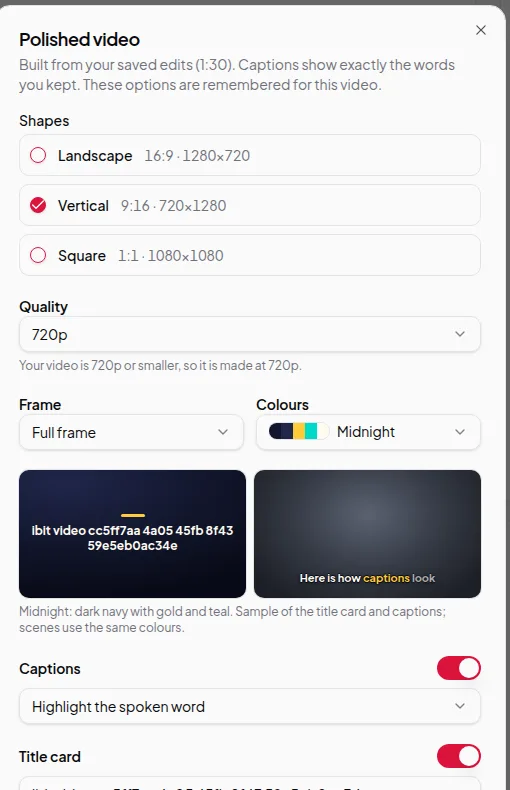
- In a polished video, captions are burned into the picture, with an option to highlight the spoken word. Read more about polished videos.
Limits worth knowing
- Captions are in the language of the narration or the recording. Vidonto doesn’t translate captions into other languages.
- Burned-in captions can’t be turned off by the viewer. If you want both, also upload the SRT file.
- Very long words or numbers may wrap onto two lines on vertical videos. Check the preview.
Credits
Captions are included with every render at no extra cost. Downloading SRT or VTT files is free.
To see captions on the finished file, follow export your finished video.