Feature
Compilations — one highlight video from several of your recordings
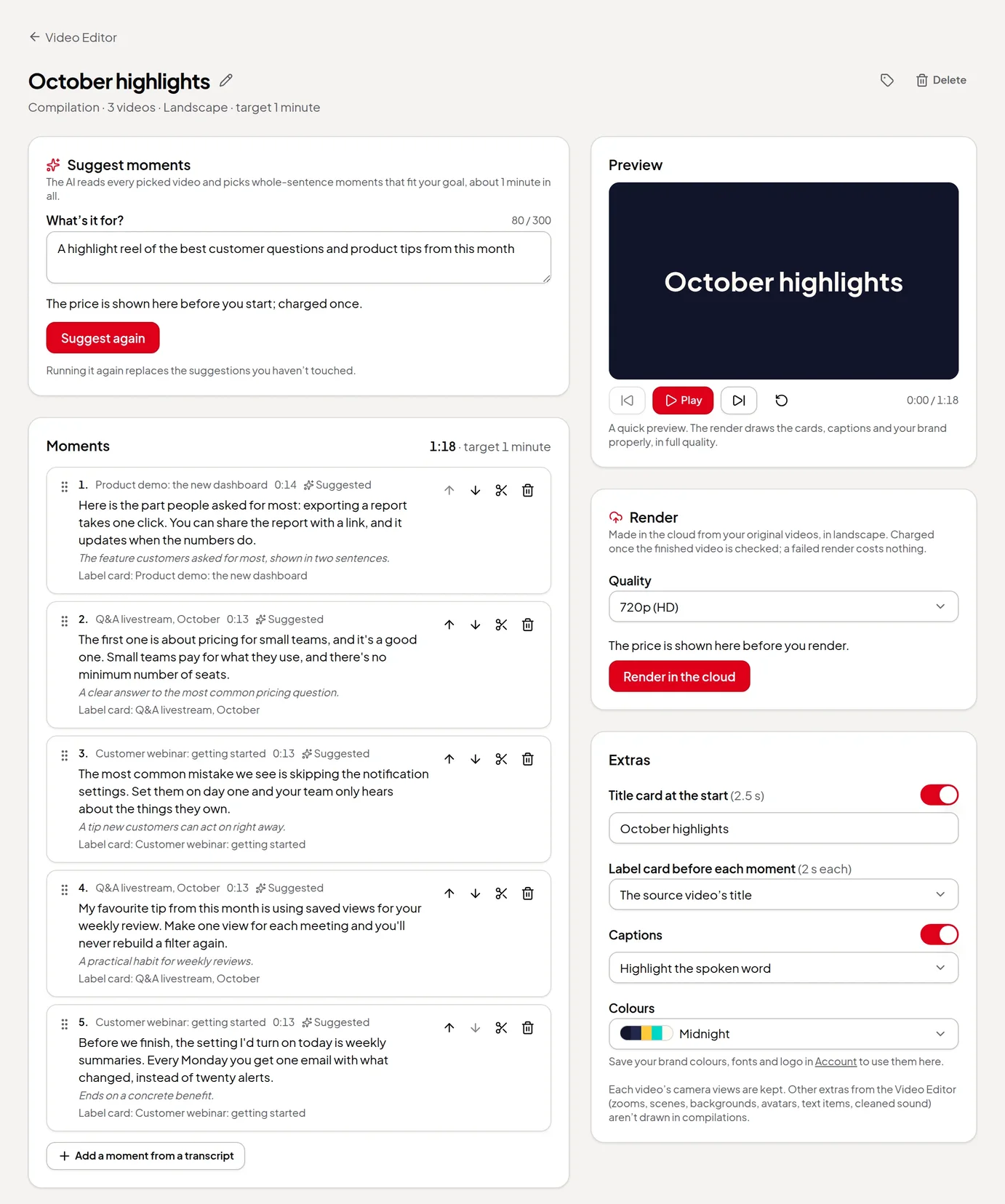
Pick 2 to 10 of your recordings, say what the video is for, and AI suggests whole-sentence moments to put in order, trim and render as one highlight video.
Updated
A month of livestreams, a series of webinars or a set of customer calls usually holds a handful of moments worth showing together. A compilation puts them in one video. Pick the recordings, say what the video is for, and the AI reads every transcript and suggests whole-sentence moments that fit. You put them in order, trim them, add a title card and captions, and render one video in landscape, vertical or square.
How it works
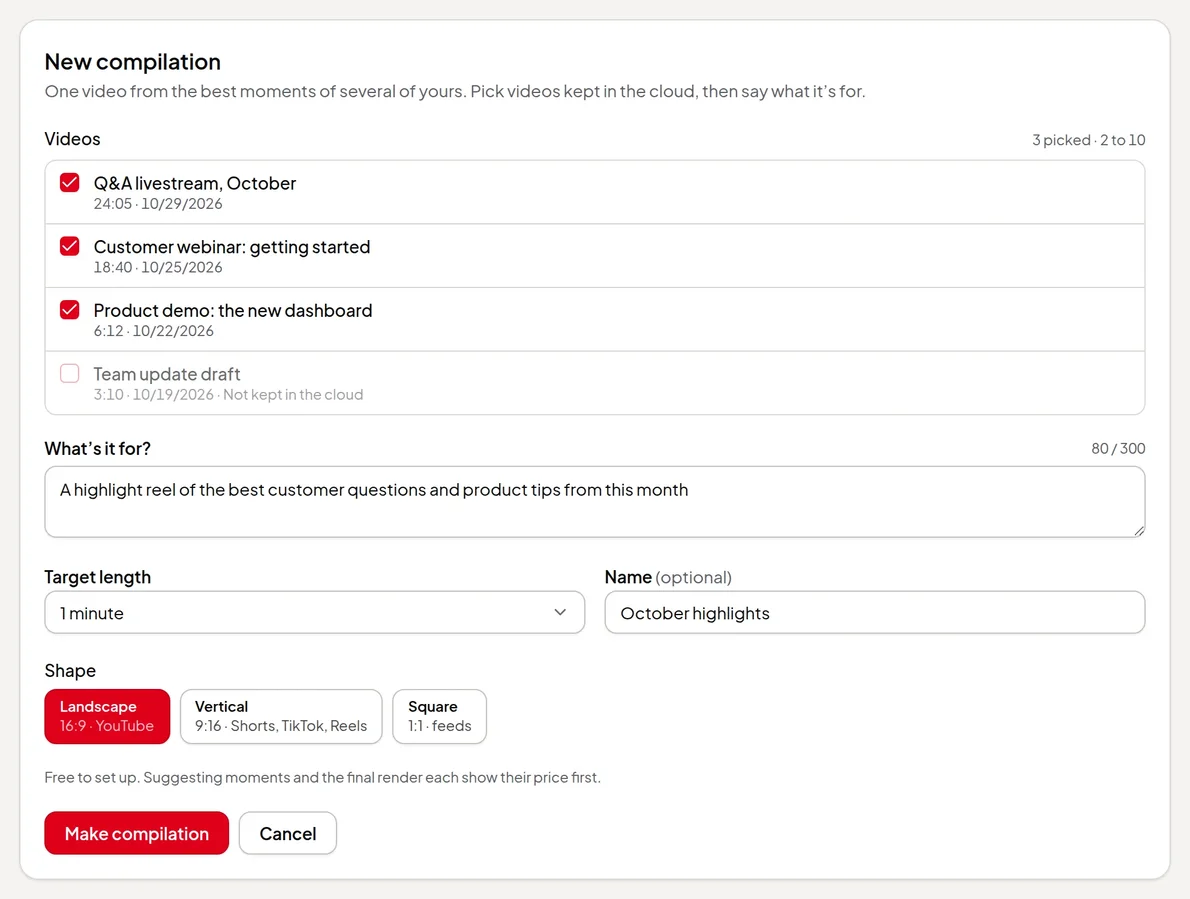
- Set it up. Open Video Editor, click New video, and on the Compilation card click Make a compilation. Tick 2 to 10 recordings, write what it’s for in What’s it for? (up to 300 characters), and choose a Target length from 30 seconds to 20 minutes and a Shape: Landscape (16:9), Vertical (9:16) or Square (1:1). Setting up is free.
- Suggest moments. Click Suggest moments. The AI reads the picked recordings and chooses whole-sentence moments that fit your goal and add up to about the target length. Each comes with a short reason.
- Shape the order. Move moments up or down, trim either end by a sentence, remove one, or Add a moment from a transcript by picking sentences yourself. A compilation can hold up to 60 moments. You can also skip the suggestions and add every moment yourself.
- Add the extras. Turn on a Title card at the start, a Label card before each moment (the source video’s title or your own line), Captions in one of four styles, and your brand’s colours and logo.
- Preview and render. Play the quick preview in your browser, then click Render in the cloud. When it’s done, download it, make a share link, or use Share & post.
What carries over from each recording
- Your cuts. Moments are cut on whole sentences of each recording as you’ve edited it. Cuts you make later in a recording’s editor carry into its moments.
- Camera views. For screen and camera recordings, each video’s camera views are kept.
- Not the other extras. Zooms, scenes, backgrounds, AI avatars, text items and cleaned-up sound from the Video Editor aren’t drawn in compilations. The editor says so next to the extras.
Compilation or highlights video?
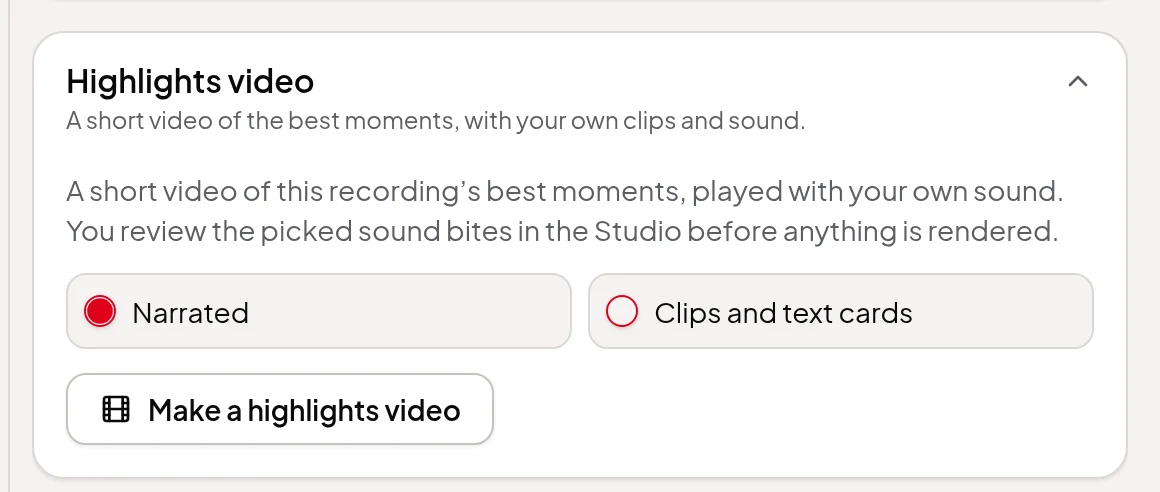
A compilation puts moments from several recordings side by side, with title and label cards between them and no narration. To make a short video from one long recording, with the speaker’s best moments linked by short narrated bridges or text cards, make a highlights video instead.
Running the suggestions again
Change the goal and click Suggest again whenever you like. Moments you’ve trimmed, moved, relabelled or added yourself are kept; only the suggestions you haven’t touched are replaced.
Limits worth knowing
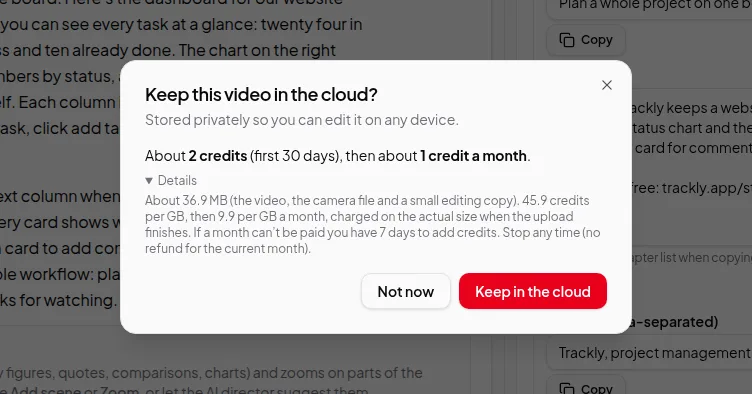
- Every recording in a compilation must be transcribed and kept in the cloud, because the render is made in the cloud from the original videos. Videos on your computer only can’t be picked. To bring in a video you posted online, add it from a link.
- The browser preview is a quick check. The cards, captions and brand are drawn properly, in full quality, only in the render.
- Vidonto doesn’t post for you. Share & post copies your post text, downloads the video and opens the site’s upload page, and you post it there.
Credits
Setting up a compilation and editing its moments are free. Suggest moments uses credits and is charged once per run; if it fails, it isn’t charged. The render is charged only once the finished video has been checked, and a failed render costs nothing. Each step shows its price before you pay, and the render price depends on the length and quality. See credits explained.