Feature
Add a video from a YouTube, TikTok, X or Facebook link
Paste a link to your own YouTube, TikTok, X or Facebook video, or a direct file link, and it's kept in the cloud and transcribed, ready to edit by text.
Updated
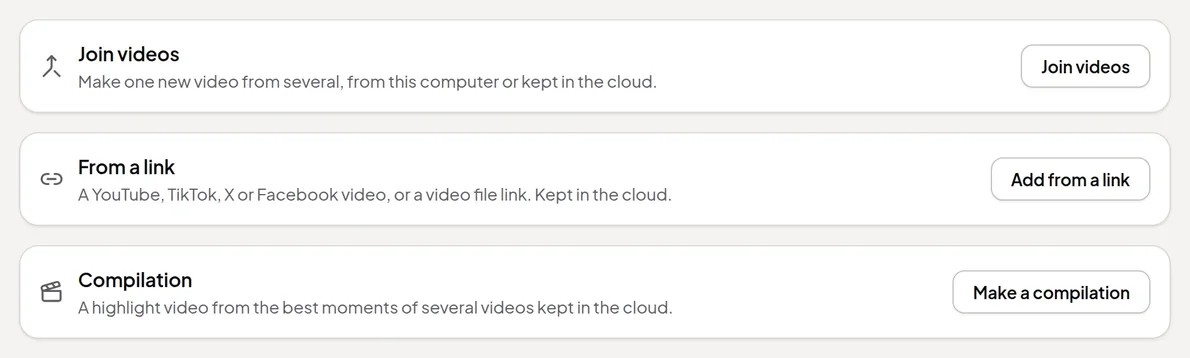
Your best material is often already online: last month’s livestream on YouTube, a TikTok that did well, a clip you posted on X or Facebook. Instead of finding the file and uploading it, paste the link. From a link downloads the video, keeps it in the cloud and transcribes it, so it opens in the Video Editor like any recording.
How it works
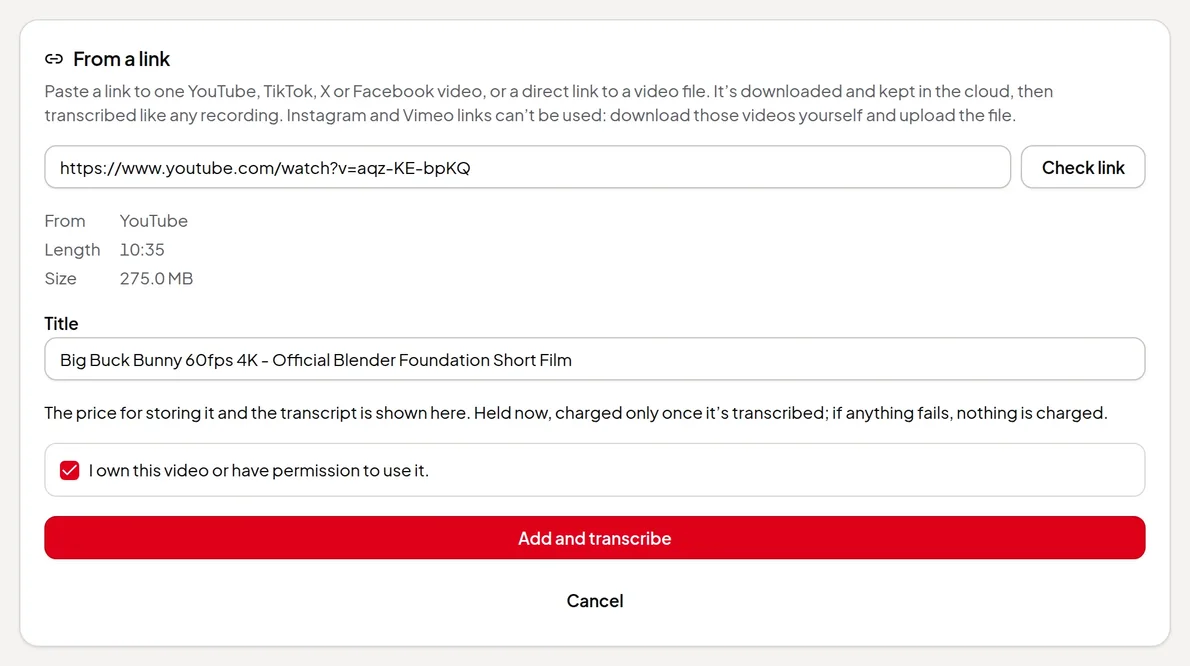
- Open Video Editor, click New video, and on the From a link card click Add from a link.
- Paste a link to one video and click Check link. Checking is free: Vidonto reads the video’s details and shows where it’s from, its length and its size.
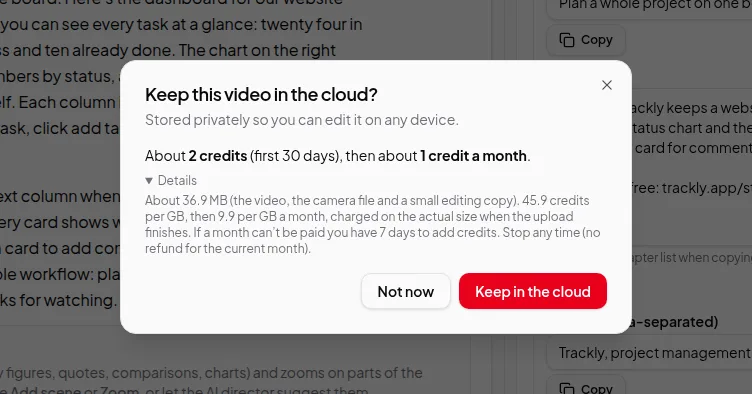
- Change the Title if you like. The price for keeping it in the cloud and making the transcript is shown, along with what it costs each month to keep.
- Tick I own this video or have permission to use it. You can’t add a video without it.
- Click Add and transcribe. The video opens in the Video Editor while it’s downloaded and transcribed.
Which links work
- YouTube, TikTok, X and Facebook links to a single video.
- Direct links to a video file, such as a file on your own website or file host.
- Not Instagram or Vimeo. Those links can’t be used. Download the video yourself and upload the file instead.
- Not channels, profiles or playlists. Paste a link to one video.
- Not private, age-restricted or members-only videos, or live streams and premieres that haven’t finished.
- Up to 6 hours and 16 GB, the same limits as any recording.
If a site refuses or the video can’t be found, the panel says what went wrong and that nothing was started or charged. For your own YouTube videos, you can instead download the file in YouTube Studio and upload it.
Your videos only
Vidonto doesn’t check who owns a video. The permission box is your confirmation that you made the video or have the right to use it, and it’s stored with the video. Use this for your own uploads, or for videos you have permission to edit.
What you can do with it
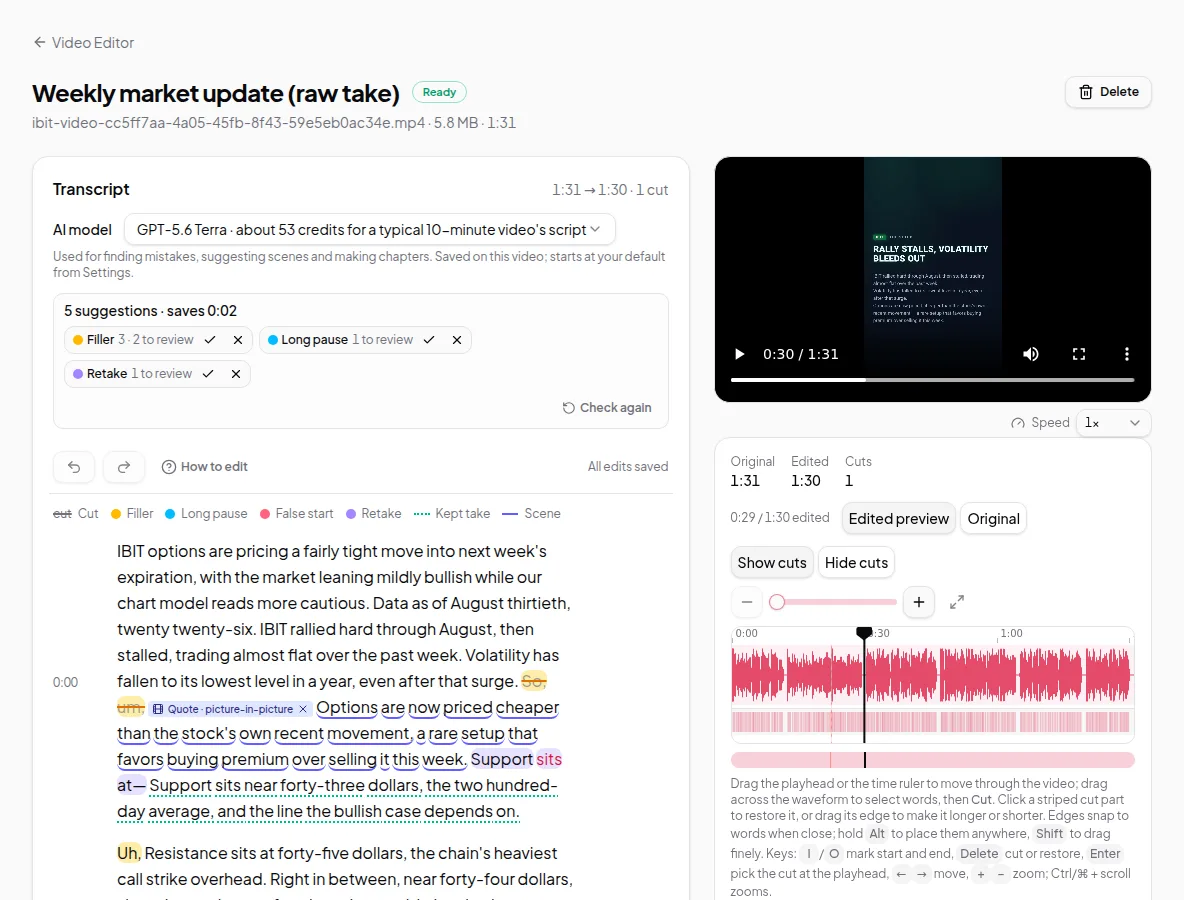
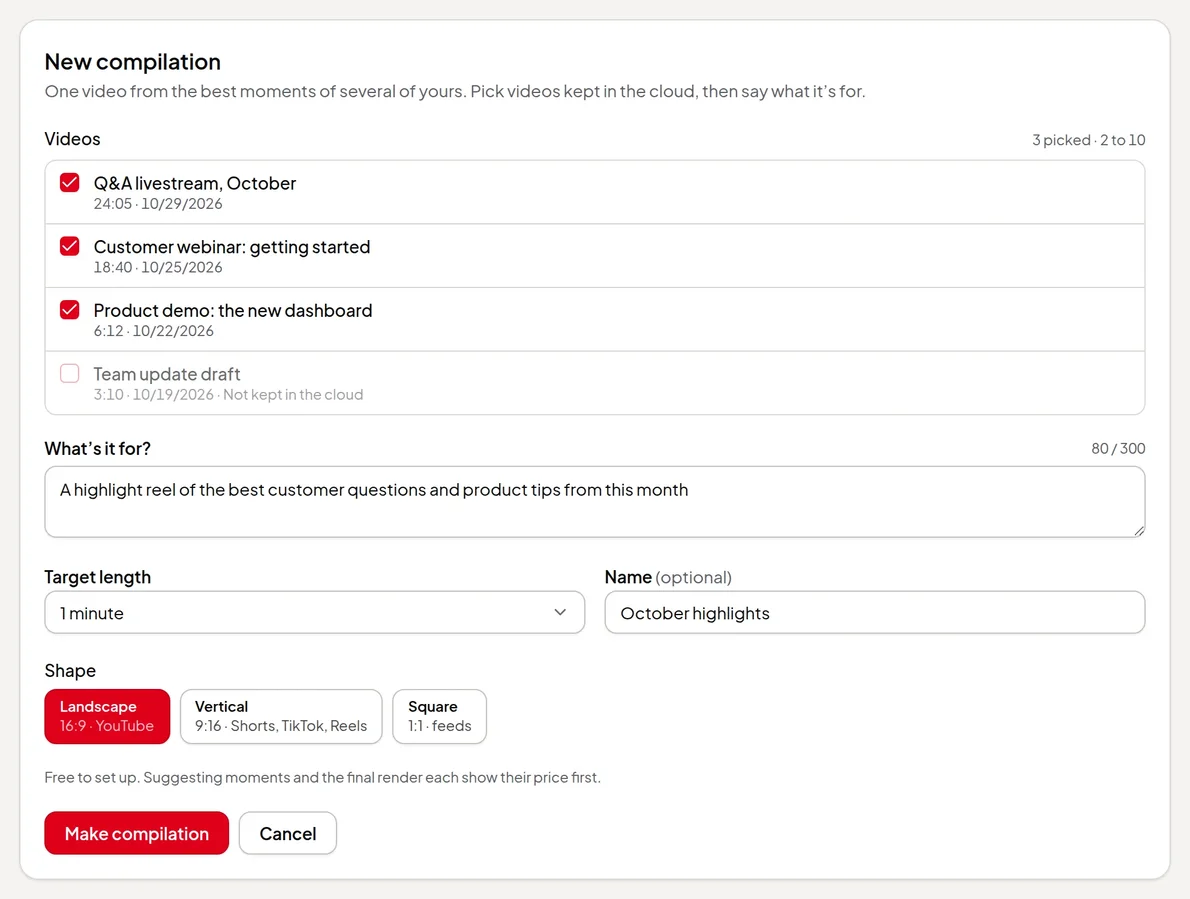
A video added from a link is a normal recording kept in the cloud. Edit it by deleting words, let the ums and retakes be found, find short clips, turn it into a highlights video, put it in a compilation, or use it as footage in a summary video.
If you want a short narrated summary of a YouTube video rather than the video itself, use YouTube video to summary video instead. It reads the captions and needs no download.
From your code or an AI assistant
The same links can be added without opening the app. With the developer API, send the link to POST /api/v1/recordings with source: "link". With the AI assistant connector, give Claude, ChatGPT or another connected assistant the link and ask it to add the video. The same rules apply as in the app:
- The same links. YouTube, TikTok, X and Facebook links to one video, or a direct link to a video file. Instagram and Vimeo links are refused, as are private, age-restricted, members-only and live videos.
- Your permission first. A YouTube, TikTok, X or Facebook link needs your confirmation that you own the video or have permission to use it. In the API you send
rightsConfirmed: true; an assistant asks you and never confirms for you. - A free estimate. The estimate reads the video’s length and size from its page and shows the credits before anything is held. An assistant tells you the figure and waits for your yes.
- Nothing charged on refusal. A link that’s refused holds and charges nothing, and if the download or transcript fails, nothing is charged.
The video then appears in your Video Editor, ready to edit like one added here.
Credits
Checking a link is free. Adding the video uses credits for keeping it in the cloud and for the transcript, and the price is shown before you pay. The credits are held when you click Add and transcribe and charged only once the transcript is made; if the download or transcript fails, nothing is charged. After that, keeping the video in the cloud costs a little each month, like any kept video. See credits explained.