Feature
Turn a PDF, Word file or slide deck into a summary video
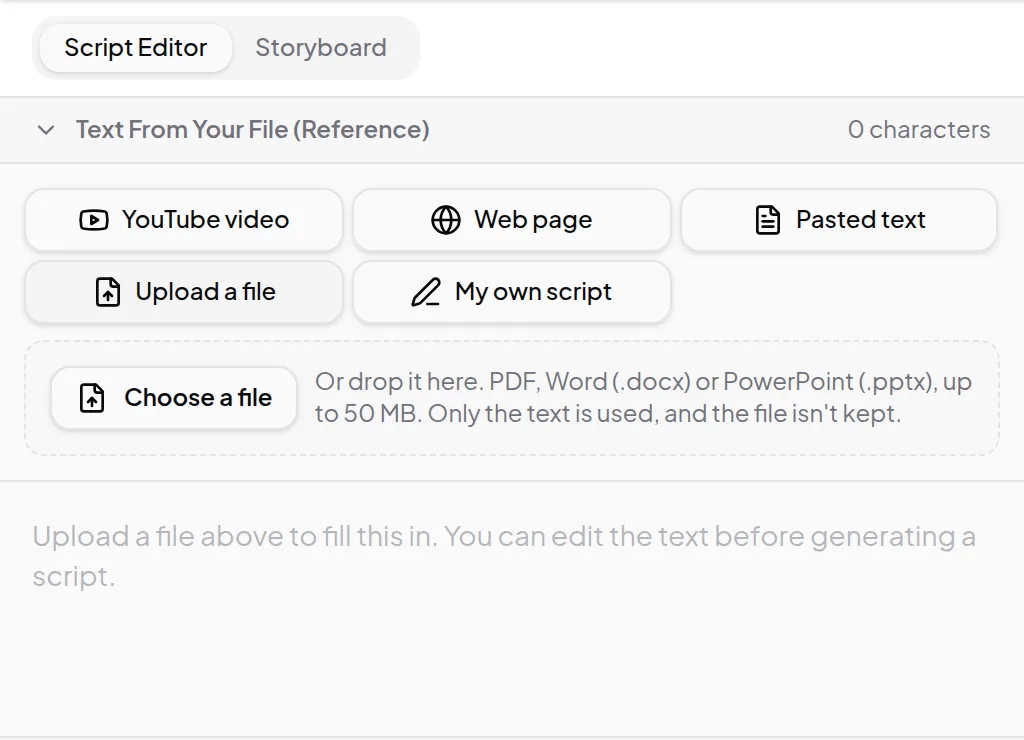
Upload a PDF, Word document or PowerPoint deck and Vidonto reads its text and makes a short narrated summary video. Reading the file is free and it isn't kept.
Updated
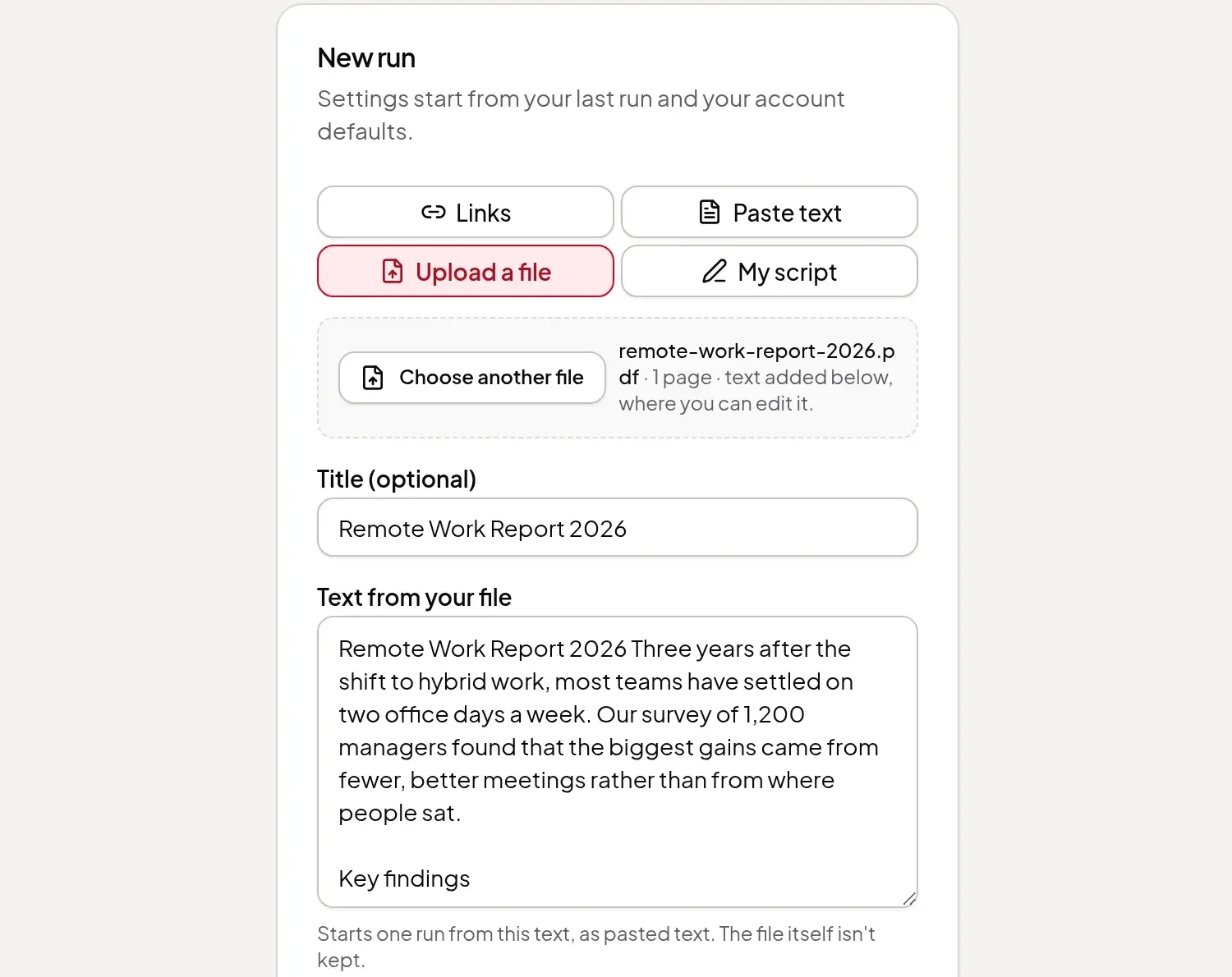
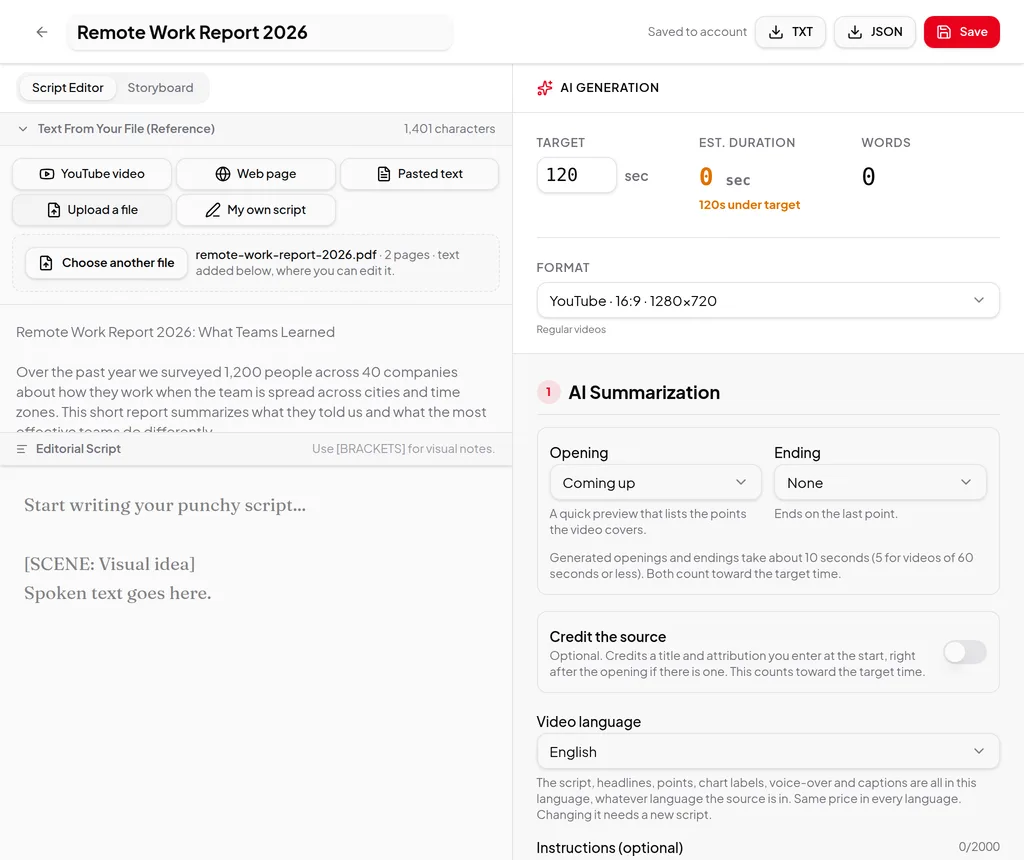
Reports, white papers, handbooks and slide decks hold a lot of good material that nobody watches. Upload the file and Vidonto reads its text, puts it in a box for you to check, and then summarizes it into a short narrated video with captions, the same way it summarizes a web page or pasted text.
Which files work
- PDF files with real text in them.
- Word documents saved as .docx.
- PowerPoint decks saved as .pptx.
- Up to 50 MB per file.
Where you can use it
- In the Studio: start a new project and choose Upload a file. Pick or drop the file. Its text goes into the same box as pasted text, where you can edit it. Then set the target length and format, generate the script and approve it, as with pasted text.
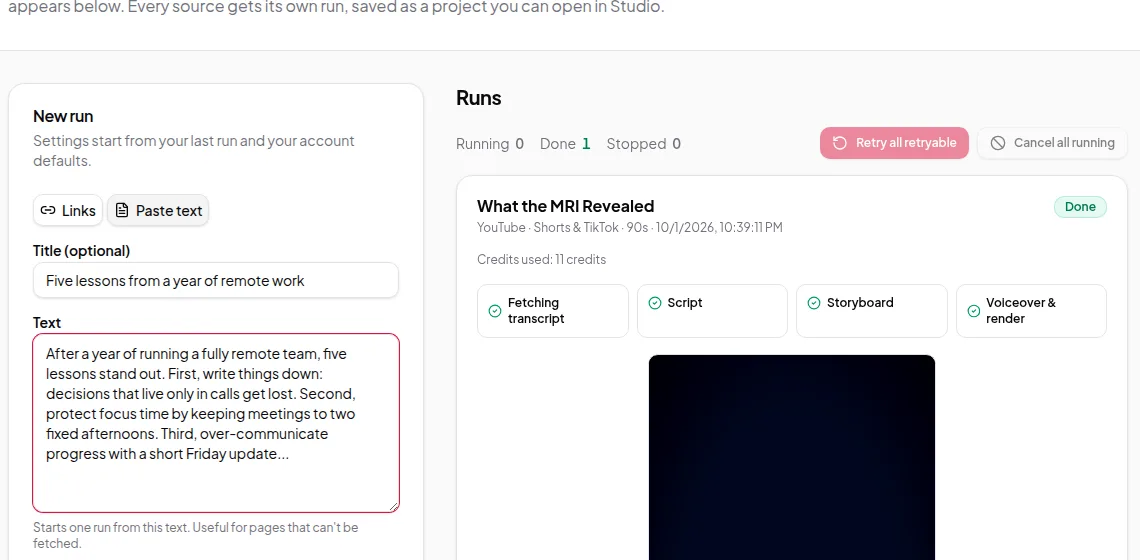
- In Quick Render: switch the source to Upload a file and pick the file. The text appears under Text from your file, where you can check and edit it. It starts one run from that text, as pasted text.
- From the API: send
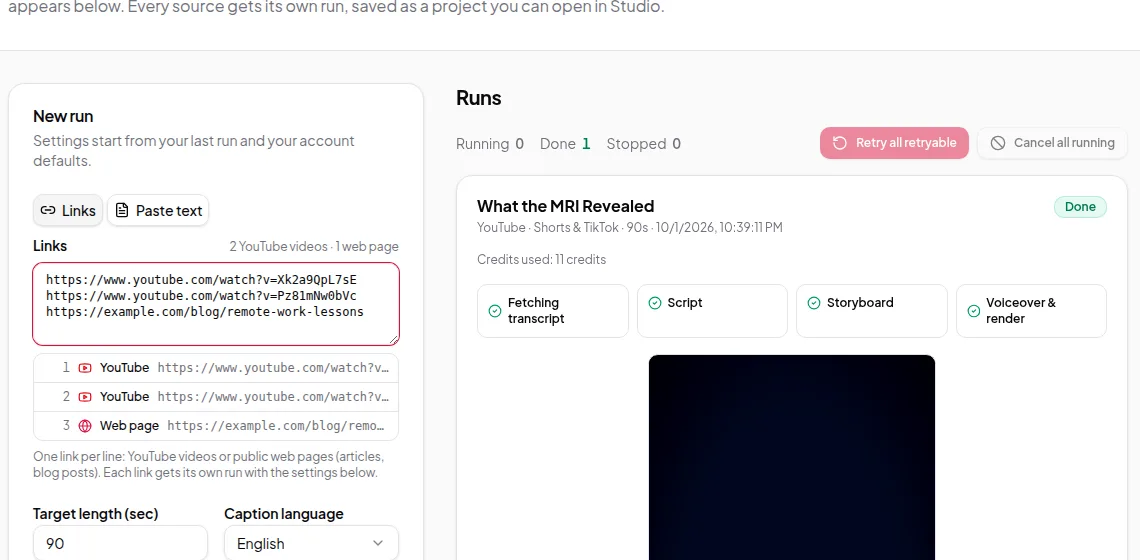
documentUrl, a public link to the file, or send the file to the document reader first and start the run with the text it returns. See the developer API. - From Claude or ChatGPT: give the AI assistant connector a link to a PDF, Word file or deck.
How the file is read
- Text only. Vidonto reads the words in the file, in reading order. Pictures, charts and slide designs aren’t used, and the video gets its own visuals as usual.
- Slides stay in order. Each slide becomes a block that starts with its number and title, followed by its text and any speaker notes. Hidden slides are left out.
- Clean-up for PDFs. Repeated page headers, footers and page numbers are removed. Give the text a quick read and delete anything you don’t want summarized.
- The title comes along. The document’s own title, or the file name when it has none, becomes the source title. It’s used if you turn on the source credit, and you can change it.
- Nothing is kept. The file is read once to get the text and isn’t stored. Only the text is saved, like pasted text.
Limits worth knowing
- Scanned PDFs and photos of pages have no text to read. Password-protected files can’t be opened; remove the password or paste the text instead.
- Older .doc and .ppt files need to be saved as .docx or .pptx first.
- Very long documents follow the same length limit as pasted text. If the text is too long, the app says so as soon as the file is read, so you can trim it to the part that matters before you start.
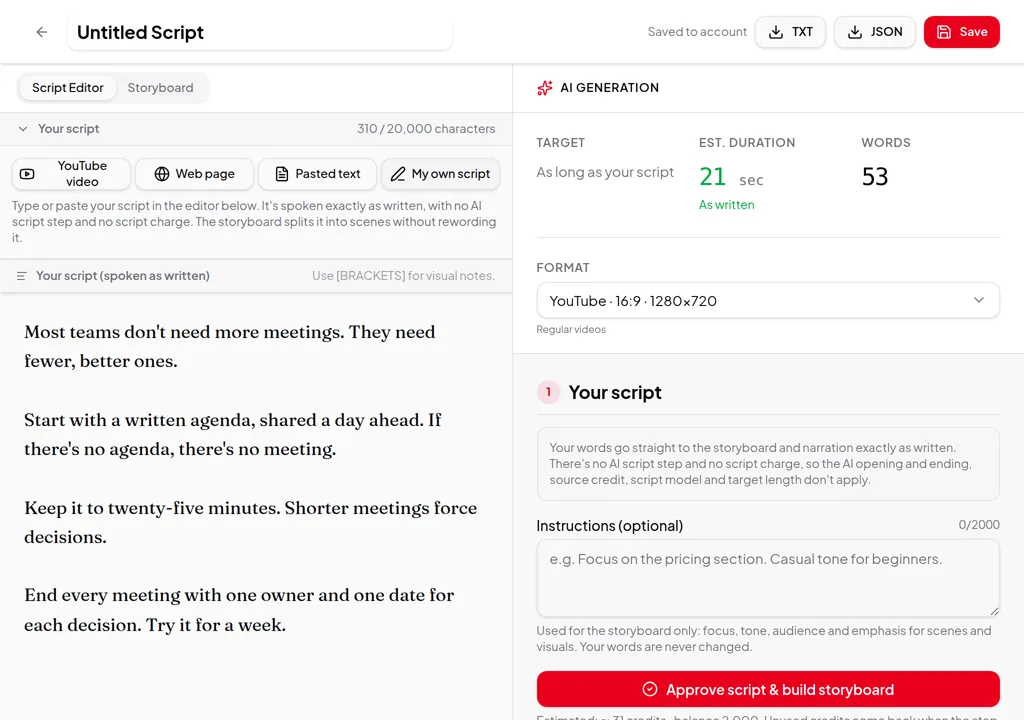
- Want your exact words spoken instead of a summary? Use your own script.
Credits
Reading the file is free. Writing the script, building the storyboard, the voice-over and the render use credits, the same as for pasted text. The estimate is shown before you start, and anything not used is returned when the run ends. See credits explained.
Step by step: make a video from a PDF, Word file or slides.