Guide · Summary videos
How to make one video from several sources
Step by step, add 2 to 5 articles, YouTube videos, notes or files to one Studio project, or find sources for a topic, then turn them into one narrated video.
4 min read · Updated
Feature used in this guide: Several sources, one video — what it does, its limits and how credits work.
You’ve read three good articles and watched a video on the same subject, and you want one short video that brings them together. In the Studio, a Several sources project reads all of them and writes one script. If you only have a topic, it can find the sources for you.
You’ll need: a Vidonto account and either 2 to 5 sources — links to web pages or YouTube videos, text to paste, or PDF, Word or PowerPoint files — or a topic to search for. Reading web pages, text and files is free; reading a YouTube video’s captions and a Find sources for me search use credits, and the price is shown first.
Step 1: Start a project and choose Several sources
Open Studio and click New Project. In the source buttons, choose Several sources. The source list and the Find sources for me panel appear.
Step 2: Add your sources
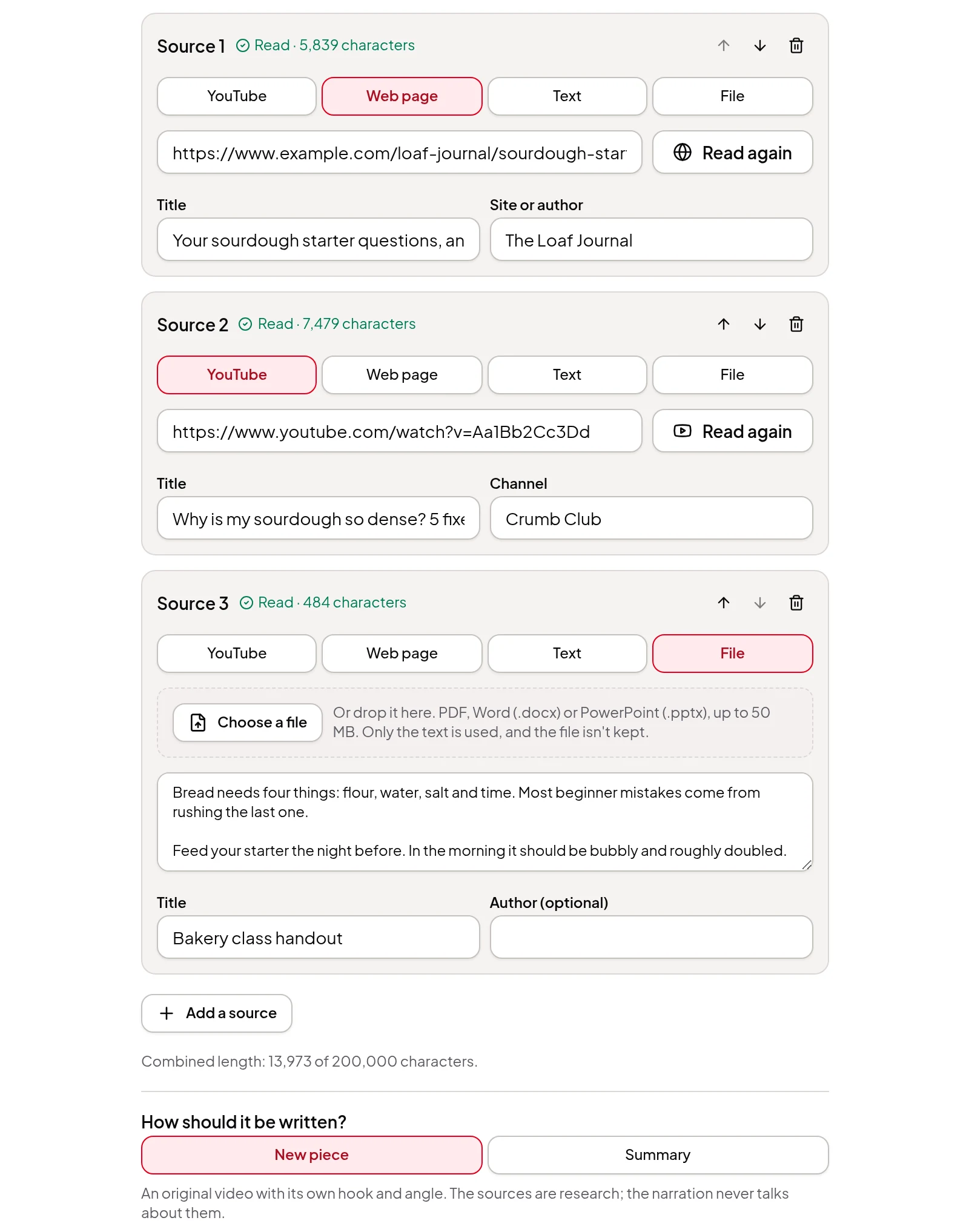
For each source, pick what it is — YouTube, Web page, Text or File — and fill it in:
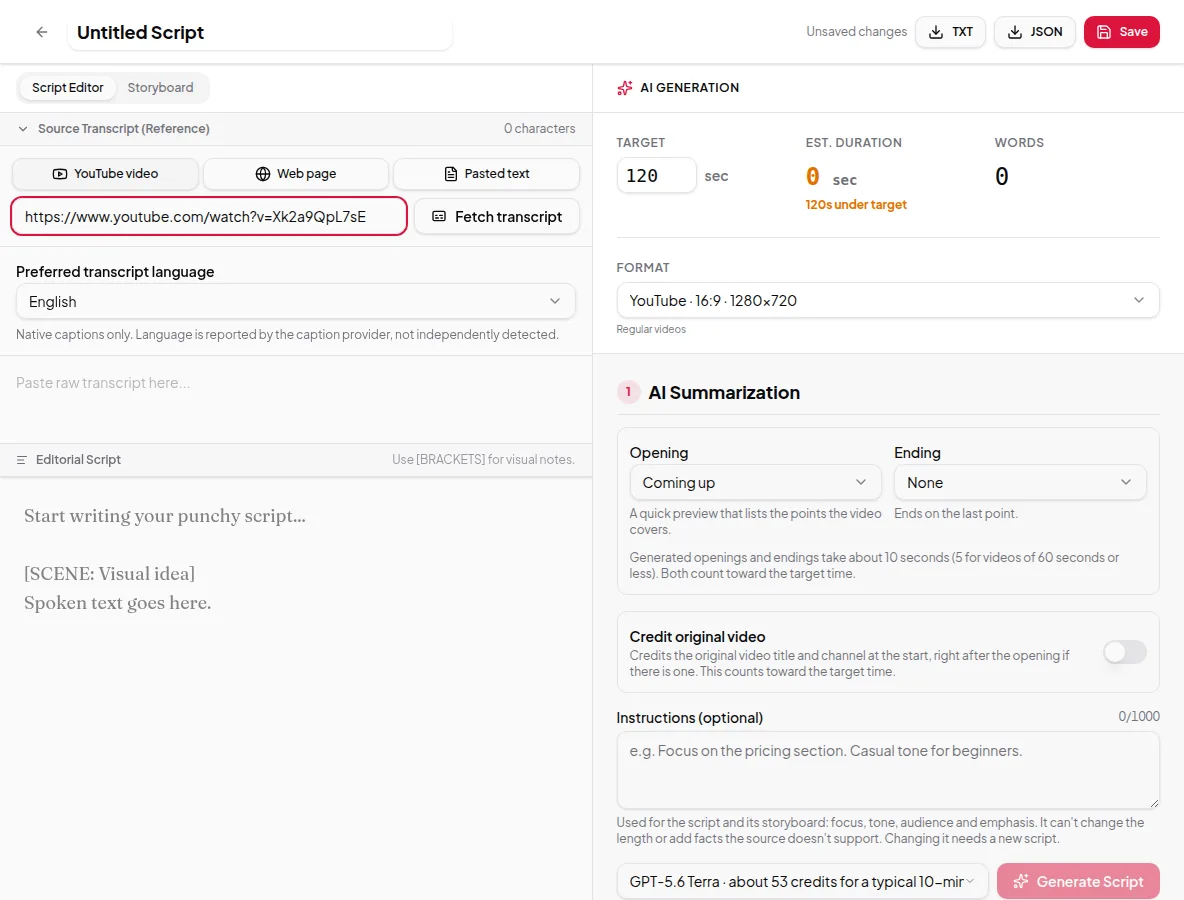
- For a YouTube video or a web page, paste the link and click Read.
- For text, paste it into the box.
- For a file, pick or drop a PDF, Word document (.docx) or PowerPoint deck (.pptx).
Click Add a source for the next one, up to 5. Each source shows Read and its length once it’s ready. Use the arrows to change the order and the bin to remove one. Under the list, the combined length shows how much of the length limit you’ve used.
Or: find sources for a topic
If you don’t have sources yet, use Find sources for me at the top.
- Type a Topic, and an Angle if you want one.
- Check the price next to the button, then click Find sources. It can take up to a minute.
- Read the suggestions. Each has a one-line note, and the link icon opens the original.
- Tick the ones you want and click Use these. They’re added to your list already read, and your angle is added to the instructions.
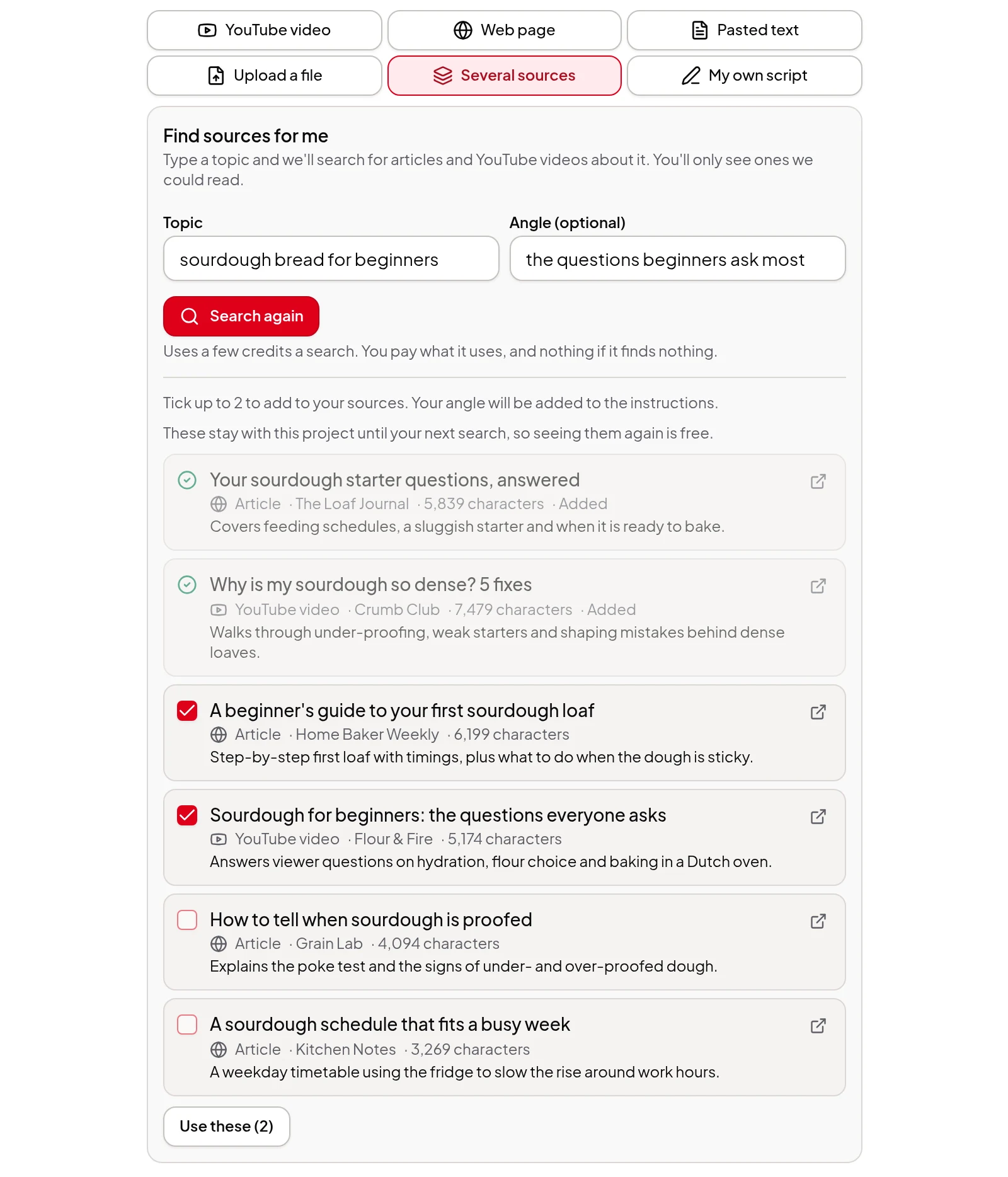
You can mix found sources with your own: add a link you trust as well, or remove a suggestion you don’t want. The last search stays with the project, so you can come back to it without paying again.
Step 3: Choose how it’s written
Under How should it be written?:
- New piece makes an original video with its own hook. The sources are research, and the narration doesn’t mention them.
- Summary retells what the sources say, organised by idea, and points out where they disagree.
In the AI Summarization panel, Say it’s based on several sources adds a short line like “Based on three sources.” to the narration and shows the full list at the end of the video. It starts off for a new piece and on for a summary. The list of sources is always in the video description.
Step 4: Set the length and generate the script
In the AI Generation panel, set the target length and the format, and pick a Video language if you want the video in another language. Add creator instructions for tone or audience if you like. Then click Generate Script.
Step 5: Check and approve the script
The script appears in the Script Editor. The quotes it was built from are each labelled with their source, so you can see which source a point came from. Rewrite anything you like, then click Approve script & build storyboard.
Step 6: Review the storyboard and render
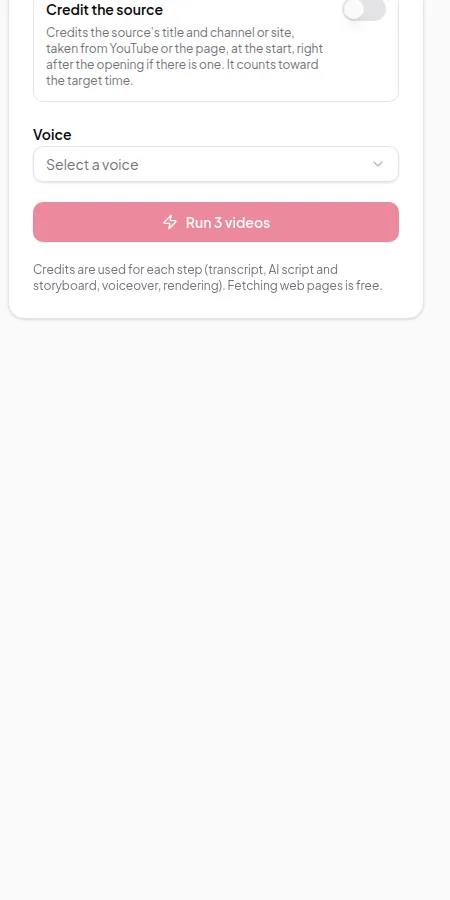
Check each frame in the Storyboard tab, click Approve Storyboard, choose a voice and click Start Final Render. When it’s done, download the MP4, the narration audio and the SRT captions, or share it with a link.
Tips
- Pick sources that agree on the subject, not on everything. A summary is more useful when it can point out where the sources differ.
- Trim long sources. If the combined length is close to the limit, paste just the part you need as a Text source.
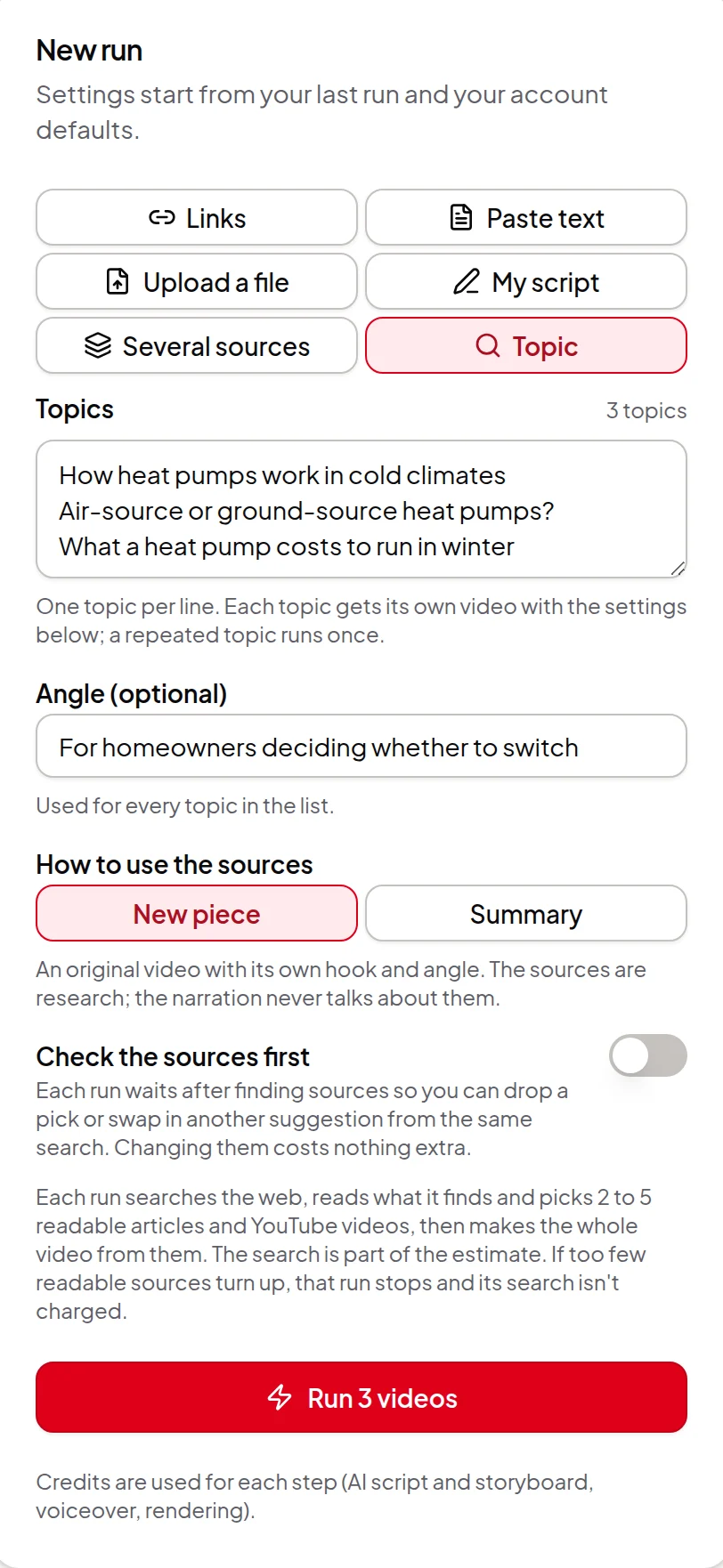
- No need to check each source? Use Quick Render. Choose Several sources in Quick Render, add the links, texts or files, and press Run; the script and storyboard are approved for you. The developer API and the AI assistant connector can do the same, with files given as public links. Find sources for me is Studio only.
- Only have a topic and don’t need to pick the sources? Choose Topic in Quick Render and the run finds the sources and makes the whole video, for up to 20 topics at once. See make a video from just a topic.
More about this feature: several sources, one video.