Guide · Your recordings
How to add a video from a YouTube, TikTok, X or Facebook link
Paste a link to your own YouTube, TikTok, X or Facebook video, check it for free, confirm you have permission, and open it in the Video Editor with a transcript.
2 min read · Updated
Feature used in this guide: Add a video from a link — what it does, its limits and how credits work.
Want to cut down last week’s livestream, pull clips from a TikTok, or put an old upload in a compilation? If the video is already online, you don’t need to find the file. This guide shows how to add it from its link.
Step 1: Open From a link
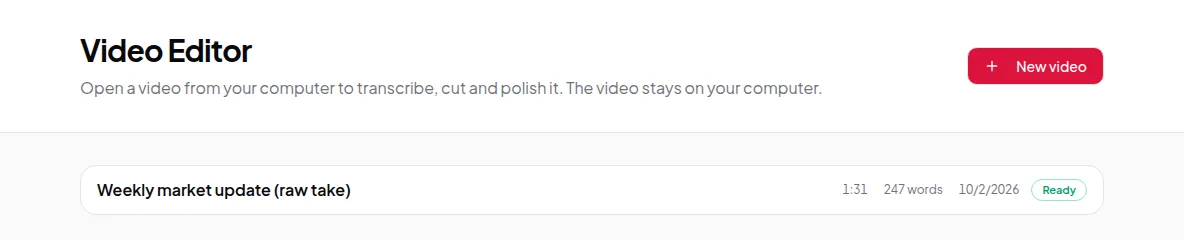
Open Video Editor and click New video. Below the upload and record options, the From a link card has an Add from a link button.
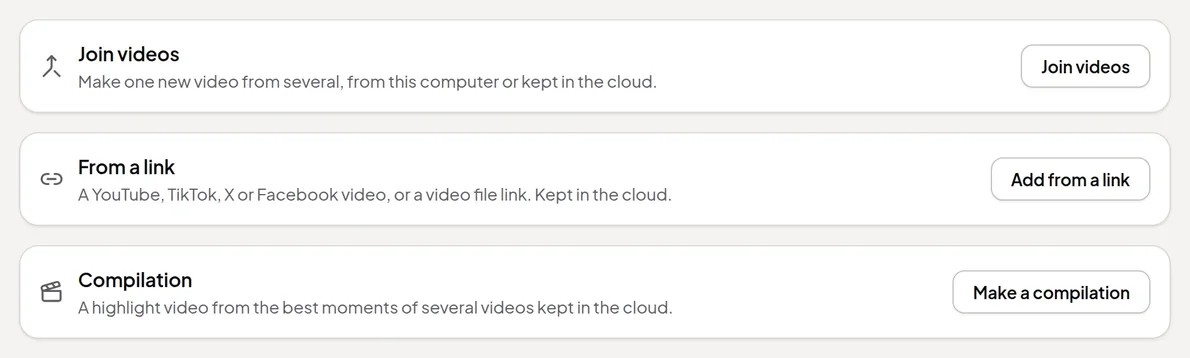
Step 2: Paste the link and check it
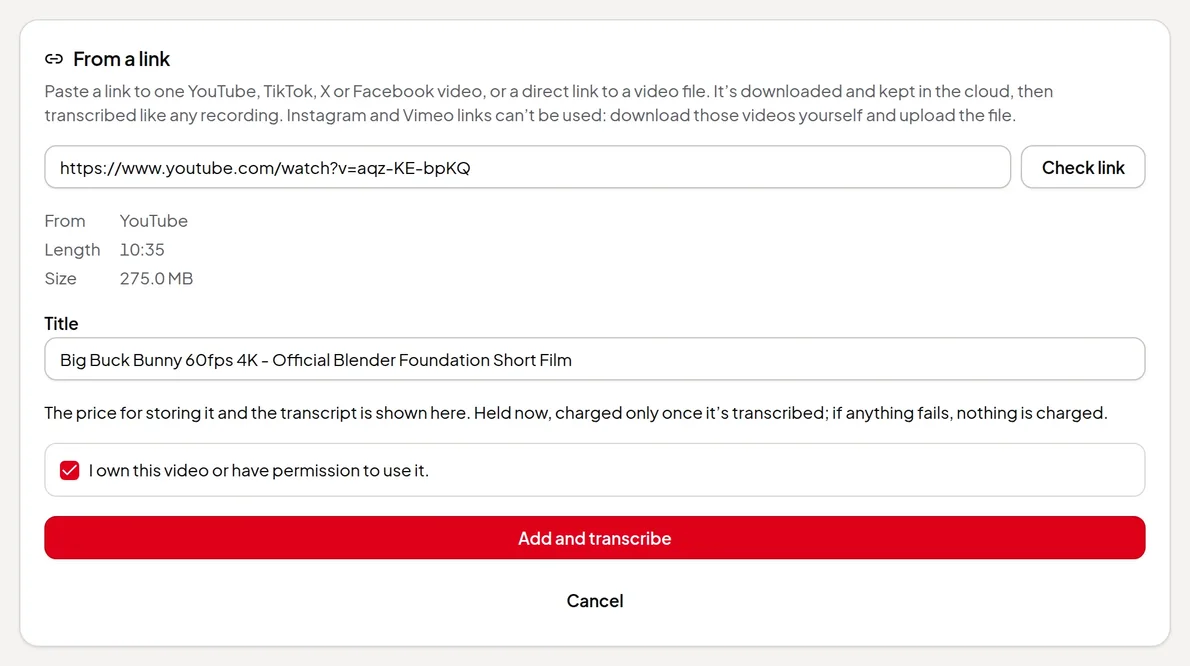
Paste a link to one video and click Check link. These work:
- YouTube, TikTok, X and Facebook links to a single video;
- a direct link to a video file.
Instagram and Vimeo links can’t be used; download the video yourself and upload the file instead. Channels, profiles, playlists, private, age-restricted or members-only videos and unfinished live streams are refused too, as are videos over 6 hours or 16 GB.
Checking is free. If the link can’t be used, the panel says why, and nothing is started or charged.
Step 3: Check the details and the price
After the check you see where the video is from, its length and its size. Change the Title if you like; it’s the name the video gets in your library.
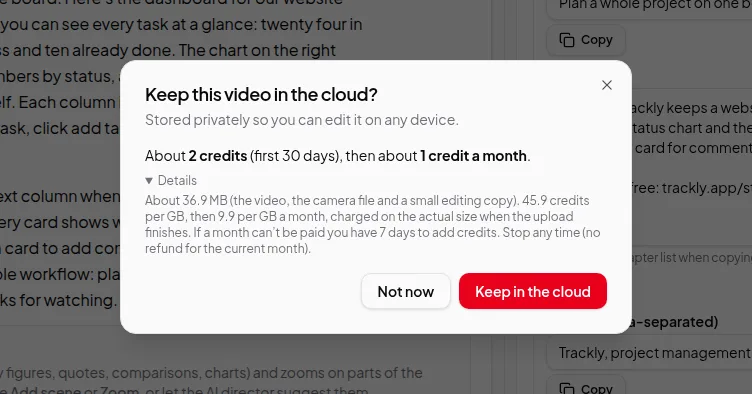
Below it is the price: keeping the video in the cloud plus the transcript, then a small amount each month to keep it. The credits are held now and charged only once the transcript is made. If anything fails, nothing is charged.
Step 4: Confirm you have permission
Tick I own this video or have permission to use it. The button stays off until you do. Vidonto doesn’t check ownership for you, so only add videos you made or have the right to edit.
Step 5: Add and transcribe
Click Add and transcribe. The video opens in the Video Editor, and the download and transcript run on their own; you can leave the page and come back.
Step 6: Edit it like any recording
When the transcript is ready, the video works like any recording kept in the cloud:
- cut it by deleting words and remove the ums and retakes;
- find short clips to post as Shorts;
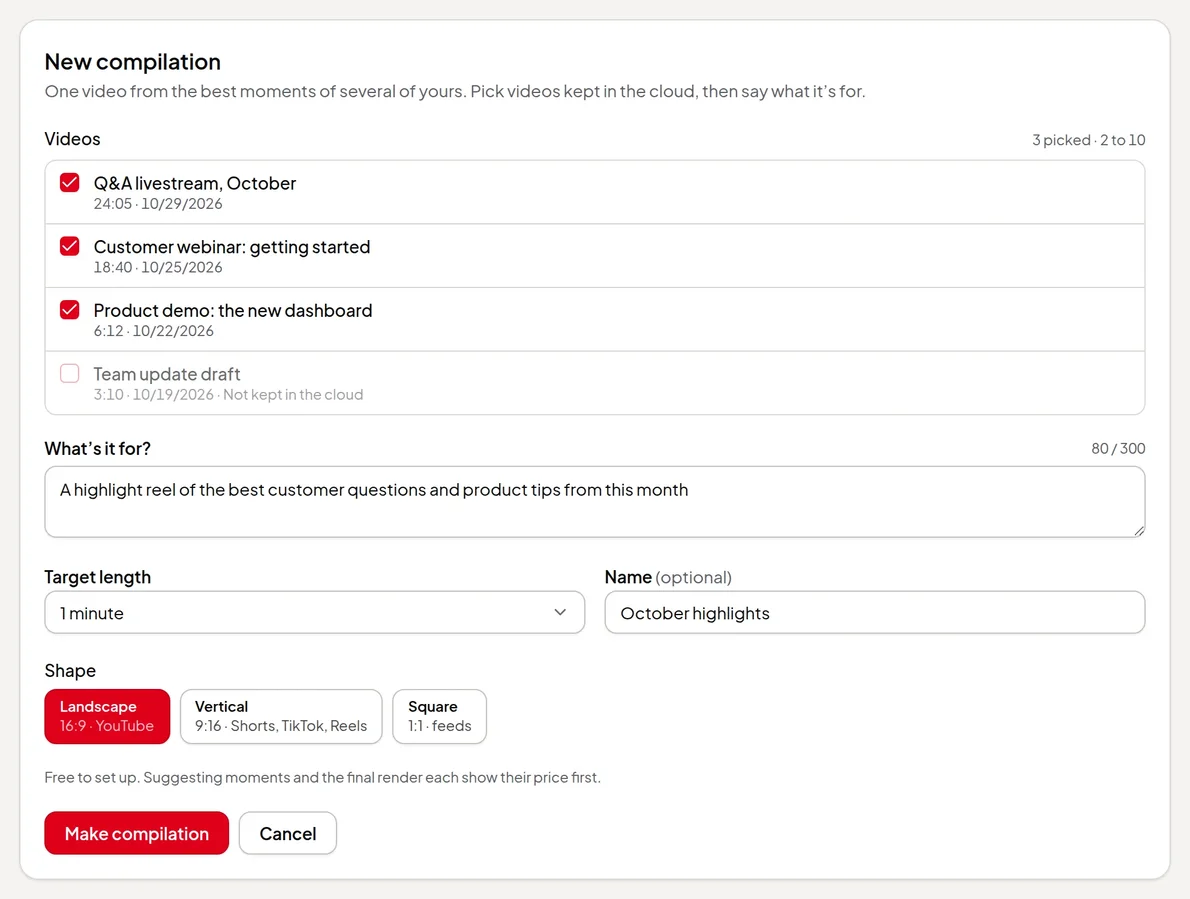
- put it in a compilation with your other recordings;
- use it as footage in a summary video.
It stays in the cloud until you remove it. You can do that from the video’s Keep in the cloud card or from Settings → Videos kept in the cloud.
Adding links from code or an AI assistant
You can also add a video from a link with the developer API or by asking a connected AI assistant such as Claude or ChatGPT. The same links work, Instagram and Vimeo are refused in the same way, and a YouTube, TikTok, X or Facebook link needs your confirmation that you own the video or have permission to use it; an assistant asks you first. A refused link charges nothing. See from your code or an AI assistant.