Use case
Videos for viewers in other languages
Dub an edited recording into up to 5 of 29 languages at a time in a voice like yours, with captions and clips to match — and see what works in which language.
Updated
Many of the people who could watch your video don’t speak the language you recorded it in. Subtitles help, but plenty of viewers would rather hear a video in their own language, and recording it again in each one isn’t realistic. In Vidonto you record and edit once, then dub the edited video into other languages in a voice like yours, with captions in that language.
The workflow in Vidonto
- Record or open the video in your language. The Video Editor transcribes it in the language you speak — see edit video by text.
- Edit first. The dub is made from the edited video, so cut what you don’t want before you dub.
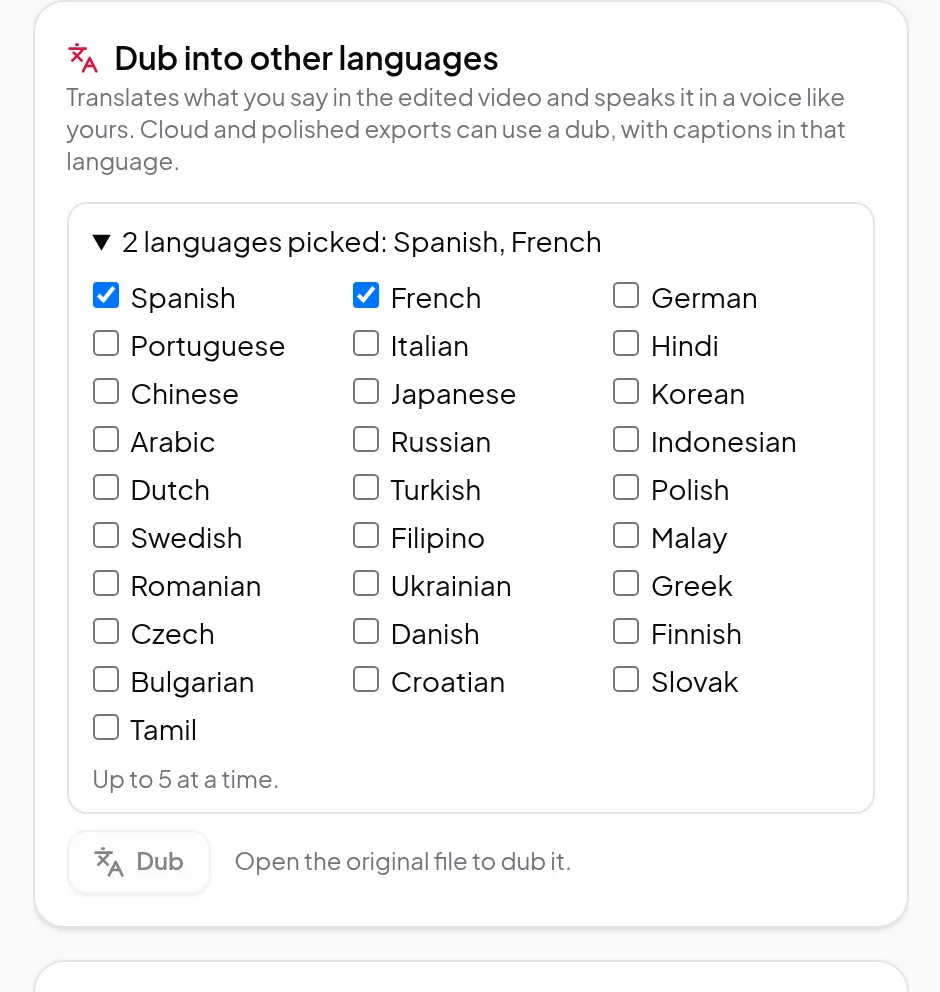
- Dub it. In the Sound section, open Dub into other languages and pick up to 5 languages. The price per language is shown before you start, and only the sound is uploaded. See dub into other languages.
- Check it. Play the dub in the editor’s preview with your video. Translation and voice are made by AI, so listen for names and technical terms before you publish.
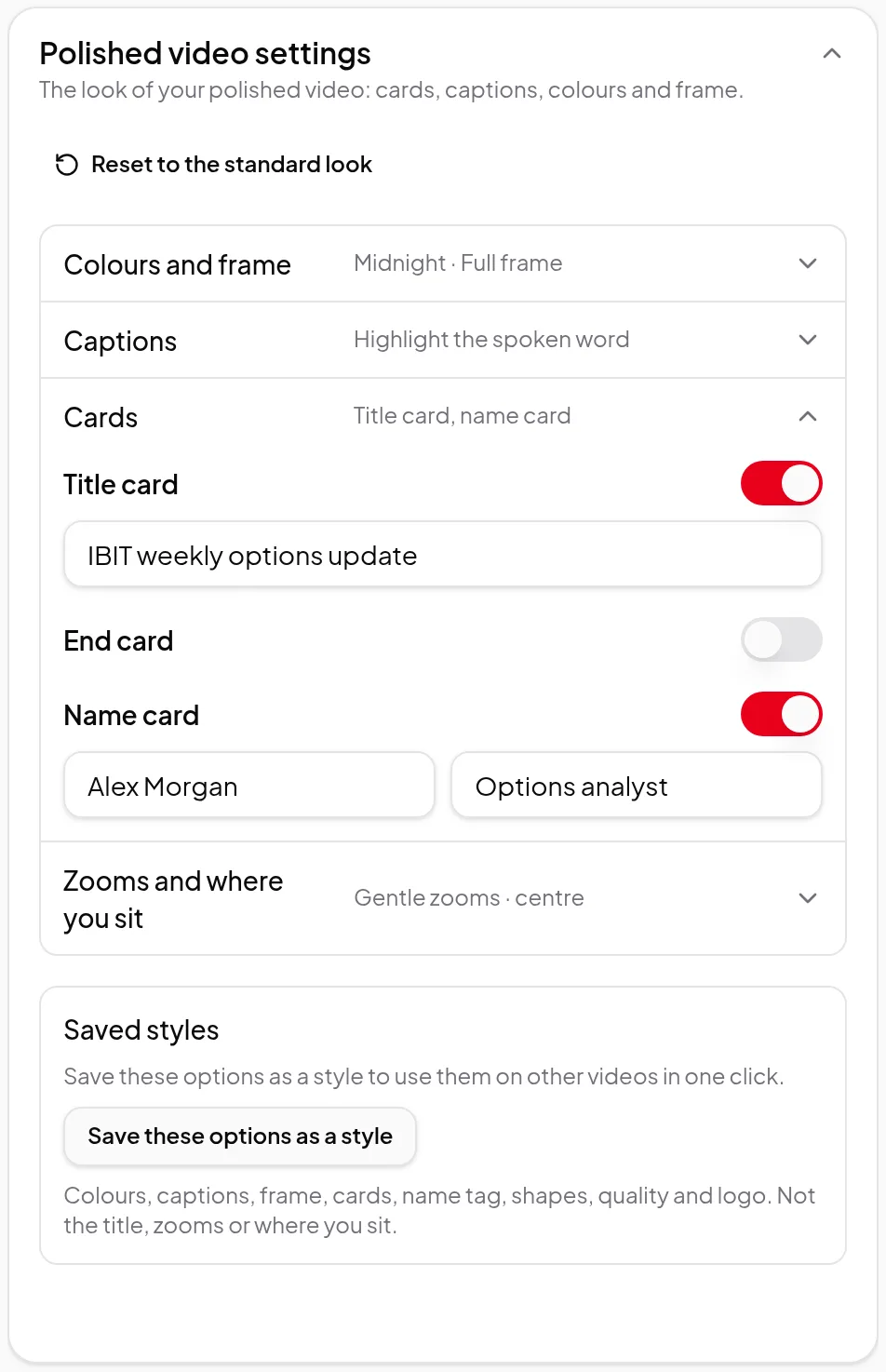
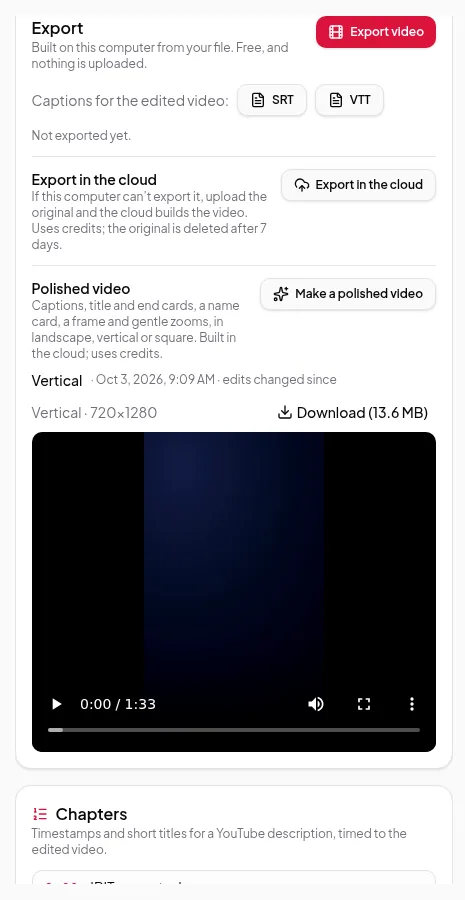
- Export in that language. Pick the language at the top of the Export section. Cloud and polished exports then use the dub, and a polished video’s burned-in captions are in that language — see captions.
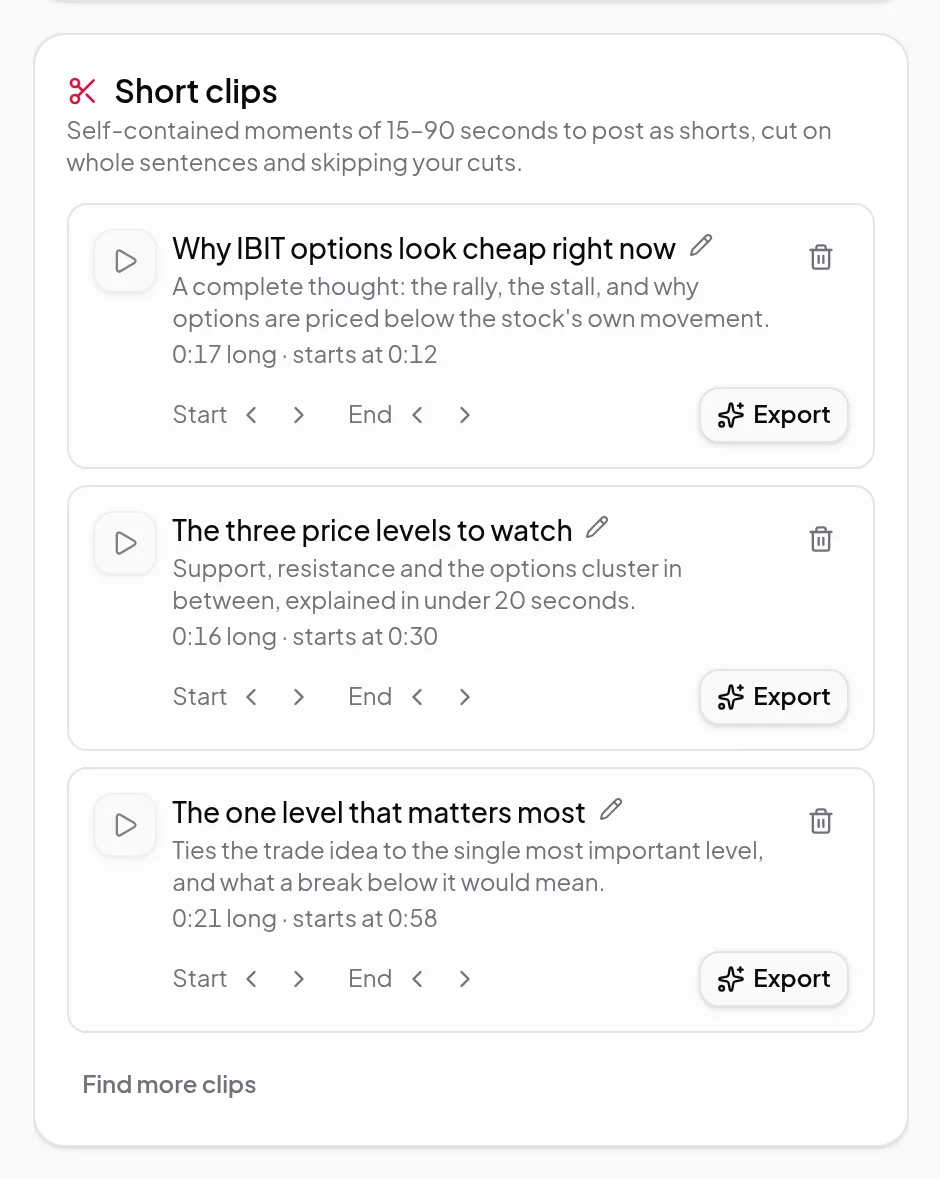
- Make clips in it too. Short clips use any dub you have, so a Short can go out in another language as well.
The 29 languages
Spanish, French, German, Portuguese, Italian, English, Hindi, Chinese, Japanese, Korean, Arabic, Russian, Indonesian, Dutch, Turkish, Polish, Swedish, Filipino, Malay, Romanian, Ukrainian, Greek, Czech, Danish, Finnish, Bulgarian, Croatian, Slovak and Tamil. The language your recording is already in isn’t offered.
Text in the language you speak
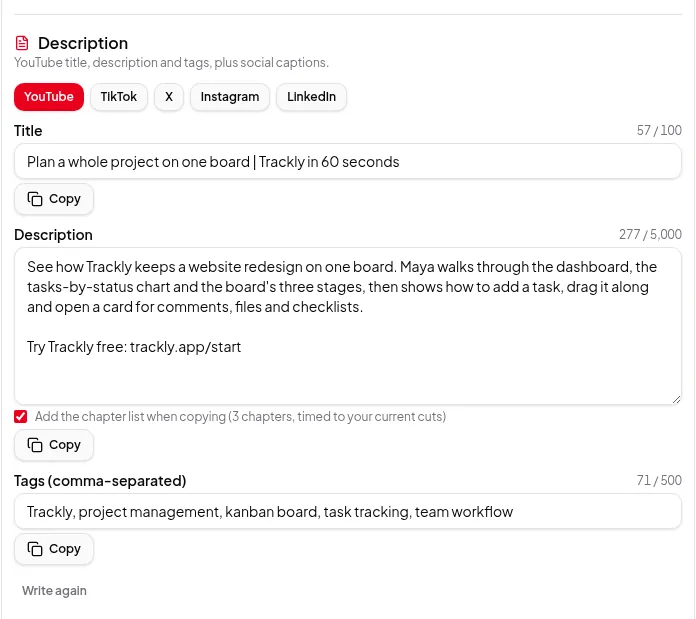
Chapter titles, short-clip titles and the YouTube title, description and tags from the description writer are written in the language of your recording’s transcript, not translated into English.
Summary videos in another language
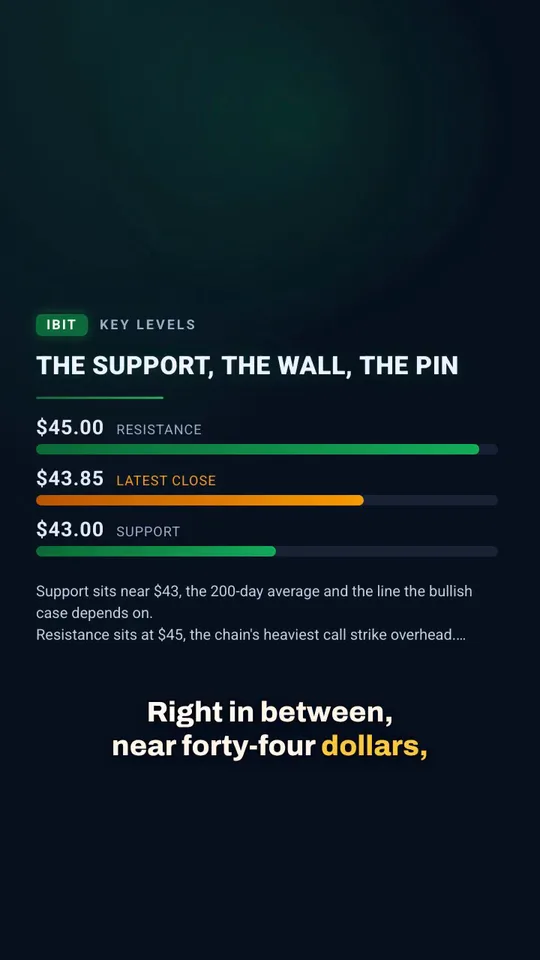
For summary videos made from a YouTube video, a web page, pasted text or your own script, pick the Video language in the Studio or Quick Render, or save a default in Settings. The script, headlines, list points, chart labels, voice-over and captions are all in that language, whatever language the source is in, and the price is the same in every language. With your own script, write it in the video language: your words are spoken exactly as written, never translated.
What works in which language
| Part of Vidonto | Language |
|---|---|
| The transcript of your recording | The language you speak |
| Dubbed sound in cloud renders and polished videos | Any of the 29 dub languages |
| Burned-in captions in a polished video | Your recording’s language, or the dub’s |
| The free export on your computer, SRT and VTT files | Your recording’s language |
| Summary videos from links and text | Any of 26 video languages: the script, on-screen text, voice-over and captions are all in the one you pick |
| A YouTube video with captions in another language | The Studio can translate the captions into English with AI before the script is written, for credits; the video can still be made in any video language |
Worth knowing first
- You need the original file open in the editor to dub it, even if the video is kept in the cloud.
- A dub matches the cuts it was made from. If you change the cuts, it’s marked Out of date: the cuts changed and exports won’t use it until you dub that language again.
- The AI avatar speaks your own voice, so it’s off while a dubbed language is chosen.
- Dubbing is priced per minute of edited video, per language, and you’re charged for the dubbed length. See credits explained.
Get started
Dub a short recording into one language first: