Comparison
Vidonto vs Kapwing
Kapwing is a broad browser video editor with AI tools and team workspaces; Vidonto edits recordings by text and makes summary videos with pay-as-you-go credits.
Updated
Checked on . Everything said here about Kapwing comes from Kapwing's own public pages on that date, listed under Sources. Products change, so check their site for the latest. Everything about Vidonto was checked against the app.
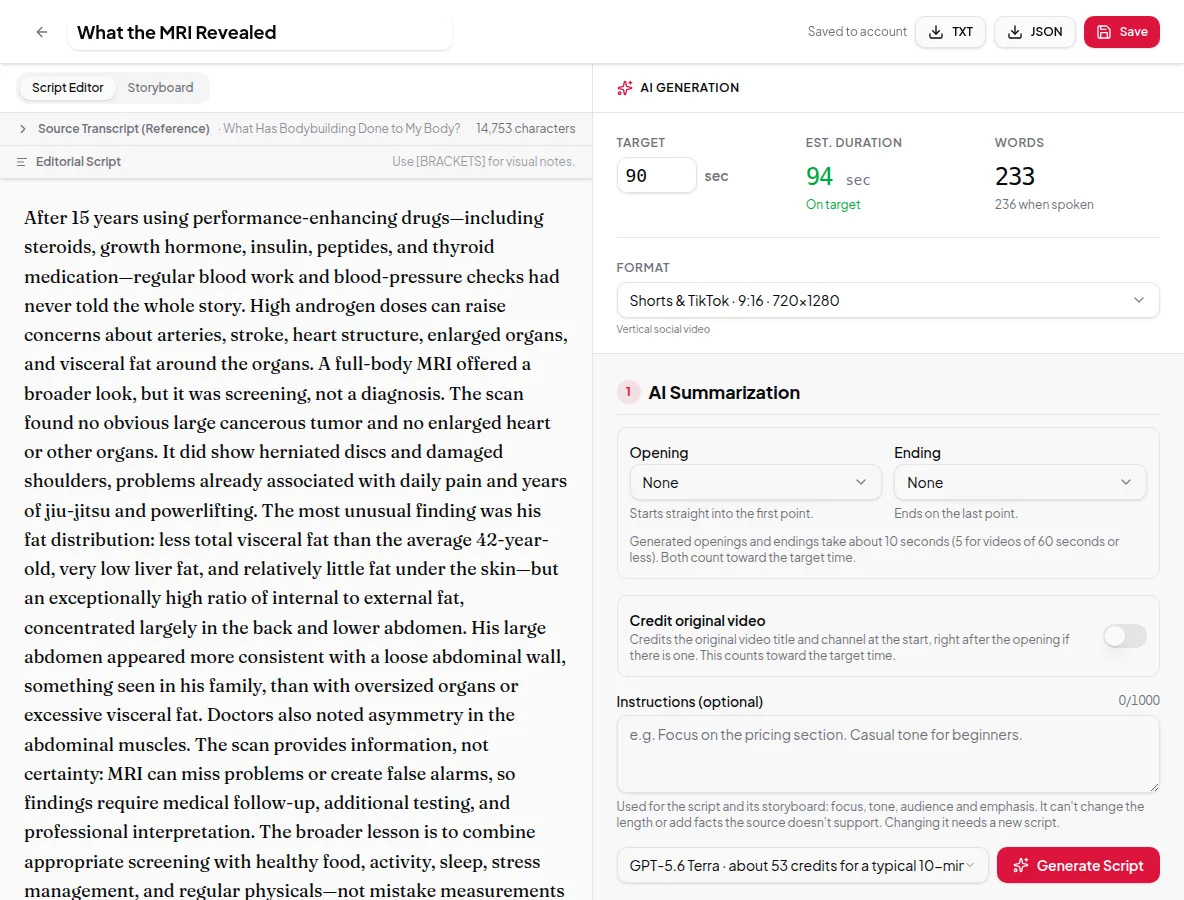
Kapwing and Vidonto both run in the browser, edit video by its transcript, remove filler words and silences, record your screen, find short clips, dub videos and turn a script, an article or a PDF into a narrated video. Vidonto is built around two jobs: cleaning up your own recordings with suggested cuts you check one by one, including retakes, and turning a YouTube video, a web page, a document or your own script into a short narrated summary you check before it’s made. It also works from code or from an AI assistant, and you pay with credits as you use them instead of a monthly plan. Kapwing is the broader editor: a full timeline with stock media, an AI assistant that edits on request, generated footage from several AI models, AI characters, and shared workspaces for teams.
The short verdict
- Pick Kapwing if you want one online editor for every kind of video — a timeline with stock media, AI-generated clips and characters, brand kits with your own fonts, and a shared workspace where your team comments and edits together.
- Pick Vidonto if your videos start from your own talking or screen recordings, or from a YouTube video, an article or a document, you want each suggested cut shown for you to accept or reject, and you’d rather pay as you go than keep a monthly plan.
Pay only for what you use
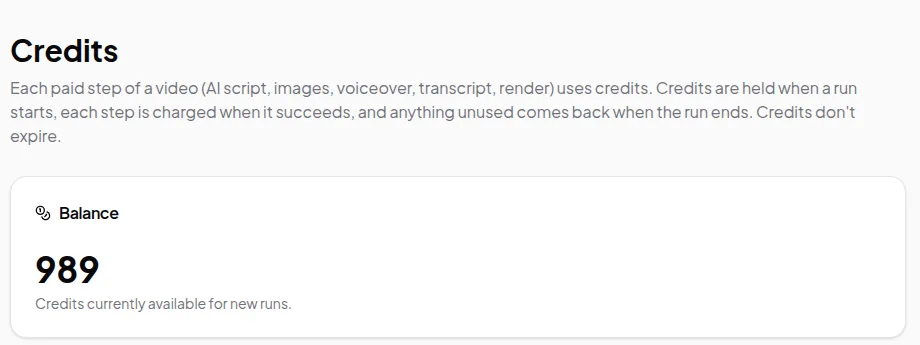
Vidonto has no subscription, no monthly plan and no per-person fee. You buy credits when you need them:
- Packs start at $5 for 1,000 credits. Larger packs include extra credits: 2,100 credits for $10 or 5,500 for $25.
- Purchased credits don’t expire, so there are no monthly credits to use up.
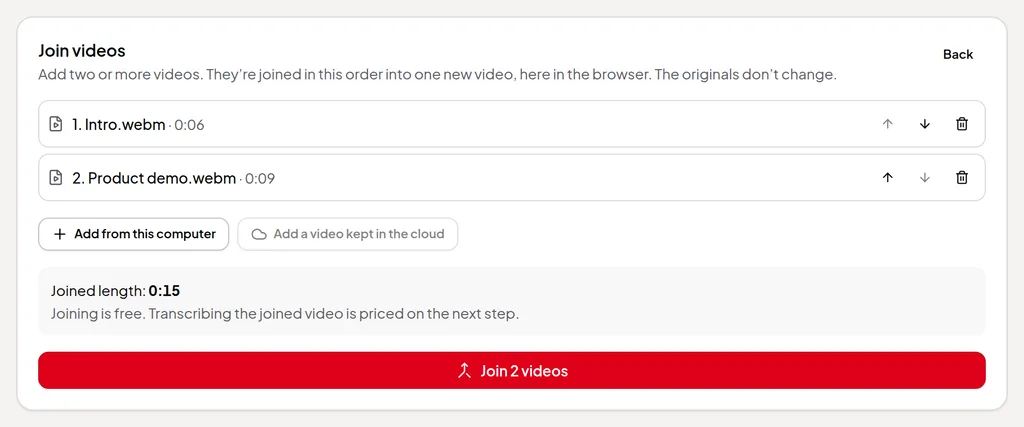
- Editing is free. Cutting words, accepting suggestions, joining videos, editing scripts and storyboards, recording and exporting on your computer never use credits. There’s no watermark.
- You see the price first. Every paid step shows an estimate in credits before it starts.
- Failed steps aren’t charged. Credits are held when a run starts, each step is charged only when it succeeds, and anything unused goes back to your balance.
With no monthly fee, you don’t pay in months you don’t make videos. The only ongoing costs are ones you choose: a video you keep in Vidonto’s cloud, and views of a share link. If you edit videos every week, a plan like Kapwing’s may suit you; if you make them now and then, credits mean you pay only for those. See how pricing differs and the pricing page.
What Vidonto adds that Kapwing’s pages don’t describe
- Summaries of a YouTube video. Paste a YouTube link and Vidonto reads the video’s captions and writes a short script from them, showing the quotes it used next to the transcript.
- Camera views and zooms after you record. For screen + camera takes, switch between screen only, a camera bubble, side by side and camera full screen, or zoom in on part of the screen; Direct my video suggests them for you.
- Summary videos in 26 languages. Pick a video language and the script, on-screen text, voice-over and captions are all written in it.
- Videos from code or a chat. The developer API takes batches of up to 100 links and sends signed webhooks, and a connector for Claude, ChatGPT and other assistants lets you ask for videos in plain words.
Feature by feature
| Vidonto | Kapwing | |
|---|---|---|
| Works in the browser | Yes | Yes |
| Edit video by editing the transcript | Yes | Yes |
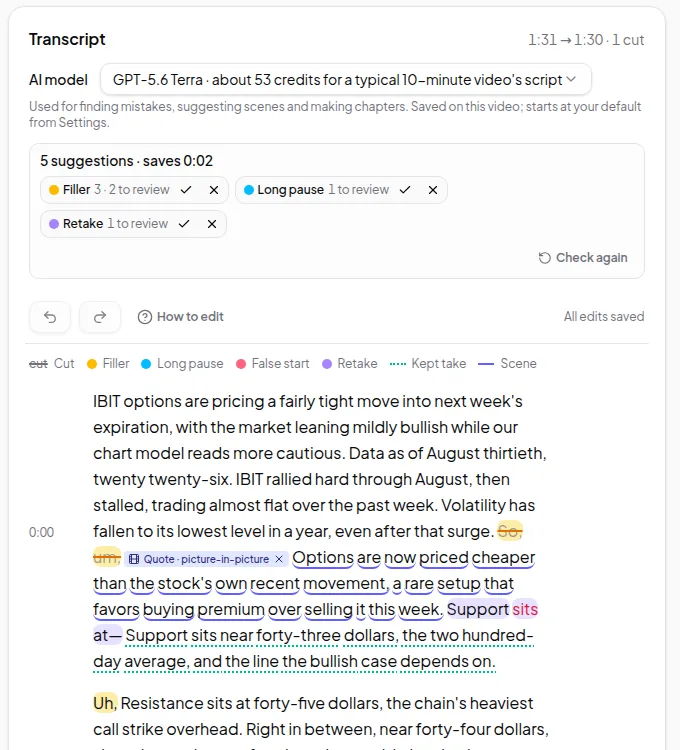
| Remove filler words and silences | Suggested for you to accept or reject, plus retakes | Yes, by asking its AI assistant |
| Edit by chatting with an AI assistant | Not in the editor; Claude, ChatGPT and other assistants can edit through a connector | Kai, an AI assistant that edits your timeline |
| Screen and camera recorder | Yes | Yes |
| Clean up noisy sound | Yes, with a strength slider | Clean Audio |
| Background blur or removal | Yes, in cloud renders and polished videos | Yes |
| Eye contact correction | Not offered | Yes |
| Short clips from a long video | Up to 8 suggested clips of 15–90 seconds | AI Clip Maker, with clips described by prompt |
| Your own footage in generated videos | Clips from up to 5 of your recordings kept in the cloud, placed in summary videos where they match the narration | Its AI assistant turns your uploaded clips into a rough cut |
| Add a video from a YouTube or TikTok link | Your own YouTube, TikTok, X or Facebook videos, or a direct file link; not Instagram or Vimeo | Public video URLs |
| Compilation or highlight videos | Highlights videos: AI-picked sound bites from one recording, linked by narrated bridges or text cards. Compilations: AI-suggested moments from 2 to 10 recordings. You review both before rendering | An AI Montage Maker that picks the best parts of your footage |
| Dubbing into other languages | 29 languages, in a voice like yours | 40+ languages, with voice clones and lip sync |
| Subtitles | SRT and VTT files, or burned into polished videos | Yes, translated into 60+ languages |
| Stock media and AI-generated footage | No stock or generated footage; AI images, charts, animated scenes and clips from your own recordings in summary videos | Stock media, and generated video with models such as Kling, Veo and Seedance |
| Video from a script | Your own script, narrated word for word | Yes, with a frame-by-frame storyboard before credits are used |
| Video from an article | Fetched from a web page link | From an article saved as a PDF or pasted in |
| Video from a PDF or document | PDF, Word file or PowerPoint deck, from its text | PDF to video, and document to video from pasted text |
| Summary video from a YouTube link | Yes, from its captions | Not described on the pages we checked |
| Brands | Up to 20 brands, each with a logo, colours and fonts from Vidonto’s set | A Brand Kit with logos, colours and custom fonts, on paid plans |
| Team workspaces and comments | Not offered; your own videos are kept in order with tags, search and bulk actions | Shared workspaces with real-time comments |
| Share a link for viewers | A watch page with a view count; views use credits | Yes |
| Developer API | Yes, for summary videos, with batches of up to 100 links and signed webhooks | Not described on the pages we checked |
| Use from an AI assistant | Claude, ChatGPT, Cursor and other assistants, through a connector | Not described on the pages we checked |
| Pricing model | Pay-as-you-go credits from $5, no subscription; purchased credits don’t expire | Free plan with a watermark; paid plans by the month or year, with monthly credits |
Where Vidonto fits better
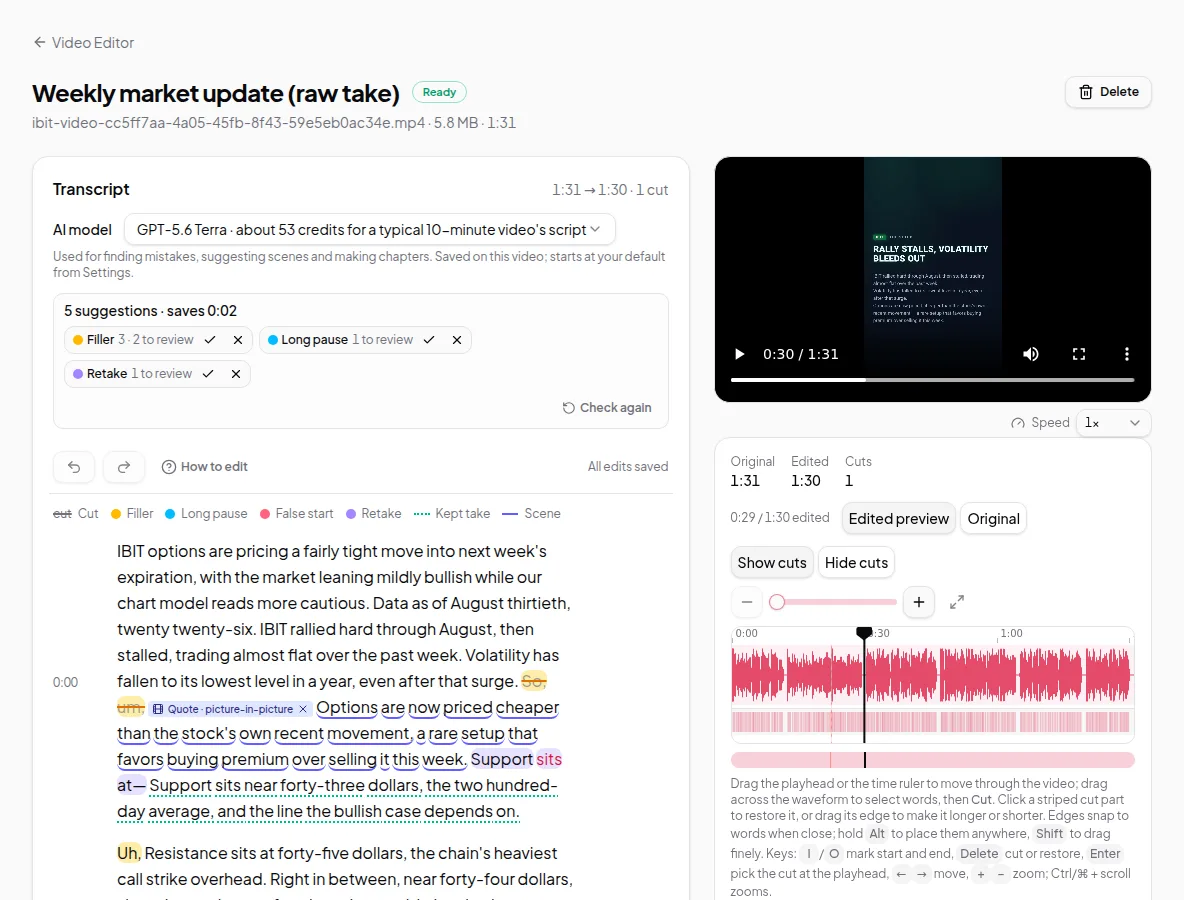
- Careful, reviewable cuts. Filler words, long pauses and retakes are suggested in the transcript for you to accept or reject one by one or by type. Your own cuts are never changed by a new check. See edit video by text.
- Your recording stays on your computer. The Video Editor plays your video from your computer and sends only a small audio track to make the transcript. Exporting on your computer is free and doesn’t upload the video.
- Framing a screen recording. For screen + camera takes, camera views and zooms can be changed after you record, and a polished video makes landscape, vertical and square versions from the same edit.
- Summaries you can check. Paste a YouTube link or a web page, or upload a PDF, Word file or slide deck, and Vidonto writes a script from what the source says. Nothing is narrated until you approve it, and a finished script of your own is narrated word for word, with no script charge.
- Paying per video. No plan and no monthly credits to use up: you see an estimate before every step and pay only for steps that succeed.
- More from your own recordings. Summary videos can show clips from your own recordings, you can add your videos from a YouTube, TikTok, X or Facebook link, a highlights video links the best moments of one recording with narrated bridges or text cards, and a compilation turns 2 to 10 recordings into one highlight video. Kapwing’s pages describe public video links and an AI Montage Maker too. Vidonto’s compilations are cut on whole sentences of your recordings’ transcripts.
Where Kapwing fits better
- Everything in one editor. Kapwing’s timeline has royalty-free images, video, sound effects and music, and an AI assistant you ask for edits in plain words. Vidonto has no stock library or music, and no AI chat inside the editor.
- Generating footage. Kapwing lists AI video models such as Kling, Veo and Seedance, and AI characters that deliver your script with lip-synced speech. Vidonto’s summary videos use AI images, charts and animated scenes rather than generated footage, plus clips from your own recordings.
- More languages. Kapwing lists dubbing into 40+ languages with lip sync and subtitles translated into 60+. Vidonto dubs recordings into 29 languages, without lip sync, and writes summary videos in 26.
- Teams and fonts. Kapwing lists shared workspaces, real-time comments and a shared Brand Kit with custom fonts. Vidonto has no shared team workspaces, its share links have no comments, and its brands use fonts from Vidonto’s set, with no font upload.
- Eye contact correction. Kapwing lists an eye contact tool. Vidonto doesn’t offer one.
How pricing differs
Kapwing has a free plan with a few credits each month, a watermark, short exports and 720p video, and Pro and Business plans billed by the month or year. Paid plans include a monthly amount of credits for AI features, and Business lists buying more credits.
Vidonto has no plans. New accounts get starter credits once their email address is verified, and after that you buy credit packs. The transcript, polished videos, dubbing and summary videos use credits, each shown as an estimate first. See credits explained.
Try the Vidonto workflow
Sources
Kapwing's public pages, read on October 31, 2026:
- www.kapwing.com/
- www.kapwing.com/pricing
- www.kapwing.com/video-editor
- www.kapwing.com/ai/text-based-video-editor
- www.kapwing.com/tools/smart-cut/filler-words
- www.kapwing.com/ai/video-assistant
- www.kapwing.com/ai/clip-maker
- www.kapwing.com/ai/dubbing
- www.kapwing.com/ai/script-to-video
- www.kapwing.com/ai/article-to-video
- www.kapwing.com/ai/pdf-to-video
- www.kapwing.com/ai/document-to-video
- www.kapwing.com/tools/record/screen
- www.kapwing.com/video-editor/collaboration
- www.kapwing.com/ai/montage-maker
Kapwing is a trademark of its owner. Vidonto isn't affiliated with or endorsed by Kapwing.