Comparison
Vidonto vs Descript
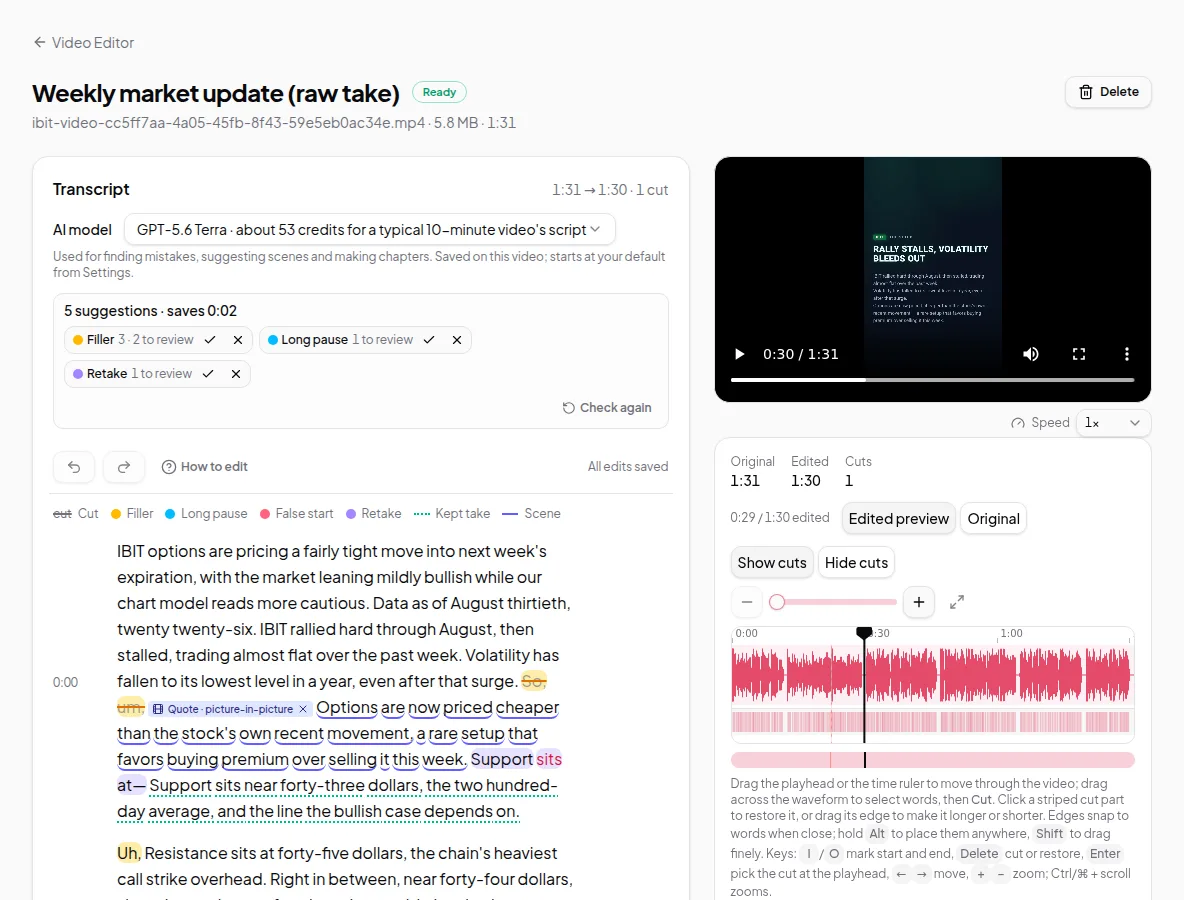
Both edit video by its transcript. Vidonto also makes summary videos from links and documents, with pay-as-you-go credits instead of a monthly plan.
Updated
Checked on . Everything said here about Descript comes from Descript's own public pages on that date, listed under Sources. Products change, so check their site for the latest. Everything about Vidonto was checked against the app.
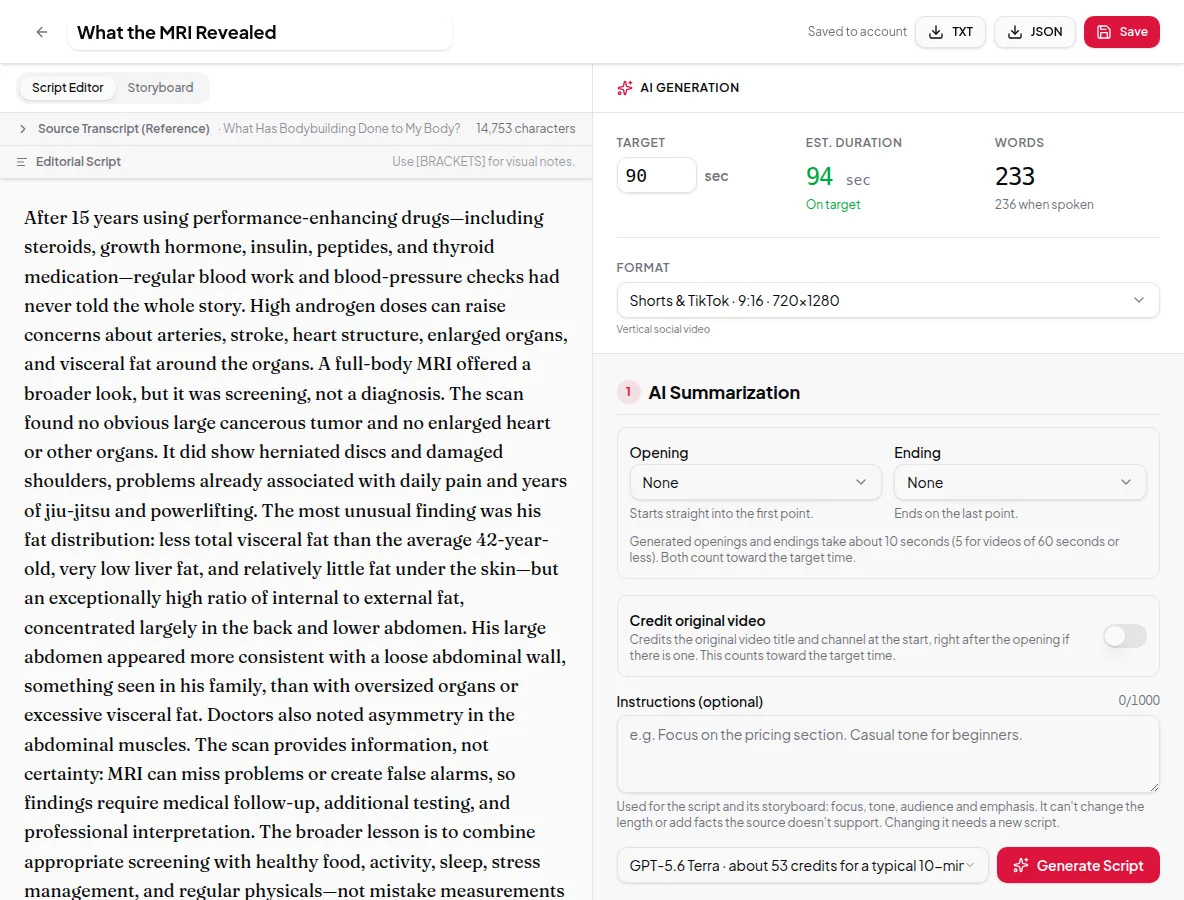
Descript and Vidonto both let you edit a video by editing its transcript: delete a word and it’s cut from the video. Vidonto adds a second way to get a video in the same app: paste a YouTube link, a web page, a document or your own script, and it writes a short summary, lets you check the script and a storyboard of frames, and narrates it for you. Both run on one credit balance, and you pay only for the work you run, with no subscription. Descript is a full production suite with recording, a timeline, team collaboration and many AI tools.
The short verdict
- Pick Descript if you edit podcasts or videos with a team, want remote recording, eye contact correction or AI avatars, or need to send projects to Premiere Pro and other editors.
- Pick Vidonto if you want to tidy up your own recordings and also turn YouTube videos, articles and documents into short narrated summaries, all in one app, and you’d rather pay as you go than keep a monthly plan.
Pay only for what you use
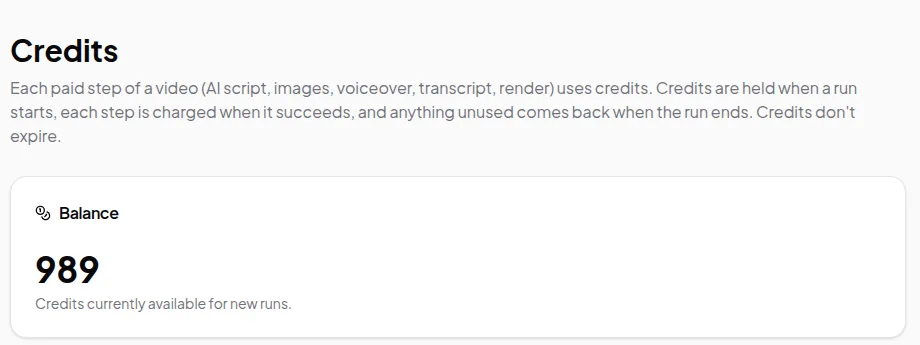
Vidonto has no subscription, no monthly plan and no per-person fee. You buy credits when you need them:
- Packs start at $5 for 1,000 credits. Larger packs include extra credits: 2,100 credits for $10 or 5,500 for $25.
- Purchased credits don’t expire, so you can buy a pack and use it over time.
- No media hours to use up. Descript’s plans include a set number of media hours each month. Vidonto has no hour allowance: your video stays on your computer, only the sound is sent to make the transcript, and that’s charged by its length from credits that stay in your balance until you use them. The pricing page shows about how many hours of edited recording each pack makes.
- Editing is free. Cutting words, accepting suggestions, editing scripts and storyboards, recording and exporting on your computer never use credits.
- You see the price first. Every paid step shows an estimate in credits before it starts.
- Failed steps aren’t charged. Credits are held when a run starts, each step is charged only when it succeeds, and anything unused goes back to your balance.
With no monthly fee, you don’t pay in months you don’t make videos. The only ongoing costs are ones you choose: a video you keep in Vidonto’s cloud, and views of a share link. If you edit every week, a monthly plan like Descript’s may suit you; if you make videos now and then, credits mean you pay only for those. See how pricing differs and the pricing page.
What Vidonto adds that Descript’s pages don’t describe
- Summaries of a YouTube video. Paste a YouTube link and Vidonto reads the video’s captions, writes a short script and renders a narrated video with captions. The Studio shows the quotes it used, so you can check them against the transcript.
- Videos from a web page or a document. Paste a link to an article, or upload a PDF, Word file or PowerPoint deck, and Vidonto summarizes its text into a video.
- A storyboard you check before anything is narrated. Each frame is drawn as on-screen text, a key figure, a chart, an AI image or an animated scene, and you can change any frame’s words and layout first.
- Summary videos in 26 languages, with the script, on-screen text, voice-over and captions all in the language you pick.
Descript’s pages do describe an AI video maker that turns an idea into a video, and API workflows that make a teaser when a blog post goes live.
Feature by feature
| Vidonto | Descript | |
|---|---|---|
| Edit video by editing the transcript | Yes | Yes |
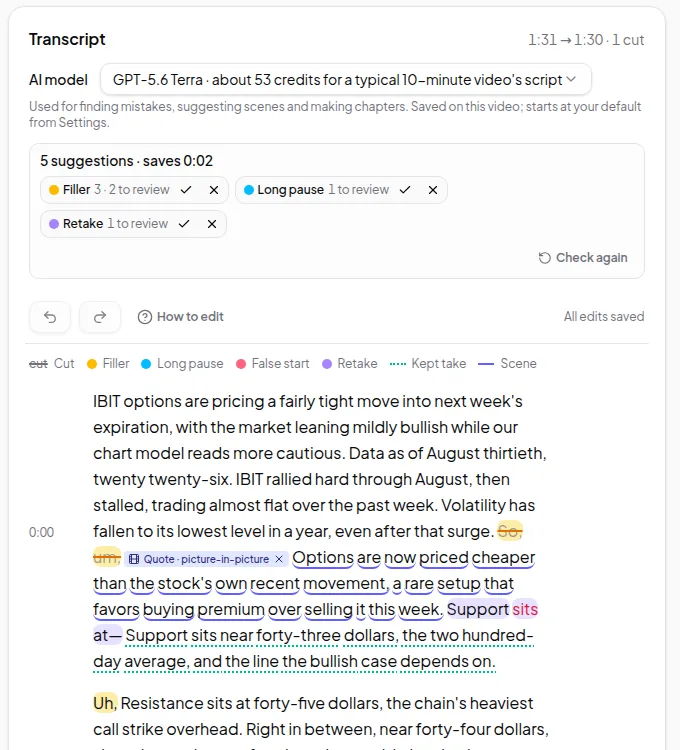
| Remove filler words and retakes | Suggested for you to accept or reject | Yes, including repeated words |
| Record screen and camera | Yes, in the browser | Yes |
| Remote recording with guests | Not offered | Yes |
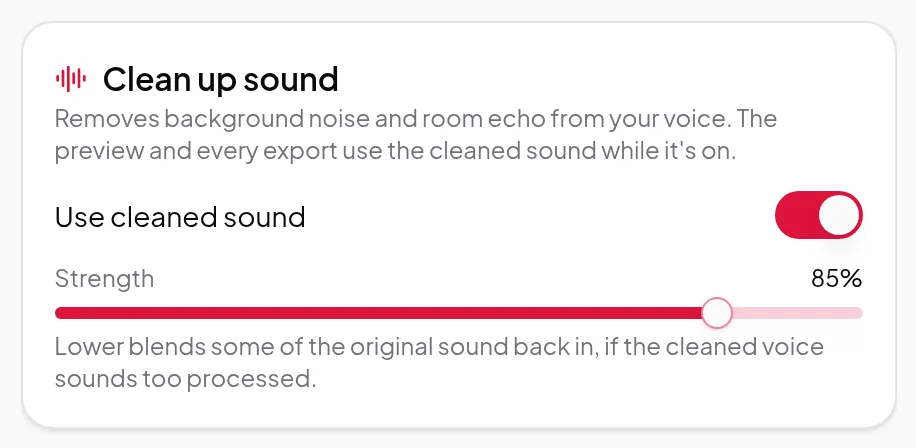
| Clean up noisy sound | Yes, with a strength slider | Yes (Studio Sound) |
| Background blur or replace | Yes, in cloud renders and polished videos | Yes (Green Screen) |
| Eye contact correction | Not offered | Yes |
| Captions | SRT and VTT files, or burned into polished videos | Yes, with styles you can customize |
| Brands | Up to 20 brands, each with a logo, colours and fonts from Vidonto’s set | A Brand Studio with shared templates, on higher plans |
| Dubbing into other languages | 29 languages, in a voice like yours | 30+ languages, with a proofread step |
| Short clips from a long video | Yes, 15–90 second clips | Yes |
| Your own footage in generated videos | Clips from up to 5 of your recordings kept in the cloud, placed in summary videos where they match the narration | Its AI Video Maker can start from existing footage |
| Add a video from a YouTube or TikTok link | Your own YouTube, TikTok, X or Facebook videos, or a direct file link; not Instagram or Vimeo | Import with a YouTube link |
| Compilation or highlight videos | Highlights videos: AI-picked sound bites from one recording, linked by narrated bridges or text cards. Compilations: AI-suggested moments from 2 to 10 recordings. You review both before rendering | Video Compilation Maker, with an AI action to find good clips |
| Chapters and a YouTube description | Yes | Yes |
| Shareable web page for viewers | Yes: a watch page with a view count (views use credits); no embeddable player | Yes |
| Team comments and shared projects | Not offered | Yes |
| Export a timeline to other editors | Not offered | Yes, including Adobe Premiere |
| Summary video from a YouTube link or web page | Yes, with a script written from the source, from one link or up to 5 sources at once | An AI video maker that starts from an idea, and API workflows for blog post teasers; summaries of a YouTube video aren’t described on the pages we checked |
| Video from a PDF, Word file or slide deck | Yes, from its text | Not described on the pages we checked |
| Video from your own script | Yes, narrated word for word with a storyboard of frames | AI voices and text-to-speech narration are listed |
| Summary videos in other languages | 26 languages | Not described on the pages we checked |
| Developer API | Yes, for summary videos, with batches of up to 100 links and signed webhooks | Yes, for paying users |
| Use from an AI assistant | Claude, ChatGPT and other assistants, through a connector | Yes, an MCP connection for Claude and other assistants |
| Pricing model | Pay-as-you-go credits from $5, no subscription; purchased credits don’t expire | Free plan and monthly plans per person |
Where Vidonto fits better
- You want to keep your video on your computer. When you open a recording in the Video Editor, it plays from your computer and only a small audio track is sent to make the transcript. Exporting on your computer is free and keeps the video there.
- You want suggestions, not automatic cuts. Vidonto marks filler words, long pauses and retakes in the transcript and never changes the cuts you made yourself. You step through them with the keyboard and accept or reject each one.
- You post short versions. Short clips finds self-contained moments of 15–90 seconds and exports each as a vertical polished video with captions, cards and your brand colours.
- You also make videos from other sources. Paste a YouTube video, a blog post, a document or your own script and Vidonto writes a script, builds a storyboard and renders a narrated video with captions, in one of 26 languages. You can also start these from the developer API or from Claude, ChatGPT and other assistants.
- You’d rather not have a subscription. You buy credits when you need them, see the price before every paid step and are charged only for steps that succeed. Purchased credits don’t expire.
- More from your own recordings. Summary videos can show clips from your own recordings, you can add your videos from a YouTube, TikTok, X or Facebook link, a highlights video links the best moments of one recording with narrated bridges or text cards, and a compilation turns 2 to 10 recordings into one highlight video. Descript’s pages describe similar tools. In Vidonto, compilation moments are whole sentences from each recording as you’ve edited it, and you pay per use.
Where Descript fits better
- Podcasts and interviews with guests. Descript offers remote recording, and its pages describe it as a place to record, edit, make clips and publish video podcasts.
- Teams. Descript has shared projects, timestamped comments, a Brand Studio with shared templates on its higher plans, and shareable web pages with an embeddable player. Vidonto has no shared team workspaces, and its share links open a watch page with no embeddable player.
- More AI tools for the picture. Eye contact correction, green screen, AI avatars, AI-generated images and video, and an AI co-editor called Underlord are all on Descript’s pages. Vidonto has no eye contact correction.
- Handing off to other editors. Descript lists timeline export to Adobe Premiere and other editors. Vidonto exports finished MP4 files only.
- Custom fonts. Descript lists custom font upload. Vidonto’s brands use fonts picked from Vidonto’s set; you can’t upload your own.
- More caption languages. Descript lists caption translation in 61 languages. Vidonto’s captions are in the language that’s spoken: the recording’s, a dub’s, or the language a summary video was written in.
How pricing differs
Descript has a free plan and paid plans charged per person each month (or yearly). Each plan includes a number of media hours and AI credits, and higher plans add more tools; top-ups are available when you run out. Its API draws on the credits and media minutes of your plan.
Vidonto has no plans. New accounts get starter credits once their email address is verified, and after that you buy credit packs. In the Video Editor, the transcript, polished videos, dubbing and other AI steps use credits; cutting and exporting on your computer don’t. See credits explained.
Try the Vidonto workflow
Sources
Descript's public pages, read on October 31, 2026:
- www.descript.com/
- www.descript.com/pricing
- www.descript.com/screen-recorder
- www.descript.com/api
- www.descript.com/tools/add-subtitles-video
- help.descript.com/hc/en-us/articles/35650061759501-AI-Video-Maker
- www.descript.com/tools/video-compilation-maker
Descript is a trademark of its owner. Vidonto isn't affiliated with or endorsed by Descript.