Use case
Vidonto for course creators and educators
Record screen and camera lessons in the browser, fix mistakes by deleting words, zoom in on what matters, add captions and chapters, and dub lessons into other languages.
Updated
A lesson is recorded once and watched for years, so it’s worth getting right. But re-recording a twenty-minute screencast because of one stumble, or scrubbing a timeline to find every “um”, is where course production stalls. Vidonto lets you record a lesson in the browser, fix it by editing the transcript, and make it easier to follow with zooms, captions and chapters — then reach learners who speak other languages.
The workflow in Vidonto
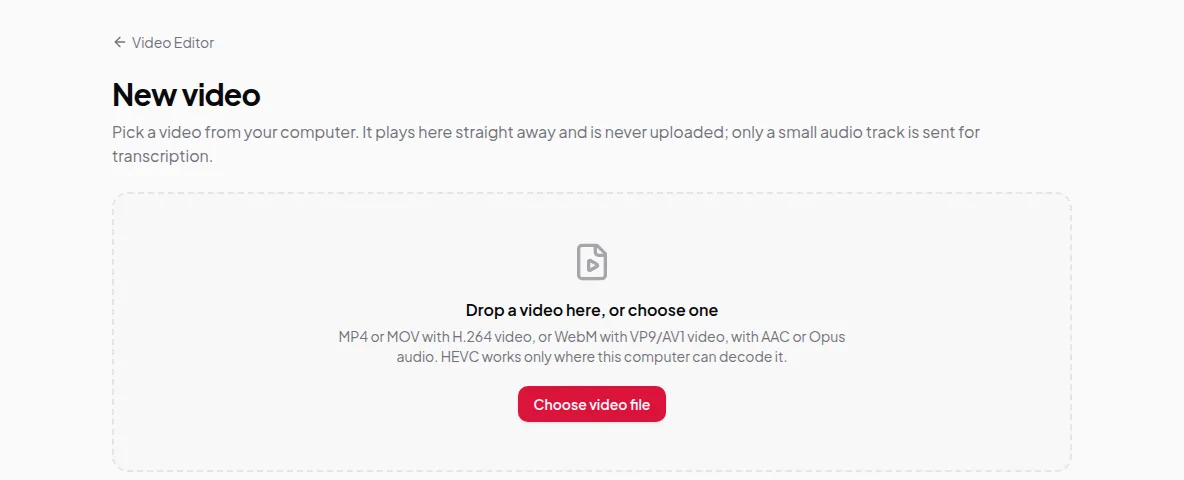
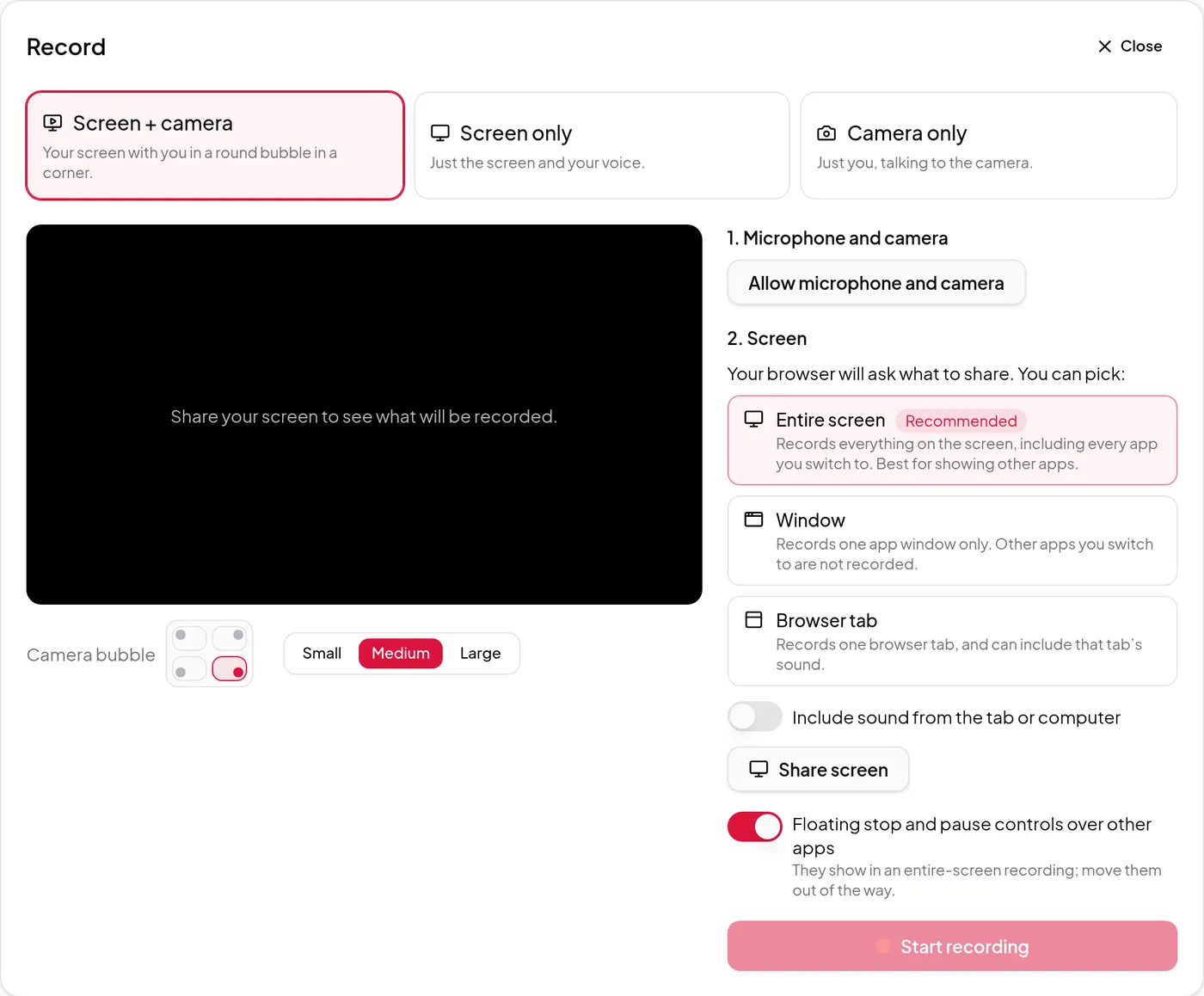
- Record the lesson. Open Video Editor → New video and click Record screen or camera. Screen + camera puts you in a bubble in a corner, and the camera is saved as its own file so you can change how it’s shown later. Pause and resume as often as you like. Save the take on your computer for free, or send it to the cloud while you record. See record your screen and camera.
- Fix mistakes in the text. The take opens as a transcript. Delete the words you don’t want and the video is cut to match — see edit video by text. Ums, long pauses and restarted sentences are suggested for you to accept or reject with automatic mistake detection.
- Show learners where to look. Zoom in on the menu or field you’re talking about, switch between Screen only, Screen + bubble, Side by side and Camera full screen, or let Direct my video suggest the shots, scenes and on-screen text for you to accept. See camera views and auto zoom.
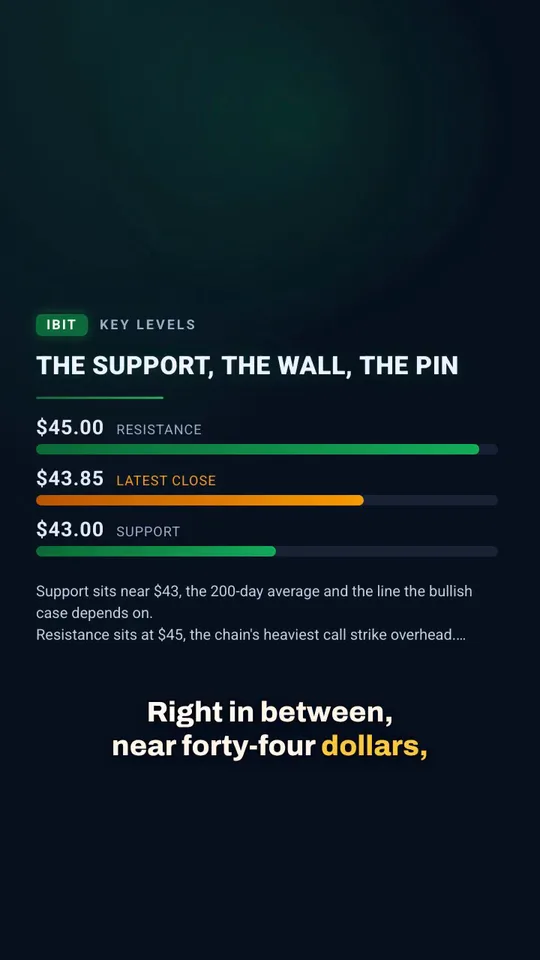
- Make it easy to follow. Download captions as SRT or VTT files for your course platform, or burn them into a polished video. Chapters mark where each topic starts, and follow your cuts.
- Fix the room. Recorded in an echoey classroom or next to a fan? Clean up sound removes background noise and room echo from your voice.
- Reach learners in other languages. Dub the lesson into up to 5 of 29 languages at a time, in a voice like yours. Cloud renders and polished videos then use the dub, with captions in that language.
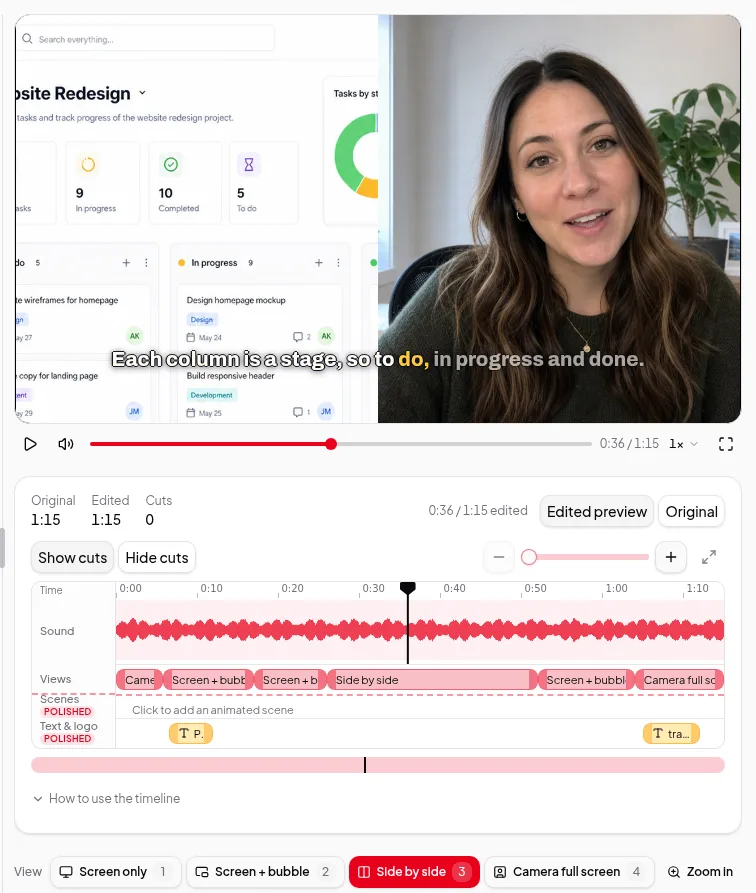
Features for lessons and courses
| You want… | Use |
|---|---|
| Screen and webcam lessons without extra software | Record screen and camera |
| Mistakes gone without re-recording | Edit video by text |
| The screen zoomed in where you’re working | Camera views and auto zoom |
| Subtitles for accessibility and silent viewing | Captions |
| Topic markers learners can jump to | Chapters |
| The lesson in other languages | Dubbing |
| A short explainer from your reading list | Several sources to one video |
| Explainers for a list of lesson topics, sources found for you | Topic to video |
| A short preview of one lesson, in your own words | Highlights videos |
| A course trailer from moments of several lessons | Compilations |
| Clips of your own lessons inside an explainer | Your footage in summary videos |
| To edit on a laptop as well as your desktop | Keep recordings in the cloud |
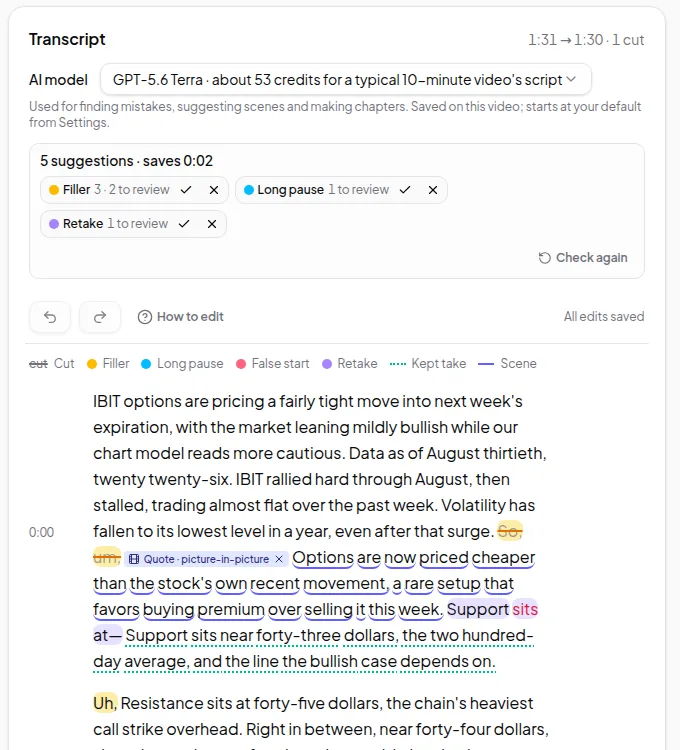
Explainer videos from your reading list
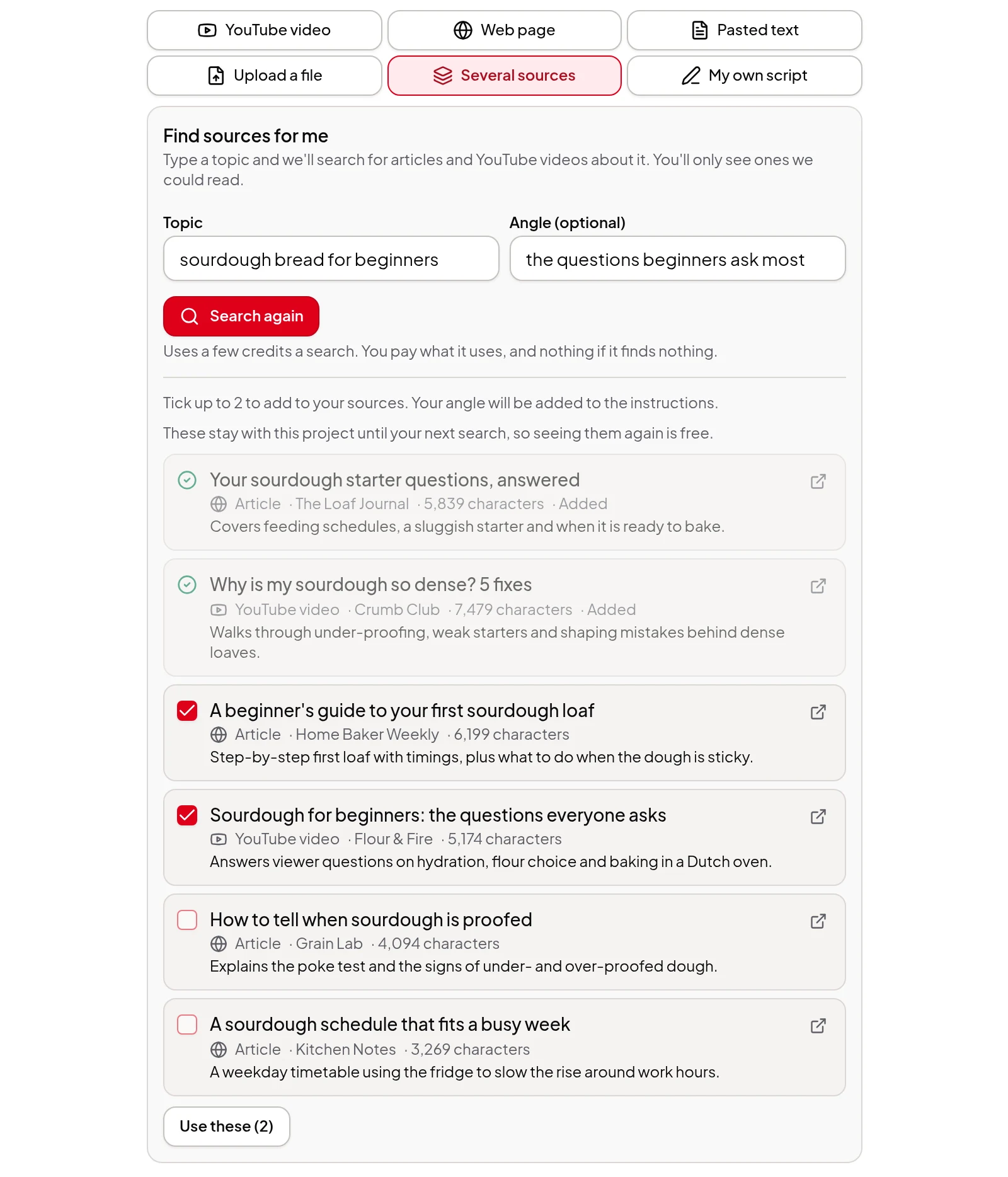
Not every lesson starts with a recording. To introduce a topic, give the Studio 2 to 5 sources — articles, YouTube lectures, your own notes or a PDF handout — and choose Several sources. Summary retells what they say, organised by idea, and points out where they disagree. New piece writes an original explainer that uses them as research. You check the script, with each quote labelled by its source, before anything is narrated, and the video description lists every source, with links to the web pages and YouTube videos, for students to follow up. Starting from nothing? Find sources for me searches for articles and videos on a topic and suggests the ones it could read. Its price is shown before you search, and nothing is charged if it finds nothing. See several sources to one video.
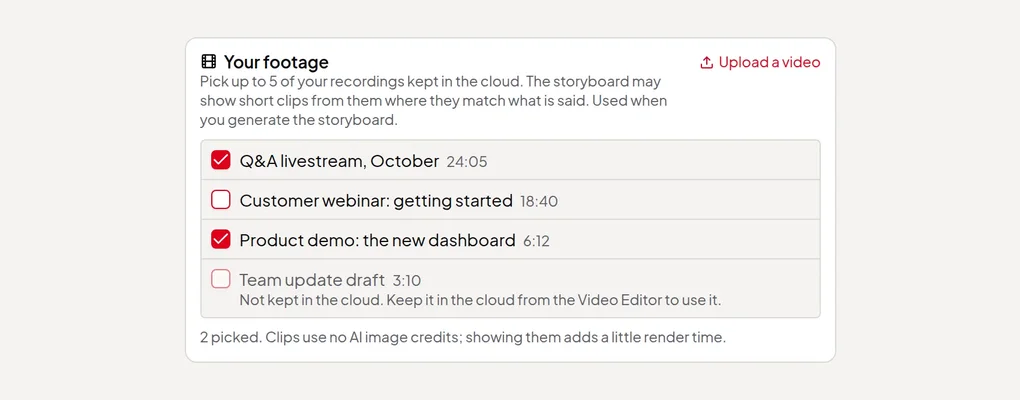
Explainers can show your own teaching too. Pick up to 5 lesson recordings you keep in the cloud under Your footage, and the storyboard places short clips from them on frames where they match the narration, for you to check before you render. See your footage in summary videos.
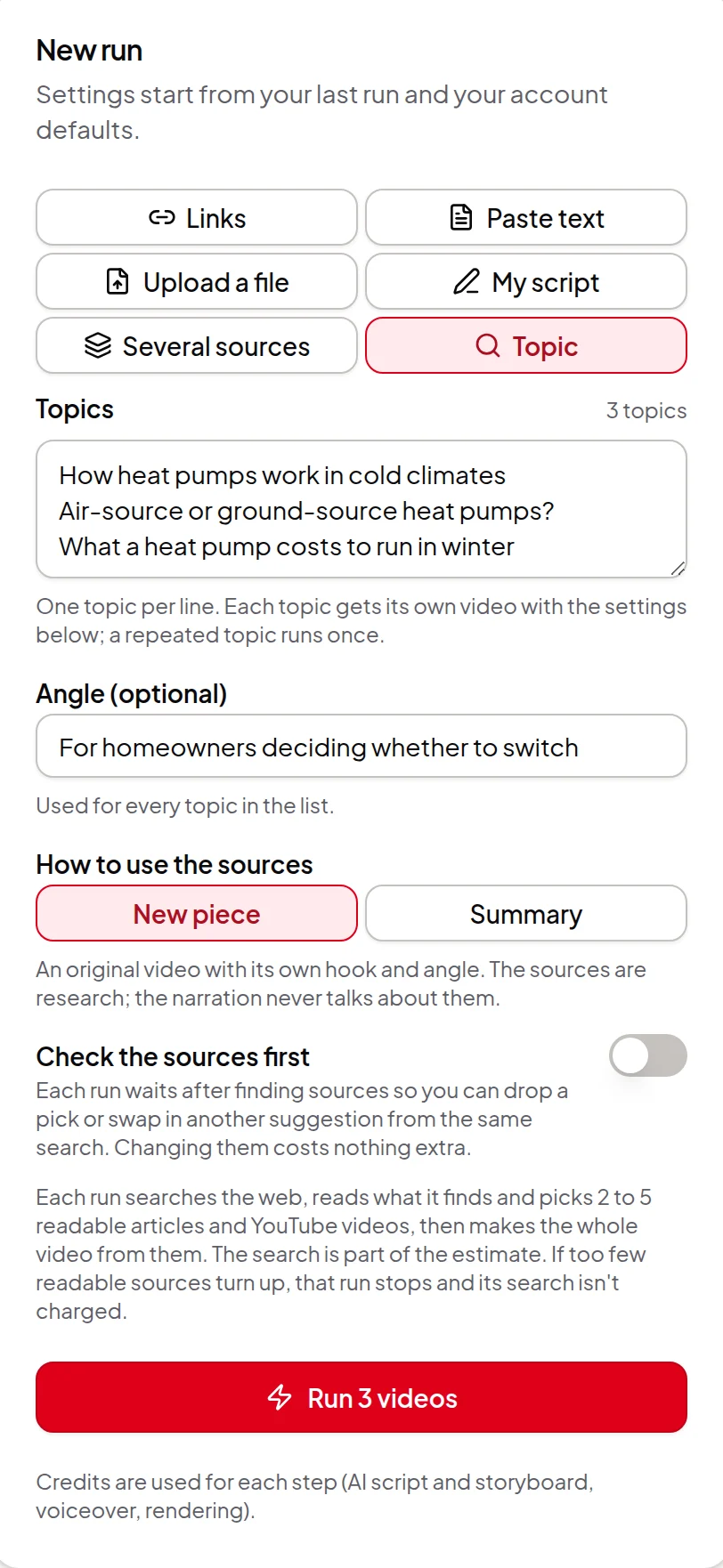
Need short intros for a whole module? In Quick Render, choose Topic, type one lesson topic per line (up to 20) and pick Explainer or How-to guide. Each run finds its own sources and makes the video, and Check the sources first lets you swap out a source before the script is written. See topic to video.
A trailer from your best lessons
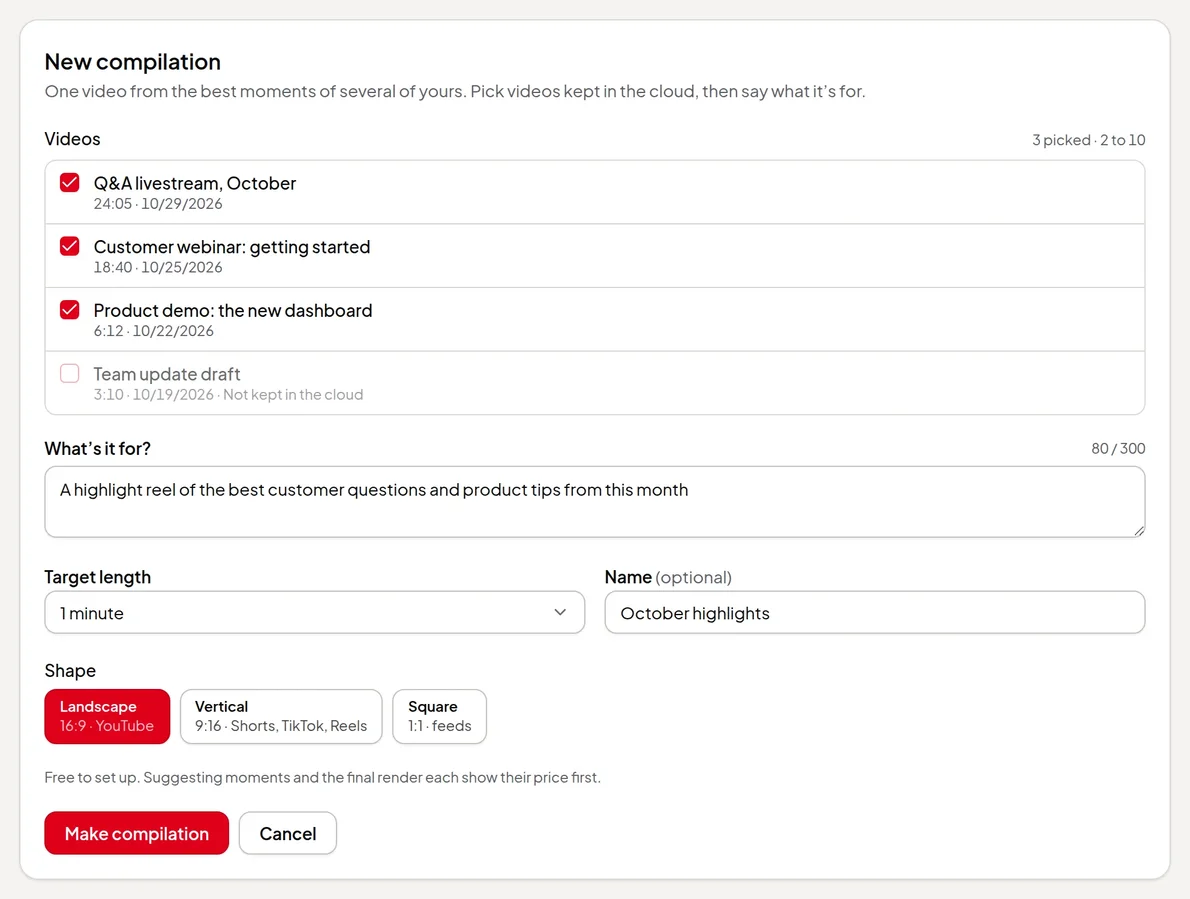
To promote a course, make a compilation: pick 2 to 10 lesson recordings kept in the cloud, say what the video is for, such as “a two-minute trailer showing what students learn”, and AI suggests whole-sentence moments. Put them in order, add a title card and labels with each lesson’s name, and render it in landscape, vertical or square. See make a highlight compilation.
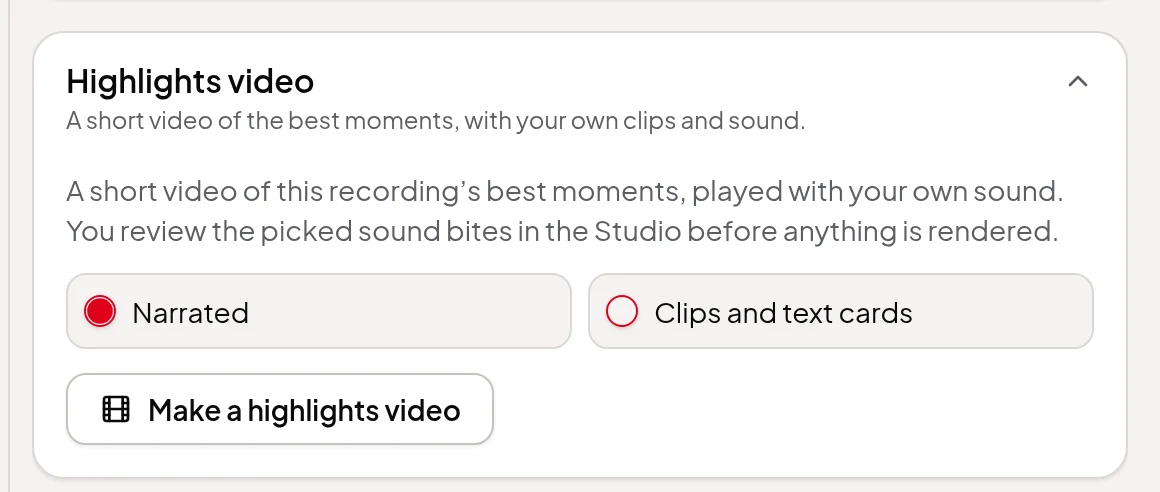
To preview a single lesson, a highlights video picks its best moments and plays them with your own picture and sound, linked by short narrated bridges or text cards. See turn a long video into a highlights video.
Worth knowing first
- Recording needs a recent Chrome, Edge, Firefox or Safari on a computer. Phone browsers can’t share their screen.
- Some browsers keep the recording in memory while you record. When that’s the case the recorder says so, and takes should stay under about 20 minutes.
- The four camera views need a screen + camera take recorded in Vidonto. Zoom in works on any recording, including files you upload.
- The free export on your computer and the SRT and VTT files keep the original language. Dubs are used in cloud renders and polished videos.
- Explainer videos from sources are narrated by an AI voice in English or another Video language (Chinese, Japanese, Arabic and Hindi aren’t offered yet). YouTube sources need captions.
- To check the script before narration, or to use a PDF handout, make it in the Studio. Quick Render also makes one video from 2 to 5 links or texts, but approves the script for you.
- Vidonto doesn’t host courses. Download the finished video and caption files and upload them to your course platform.
- Recording, editing, zooming by hand and exporting on your computer are free. The transcript, the AI director, sound cleanup, dubbing, polished videos and explainer videos from sources use credits, and each shows its price first. See credits explained.
Get started
Record a short practice lesson and follow along: