Use case
Turn blog posts and newsletters into videos
Turn blog posts, newsletters and announcements into narrated videos with captions, in vertical, square or landscape — one at a time in the Studio or many at once.
Updated
The writing is done — a blog post, a newsletter, a launch announcement — but the people scrolling Reels, Shorts and LinkedIn won’t read it. Making a video for each piece usually means a script, a voice-over, visuals and captions, so most pieces never get one. Vidonto turns the writing you already have into a short narrated video with captions, in the shape each platform wants.
The workflow in Vidonto
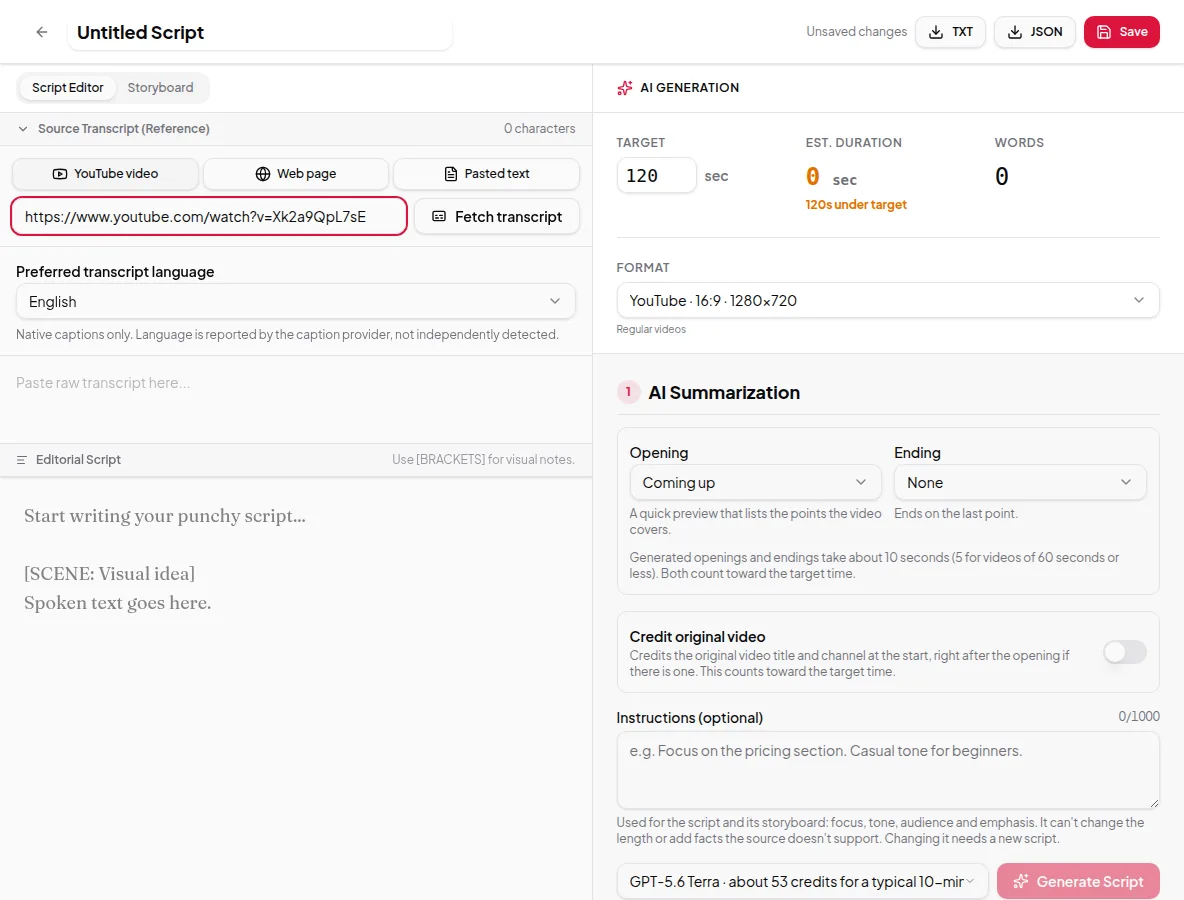
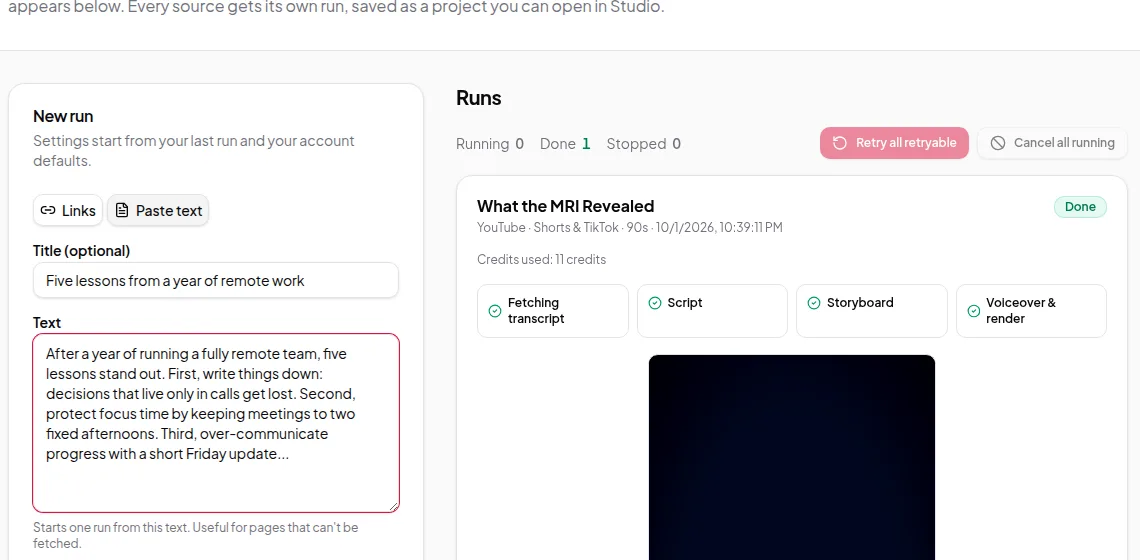
- Pick the source. For a published post, paste its link — Vidonto pulls out the article text and leaves the menus and footers behind. See article to video. For a newsletter draft, or a page behind a login, paste the text instead. If you’ve written the script yourself, choose My own script and it’s narrated word for word. See text to video.
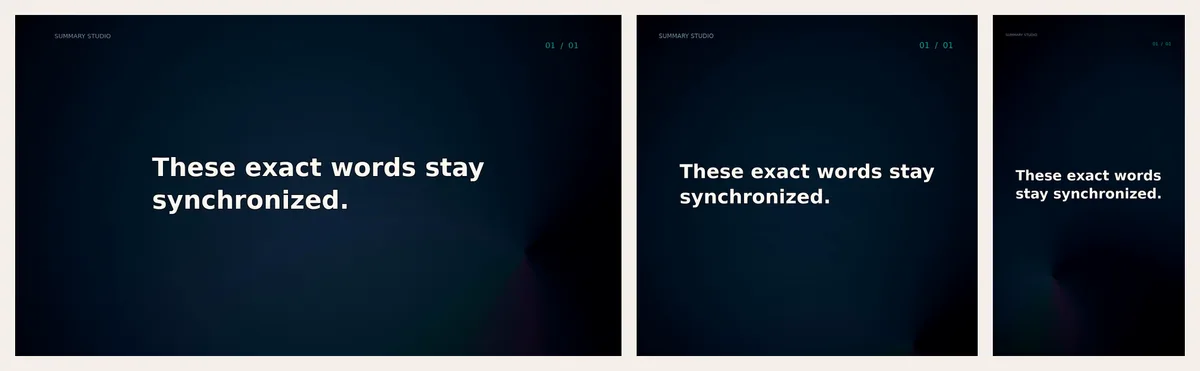
- Pick the shape first. Choose 9:16 for Shorts, Reels and TikTok, 1:1 or 4:5 for feeds, or 16:9 for YouTube and your website. The format is chosen before the script, so text and captions are planned for that shape — see video formats.
- Steer the script. Use creator instructions to set the focus, tone and audience, such as “for small-business owners, skip the history”. Choose whether to credit the source at the start.
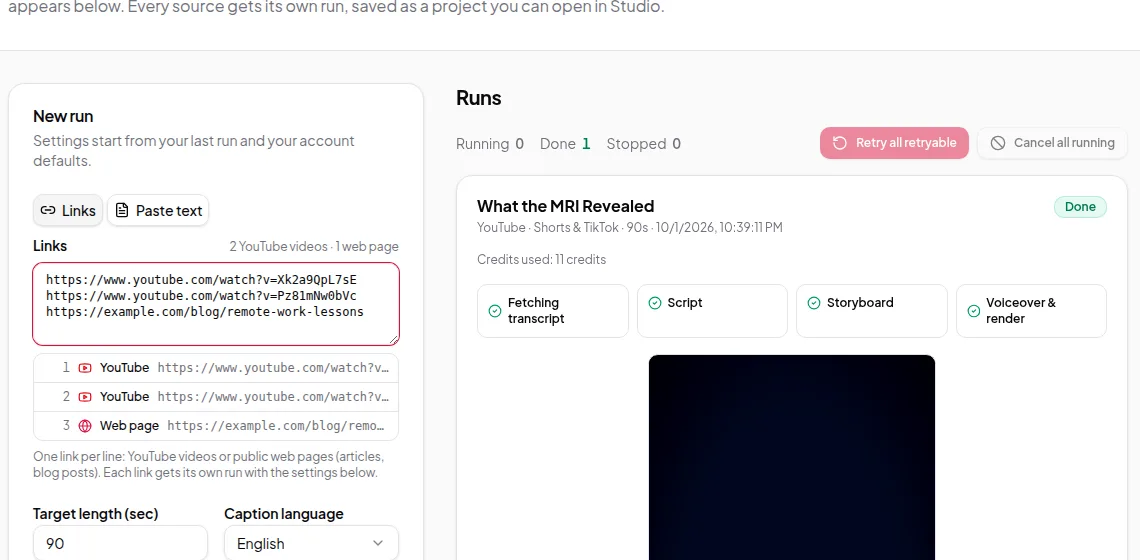
- Review it, or batch it. In the Studio you read the script and check every frame in the storyboard editor before anything is narrated. With Quick Render you paste a list of links, one per line, and every step runs on its own.
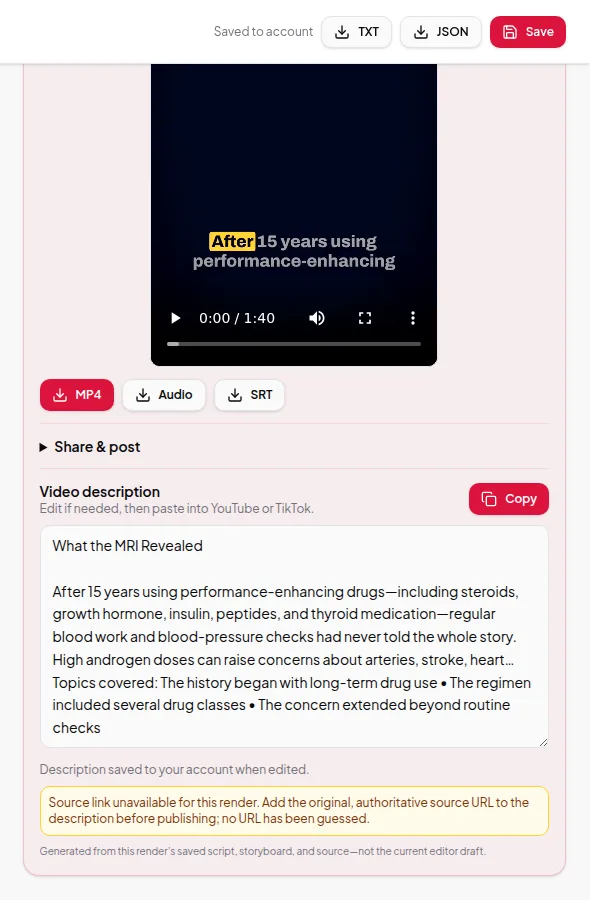
- Post it. Download the MP4 and the SRT captions. In the Studio, Share & post gives you a description to edit and copy, and opens the upload page for YouTube, TikTok, X, Instagram or LinkedIn.
One video from several sources, or from a topic
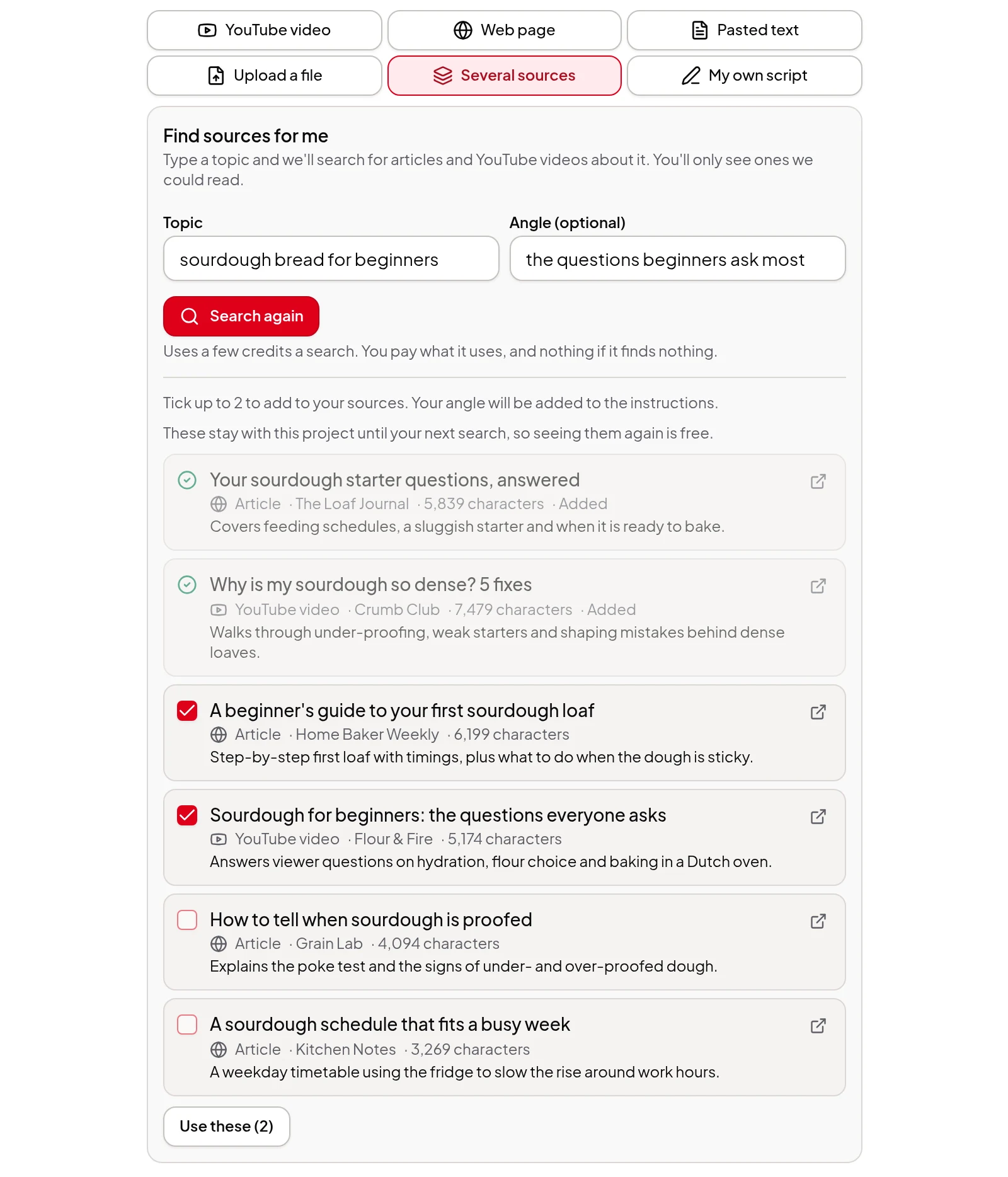
A roundup, a “what we read this month” video or a newsletter that links to five articles doesn’t have to come from one page. In the Studio, choose Several sources and add 2 to 5 web pages, YouTube videos, pasted notes or files. Pick New piece for an original video that uses them as research, or Summary to retell what they say and where they disagree. The video description lists every source, with links for web pages and YouTube videos. No sources yet? Type a topic into Find sources for me and pick from the articles and videos it has already read. Its price is shown before you search, and nothing is charged if it finds nothing. See several sources to one video. Quick Render can also make one video from 2 to 5 links, texts or files, approved automatically.
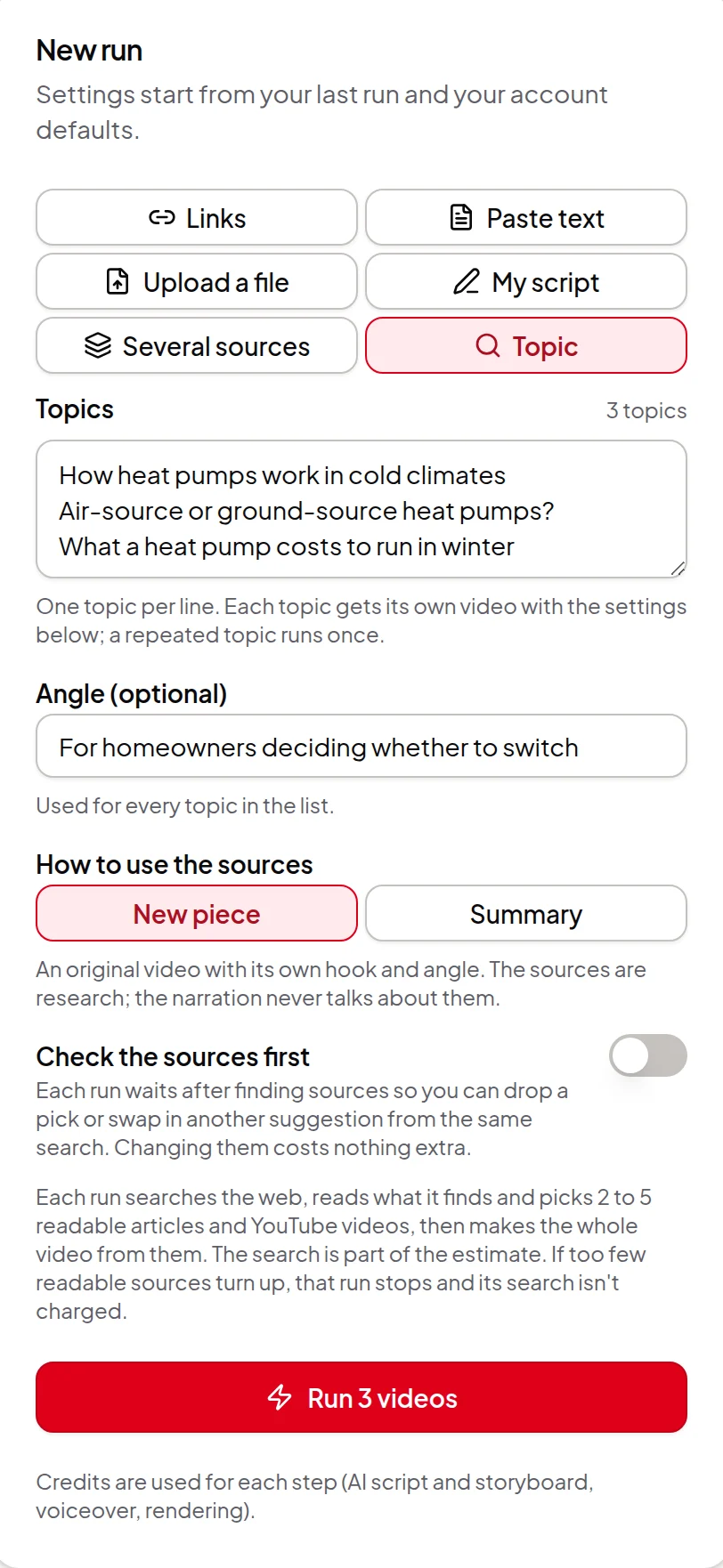
Need a video for every topic on your content calendar? Choose Topic in Quick Render and type up to 20 topics, one per line. Each run finds and reads 2 to 5 real articles and YouTube videos and makes the whole video from them. Pick Comparison for “X vs Y” content, How-to guide for tutorials or Explainer for top-of-funnel posts, and add an angle such as “for small business owners”. See topic to video.
What the video looks like
- A natural voice that reads every word. The approved script is narrated in full with an AI voice you pick, never cut off mid-sentence.
- Captions that follow the voice, word by word, for people watching with the sound off — see captions.
- Figures and charts when the narration says them. Posts with numbers work especially well. AI images and custom animations can illustrate the rest — see AI images, animated scenes and data visuals.
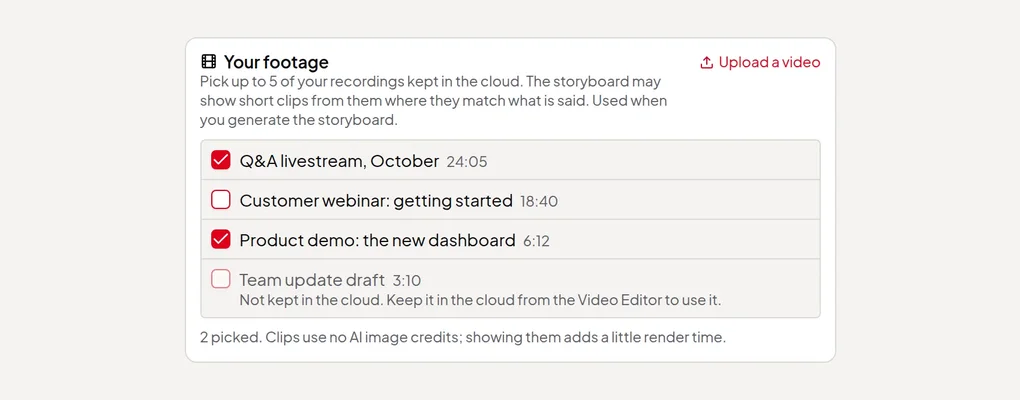
- Your own product on screen. Pick up to 5 of your recordings kept in the cloud, such as a product demo or a webinar, and the storyboard can show short clips from them on frames where they match what’s said. You check each clip first, and one that can’t be used falls back to its layout — see your footage in summary videos.
- An optional presenter. Add a realistic AI presenter who speaks the narration on camera. The extra price is shown before you start.
Highlights from webinars and demos
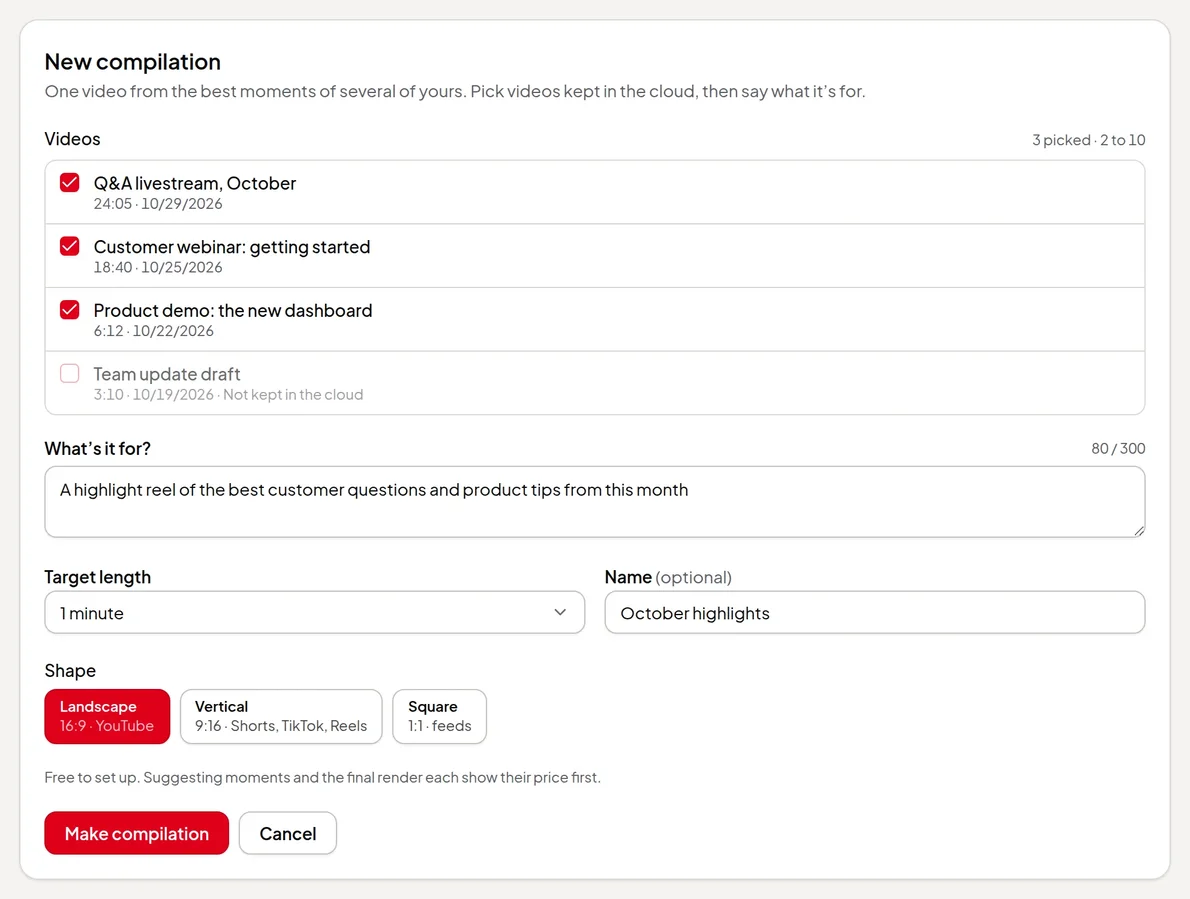
Already have the webinars, demos and customer calls? A compilation turns 2 to 10 of your recordings into one highlight video: say what it’s for, such as “the best customer questions from this month”, check the moments AI suggests, and render it with captions and your brand’s colours and logo in landscape, vertical or square. Recordings you’ve posted on YouTube, TikTok, X or Facebook can be added from their links first. See make a highlight compilation.
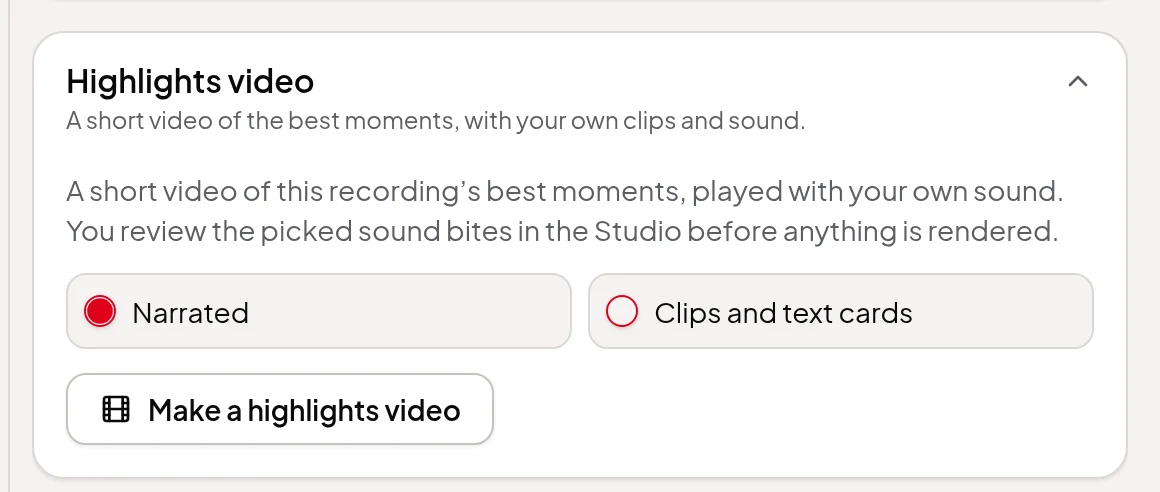
For one webinar or customer interview, a highlights video keeps the speaker’s best moments, with their own picture and sound, and links them with short narrated bridges or text cards. You review every sound bite before it’s rendered. See turn a long video into a highlights video.
Worth knowing first
- Pages behind a login, a paywall or heavy bot protection can’t be fetched. Paste the text instead.
- Each summary video render makes one shape. A second shape is a second render, which uses credits again.
- Summary videos made from links or text use your brand colours and corner logo with the My brand look. Cards, text items and saved styles are for polished videos of your own recordings.
- Summary videos are written and narrated in English unless you pick another Video language (26 European and Southeast Asian languages are offered; Chinese, Japanese, Arabic and Hindi aren’t yet).
- Only use pages you have the right to adapt.
- Fetching a web page is free. The script, storyboard, voice-over and render use credits, with an estimate before you start. See credits explained.
Get started
Pick your latest post and follow along: