Use case
Vidonto for YouTube creators
Edit your videos by deleting words, let the ums and retakes be found for you, then get Shorts, chapters and a YouTube description from the edit you keep.
Updated
Publishing a YouTube video is more than recording it. The slow parts need cutting, the ums and false starts need to go, and then come the Shorts to promote it, the chapter timestamps, the title, the description and the tags. Each job is small, but together they often take longer than the recording. Vidonto does them in one place: you edit the video by editing its transcript, and the Shorts, chapters and description are all made from the words you keep.
The workflow in Vidonto
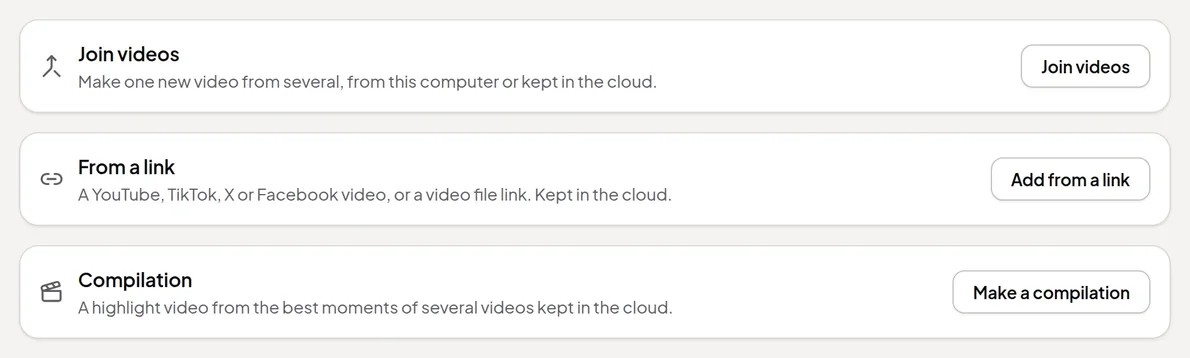
- Record or open your video. In Video Editor → New video, drop in your file or record your screen and camera in the browser. The video plays from your computer, and only a small audio track is sent to make the transcript. Already uploaded it? Add it from its YouTube, TikTok, X or Facebook link instead, and it’s kept in the cloud for you.
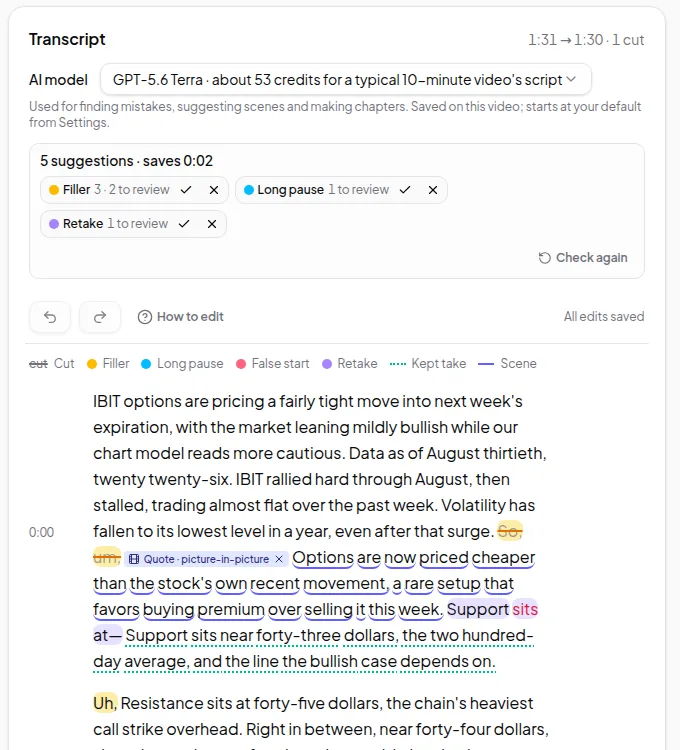
- Cut it by deleting words. Select words in the transcript and delete them, and the video is cut at exactly those points. Drag across the waveform to cut a cough or a breath. See edit video by text.
- Clear out the ums and retakes. Filler words, long pauses and sentences you started more than once are found as soon as the transcript is ready. Step through them and accept or reject each one with a key press — see automatic mistake detection.
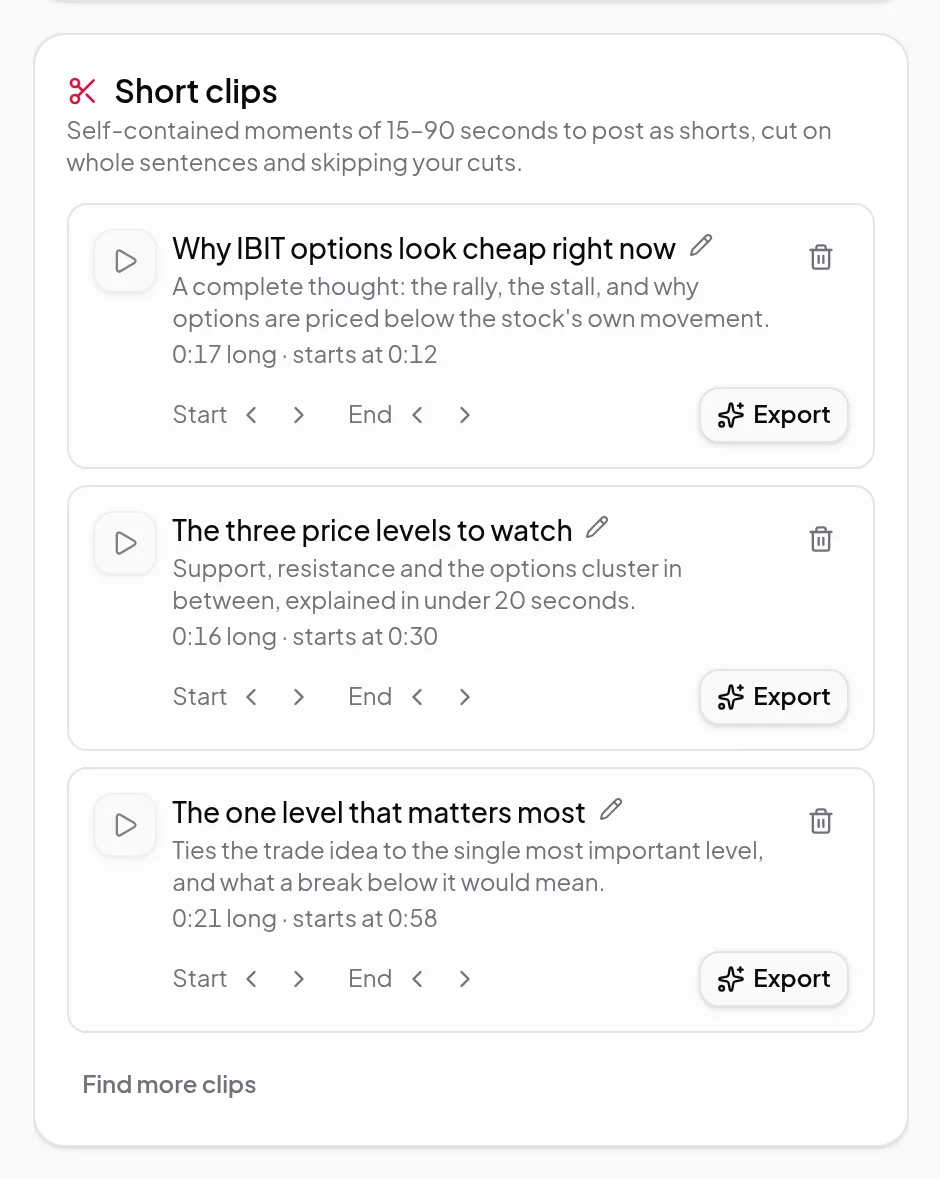
- Find the Shorts in it. Find clips suggests up to 8 self-contained moments of 15–90 seconds, cut on whole sentences. Trim a clip by a sentence at either end and export it vertical, with captions — see short clips.
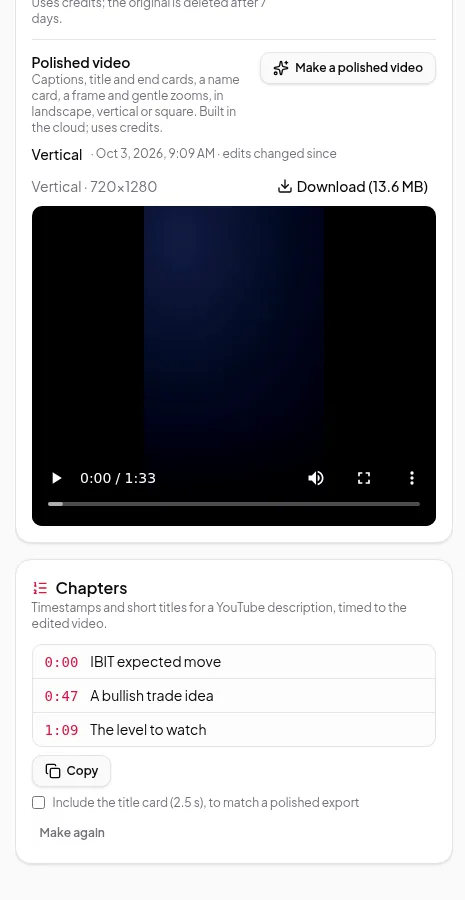
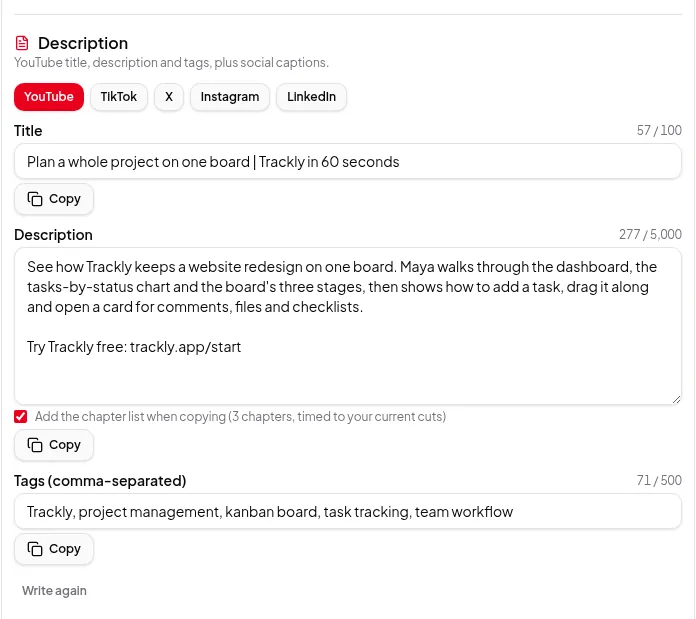
- Package it for YouTube. Make chapters gives timestamps tied to your words, so they move when you cut more. The description writer writes a title, description and tags from what you kept, and can add the chapter list when you copy it.
- Export. Export on your computer for free, or make a polished video with burned-in captions, a title card and your logo.
Highlights from one long video
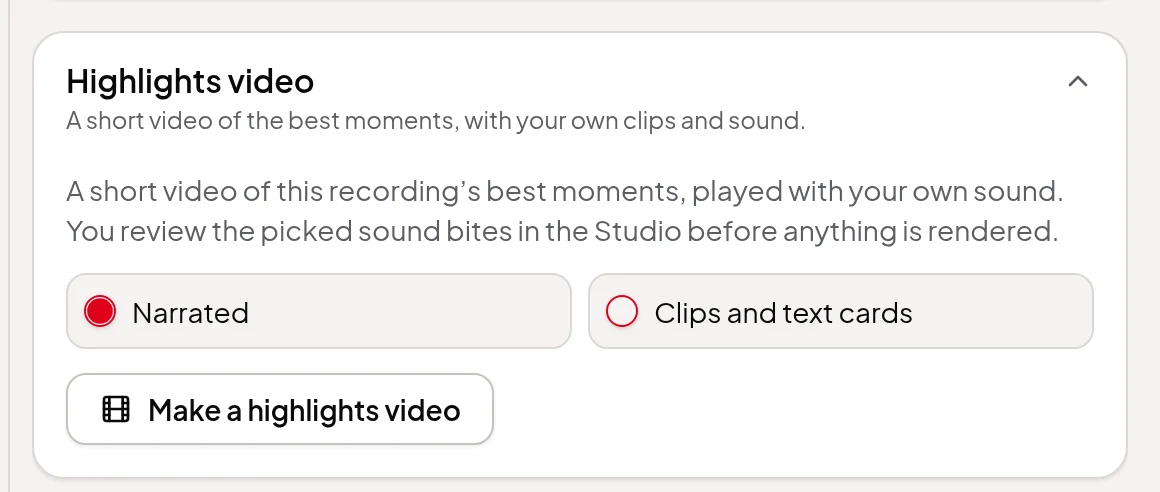
A two-hour stream or a long interview can become a short highlights video in the speaker’s own words. A highlights video picks the strongest sound bites of one recording you keep in the cloud and links them with short narrated bridges or text cards. Check, move or trim each bite in the storyboard, then render it in landscape, or vertical for Shorts. See turn a long video into a highlights video.
Highlight videos from a whole series
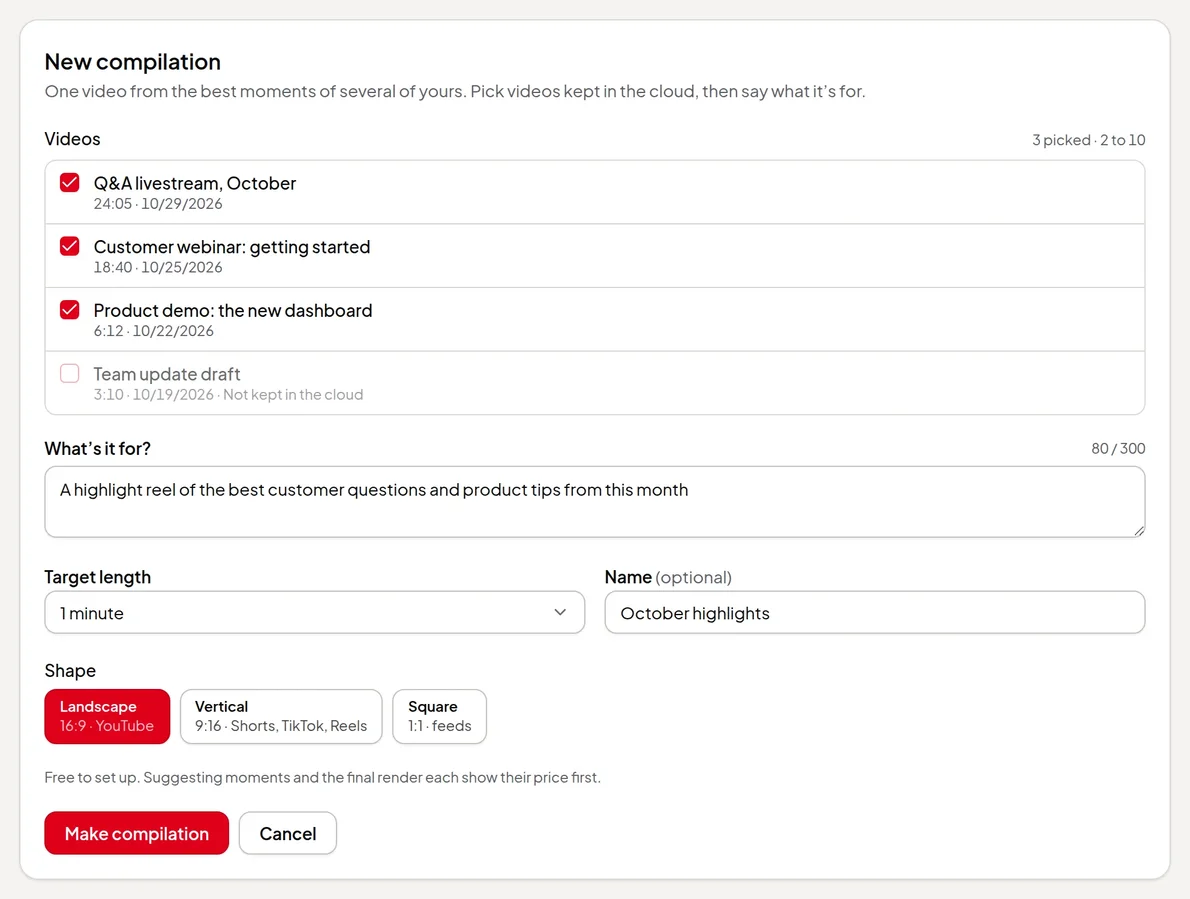
A month of streams or a season of episodes can become one “best of” video. A compilation takes 2 to 10 of your recordings kept in the cloud and a line on what it’s for, suggests whole-sentence moments that fit, and lets you order and trim them before it renders with a title card, labels and captions. See make a highlight compilation.
Summary videos from long videos
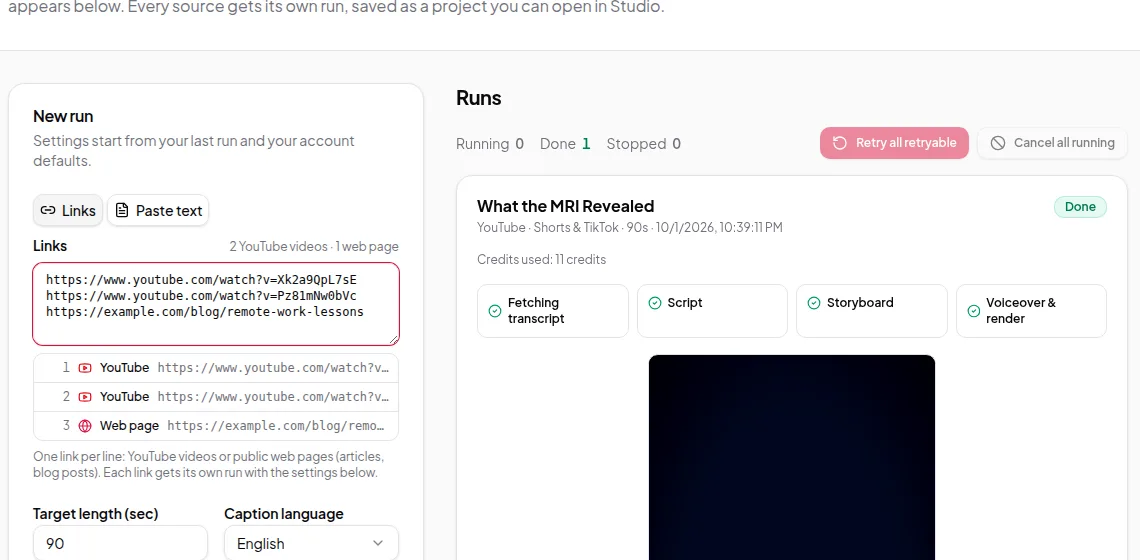
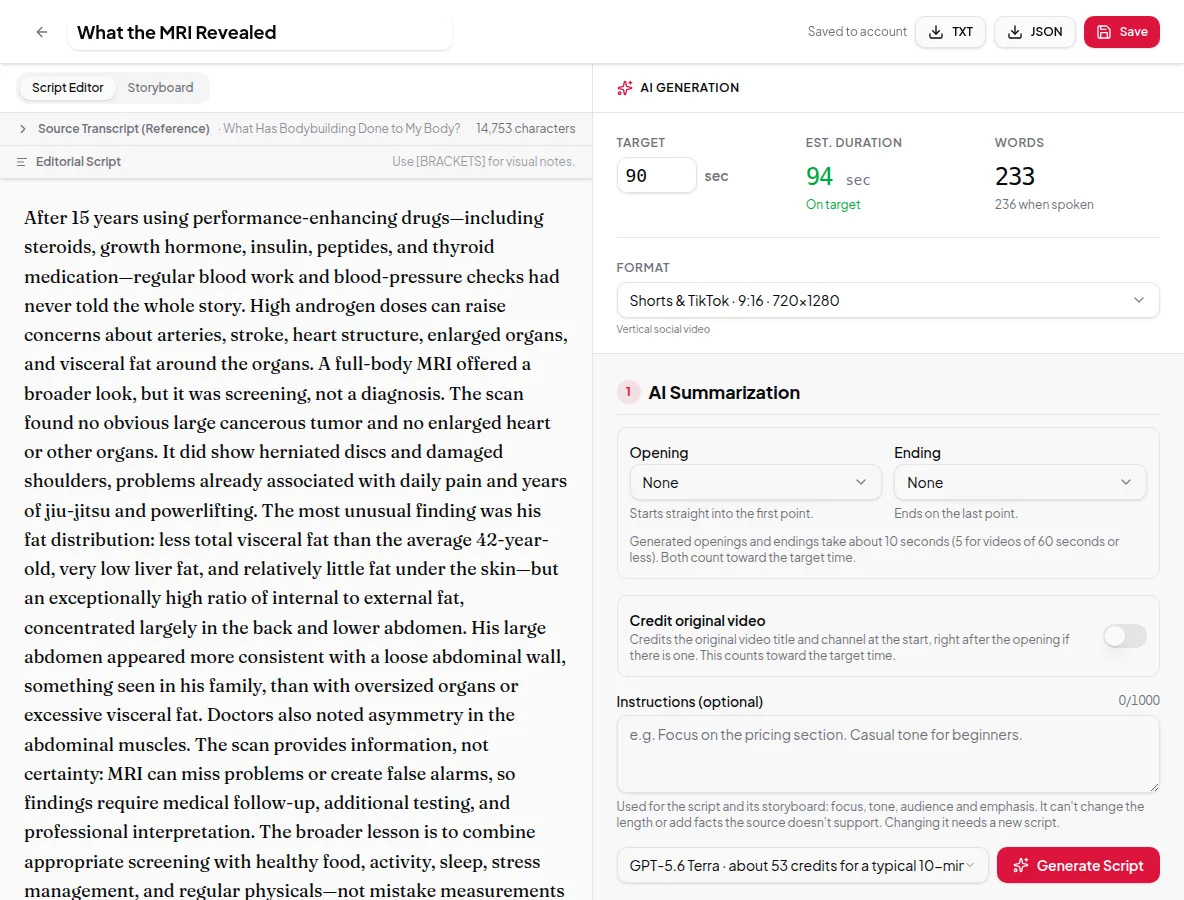
A long stream, interview or podcast episode on your channel can also become a short recap. Paste its YouTube link into the Studio: Vidonto writes a short script from the video’s captions, lets you check the script and every frame in the storyboard editor, then narrates it with an AI voice and renders it with captions. Make it 16:9 for the channel or 9:16 for Shorts — see YouTube video to summary video and video formats.
To cover a topic from more than one video, choose Several sources instead and combine 2 to 5 YouTube videos, articles or notes into one video, as a New piece or a Summary. The video description lists every source, with links for web pages and YouTube videos. Only have a topic? Find sources for me suggests articles and videos it has already read; its price is shown before you search, and nothing is charged if it finds nothing. See several sources to one video. Or choose Topic in Quick Render and the run picks the sources and makes the whole video, for up to 20 topics at once, as a how-to guide, feature tour, comparison or explainer if you like. See topic to video.
Use it with videos you have the right to adapt, such as your own. Summary videos can also show clips from your own recordings on the frames where they match what’s said.
Features YouTube creators use
| You want… | Use |
|---|---|
| A tight edit without scrubbing a timeline | Edit video by text |
| Ums, long pauses and retakes gone | Mistake detection |
| Shorts, Reels and TikToks from a long video | Short clips |
| Chapter timestamps for the description | Chapters |
| A title, description and tags | Description writer |
| Less hum and echo in your voice | Clean up sound |
| Your uploads back in the editor | Add a video from a link |
| A short highlights video of one stream, with narration | Highlights videos |
| A “best of” video from several streams | Compilations |
| A short recap of a long video | YouTube to summary video |
| Your own footage inside a summary video | Your footage in summary videos |
| One video from several videos or articles | Several sources to one video |
| A finished video from just a topic | Topic to video |
Worth knowing first
- YouTube only shows chapters when there are at least three of 10 seconds or more. Vidonto follows the same rule, so very short videos won’t get chapters.
- Vidonto doesn’t post for you. Download the video and copy the text into YouTube yourself.
- Summary videos need the YouTube video to have captions. To edit the video itself, add it from its link instead: it’s downloaded, kept in the cloud and transcribed, after you confirm it’s yours or you have permission. Instagram and Vimeo links can’t be used.
- Editing and exporting on your computer are free. The transcript, short clips, chapters, the description, polished videos and each summary step use credits, and the price is shown before you start. See credits explained.
Get started
Create an account, open the Video Editor and try it on your latest upload:
- Edit a talking-head video by deleting words
- Remove ums, pauses and retakes automatically
- Make Shorts and Reels from a long video
- Write a YouTube description and chapters from your video
- Summarize a YouTube video into a short video
- Add a video from a YouTube or TikTok link
- Turn a long video into a narrated highlights video
- Make a highlight compilation